
What it's for
The new reports experience is a redesigned reports homepage that brings together over 80 reports, organized into a Featured tab and eight categories — Clients, Sales & Finance, Appointments, Activities, Business, Memberships, PabauPay, and Organization — designed to be easier to find and easier to read. Instead of a flat list, reports are grouped by purpose, so you can go straight to the area you care about — whether that's spotting clients at risk of lapsing, reconciling your accounts, or tracking membership renewals.
How to find it
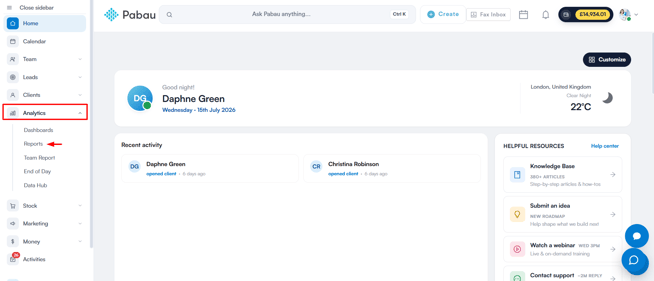
Step 1: Navigate to the Analytics Feature
Log in to your Pabau account, and in the left sidebar menu, go to Analytics, then click on the "Reports" button.
Step 2: Access the reports banner
On the "Try our new suite of reports" banner, click Try it now.
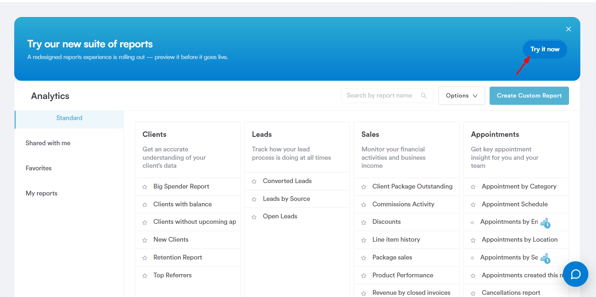
NOTE: The "Try our new suite of reports" banner is being rolled out gradually, so not every account will see it yet. The banner can also be dismissed — once dismissed, it won't reappear in the same browser.
Finding your way around
The new reports homepage is built around a few key areas:
- Sidebar views: On the left, switch between All Reports, Shared with me, Favourites, My reports, and Data Connector. The sidebar also links to the Exports page and includes a Folders tree, so you can organize your custom reports into folders and subfolders.
- Search: A search bar below the page heading searches the whole catalog at once — while you're typing, matching reports from every category are shown together.
- Category tabs: The Featured tab (marked with a star) collects highlighted reports, followed by a tab for each of the eight categories. You'll only see the tabs you have report permissions for, and the Organization tab appears only for multi-account organizations.
- Recently Viewed: A strip of the reports you opened most recently, for one-click return.
- Report cards: Each report shows a short description, a popularity meter, and badges — New for recently added reports, Popular for widely used ones, Plus for premium reports, and Coming soon for reports that aren't available just yet. Click the star on any report to add it to your Favourites.
- Sort, group, and filter: Inside a category, sort reports by Popularity, A → Z, Newest, or Plus first; group them By section, By plan, or By status; and use the filter chips to show All reports, or only New, Plus, or Custom (your own) reports.
- Build a custom report: If none of the catalog reports fit your needs, the "Build a custom report" button in the top-right corner starts a new custom report. It appears if you have the "Can create custom reports" permission.
NOTE: Reports carrying the Plus pill are part of Pabau's premium tier: At-Risk Clients, Returning Clients, New Client First 90 Days, Client Lifecycle Flow, Repeat Visit Curves by Segment, Client Revenue Retention, and the Business Snapshot Report.
How it's helpful
Each report in this new experience is designed to answer a specific business question at a glance — without you needing to build a custom report from scratch. Together, they help you:
- Spot clients who are drifting away before you lose them, and know exactly who to reach out to.
- Reconcile your accounts, deposits, and gift card liability at period-end.
- See how efficiently your rooms, equipment, and team's time are being used.
- Track membership signups, usage, renewals, and retention, so you can act before a member cancels.
- Keep on top of payment processing with PabauPay reports covering payouts, failed payments, and cross-location settlement.
- Report across every company in a multi-account organization from one place.
Explore the new reports
The reports below have dedicated guides — they're listed by the category tab where you'll find them.
Clients
- At-Risk Clients
- Returning Clients
- New Client First 90 Days
- Client Lifecycle Flow
- Client Revenue Retention
- Repeat Visit Curves by Segment
Sales & Finance
Appointments
Business
Memberships
PabauPay
Other reports you'll find in the catalog include Stale Leads, Unassigned Leads, Lost Leads by Reason, Closed Lost Trend, and Win Rate by Owner under Clients; Failed Payments, Payouts, and AVS Details for Saved Cards under PabauPay; and five Organization reports — Organization Client List, Organization Appointments, Organization Payments, Organization Invoices, and Organization Line Items — for multi-account organizations.
With this understanding, you're ready to explore any of the reports above and see exactly what the new reports experience offers.
Was this guide helpful? Let us know by voting below - your feedback helps us write clearer articles.
For more guides, browse the related articles below or use the search bar at the top of the page. You can also watch our video learning series, the Pabau Academy, or visit the Support page for additional help.