
The Membership Benefits Details report gives you a complete view of how membership benefits are being used across your business, or at an individual location. It follows every benefit through its lifecycle, what was included with a membership, what has been redeemed, and what remains - making it useful for financial audits, client follow-ups, and evaluating how well your memberships are performing.
Each line in the report represents one benefit within one membership sold to one client. If a membership includes three different benefits, that membership appears as three separate rows - one per benefit. This means the number of rows will usually be higher than the number of memberships.
How to find it
Step 1: Open Reports
Log in to your Pabau account. In the left sidebar, hover over Analytics and click Reports. The reports catalogue opens, with every report you have access to.
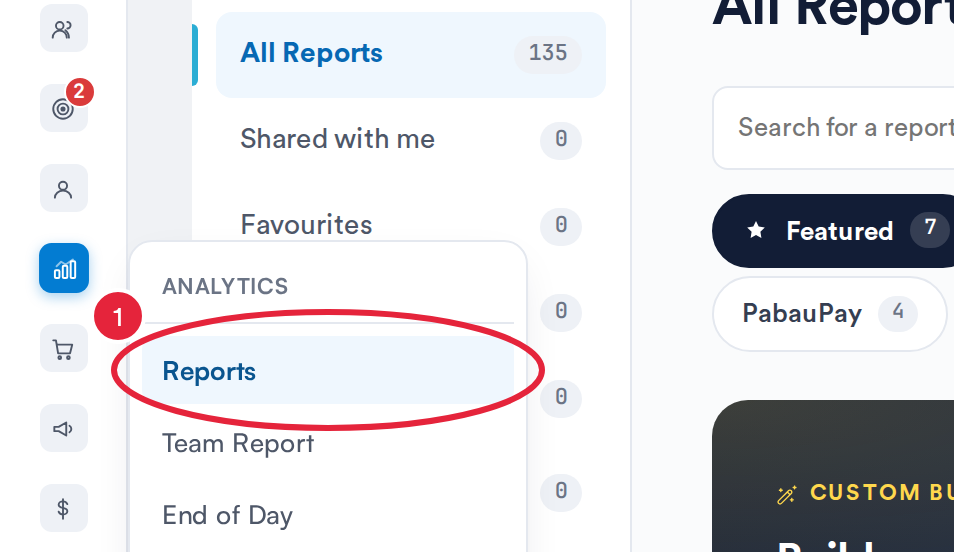
Analytics → Reports opens the reports catalogue
Step 2: Open the Report
Click the Memberships tab, then click Membership Benefits Details in the Usage & benefits section to open the report. You can also type the report’s name in Search for a report.

Filters
- Sale date range – Defaults to the last 30 days. Choose from presets (Today, Last 7 days, Last 30 days, Last 90 days) or set a custom range. The maximum span you can select is one year, and dates are read in your clinic's local calendar days.
- Locations – Show one, several, or all locations. You'll only see the locations you have permission to access.
- Plans – Filter to specific membership plans, or show all of them.

NOTE: Below the filters, status chips (Active, Pending, Expired, or All) let you quickly focus the table, with a count beside each showing how many rows fall into it. Terminated and frozen memberships still appear in the data, even though they aren't offered as their own clickable chips.
Understanding benefits
A membership benefit is a service perk a member is entitled to as part of their plan — for example, a "Monthly Facial," or a set number of treatments included with the membership. This report focuses on the service benefits included in each plan.
For every benefit, the report tracks three things: how much was included (the total quantity and its value), how much has been used (the redeemed quantity and value), and how much is left (the remaining balance).
Understanding the report
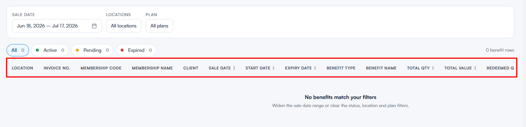
The table columns
| Column | What it shows |
|---|---|
| Location | The location where the membership was sold. |
| Invoice no. | The invoice number the membership was sold on, shown as a code-styled reference. A dash (—) means no invoice is linked. |
| Membership code | The unique reference for that client's membership enrolment, shown as a code-styled reference. |
| Membership name | The name of the plan the client is on, shown with the plan's colour. |
| Client | The client who holds the membership. Click to open their profile. |
| Sale date | The date the membership was sold. |
| Start date | The date the membership became active. |
| Expiry date | When the membership expires. Blank if the membership has no set end date. |
| Benefit type | The kind of benefit, for example a service credit. |
| Benefit name | The specific benefit, e.g. "Monthly Facial". |
| Total qty | The quantity of this benefit included with the membership. Shows Unlimited where the plan grants unlimited use. |
| Total value | The monetary value of the included quantity (quantity × the benefit's price). |
| Redeemed qty | How many of the benefit the client has actually used. |
| Redeemed value | The monetary value of what has been redeemed. |
| Balance qty | What's left — the total minus what's been redeemed. Shows Unlimited for unlimited benefits. |
| Cycle | The billing cycle the row relates to. One-off memberships always show 1; recurring memberships count up over time (month 1, month 2, and so on). |
| Status | The current state of the membership (see below). |
Statuses
Each membership carries a status, shown as a coloured badge:
- Active (green) – the membership is live and within its dates.
- Pending (amber) – sold but not yet started.
- Expired (red) – the membership has passed its expiry date.
- Terminated (grey) – the membership was cancelled.
- Frozen (blue) – the membership is paused.
The totals line
When rows are shown, a totals line summarises the filtered set: Total value (the combined value of all included benefits shown), Redeemed value (the combined value of everything redeemed), and Balance qty (the combined remaining quantity).
Toolbar controls
In the top-right corner of the report you’ll find the standard report actions:
| Button | What it does |
|---|---|
| Columns | Opens the column manager, letting you show or hide any of the columns listed above. |
| Export | Downloads the report as a CSV file. The export covers the entire filtered set — every matching row, not just the rows you’ve scrolled through so far. |
| Opens a print-friendly version of the report, laid out in landscape. | |
| Help | Opens the built-in help panel explaining the report. |
| Refresh | Re-runs the report to pull in the latest data. |
How the numbers are worked out
Understanding the calculations helps when a client queries their balance:
- Total value is the included quantity multiplied by the benefit's unit price. Where a benefit is unlimited, no fixed value is shown.
- Redeemed qty counts every time the benefit has been used. Cancelled or reversed uses are not counted, so the figure reflects genuine usage only — where a benefit works as a credit, a use and a later reversal cancel each other out.
- Redeemed value is the total value of everything genuinely redeemed.
- Balance qty is the total included minus what's been redeemed, and it never drops below zero. Unlimited benefits always show a balance of Unlimited.
- Expiry logic – if a membership is marked active but its expiry date has already passed, the report shows it as Expired so the figures stay honest.
With this understanding, you can confidently read the Membership Benefits Details report to see exactly what's included in each membership, what's been used, and what's still available to your clients.
Was this guide helpful? Let us know by voting below - your feedback helps us write clearer articles.
For more guides, browse the related articles below or use the search bar at the top of the page. You can also watch our video learning series, the Pabau Academy, or visit the Support page for additional help.