
The Failed Payments report lists every PabauPay (Stripe) charge that failed within a date range — the patient it belongs to, the card that was used, the amount, and Stripe’s decline reason.
It answers: which payments didn’t go through, whose cards were declined, how much revenue those failed charges add up to, and why each one failed — so you can follow up with the client, retry the charge, or take another payment method.
For example, if Emma Thompson’s monthly "Glow Membership" charge is declined on 14 June, the report shows the request date and amount, the card ending, and a red Reason pill such as "Your card has insufficient funds." — everything the front desk needs to follow up.
In this article, we’ll explain how to find the report, what each filter and column means, and the limits to keep in mind.
How to find it
Step 1: Open Reports
Log in to your Pabau account. In the left sidebar, hover over Analytics and click Reports. The reports catalogue opens, with every report you have access to.
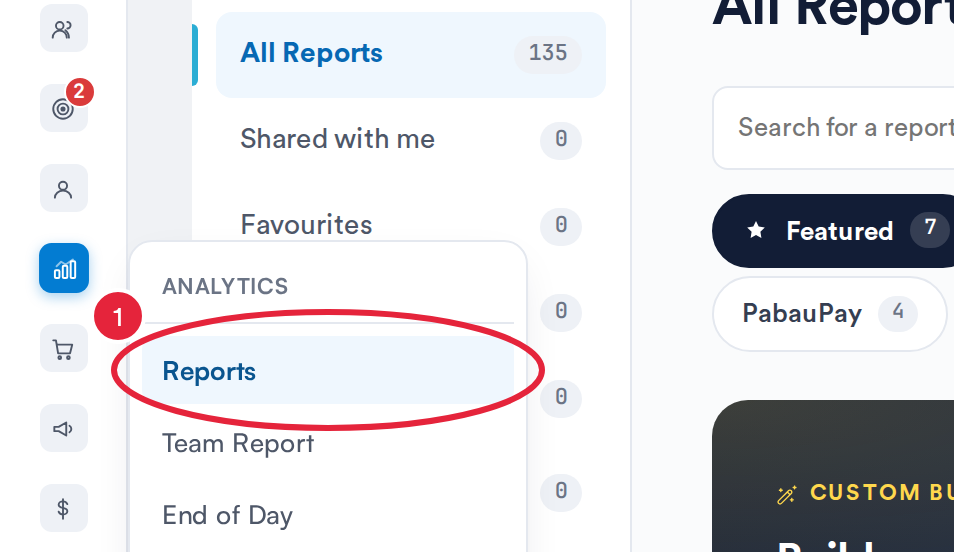
Analytics → Reports opens the reports catalogue
Step 2: Open the Report
Click the PabauPay tab, then click Failed Payments (marked with a New badge) to open the report. You can also type the report’s name in Search for a report.
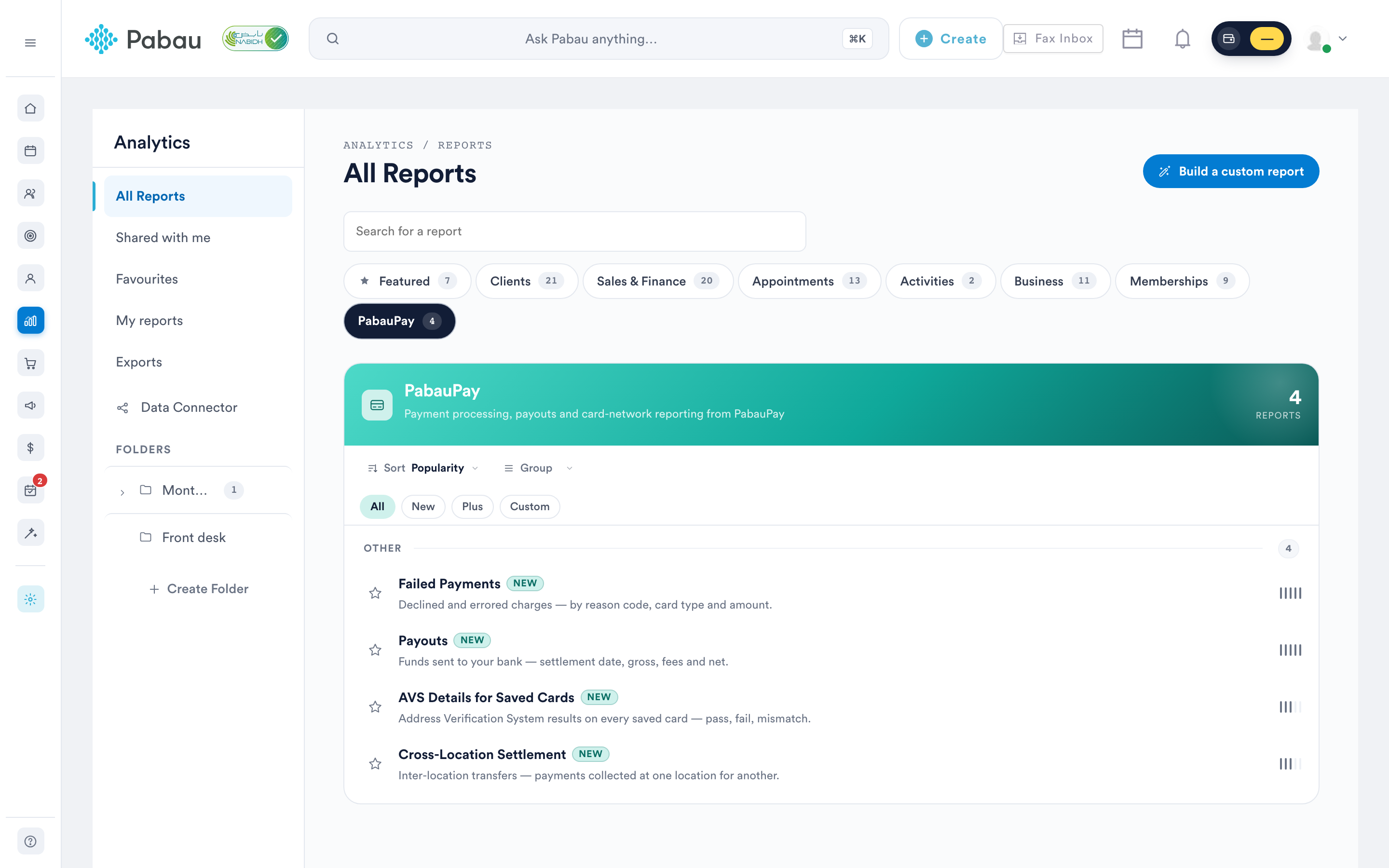
NOTE: The PabauPay section is visible to users who have the All Business reports switch turned on under Report access in their own or their role’s permissions, and an admin can also give a staff member or role access to this report on its own (see How to Give a Staff Member or Role Access to Individual Reports). The report reads live data from your PabauPay (Stripe) account, so it only shows results once PabauPay is set up. New to PabauPay? Start with the Card Terminal and Wallet setup guide.
Toolbar controls
| Button | What it does |
|---|---|
| Columns | Opens the column manager — show or hide any of the 11 table columns. Your choice is remembered in your browser for this report. |
| Export | Downloads the on-screen table as a CSV file (e.g. failed-payments-2026-08-04.csv). In the CSV, the Reason column also appends Stripe’s failure code in parentheses. |
| Opens your browser’s print dialog, formatted for A4 landscape. | |
| Help | Opens the in-app help panel — an overview, how-to steps, and a definition of every column. |
| Refresh | Re-runs the report with your current filters. |
Filters
- Dates – The date range the report analyses, matched against the date each charge was attempted. Defaults to the last 30 days, with presets for Today, Last 7 days, Last 30 days, This month, Last month, and Year to date, or a custom range. Clearing the range shows "All dates", but the report still loads the most recent 30 days of failed charges.
- Location – Optional, single-select, searchable. Scopes the report to one location — only locations you’re permitted to access are listed.
- Card brand – Optional, single-select. Defaults to All brands, or pick one of Visa, Mastercard, American Express, Discover, Diners Club, JCB, UnionPay, or Unknown.
There’s no free-text search box on this report — use the filters to narrow the list instead.
Understanding the report
The table
Each row is one failed charge. You can find a definition of every column in the Help panel.
| Column | What it shows |
|---|---|
| Location | The clinic location the charge belongs to. |
| Patient name | The patient who was charged. Click the name to open their client card. |
| Patient email | The patient’s email address. |
| Request date | When the charge was attempted, e.g. "Aug 4, 2026 3:12 PM". |
| Transaction # | The Stripe charge ID for the failed attempt. |
| Card | The card brand and last four digits, e.g. "visa ···· 4242". |
| Card type | The card’s funding type: credit or debit. |
| Card present | Yes or No — whether the card was physically present, i.e. an in-clinic card terminal payment. |
| Recurring | Yes or No — whether the charge was part of a recurring payment, such as a membership. |
| Amount | The amount that failed to charge. |
| Reason | Stripe’s failure message or decline reason, shown as a red pill. |
The totals bar
Below the table, Total sums the amount of every failed charge in the current view, and the results label shows the count, e.g. "38 failed charges".
NOTE: Two limits to keep in mind:
- Only PabauPay (Stripe) charges appear here. Declined payments taken through any other payment provider, and manually recorded payments, are not included.
- The report lists the most recent failed charges in your selected window, up to around 200. If a busy period could exceed that, narrow the date range so nothing is cut off — the Total sums only the charges listed.
Related guides
- Payouts Report — the other side of the money flow: what reached your bank.
- AVS Details for Saved Cards Report — spot risky saved cards before charging them.
- Cross-Location Settlement Report — PabauPay settlement across your locations.
- How to Access Your Stripe Dashboard via Pabau
With this understanding, you can confidently use the Failed Payments report to stay on top of declined charges, understand why they failed, and recover the revenue behind them.
Was this guide helpful? Let us know by voting below - your feedback helps us write clearer articles.
For more guides, browse the related articles below or use the search bar at the top of the page. You can also watch our video learning series, the Pabau Academy, or visit the Support page for additional help.