
The Vaccination Report provides a clear overview of all vaccinations recorded in your clinic, allowing teams to track records by employee, date, or time period. It supports compliance, improves data accuracy, and can include additional details such as GP or next of kin information for audits and reporting, helping clinics save time and maintain consistent, reliable records.
Step 1: Access the Vaccination Report
Log in to your Pabau account. In the left sidebar, hover over Analytics and click Reports. In the reports catalogue, click the Business tab, then click Vaccination report in the Clinical section to open it. You can also type the report’s name in Search for a report.
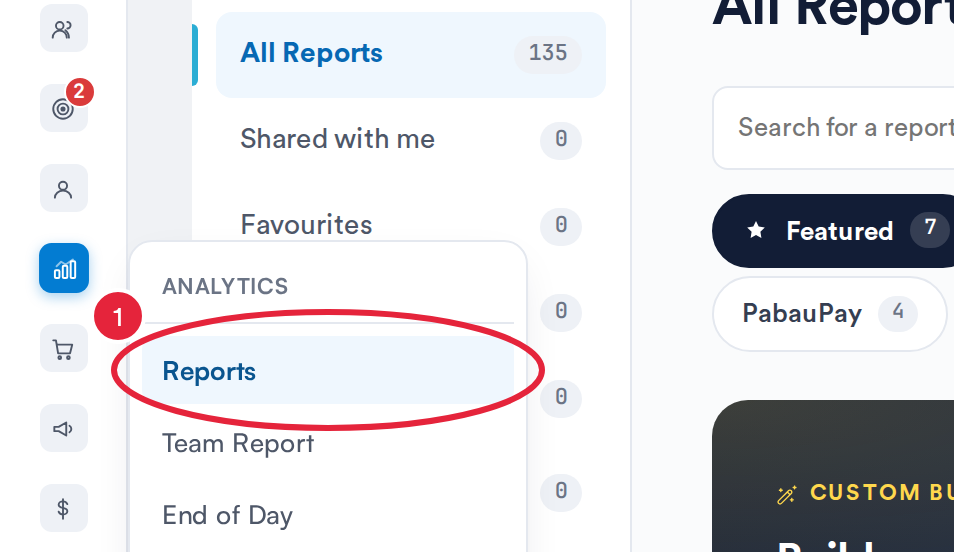
Analytics → Reports opens the reports catalogue
To refine the data shown in the report, use the filters at the top. Each filter allows you to narrow down the records displayed.
Step 2: Select Date
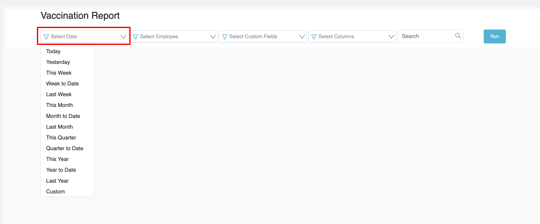
Click the Date filter and choose the period you want to review. You can select from preset options — Today, Last 7 days, Last 30 days, Last 90 days, or Year to date — or choose your own custom date range. By default, the report shows the last 30 days. The date filter matches each vaccination’s scheduled administration date.
Step 3: Select Employee
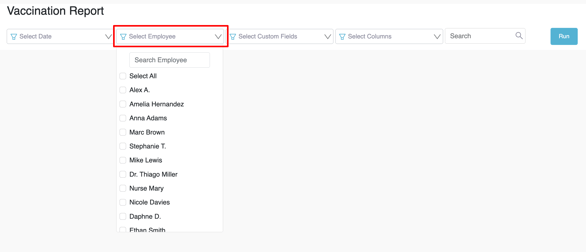
Next, click the Employee filter to choose which employee or employees you want to include in the report. You can search for an employee by name or select multiple staff members. If you want to include everyone, tick "All employees" or simply leave the filter empty.
Step 4: Edit Columns (optional)
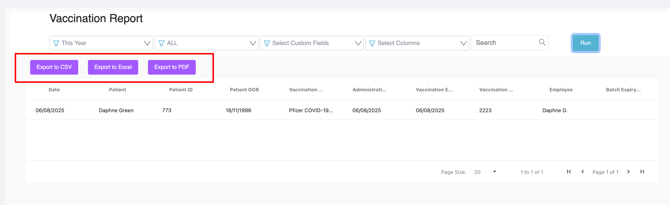
The report opens with a base set of columns: Date, Patient, Patient ID, Patient DOB, Vaccination Name, Administration Date, Vaccination Expiry, Vaccination Batch, Employee, and Batch Expiry Date.
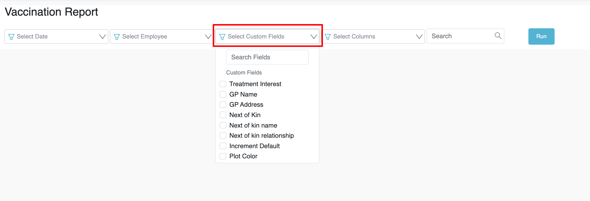
If you would like to add more information to your report, click Columns in the toolbar. This opens the "Edit Columns" catalog where you can tick additional client, appointment, and custom fields — such as GP Name, GP Address, Next of Kin, or Treatment Interest — so the report shows only the data most relevant to your clinic’s needs.
Step 5: Review the Results
There is no Run button — the report runs automatically each time you change a filter, displaying a table of all vaccination records that match your selected criteria. To re-run the report at any time, click Refresh in the toolbar.
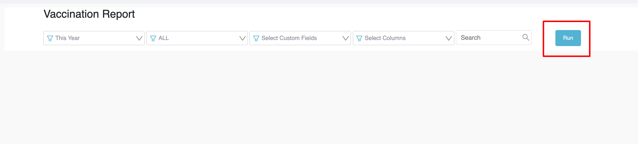
Click a patient’s name in the table to open their client card directly. Vaccinations with no recorded administration date or coverage end date are marked Not administered or Not set. You can also use the Search bar to quickly locate a specific record. Results are shown 20 rows per page.
Step 6: Export the Report
After reviewing the results, you can export the report by clicking Export in the toolbar and choosing Excel or CSV, depending on your needs. The export includes the full filtered data set, and the file name starts with "vaccination_report". You can also use the Print option to print the data for recordkeeping or reporting purposes.
The Vaccination Report is a valuable tool for reviewing and managing vaccination data within your clinic. By using the available filters, columns, and export options, you can quickly locate specific records, monitor staff activity, and maintain comprehensive vaccination tracking. This helps improve data accuracy, streamline administrative work, and support compliance requirements across your organization. To track whether key treatment-journey steps have been completed for each appointment, see the Pathway Report guide.
For more guides, refer to related articles below, select additional guides, or use the search bar at the top of the page. These guides will help you get the most out of your Pabau account.
Additionally, to help you fully utilize and understand your Pabau account, we recommend exploring additional guides and resources offered at the Pabau Academy. It offers in-depth video tutorials and lessons, offering a holistic learning experience that can equip you with the essential skills for achieving success with Pabau.