
The Win Rate by Owner report lists the leads that have been marked as Won, together with the team member who owns each one, so you can review wins per person over a chosen period.
In this article, we'll explain how to find the report, how its default filters work (by default it only shows your own wins for the current month), how to widen it to your whole team, and how to export and save your view.
What to expect: this report is a list of won leads. It does not include lost leads, and it does not display a calculated win-rate or conversion-rate percentage column. To review your losses alongside your wins, pair it with the Lost Leads by Reason report or the Closed Lost Trend report.
Step 1: Open Reports
Log in to your Pabau account. In the left sidebar, hover over Analytics and click Reports. The reports catalogue opens, with every report you have access to.
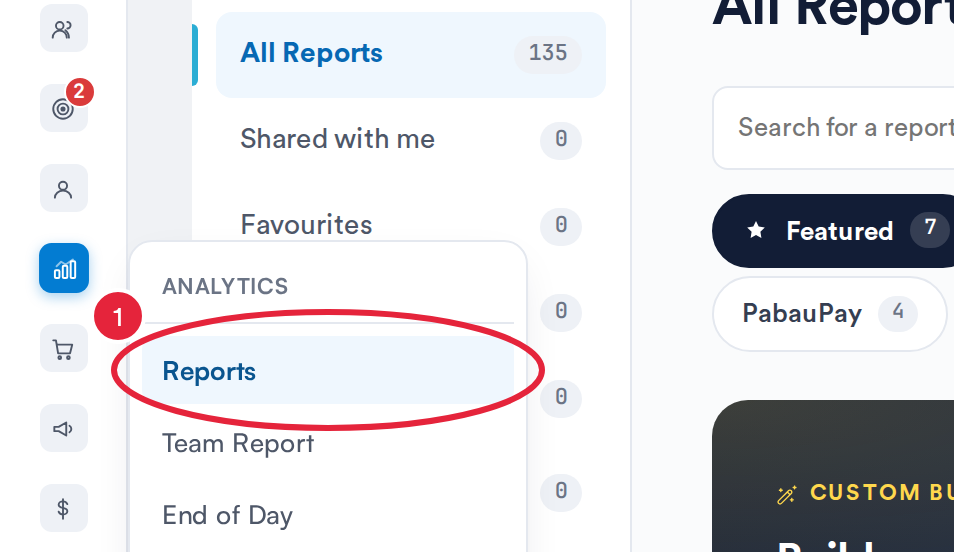
Analytics → Reports opens the reports catalogue
Step 2: Open the Win Rate by Owner report
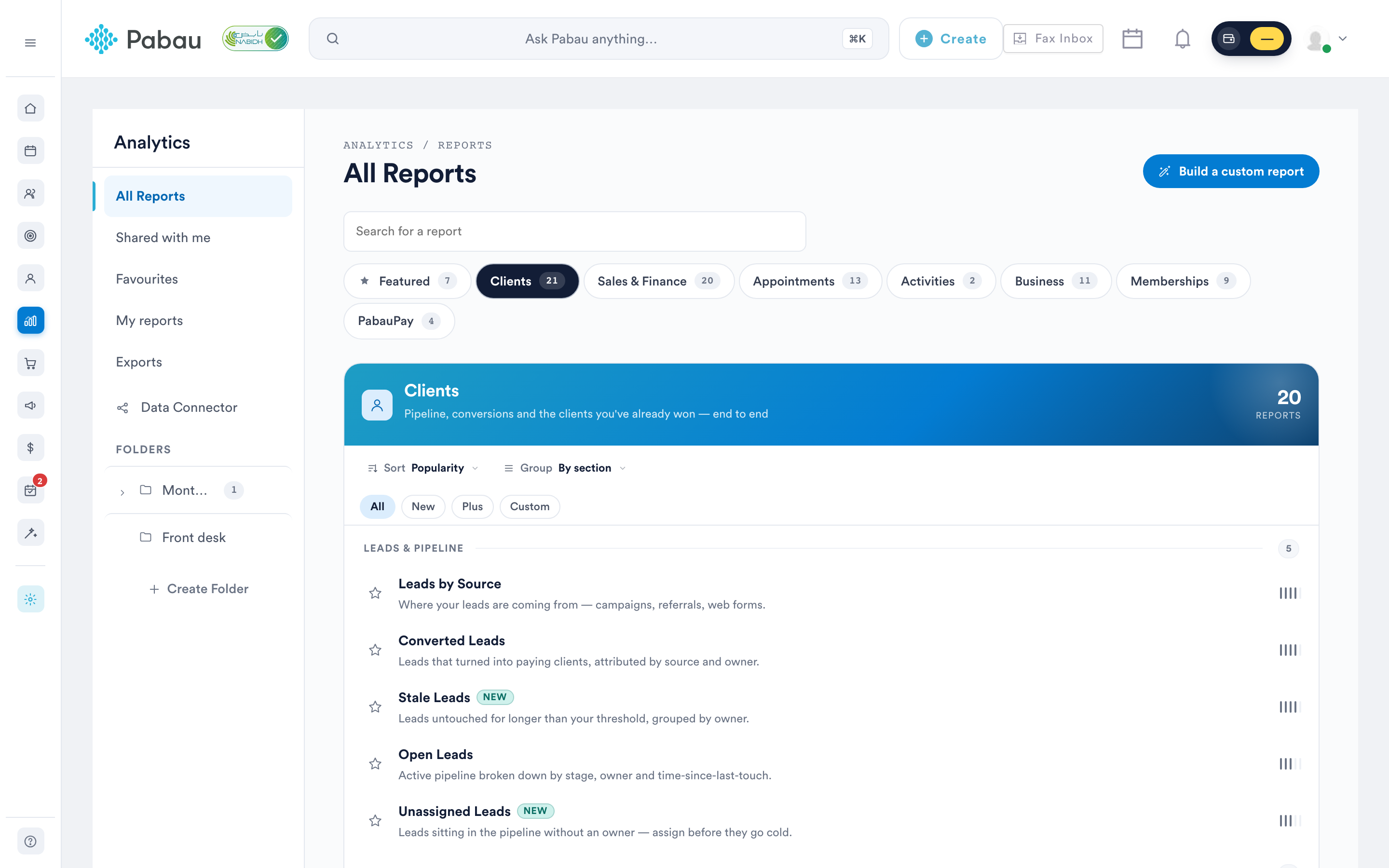
In the reports catalogue, open the Clients tab, scroll to the "Win/loss analysis" group, and click on Win Rate by Owner (it carries a "New" badge). The report opens in the reports viewer, where you can adjust filters and columns.
Step 3: Understand the default filters
The report opens with two filters already applied. Each filter is shown as a pill made up of four elements — object, field, operator, and value — and each element can be changed by clicking on it.
- Won time is in This month — limits the report to leads won during the current month.
- Lead owner is [your name] — the owner filter comes preset to whoever is viewing the report, so the pill shows your own name and by default you only see leads that you own.
IMPORTANT: With the default filters, the report shows only your own won leads for this month. To review another team member, click the value in the "Lead owner" pill and select their name. To see wins across the whole team, hover over the "Lead owner" pill and click the "X" icon to remove it — the report will then list every won lead, with the Lead owner column telling you who won each one. You can also change the "Won time" value to a different period, such as last month.
Step 4: Adjust the filters
- Adding a new filter: Click the plus sign (+) beneath your current filters, then specify the details of the new filter. Custom fields can be used as filters as well.
- Editing an existing filter: Click directly on the element you want to change (the field, operator, or value) and pick a new option from the dropdown.
- Removing a filter: Hover over the filter pill and click the "X" icon that appears.
After adjusting the filters, click the "Run" button in the top right corner to refresh the results.
Step 5: Review the data
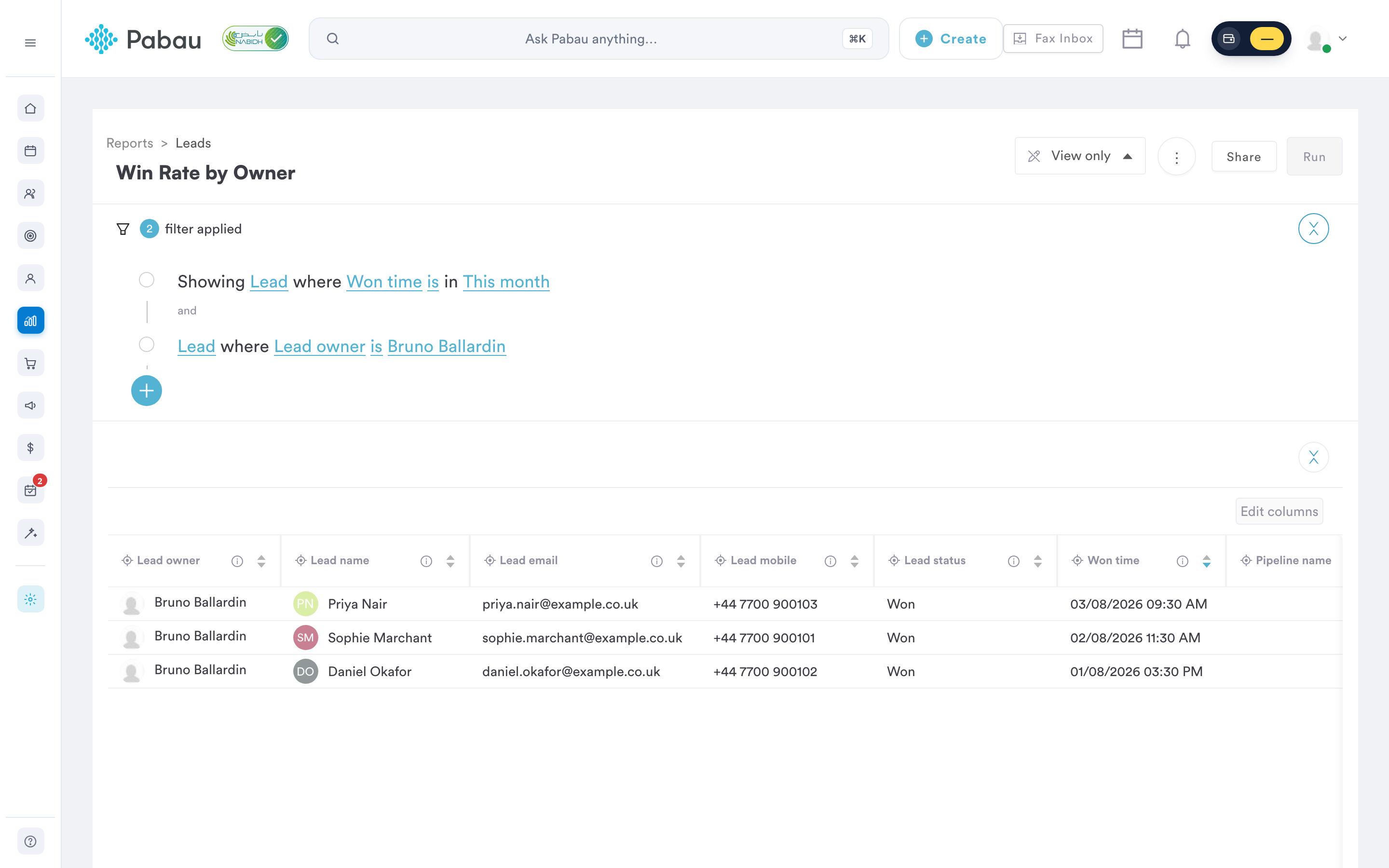
By default, the report includes the following columns, sorted by Won time with the most recent wins first:
- Lead owner: the team member the lead is assigned to.
- Lead Name: the name of the lead, through which you can access their lead card.
- Lead email and Lead mobile: the lead's contact details.
- Lead status: the lead's current status.
- Won time: when the lead was marked as won.
- Pipeline name and Pipeline stage: where the lead sat in your pipelines.
You can include more columns using the "Add column" option — for example, Lead source or Lead created.
Step 6: Export, print, or save your view
- Click the three dots in the top right corner to Export the data as a CSV or Excel (XLSX) file, or to Print a detailed copy of the report. (Your own saved reports offer additional options here.)
- To keep your own version of the report — for example, a team-wide version with the owner filter removed — click the three dots (More options) at the top right and choose Clone. Pabau saves a private copy, named after the report with "Copy" on the end, and opens it in the report editor. Adjust it as you need, then click Save Report. Your copy is listed under My reports, and the original report stays unchanged. Clone copies the report as it was originally set up, so make your filter and column changes in the editor. You can then share your copy with teammates.
- You can also mark the report as a favorite for quick access — see How to Favorite a Report.
NOTE: To open the reports page you need the "Can access reports page" permission. The Clients tab of the reports catalogue, and this report, are visible to staff who have the All Clients reports switch turned on under Report access in their own or their role’s permissions (it covers both client and lead reports), or who have been given this report on its own (see How to Give a Staff Member or Role Access to Individual Reports).
By following these steps, you can use the Win Rate by Owner report to review won leads per team member. For the full picture of your lead funnel, also review the Converted Leads report, the Stale Leads report, and the Unassigned Leads report.
For more guides, refer to related articles below, select additional guides, or use the search bar at the top of the page. These guides will help you get the most out of your Pabau account.
Additionally, to help you fully utilize and understand your Pabau account, we recommend exploring additional guides and resources offered at the Pabau Academy. It offers in-depth video tutorials and lessons, offering a holistic learning experience that can equip you with the essential skills for achieving success with Pabau.