
NOTE: Your clinic decides which options you see, so some of the steps below may look slightly different or be skipped.
In this article, you will learn how to book an appointment on your clinic’s online booking page, from choosing a treatment to getting your confirmation. It works the same way on a computer, tablet or phone.
Step 1: Open the Booking Page
Open the booking link your clinic has shared with you, for example on their website, in an email or on social media. Then:
- Click Book an appointment.
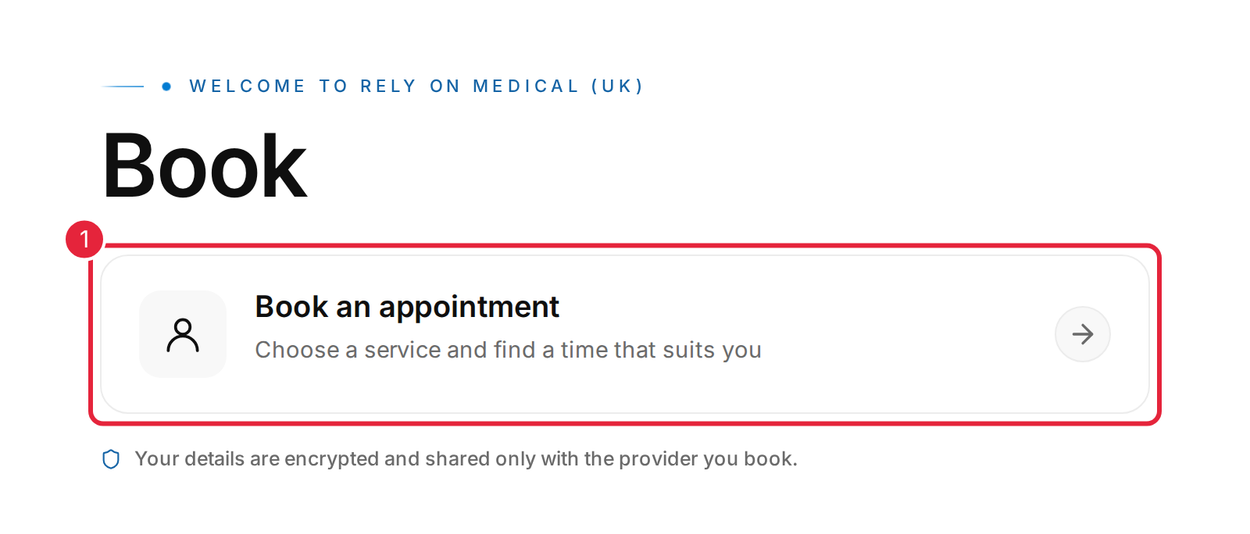
Click Book an appointment
If your clinic has more than one location, you will be asked to choose where you would like to be seen. If your clinic offers other ways to book, such as for a child, a group or a class, you will see those options here too.
Step 2: Choose Your Services
- Use the category buttons to browse, or type in the search box to find a treatment by name.
- Click + next to the service you want. It turns into a tick and appears in your booking summary. You can add more than one service.
- Click Continue.
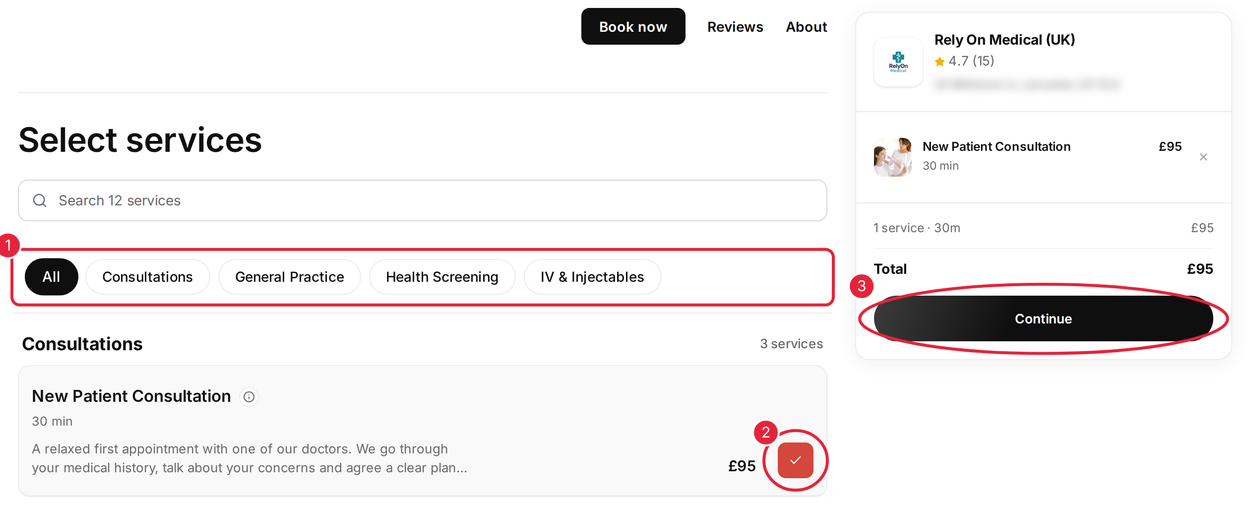
Choose a category, add a service, then click Continue
TIP: Click the information icon next to a service name to read more about it. If your clinic sells a package for that treatment, a window opens where you can choose 1 session or a package of sessions, then click Add to booking. See How to Buy a Package via Online Bookings.
Step 3: Choose Who You Would Like to See
- Choose Any professional to see the earliest available times, or
- choose the person you would like to see. Click the information icon on their card to read more about them.
- Click Continue.
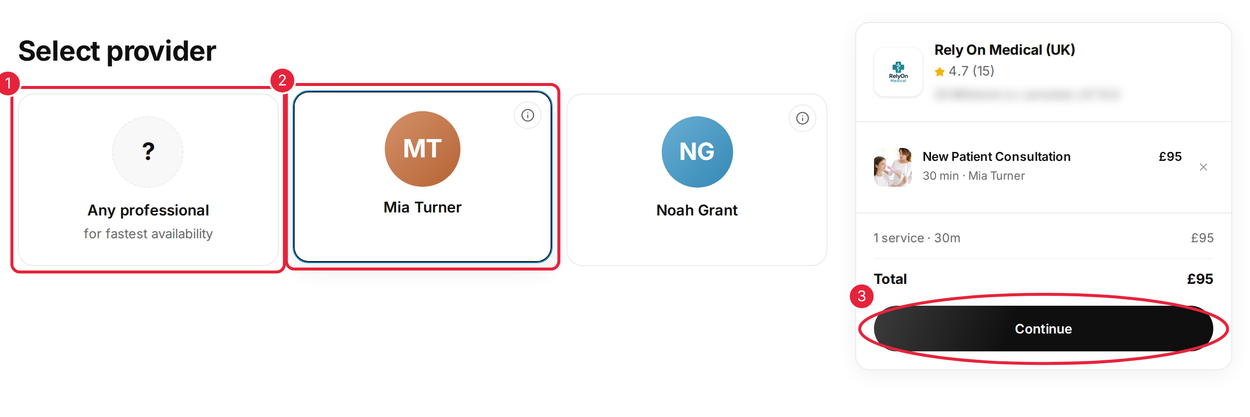
Choose Any professional or a named provider, then click Continue
Some clinics skip this step and choose the provider for you.
Step 4: Choose a Date and Time
- Click a date in the calendar. Dates with free times are underlined with coloured marks.
- Click a start time. Use Morning, Afternoon and Evening to narrow the list.
- Click Continue.
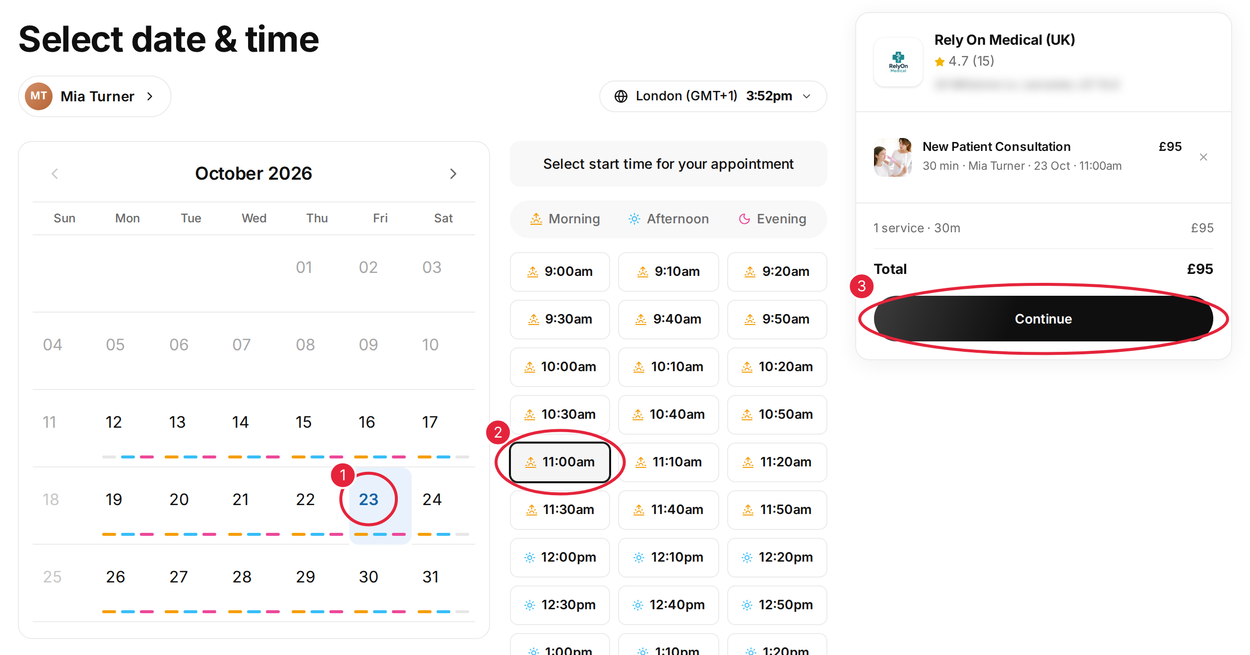
Pick a date and a start time, then click Continue
NOTE: Can’t find a time that suits you? Click Join Waitlist to ask to be added to the waiting list for that day. See How to Join the Waitlist via Online Bookings.
Step 5: Sign In With Your Email
If you are not signed in yet, you will be asked to Sign up or log in to proceed. There is no password to remember.
- Enter your email address.
- Click Continue. We email you a six-digit code. Enter it and click Verify and continue.
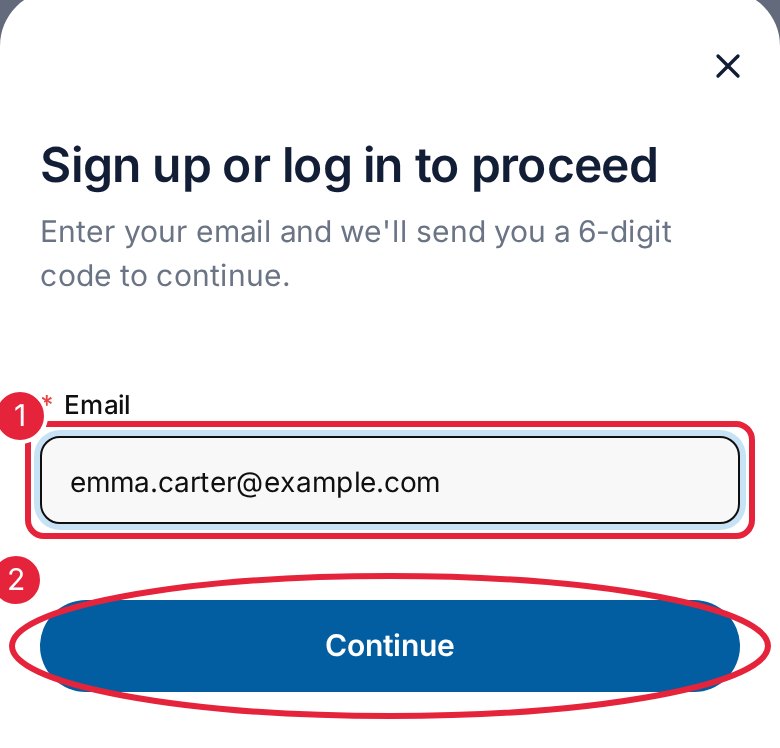
Signing in on a phone: enter your email, then tap Continue
If this is your first booking with the clinic, your account is set up for you automatically. You may be asked to Complete your details: enter your first name, last name and mobile number, then click Save and continue. For more help, see How to Log In to the Client Portal.
Step 6: Check and Confirm Your Booking
Check the date, time, service and provider in Your appointment on the right. To change the time, click Choose a different time.
- Add anything the clinic should know, such as access needs, in Notes for the business (optional).
- Click Confirm booking.
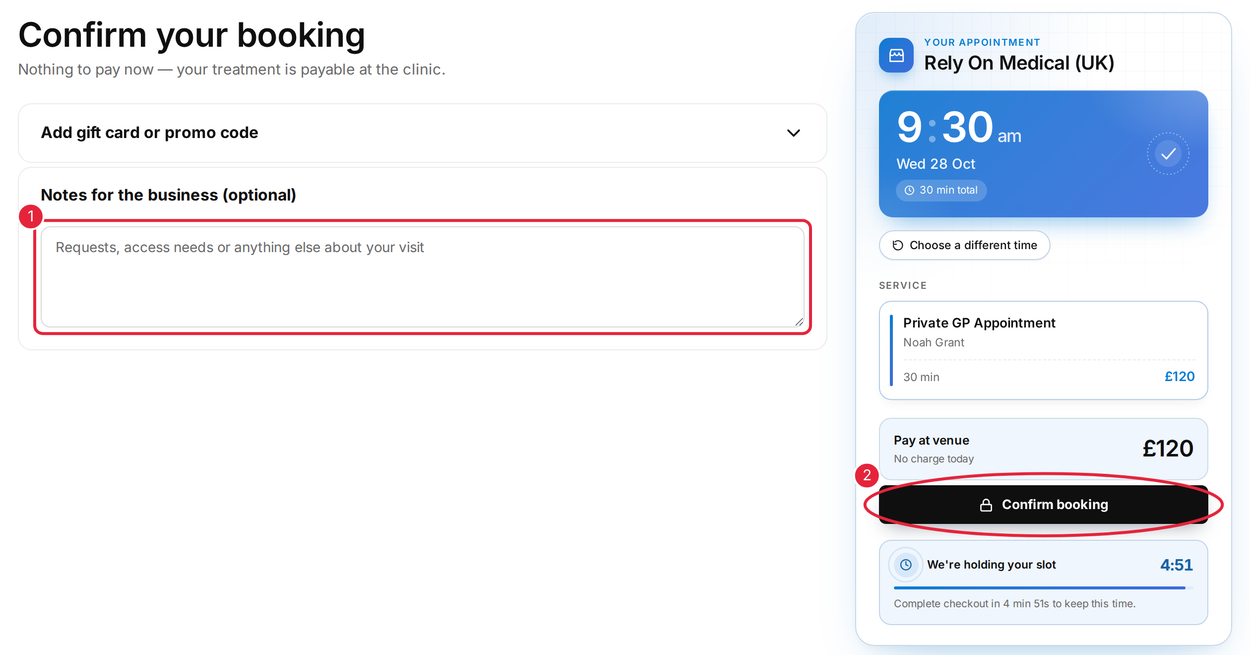
Add a note if you like, then click Confirm booking
- If your clinic asks for a deposit or payment when you book, this step is called Payment and the button shows the amount, for example Confirm and pay · £50. See How to Pay a Deposit via Online Bookings.
- Have a gift card or promo code? Click Add gift card or promo code before you confirm.
IMPORTANT: We’re holding your slot shows how long your chosen time is reserved for you. If the timer runs out before you confirm, you may need to choose your time again.
Step 7: Get Your Confirmation
When your booking is complete, you will see You’re booked in with the date, time, provider and your booking reference. A confirmation is emailed to you too.
- Click Add to calendar to save the appointment in your calendar.
- Click Need to make a change? to view the appointment in your client portal, where you can reschedule or cancel it if your clinic allows.
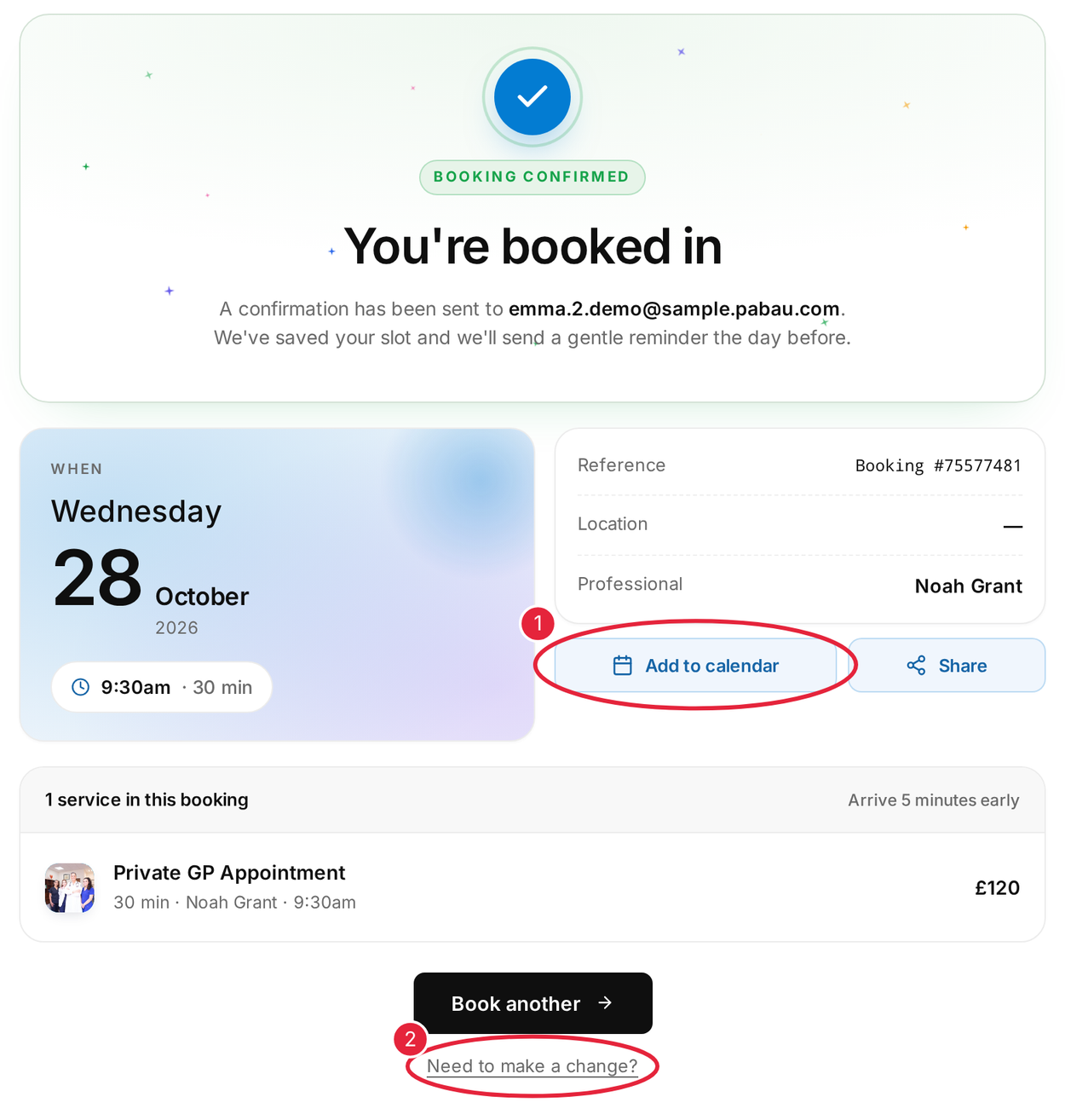
Your booking confirmation
To book something else straight away, click Book another.
What's next?
- How to Reschedule Your Appointment
- How to Cancel Your Appointment
- How to Confirm Your Appointment via Email or SMS
- How to Book an Appointment Using a Package
- Client Portal Help Guide (for Patients)
Questions? Contact your clinic directly — they will be happy to help.
Was this guide helpful? Let us know by voting below - your feedback helps us write clearer articles.
For more guides, browse the related articles below or use the search bar at the top of the page. You can also watch our video learning series, the Pabau Academy, or visit the Support page for additional help.