
NOTE: Your clinic decides which options you see, so some of the steps below may look slightly different or be skipped.
In this article, you will learn how to move an appointment to a different date or time from your client portal. It only takes a minute and there is nothing to pay again.
Step 1: Open Your Appointment
Sign in to your clinic’s booking page, click your name at the top right and choose My appointments. Click the appointment you want to move. Then:
- Click Reschedule.
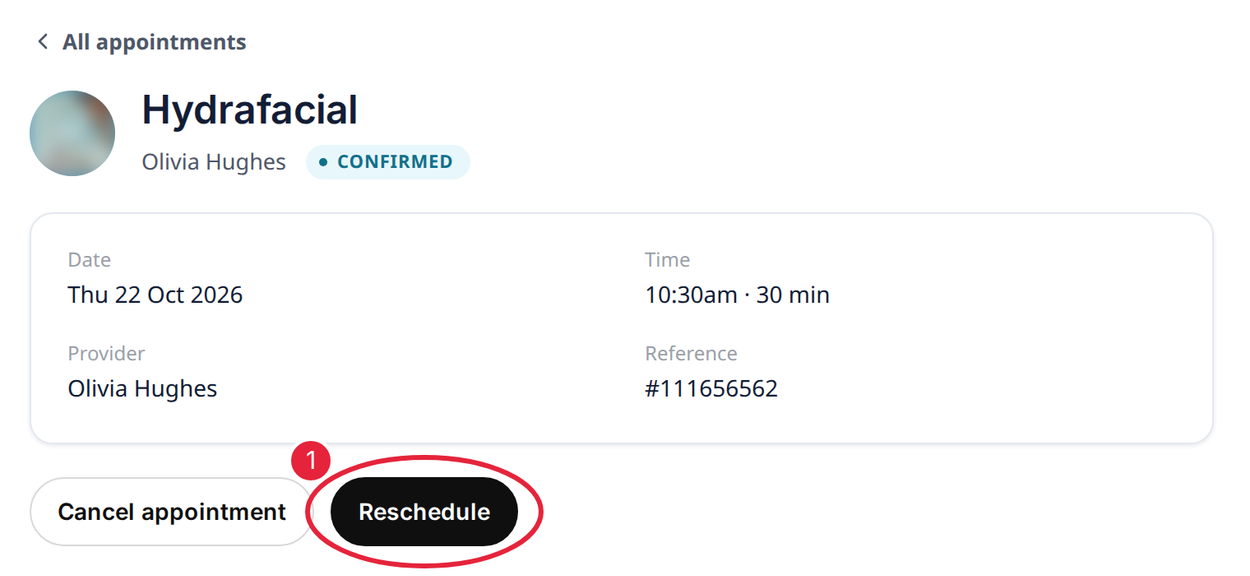
Click Reschedule on the appointment
Step 2: Pick a New Time
The Pick a new time screen opens with your service and provider already filled in.
- Tap the new date. On a phone, use the arrows to move between weeks.
- Tap a new start time. Use Morning, Afternoon and Evening to narrow the list.
- Tap Continue.
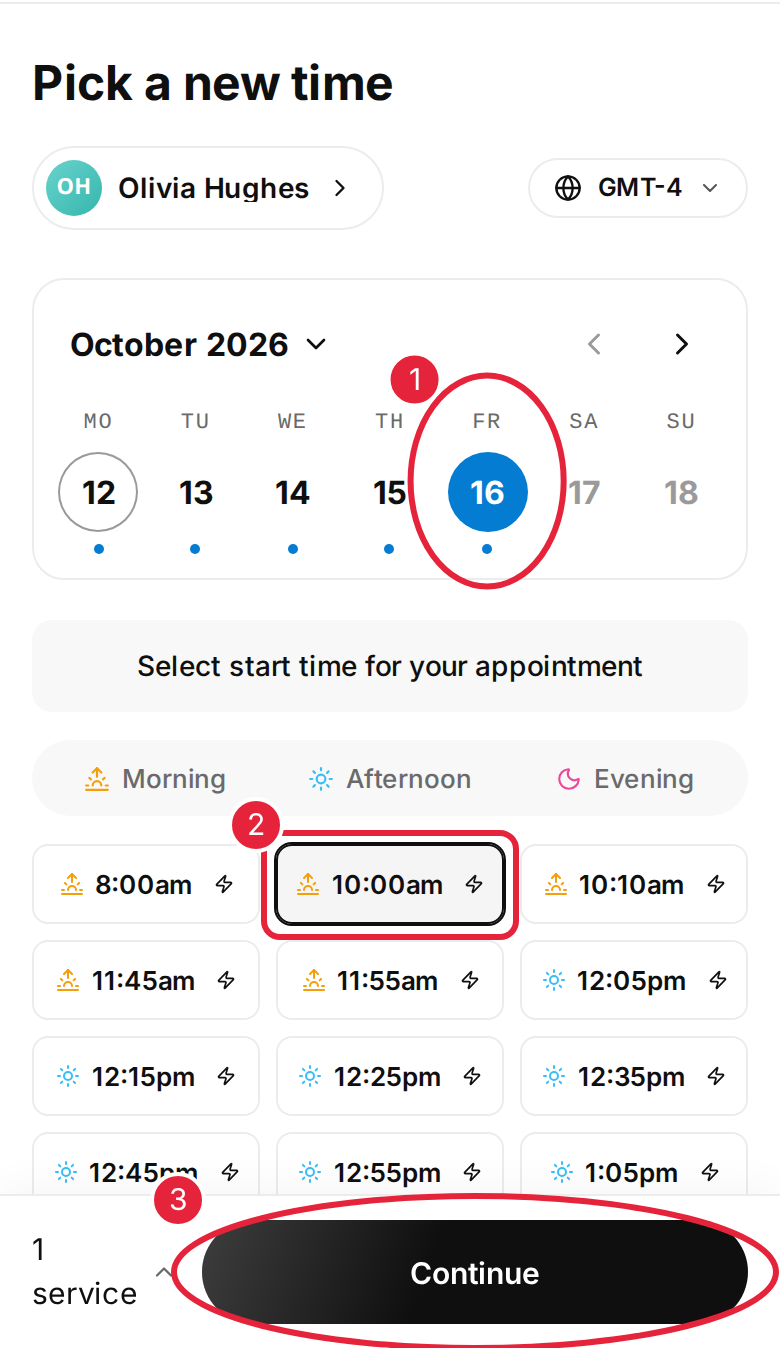
Pick a new date and time, then tap Continue
Step 3: Check Your New Appointment
You will see You’re all moved with your new date and time. Your old time is released, and the appointment shows its new time in Appointments straight away.
- Tap Add to calendar to put the new time in your calendar.
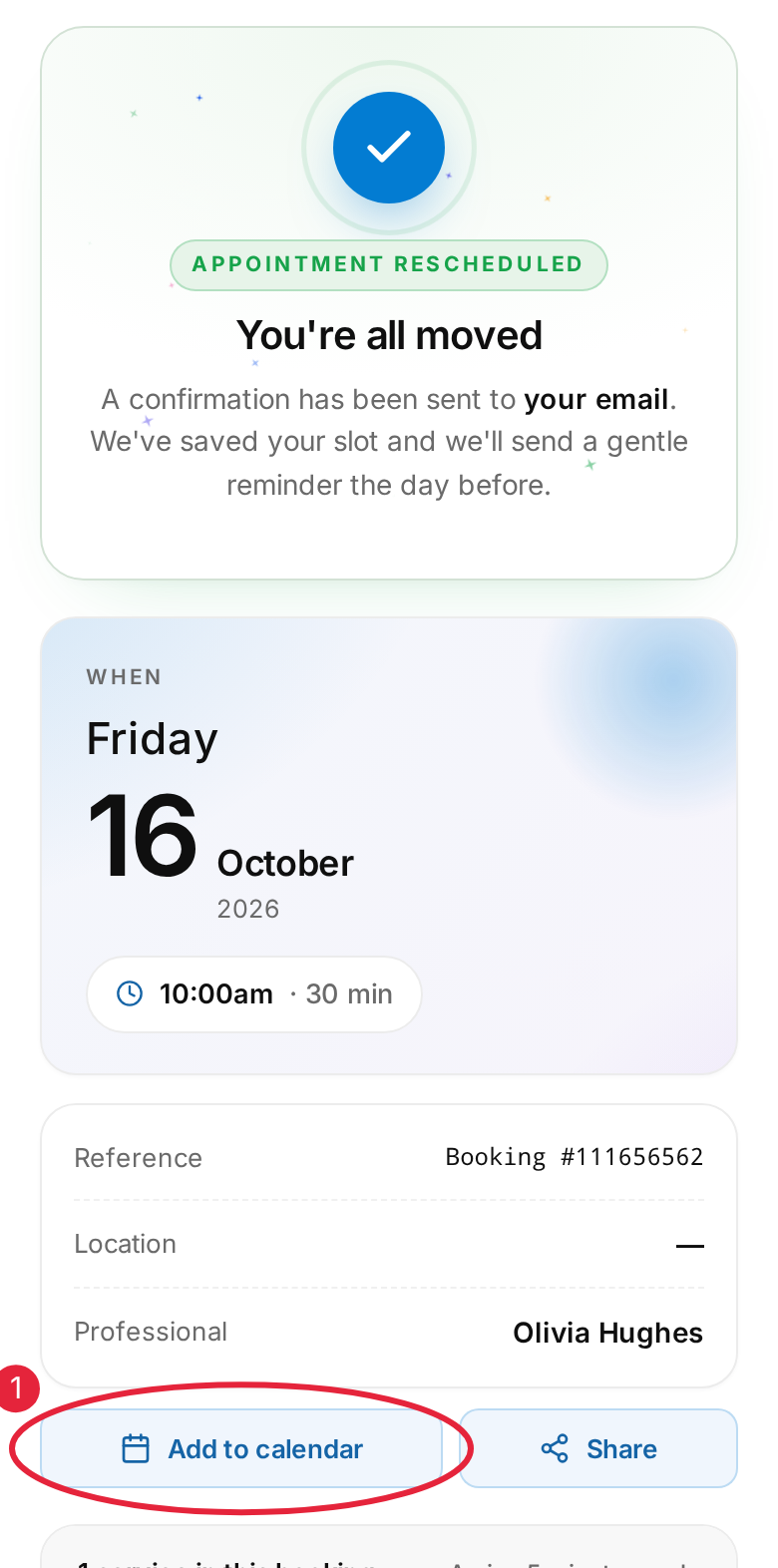
Your appointment has been moved
IMPORTANT: Clinics usually ask for notice before a change, for example 24 hours. Inside that notice period, Reschedule cannot be used online and you will see a message about the clinic’s notice period. Please contact the clinic to move the appointment instead. You can read the clinic’s policy under Venue policies when you book.
NOTE: Don’t see Reschedule? Your clinic may handle changes itself — you may see “This clinic handles appointment changes directly — please give them a call.” If you see “That time was just taken. Please pick another.”, someone booked that slot while you were choosing, so choose another time.
TIP: Can’t find a new time that suits you? Click Join Waitlist on the date screen — see How to Join the Waitlist via Online Bookings. If you no longer need the appointment, see How to Cancel Your Appointment.
What's next?
- How to Cancel Your Appointment
- How to Confirm Your Appointment via Email or SMS
- Client Portal Help Guide (for Patients)
Questions? Contact your clinic directly — they will be happy to help.
Was this guide helpful? Let us know by voting below - your feedback helps us write clearer articles.
For more guides, browse the related articles below or use the search bar at the top of the page. You can also watch our video learning series, the Pabau Academy, or visit the Support page for additional help.