
NOTE: Your clinic decides which options you see, so some of the steps below may look slightly different or be skipped.
If there is no free time that suits you, you can ask to join the waiting list for a particular day. In this article, you will learn how to join the waitlist from your clinic’s online booking page.
Step 1: Choose Your Treatment and the Day You Want
Start a booking as normal: click Book an appointment, add your service and choose a provider (see How to Book an Appointment via Online Bookings). On the Select date & time step:
- Click the day you would like to come in.
- Under Can’t find a spot?, click Join Waitlist.
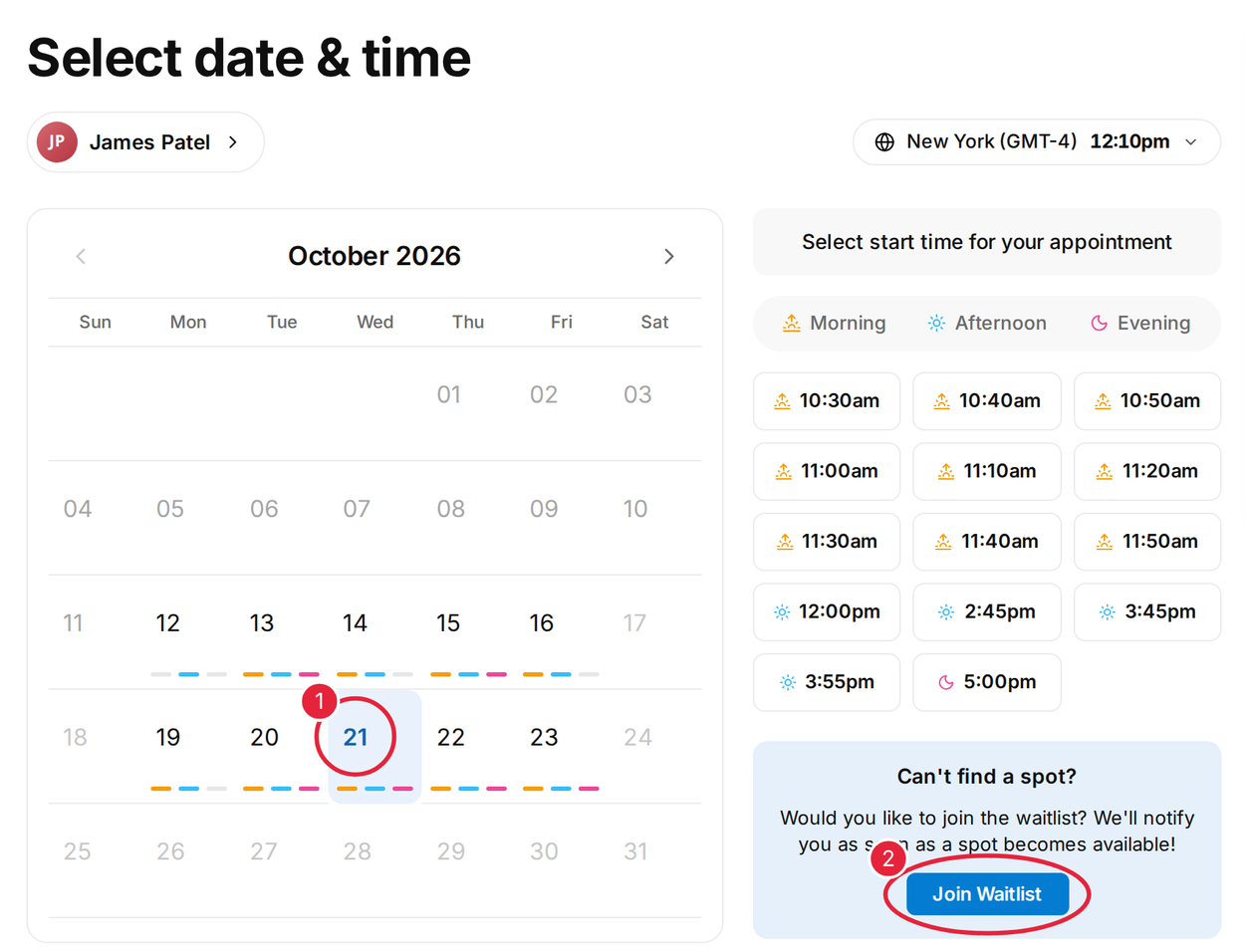
Choose the day, then click Join Waitlist
If the day you pick is fully booked, you will also see Join waitlist next to Go to next available date.
NOTE: You need to be signed in to join the waitlist. If you are not, you will be asked to enter your email and the six-digit code we send you. See How to Log In to the Client Portal.
Step 2: Choose the Times That Suit You
The Waitlist slots for window shows the day you chose.
- Choose Any slot, Any morning slot, Any afternoon slot or Any evening slot. To give an exact window instead, click Custom slot and choose a start and end time.
- Click Join waitlist.
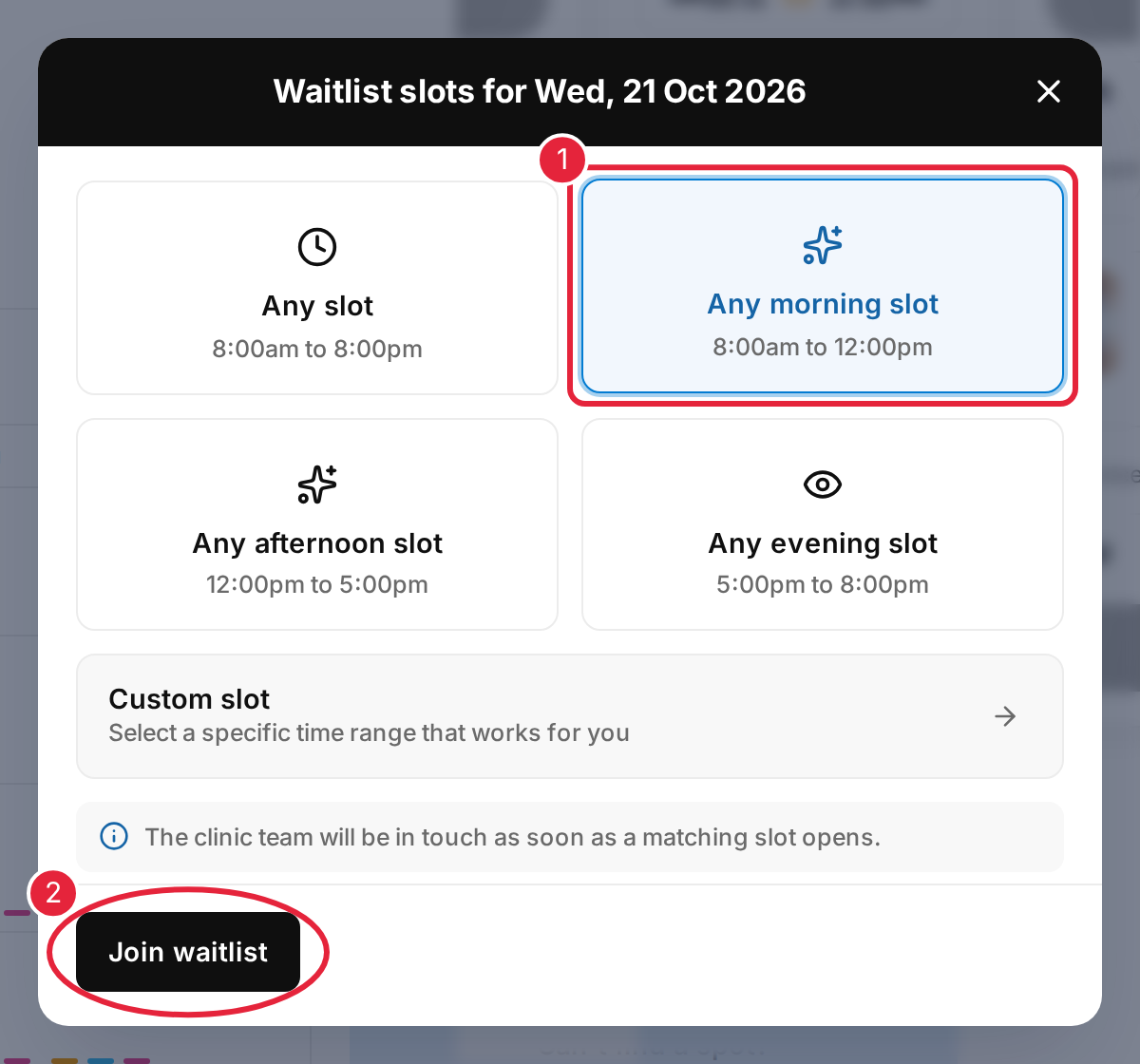
Choose when you could come in, then click Join waitlist
Step 3: You’re on the Waitlist
You will see You’re on the waitlist.
- Click Done.
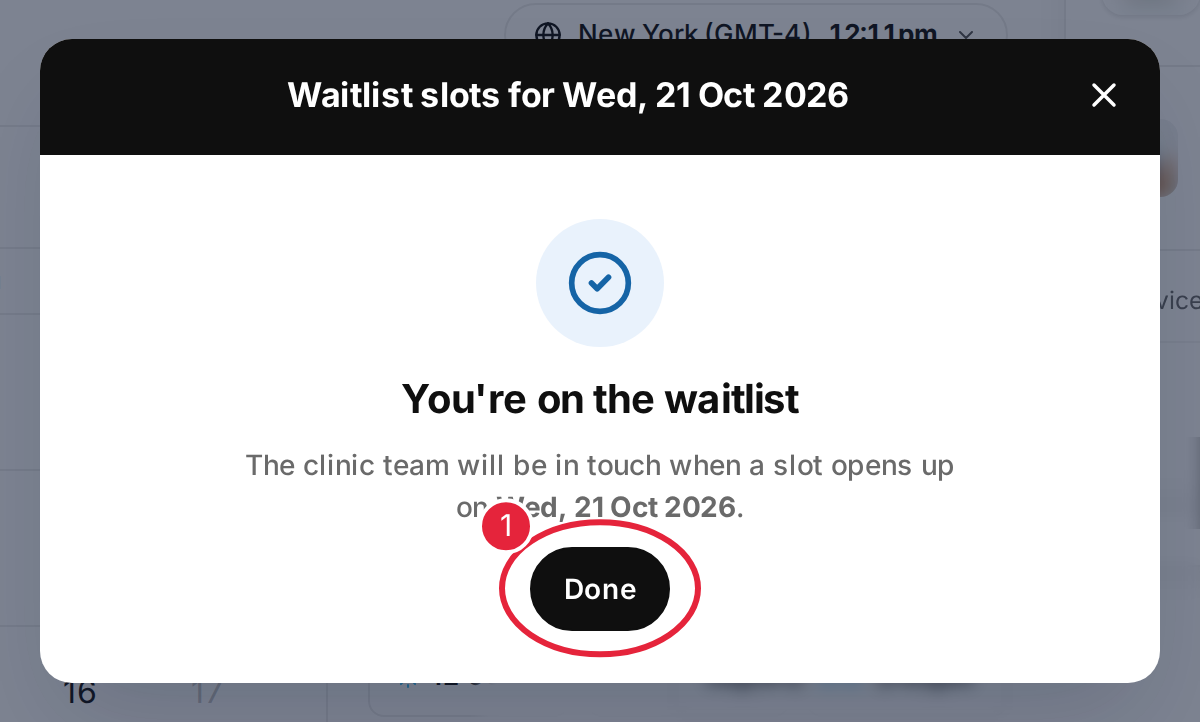
You have joined the waitlist
IMPORTANT: Joining the waitlist does not book an appointment. The clinic team will contact you if a matching time becomes free, so keep an eye on your phone and email. If you find another time in the meantime, you can still book it as normal.
TIP: The provider you chose is included with your waitlist request. To be offered any available practitioner, choose Any professional before you join.
NOTE: You can join the waitlist once per day. If you try again for the same day, you will see a message saying you are already on the waitlist for that day.
What's next?
- How to Book an Appointment via Online Bookings
- How to Reschedule Your Appointment
- Client Portal Help Guide (for Patients)
Questions? Contact your clinic directly — they will be happy to help.
Was this guide helpful? Let us know by voting below - your feedback helps us write clearer articles.
For more guides, browse the related articles below or use the search bar at the top of the page. You can also watch our video learning series, the Pabau Academy, or visit the Support page for additional help.