
NOTE: Your clinic decides which options you see, so some of the steps below may look slightly different or be skipped.
If you have bought a package of sessions, you can use it to book your next appointment online. The session is taken from your package automatically when you check out, so there is nothing to pay. In this article, you will learn how to book a package session and check how many sessions you have left.
Step 1: Find Your Package
Sign in to your clinic’s booking page, click your name at the top right and open your client portal (see How to Log In to the Client Portal). Then:
- Click My Packages in the menu on the left. Each active package shows how many sessions are left and which treatments it is VALID FOR.
- Click Book session on the package you want to use. This opens the booking page.
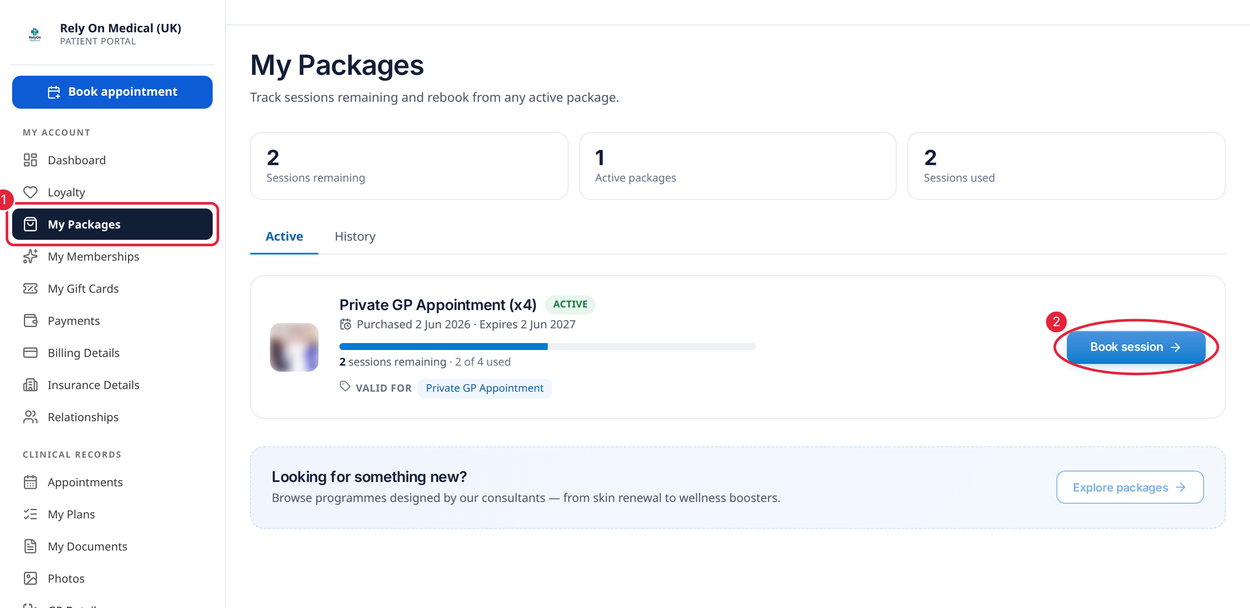
Open My Packages and click Book session
Step 2: Choose the Treatment Your Package Covers
Click Book an appointment and add the treatment shown under VALID FOR on your package. If a window opens with session options:
- Leave 1 session selected. You do not need to buy another package.
- Click Add to booking.
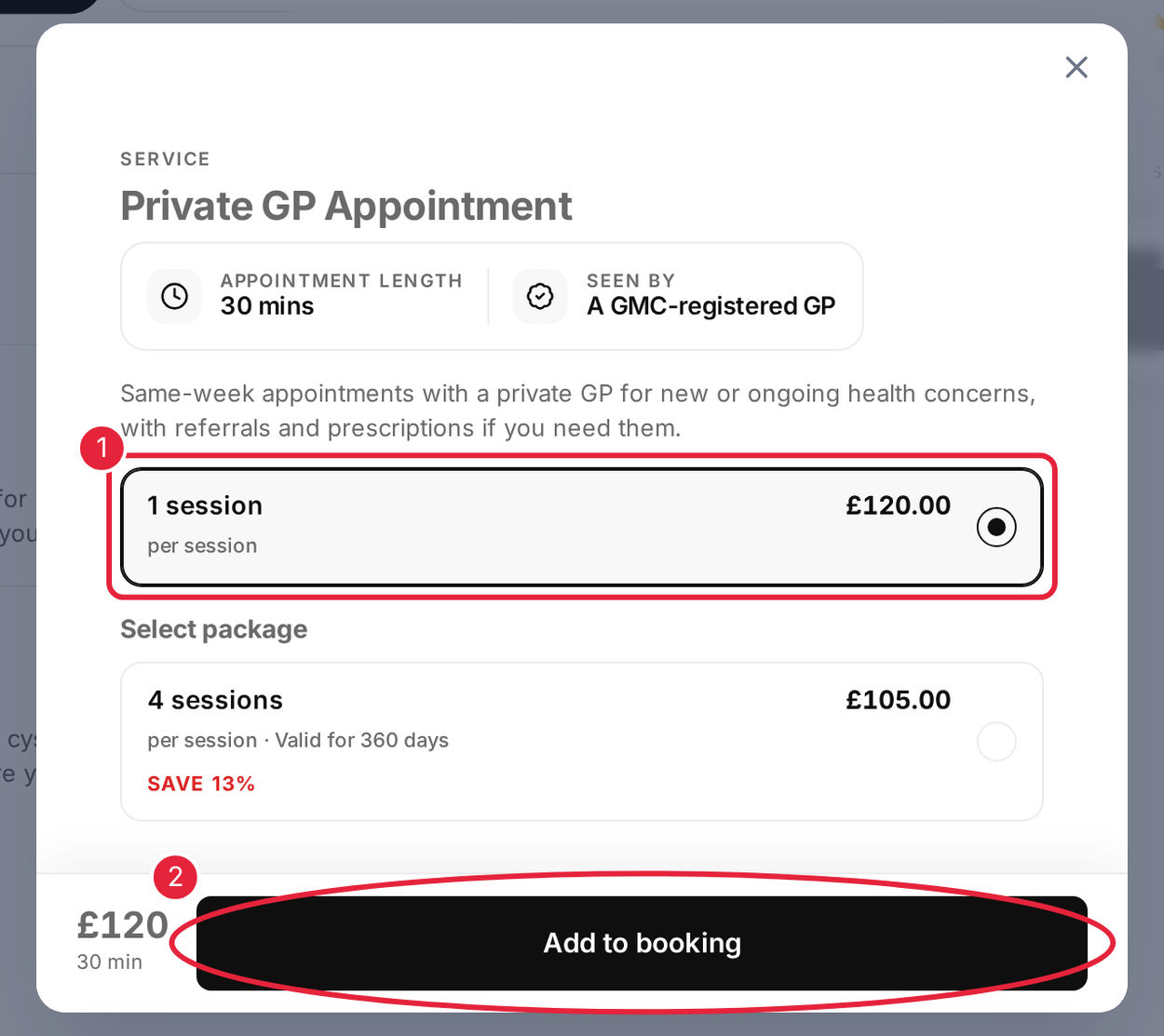
Keep 1 session selected and click Add to booking
Then choose your provider, date and time as usual, and click Continue. See How to Book an Appointment via Online Bookings for the full steps.
Step 3: Confirm With Your Package
On Confirm your booking, Paid with your package shows which package covers the appointment, and the total shows Nothing to pay.
- Check that Pay with package shows the right package.
- Click Confirm booking.
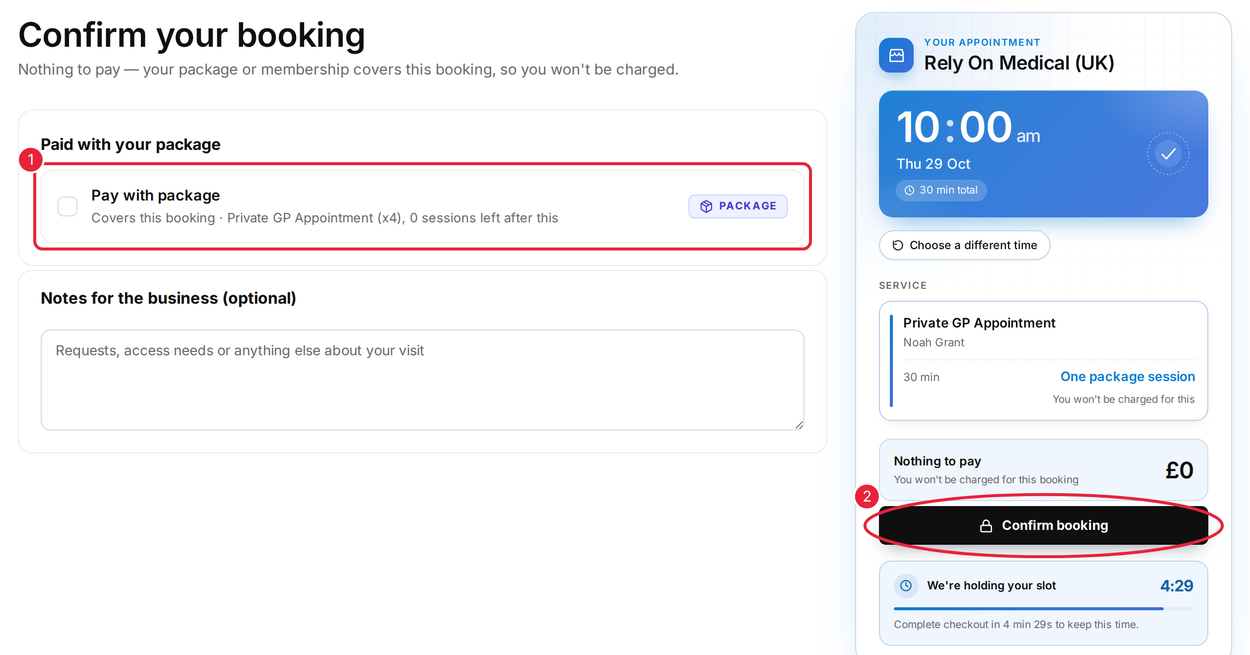
Your package covers the booking, so there is nothing to pay
NOTE: Your package is used automatically when it covers the treatment you booked. If you don’t see Pay with package, check that the treatment is listed under VALID FOR on your package and that the package has not expired, or contact your clinic.
Step 4: Check How Many Sessions You Have Left
Go back to My Packages.
- Under the package name, check the number of sessions remaining, used and booked.
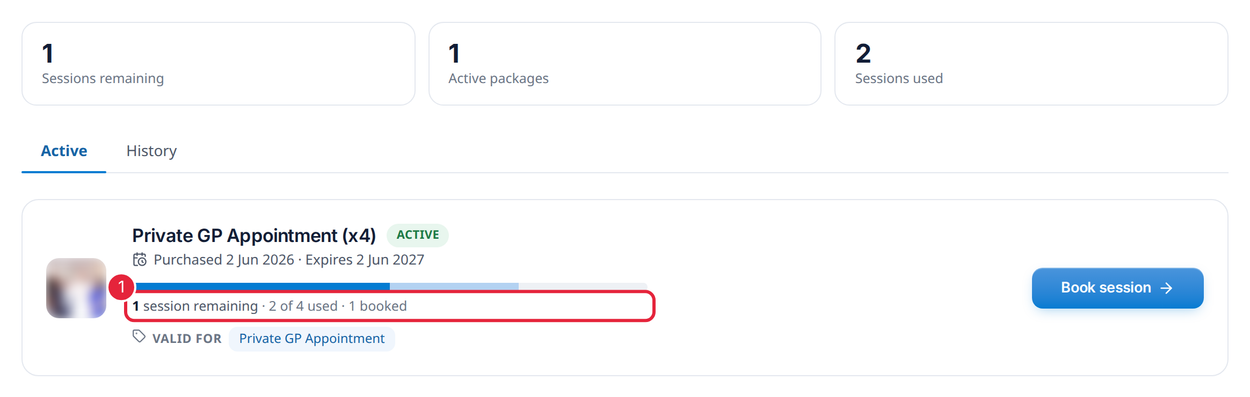
Sessions remaining, used and booked for your package
TIP: To see packages you have used up or that have expired, click the History tab.
What's next?
- How to Buy a Package via Online Bookings
- How to Reschedule Your Appointment
- Client Portal Help Guide (for Patients)
Questions? Contact your clinic directly — they will be happy to help.
Was this guide helpful? Let us know by voting below - your feedback helps us write clearer articles.
For more guides, browse the related articles below or use the search bar at the top of the page. You can also watch our video learning series, the Pabau Academy, or visit the Support page for additional help.