
NOTE: This guide covers the new Online Bookings and Client Portal, which are being rolled out to clinics in phases. If your screens look different, your account may still be on the classic version — message us via the in-app chat and we will help.
Your booking page can send each step of the booking journey to Google Analytics, Google Tag Manager and Meta Pixel.
TIP: You do not need any of these tools to see how your booking page is doing. The Analytics tab in Setup → Online Bookings already shows bookings confirmed, the checkout funnel with its biggest drop, and which channels bring bookings in. Connect a tool when you want to see bookings alongside the rest of your marketing.
Which Tool Should I Use?
| Tool | Use it to… |
|---|---|
| Google Analytics | See booking activity alongside the rest of your website traffic in GA4. |
| Google Tag Manager | Run several tags from one place — for example Google Ads conversions, GA4 or TikTok — using the booking steps Pabau pushes to the data layer. |
| Meta Pixel | Measure and optimise Facebook and Instagram ads against real bookings. |
IMPORTANT: Connect Google Analytics either directly on the Tracking tab or through a tag in your Tag Manager container — not both. If it runs in both places, every booking is counted twice.
Step 1: Connect Your Tools
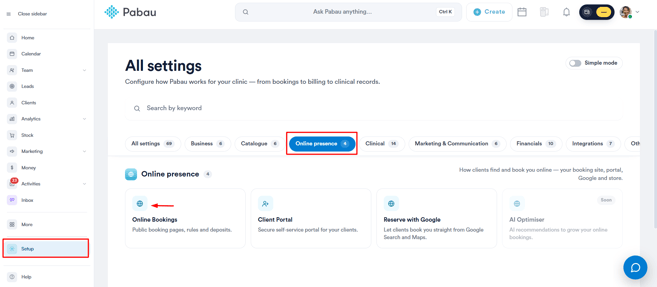
Go to Setup, under Online presence click Online Bookings, and open the Tracking tab.
Under Your tracking tools, click Set up next to each tool you use:
- Google Analytics — enter your GA4 Measurement ID. See How to Integrate Google Analytics with Your Online Bookings.
- Google Tag Manager — enter your GTM Container ID. See How to Integrate Google Tag Manager with Your Online Bookings.
- Meta Pixel — enter your Meta Pixel ID. See How to Integrate Meta Pixel with Your Online Bookings.
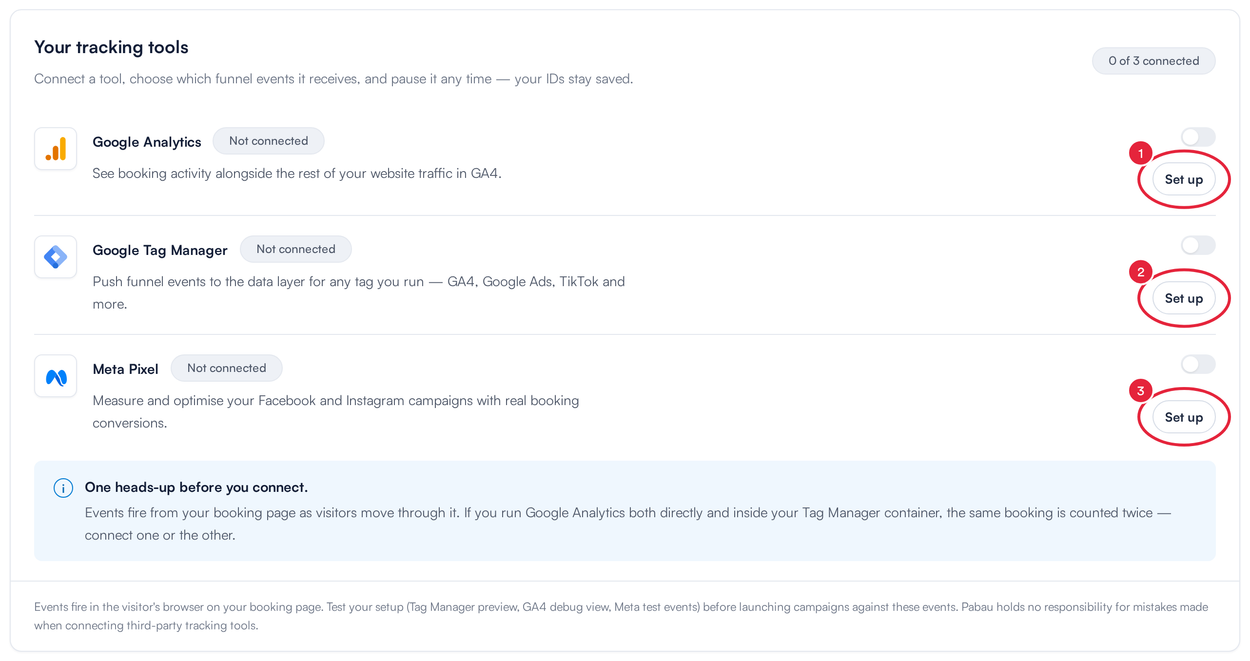
Click Set up next to each tool you want to connect
Each tool shows Connected, Paused or Not connected. Use the switch to pause a tool at any time — its ID stays saved.
Step 2: Choose the Events Each Tool Receives
In each tool's set-up window (click Edit configuration once it is connected), Tracking events lists the eight steps of the booking journey. All eight are on to begin with.
- Keep Booking completed switched on — it is your conversion.
- Switch off any step you do not want this tool to receive, then click Save.
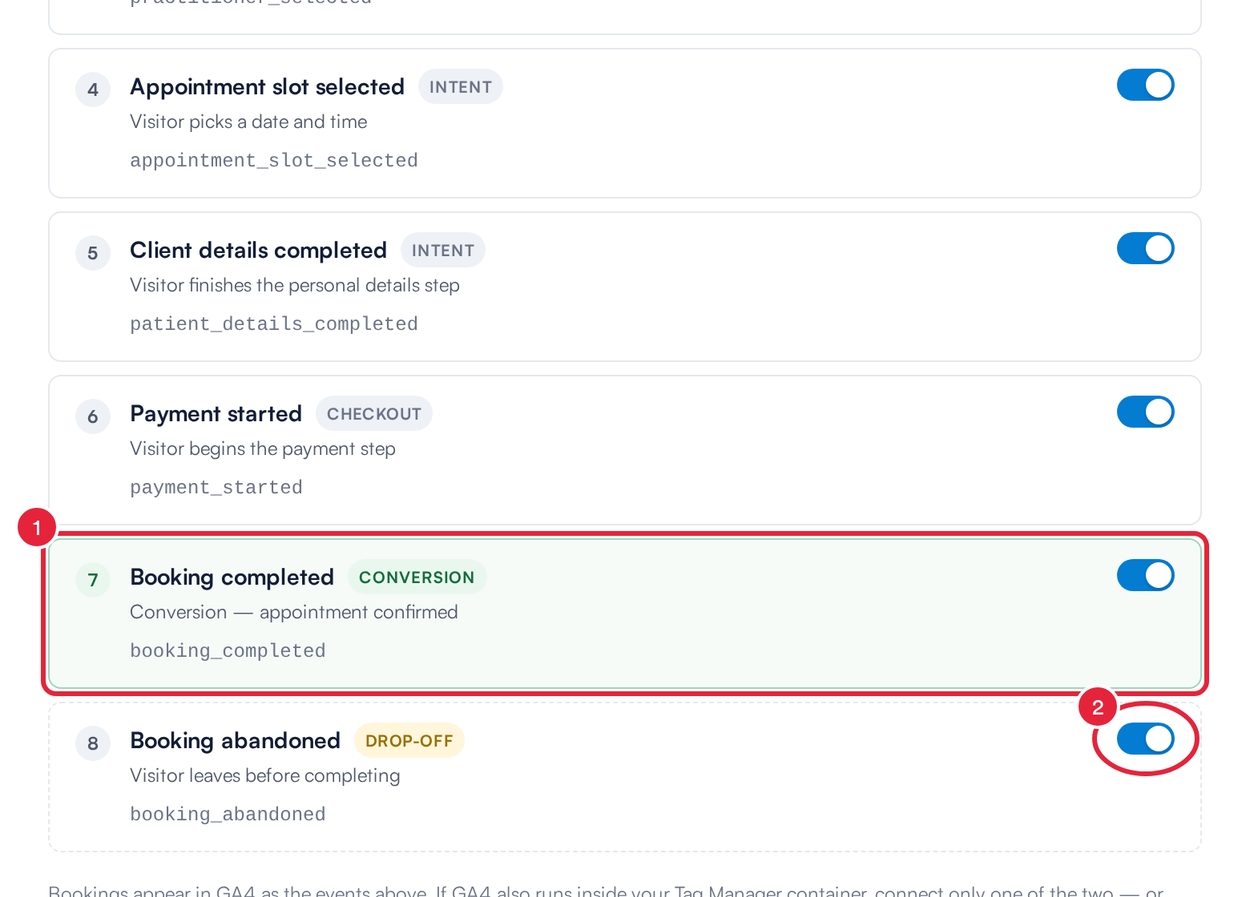
Booking completed is your conversion; switch off any step you do not need
These are the events, in the order a client reaches them:
| # | Event in Pabau | Event name sent | When it is sent |
|---|---|---|---|
| 1 | Booking flow started | booking_started |
The client opens your booking page. |
| 2 | Service selected | service_selected |
The client picks a treatment or service. |
| 3 | Provider selected | practitioner_selected |
The client picks a team member. |
| 4 | Appointment slot selected | appointment_slot_selected |
The client picks a date and time. |
| 5 | Client details completed | patient_details_completed |
The client finishes the personal details step. |
| 6 | Payment started | payment_started |
The client reaches the payment step. Includes the amount due now and the currency. |
| 7 | Booking completed | booking_completed |
The booking is confirmed. Includes the booking value and the currency. This is your conversion. |
| 8 | Booking abandoned | booking_abandoned |
The client closes or leaves the page before finishing. |
Each event carries only booking details: the service and team member IDs, the date and time chosen, and — for Payment started and Booking completed — the amount and currency. Booking abandoned also says which step the client left from. Client names, email addresses and phone numbers are never sent.
Meta Pixel also receives Meta's standard PageView event when the page loads and Schedule event when a booking is completed, and Google Analytics records its usual page views.
Event Details for Google Tag Manager
When a booking is completed, your booking page sends the event booking_completed. Use it as your conversion.
In Google Tag Manager, each step arrives in the data layer as a custom event with the name shown below. To fire a tag on it, create a Custom Event trigger and enter the event name exactly as written, for example booking_completed. To use a value in your tag, create a Data Layer Variable with the parameter name, for example value.
| Event name | Parameters sent with it |
|---|---|
booking_started |
None |
service_selected |
serviceId |
practitioner_selected |
practitionerId |
appointment_slot_selected |
date, time |
patient_details_completed |
None |
payment_started |
value (the amount being paid now), currency |
booking_completed |
value (the full booking total), currency, serviceIds (a list of the services booked) |
booking_abandoned |
lastScreen (the step the client left from — for example service, pro (team member), schedule, payment) |
Google Analytics receives the same event names and parameters directly. Meta Pixel receives each one as a custom event with the same name, plus Meta’s standard Schedule event at the same moment as booking_completed.
NOTE: Event names are fixed and cannot be renamed. Use the switches in Tracking events to choose which ones each tool receives.
NOTE: The value on booking_completed is the full value of the booking, even if the client only paid a deposit online. To report the amount actually taken online, use the value on payment_started.
NOTE: If your account is still on the classic online bookings, the event names are different. There is no booking_completed event. A completed booking is sent as bookingFormStep with the parameter formStep set to confirmation. In Google Tag Manager, use a Custom Event trigger on bookingFormStep with the condition formStep equals confirmation. On some accounts the completed booking is sent as a purchase event instead. Use Tag Manager’s Preview mode to check which one your booking page sends.
IMPORTANT: On the classic online bookings, booking_completed_click is not a booking conversion. It is sent when a client clicks Add to Google Calendar or iCal on the confirmation page, so most bookings will never send it.
Step 3: Know What Your Clients are Asked
As soon as one tool is connected, clients see a Cookies & analytics card on your booking page: "We use analytics cookies to understand and improve this booking experience." Nothing is loaded or sent until the client clicks Accept. If they click Decline, no tracking runs for them.
The card links to your Privacy Policy if you have added one in Setup → Client Portal → Content. Make sure your policy mentions the analytics and advertising tools you use — see How to Set Up Terms and Conditions and a Privacy Policy.
NOTE: Because some clients decline, and some browsers block tracking, your tools will usually show fewer bookings than Pabau. Use Pabau for your true booking numbers and your tools for trends and campaign comparisons.
Step 4: Test Before You Launch
- Google Analytics — Reports → Realtime or DebugView.
- Google Tag Manager — Preview mode.
- Meta Pixel — Test events in Events Manager.
Open your booking page, click Accept on the cookies card and click through the steps. Events are not sent from the preview in Pabau Studio — use your live booking page.
Step 5: Use the Data
- Find where clients drop out. Compare how many reach each step. A big fall between Appointment slot selected and Client details completed, for example, suggests clients are put off at checkout.
- Measure campaigns by bookings. Count booking_completed (or Meta's Schedule) as your conversion. It carries the booking value, so you can see revenue per campaign.
- Retarget. Build audiences of people who started a booking but did not finish.
- Tag your links. Use tailored links from the Share tab so each campaign is tracked as its own channel — see Part 5: Share Your Booking Page and Add It to Your Website.
Does Booking Completed Include the Booking Value?
Yes. Booking completed carries the booking value in value and the three-letter currency code in currency (for example GBP). The value is a plain number in your currency, such as 120 or 89.5 — not pence or cents.
valueis the full value of the booking — every service in the basket plus any add-ons, at your listed price (or the flash-sale price, if one applies). It is not just the deposit taken online; for the amount paid at checkout, usevalueon Payment started.- A voucher code or account balance used at checkout does not reduce
value.
To send it to a Google Ads conversion or GA4 tag, create Data Layer Variables for value and currency in Tag Manager and map them to the tag's conversion value and currency fields — see How to Integrate Google Tag Manager with Your Online Bookings.
Why Does Booking Completed Show a Value of 0?
A service the client pays for with a package session, a treatment plan or a membership benefit counts as 0, because no money changes hands for it at booking. If the whole basket is covered this way, value is 0.
Can My Thank-You Page Receive the Booking ID, Price or gclid?
If you send clients to your own thank-you page (Custom Redirect on the confirmation screen), Pabau can add two details to the address — nothing else:
| Detail | Added to the address? |
|---|---|
| Booking reference | Yes, as ?ref= — only when Append booking reference & email is ticked. |
| Client's email address | Yes, as &email= — only when the same box is ticked. You cannot send the reference without the email. |
| Price or booking value | No. |
| gclid, fbclid or UTM parameters | No. |
For example: https://www.yourclinic.co.uk/thank-you?ref=10482&email=…
If you need the booking value in an advertising tool, fire your conversion from the booking_completed event in Google Tag Manager rather than from your thank-you page — the event carries the value and is sent before the client is redirected. To set up the redirect itself, see How to Redirect Clients to a Custom Confirmation Page After Booking Online.
WARNING: Append booking reference & email puts the client's email address in your thank-you page's address, where it can end up in your website's logs and analytics tools. Only tick it if your page really needs it, and make sure your privacy policy covers it.
Is Booking Completed Sent If I Skip the Confirmation Page?
On the new booking page there is no option to skip the confirmation page. With Custom Redirect, clients see Booking confirmed · Redirecting for five seconds (or until they click Continue now), and Booking completed is sent as soon as that screen opens — before they leave for your page. You do not need to do anything extra for the event to fire.
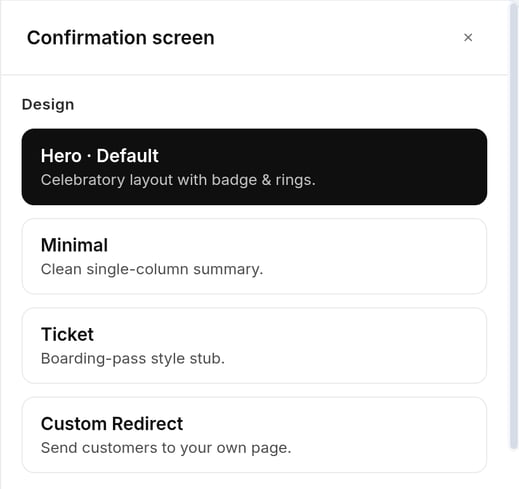
Customise page -> Complete -> Confirmation screen: the design options, including Custom Redirect.
On the classic online bookings, the Analytics settings have a Custom confirmation page URL and a tick box: Skip the Pabau booking confirmation page and send the client straight to your custom confirmation page. With that box ticked, the client leaves without seeing the Pabau confirmation step, so tracking that relies on that step may not be recorded — particularly for bookings that do not take a payment. The classic redirect also adds nothing to your page's address. If you use the skip option on the classic version, run your conversion tracking on your own thank-you page.
Good to Know
- When a client reschedules an existing appointment, no Booking completed event is sent — no new booking was made.
- Payment started is counted once per booking, even if the client goes back and forth to the payment step.
- If you send clients to your own thank-you page after booking, Booking completed is still sent before they leave — see How to Redirect Clients to a Custom Confirmation Page After Booking Online.
What's next?
Connect your first tool: Google Analytics, Google Tag Manager or Meta Pixel. For the full set-up of your booking page, start at Getting Started with the New Online Bookings and Client Portal.
Was this guide helpful? Let us know by voting below - your feedback helps us write clearer articles.
For more guides, browse the related articles below or use the search bar at the top of the page. You can also watch our video learning series, the Pabau Academy, or visit the Support page for additional help.