
NOTE: This guide covers the new Online Bookings and Client Portal, which are being rolled out to clinics in phases. If your screens look different, your account may still be on the classic version — message us via the in-app chat and we will help.
Showing your Terms & Conditions and Privacy Policy where clients book builds trust and keeps you transparent. In this article, you will learn where to add them for your new booking page and client portal, and where clients see them.
Step 1: Open the Content Tab
Go to Setup and, under Online presence, click Client Portal.
- Click the Content tab.
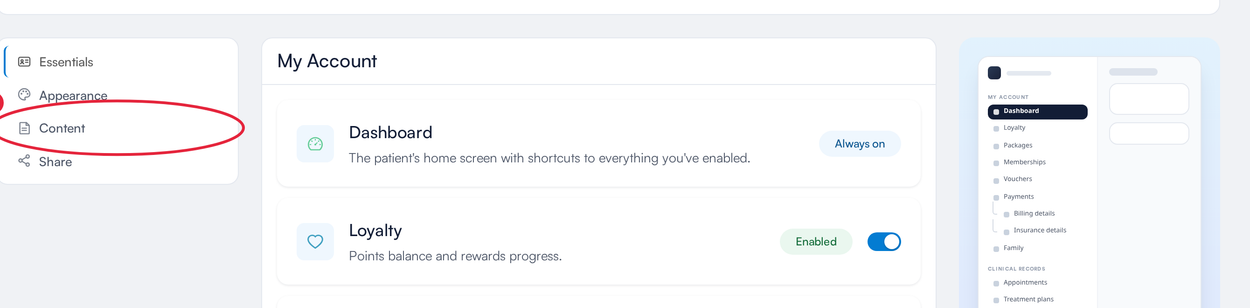
Setup → Client Portal → Content
Step 2: Add Your Terms & Conditions
Scroll to Policies. For each policy you can link to a page on your own website, or write the policy here and Pabau hosts it for you.
- In Link to your Terms & Conditions, enter the full web address of your terms page — for example https://yourclinic.com/terms.
- Or, if you do not have a web page for them, paste or write them in Or write your Terms & Conditions. Leave a blank line between paragraphs.
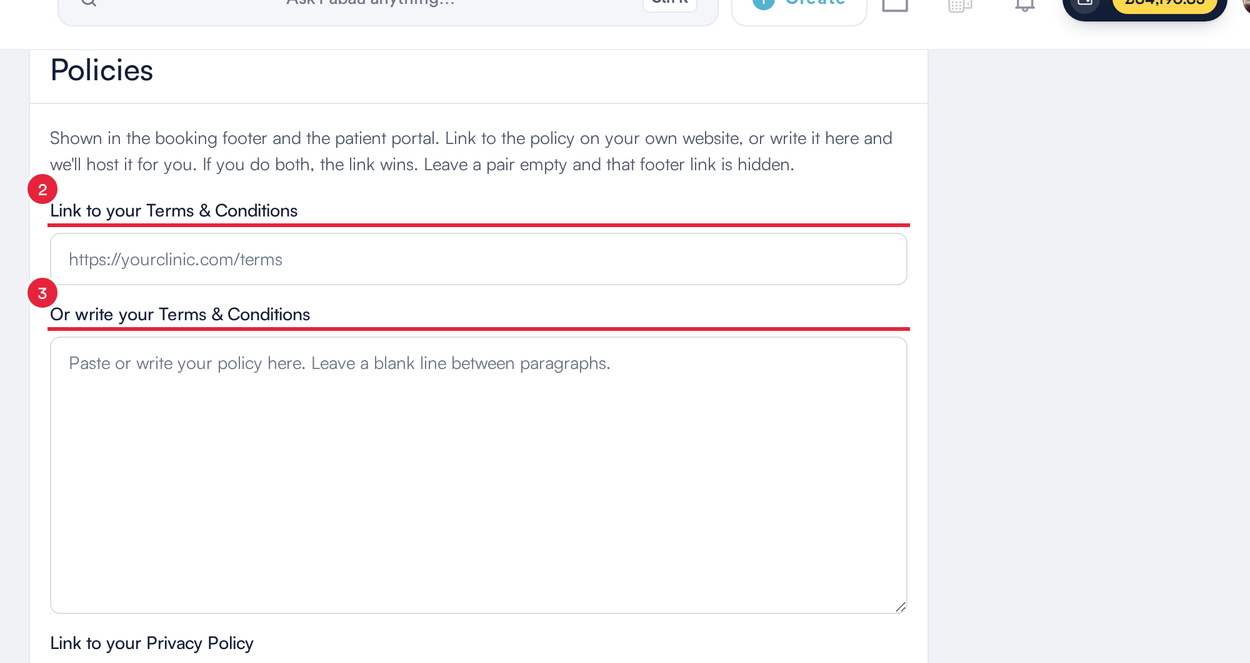
Link to your terms, or write them here
NOTE: If you fill in both the link and the text, the link is used.
Step 3: Add Your Privacy Policy and Save
- Do the same for Link to your Privacy Policy or Or write your Privacy Policy, then click Save content.
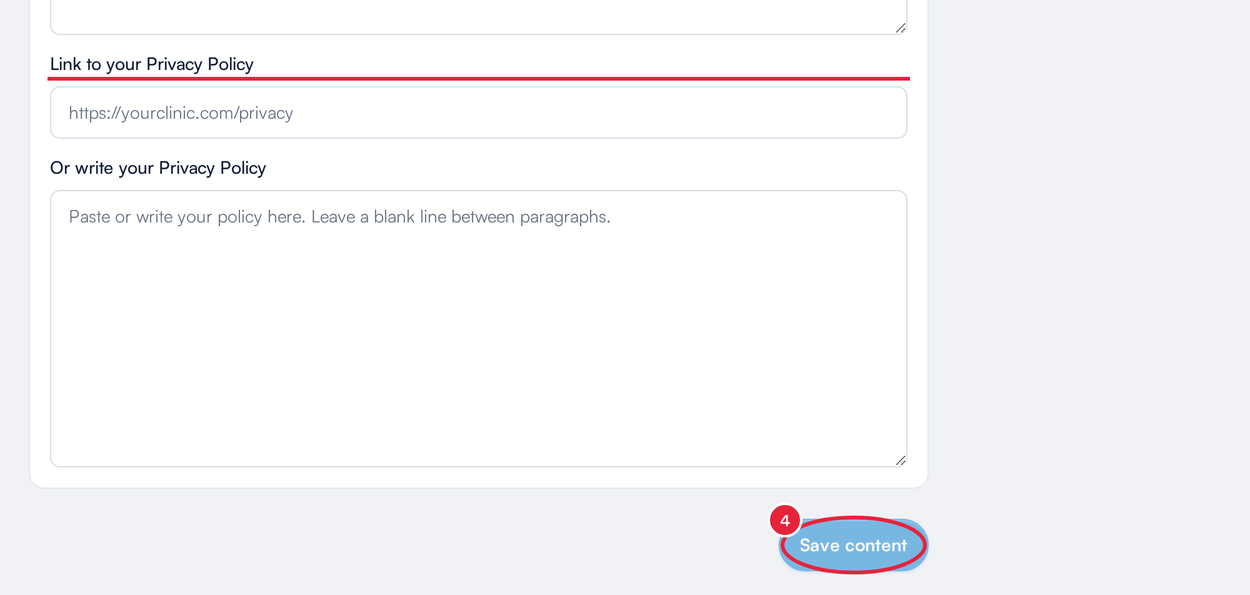
Add your Privacy Policy, then click Save content
Step 4: Check Where Clients See Them
Once saved, Terms & Conditions and Privacy Policy links appear:
- in the footer of your booking page and online store;
- on the sign-in screen, with the line By continuing you agree to our Terms & Privacy Policy;
- in the footer of the client portal;
- on the Cookies & analytics card (Privacy Policy only), if you use tracking tools.

The links in the footer of your booking page
IMPORTANT: If you leave both fields for a policy empty, that link is simply hidden — Pabau does not show a default policy in its place. Make sure both policies are filled in.
Cancellation and Reschedule Policies
Your cancellation, reschedule and no-show rules are not written here. They come from your policies in Setup → Policies (under Financials) and are shown to clients under Venue policies on the last step of the booking. See Part 4: Take Payments and Deposits Online.
TIP: If you link to your own website, make sure the page is public and does not need a login.
What's next?
To set up the rest of your client portal, see How to Set Up the New Client Portal.
Questions? Reach us any time via the in-app chat — we’re happy to help.
Was this guide helpful? Let us know by voting below - your feedback helps us write clearer articles.
For more guides, browse the related articles below or use the search bar at the top of the page. You can also watch our video learning series, the Pabau Academy, or visit the Support page for additional help.