
NOTE: This guide covers the new Online Bookings and Client Portal, which are being rolled out to clinics in phases. If your screens look different, your account may still be on the classic version — message us via the in-app chat and we will help.
In this article, you will learn how to connect your Meta Pixel to your online booking page, so you can measure and optimise your Facebook and Instagram ads against real bookings rather than clicks.
Before You Start
You need a Meta Business account with a pixel. Your Pixel ID is a long number (usually 15 or 16 digits) — in Meta Events Manager, open Data sources and click your pixel to see it. For help creating one, see Meta's How to set up and install a Meta Pixel.
Step 1: Open the Tracking Tab
Go to Setup and, under Online presence, click Online Bookings.
- Click the Tracking tab.

The Tracking tab on the Online Bookings page
Step 2: Set Up Meta Pixel
- Under Your tracking tools, click Set up next to Meta Pixel.
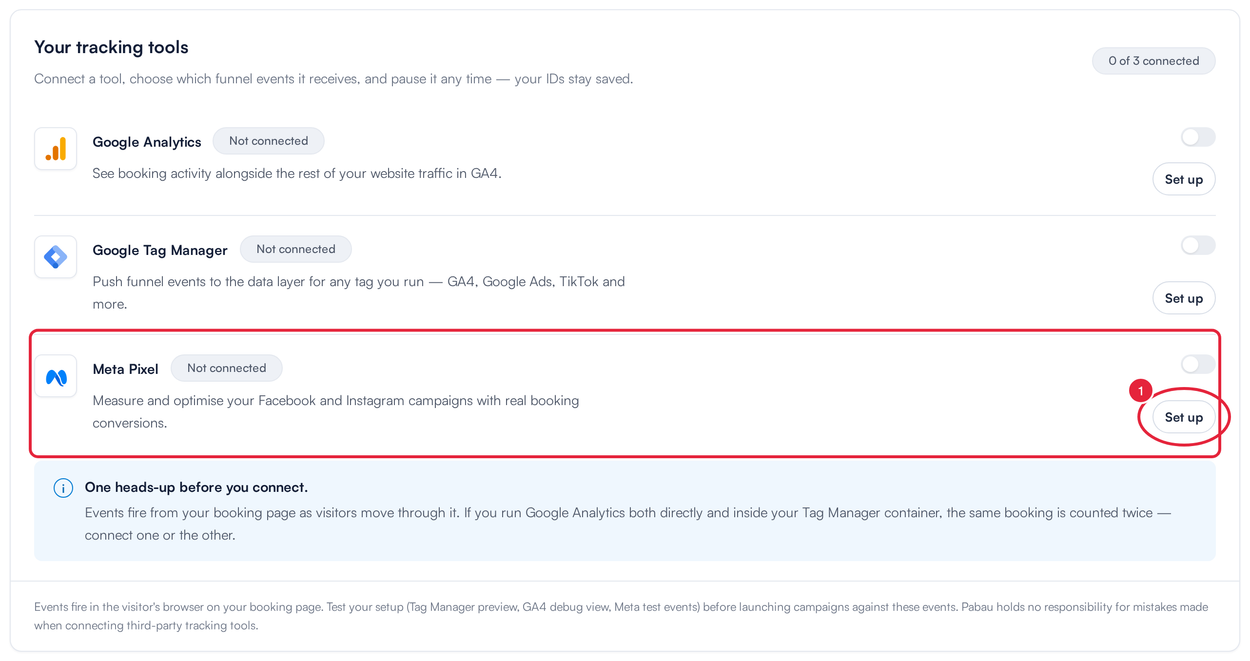
Click Set up next to Meta Pixel
- In Meta Pixel ID, enter your Pixel ID.
- Under Tracking events, choose which steps of the booking journey are sent to Meta. All eight are switched on to begin with.
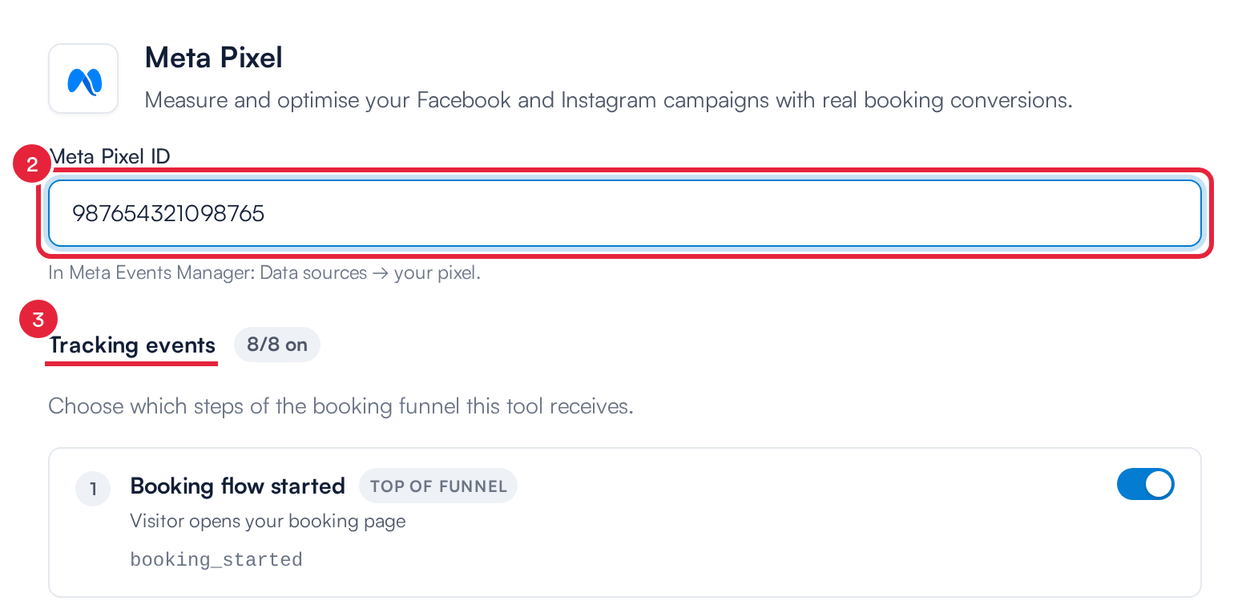
Enter your Pixel ID, then choose the tracking events
- Click Save.
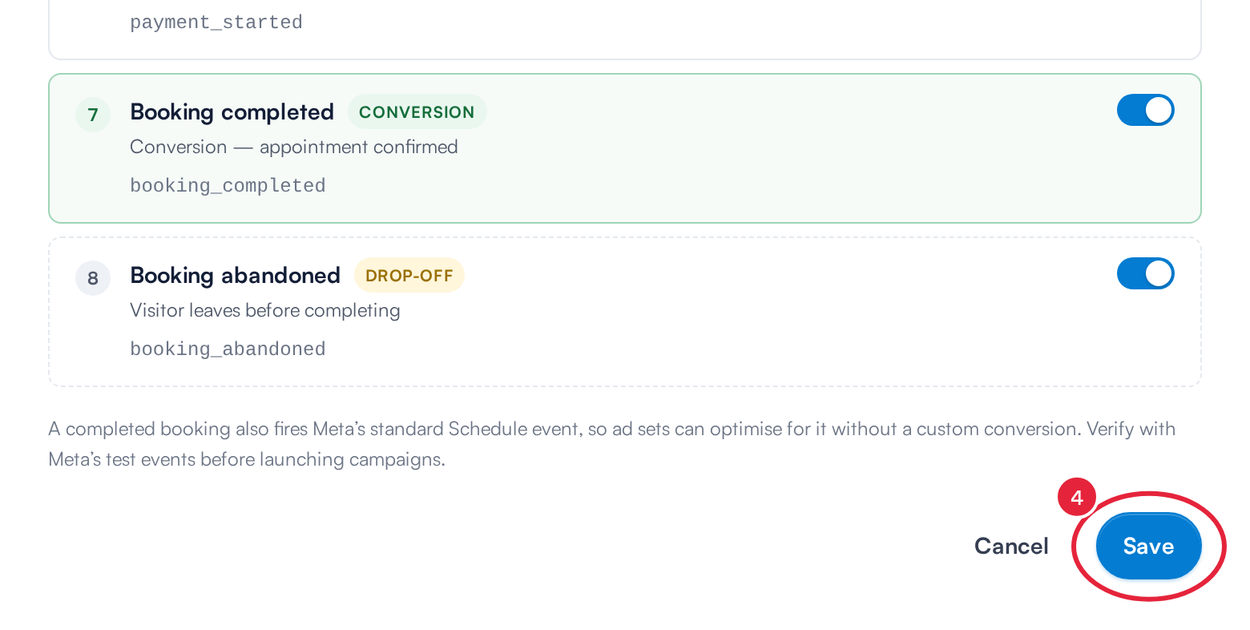
Click Save to connect Meta Pixel
Meta Pixel now shows Connected.
NOTE: In the classic version you entered an Event ID from a list of supported Meta events. That field no longer exists — Pabau now sends the right events for you, as described below.
Step 3: Know What Meta Receives
- PageView — Meta's standard event, sent when your booking page loads.
- Schedule — Meta's standard event, sent when a booking is completed, with the booking value and currency. Use it as the conversion event for your ad sets — there is no need to set up a custom conversion.
- Each booking step you switched on, sent as a custom event with the names below.
| # | Event in Pabau | Custom event in Meta | When it is sent |
|---|---|---|---|
| 1 | Booking flow started | booking_started | The client opens your booking page. |
| 2 | Service selected | service_selected | The client picks a treatment or service. |
| 3 | Provider selected | practitioner_selected | The client picks a team member. |
| 4 | Appointment slot selected | appointment_slot_selected | The client picks a date and time. |
| 5 | Client details completed | patient_details_completed | The client finishes the personal details step. |
| 6 | Payment started | payment_started | The client reaches the payment step. Includes the amount due now and the currency. |
| 7 | Booking completed | booking_completed | The booking is confirmed. Includes the booking value and the currency. This is your conversion. |
| 8 | Booking abandoned | booking_abandoned | The client closes or leaves the page before finishing. |
Meta Pixel receives the service and team member IDs, the date and time chosen, and the amount and currency. Client names, email addresses and phone numbers are never sent to Meta.
Step 4: Test Before You Launch
When a tracking tool is connected, clients see a Cookies & analytics card on your booking page. The pixel only loads after the client clicks Accept; if they click Decline, nothing is sent.
- In Meta Events Manager, open your pixel and click Test events.
- Open your booking page, click Accept on the cookies card and click through the booking steps.
- Check that PageView and your booking events appear.
TIP: Once events are arriving, you can build audiences in Meta from them — for example, people who reached payment_started but not booking_completed, or lookalikes of people who booked.
Step 5: Pause, Change or Disconnect Meta Pixel
- Pause — use the switch next to Meta Pixel. Your Pixel ID stays saved, and the status shows Paused.
- Change — click Edit configuration, update the ID or events and click Save.
- Disconnect — click Edit configuration, then Disconnect.
IMPORTANT: Test your set-up with Meta's Test events before launching campaigns against these events.
What's next?
For the full list of events and how to use them across your tools, see How to Track Your Online Bookings Using Meta Pixel, Google Tag Manager and Google Analytics. You can also connect Google Analytics and Google Tag Manager.
Questions? Reach us any time via the in-app chat — we’re happy to help.
Was this guide helpful? Let us know by voting below - your feedback helps us write clearer articles.
For more guides, browse the related articles below or use the search bar at the top of the page. You can also watch our video learning series, the Pabau Academy, or visit the Support page for additional help.