
Table of Contents:
1. Team
2. Calendar
3. Business Details
4. Locations
5. Sender Address
6. Services
7. Medical Forms
8. Client Notifications
9. Online Bookings
10. Client Portal
11. Precare/Aftercare
12. Stock
13. Basic Reports
14. Reviews
15. Leads
16. Loyalty
17. Custom Fields
18. Tips (US)
Team
The first thing you need to check when optimizing your Pabau account is how your staff is set up. A well-organized staff section ensures that the right people have the right access and responsibilities, keeping your clinic efficient and secure.
Step 1: Access Team
Start by logging into your Pabau account using your login credentials. To access staff settings click the Team tab on the left sidebar menu to expand it. Then, select the "Team" sub-tab — this is where you can manage your staff.
/Screenshot%20-%202026-08-09T111107.774.png?width=670&height=322&name=Screenshot%20-%202026-08-09T111107.774.png)
Step 2: Select Team Member
Once you select a team member, all their available configuration settings will appear in the left menu.
/Screenshot%20-%202026-08-09T111214.317.png?width=593&height=434&name=Screenshot%20-%202026-08-09T111214.317.png)
Step 3: Key Areas to Optimize
Here’s what you need to review and optimize for your staff members:
Staff Permissions
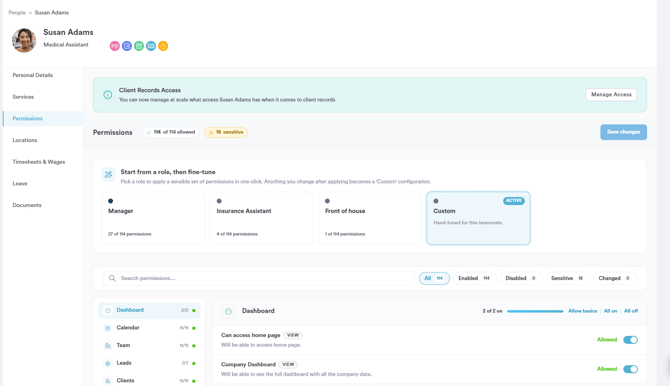
Control what each team member can see and do in Pabau. Setting the right permissions helps protect sensitive data and keeps operations running smoothly. To adjust permissions, start from a role to apply a set of permissions in one click, or select a category from the list on the left and toggle individual permissions on or off as needed. Once you're done, click Save changes.
Staff Services
Assign the correct services to each staff member. This ensures that only qualified professionals can be booked for specific treatments.
If a staff member doesn’t take bookings or online bookings, you can disable those options in the first section by toggling access. In the next section, simply tick the services they’re allowed to perform.
/Screenshot%20-%202026-08-09T111513.416.png?width=670&height=294&name=Screenshot%20-%202026-08-09T111513.416.png)
Staff Locations
If your clinic has multiple locations, ensure each staff member is assigned correctly to prevent scheduling mishaps and enhance the client experience. Set their primary location, and if they work at additional locations, simply tick the ones where they can be booked.
/Screenshot%20-%202026-08-09T111548.855.png?width=660&height=293&name=Screenshot%20-%202026-08-09T111548.855.png)
Staff Photo & Bio
Adding professional photos and bios makes online bookings more personal and builds client trust. Clients feel more confident when they can see who will be treating them. They can be set up on the Personal Details section.
/Screenshot%20-%202026-08-09T111850.306.png?width=527&height=492&name=Screenshot%20-%202026-08-09T111850.306.png)
Prescriber Info
If a staff member is a prescriber, make sure their details are set up correctly to avoid any issues when issuing prescriptions. You'll find the Prescription info field under Personal Details. /Screenshot%20-%202026-08-09T112013.495.png?width=444&height=428&name=Screenshot%20-%202026-08-09T112013.495.png)
If you don’t see the field, click "Customize Fields" in the top right corner and add 'Prescriber Info' to their details.
/Screenshot%20-%202026-08-09T112051.515.png?width=596&height=296&name=Screenshot%20-%202026-08-09T112051.515.png)
Here's where you can rearrange, remove or add more fields in their personal details. The "Add fields" button is located on the bottom of the list. Ensure to click the "Save Button" after adjusting the fields.
/Screenshot%20-%202026-08-09T112131.224.png?width=245&height=374&name=Screenshot%20-%202026-08-09T112131.224.png)
Staff PIN Codes
Enhance security by requiring staff to enter a PIN when accessing the Pabau GO iOS App and the Calendar. This helps with compliance and accountability.
To add a PIN code, staff need to navigate to the top right corner of the screen and click their avatar to reveal the available options. Then select "Account Settings."
/Screenshot%20-%202026-08-09T112232.146.png?width=655&height=363&name=Screenshot%20-%202026-08-09T112232.146.png)
In the account settings page, switch to the "Security" tab. There you can find the Passcode field where you can enter a 4 digit code. Ensure to click the "Save Changes" button on the bottom right corner to save your settings.
/Screenshot%20-%202026-08-09T112345.068.png?width=617&height=389&name=Screenshot%20-%202026-08-09T112345.068.png)
By optimizing these settings, you’ll create a well-structured and secure system that keeps your clinic running smoothly!
Shifts & Availability
Ensure all staff have the correct working hours assigned. To set up working hours, select the day you want to create a shift under the specific employee section. The shift template modal will appear, allowing you to choose from pre-defined working hours.
/Screenshot%20-%202026-08-09T112506.103.png?width=651&height=325&name=Screenshot%20-%202026-08-09T112506.103.png)
To reveal more options when creating a shift, click the ''More options'' button at the bottom. A pop-up window will appear with additional settings, including the option to add the working hours.
/Screenshot%20-%202026-08-09T112619.873.png?width=641&height=414&name=Screenshot%20-%202026-08-09T112619.873.png)
Repeat Shifts
If staff work the same hours regularly, set up repeat shifts to save time and avoid manual adjustments. Just click the "Repeat" button and the following repeat options will appear on the right side of the modal:
- Repeats every -- Choose how often the shift repeats (e.g., every 1 week, every 2 months).
- Repeats on -- Select the specific days of the week for the shift to repeat. The selected days will turn blue.
- Repeats until -- Set an end date for the repetition. You can extend it up to a year by using the arrows in the top right corner of the calendar modal—one arrow jumps a week ahead, and two arrows fast-forward a year.
/Screenshot%20-%202026-08-09T112735.198.png?width=423&height=453&name=Screenshot%20-%202026-08-09T112735.198.png)
Location Assignments
If your clinic has multiple locations, confirm that staff shifts are linked to the correct location to prevent scheduling conflicts.
/Screenshot%20-%202026-08-09T112816.316.png?width=420&height=442&name=Screenshot%20-%202026-08-09T112816.316.png)
Assigned Services
Check that each shift includes the correct services the staff member can perform. This prevents booking errors. By default, all services are selected. To edit, click the "All Services" button, and a list of services will appear. Simply untick the ones that won’t be performed during this shift.
/Screenshot%20-%202026-08-09T112917.889.png?width=555&height=355&name=Screenshot%20-%202026-08-09T112917.889.png)
NOTE: In the scheduler, a shift that includes all services will be displayed in blue, while a shift with specific services will appear in yellow.
Calendar
Your calendar is the backbone of your clinic’s schedule, so it’s important to set it up correctly. This ensures appointments are booked accurately, staff availability is clear, and scheduling conflicts are avoided.
Step 1: Navigate to Calendar
To access your calendar, navigate to the "Calendar" tab located on the left sidebar menu.
/Screenshot%20-%202026-08-09T113032.087.png?width=670&height=320&name=Screenshot%20-%202026-08-09T113032.087.png)
Step 4: Key Areas to Optimize in the Calendar
To ensure your calendar is fully optimized, check these key settings:
Calendar Settings
Configure default views, time slots, and other preferences to match your clinic’s workflow.
Here’s what you need to check:
- Configuration – Set your calendar’s start and end time, adjust appointment time slots, define the starting date, and configure auto-lock settings for better control.
- Appointment Settings – Choose whether to allow overlapping appointments and pre-select notifications that should be sent when booking an appointment.
- Appearance – Customize how your calendar looks by deciding if staff names should be displayed with initials only, whether to hide client surnames, adjust font sizes, and modify the layout of tooltips and the appointment modal.
/Screenshot%20-%202026-08-09T113154.543.png?width=628&height=309&name=Screenshot%20-%202026-08-09T113154.543.png)
Blockouts
Set up blocked times for staff meetings, breaks, or unavailable hours to prevent accidental bookings. Simply select the time slot, and when the "Book Appointment" modal appears, switch to the "Lunch" or "OFF" tab at the top. Set the duration by selecting a specific time or toggle the "All day" option if you or your staff member won’t be available for the entire day.
/Screenshot%20-%202026-08-09T113437.998.png?width=617&height=333&name=Screenshot%20-%202026-08-09T113437.998.png)
If the blockout occurs on multiple days at the same time, such as lunch hours, you can set it to repeat by clicking the "Repeat Blockout" option. Once selected, the repeat settings will pop-up.
/Screenshot%20-%202026-08-09T113625.097.png?width=240&height=297&name=Screenshot%20-%202026-08-09T113625.097.png)
Filters
Use calendar filters to quickly view appointments by staff, location, room, status, or service, making scheduling easier. To adjust filters, click the filter icon in the top left corner of the screen. The filter options will then appear on the right-hand side.
/Screenshot%20-%202026-08-09T113841.875.png?width=611&height=301&name=Screenshot%20-%202026-08-09T113841.875.png)
By following these steps, you can make sure that appointment types, breaks, and availability are properly configured.
Business Details
Ensure your Business Details are accurately set up to keep everything clear and organized for both your team and clients. Here's what to check:
Step 1: Access Business Details
Navigate to Setup at the bottom of the left sidebar menu. Under the Business section, click on the "Business Details" tab.
/Screenshot%20-%202026-08-09T114041.720.png?width=634&height=305&name=Screenshot%20-%202026-08-09T114041.720.png)
Step 2: Key Areas to Optimize
Make sure your business details are fully set up to keep everything running smoothly. Here's what to check:
Details
Ensure all essential details are added, including your business phone number, company email, website, country, currency, and time zone. Also, upload your logo to represent your brand—it will appear on invoices, notifications, and other client communications.
/Screenshot%20-%202026-08-09T114146.177.png?width=643&height=314&name=Screenshot%20-%202026-08-09T114146.177.png)
Social
Add all relevant social media links, as these will automatically populate in your client communications, making it easy for clients to connect with your business online.
/Screenshot%20-%202026-08-09T114218.625.png?width=639&height=320&name=Screenshot%20-%202026-08-09T114218.625.png)
Features
Enable features like Quotes, Letters, Labs, and Insurance Billing if they align with your practice needs. Activating the right features ensures you have the tools necessary for efficient operations.
/Screenshot%20-%202026-08-09T114255.756.png?width=625&height=312&name=Screenshot%20-%202026-08-09T114255.756.png)
Once you've optimized your business details, ensure to click the "Save Changes" button in the top right corner of the screen to update the changes.
Locations
Setting up your locations correctly helps prevent scheduling errors, ensures clients book at the right place, and keeps staff availability organized.
Step 1: Navigate to Locations
To access location settings in Pabau, go to Setup at the bottom of the left sidebar menu. Under the Business section, click on the "Locations" tab.
/Screenshot%20-%202026-08-09T114415.854.png?width=653&height=311&name=Screenshot%20-%202026-08-09T114415.854.png)
Step 2: Select Location
Review if all locations have been added to your Pabau account. To view location details, hover over the location and the edit button will appear on the far right side. Click to edit.
/Screenshot%20-%202026-08-09T114505.033.png?width=670&height=166&name=Screenshot%20-%202026-08-09T114505.033.png)
Step 3: Key Areas to Optimize
Whether you have one clinic or multiple branches, the information you set here will directly impact your calendar, online bookings, invoices, and client communications. Here’s what to check to ensure accuracy and efficiency:
General
Verify that the location name, email, and phone number are correct. Additionally, check if online booking is enabled and adjust any booking settings by toggling the available options.
/Screenshot%20-%202026-08-09T114544.246.png?width=548&height=335&name=Screenshot%20-%202026-08-09T114544.246.png)
Location
Make sure the address, zip code, and other details are accurate, as these will reflect in client communications, invoices, and online bookings.
/Screenshot%20-%202026-08-09T114609.055.png?width=553&height=320&name=Screenshot%20-%202026-08-09T114609.055.png)
Employees
Assign the correct staff members to each location. This affects availability in the calendar and online booking system.
/Screenshot%20-%202026-08-09T114649.021.png?width=553&height=340&name=Screenshot%20-%202026-08-09T114649.021.png)
Opening Hours
Set the correct opening hours for each location to ensure accurate scheduling in the calendar and online bookings.
/Screenshot%20-%202026-08-09T114742.120.png?width=583&height=361&name=Screenshot%20-%202026-08-09T114742.120.png)
By setting up your locations correctly, you ensure accurate scheduling, proper staff assignments, and a smooth booking experience for clients. This also ensures that invoices, client communications, and online bookings display the right details for each location.
Sender Address
Your sender address plays a key role in ensuring emails reach your clients without landing in spam. A properly configured sender address enhances deliverability and maintains a professional image.
Step 1: Navigate to Sender Address
Access the Setup page by clicking the "Setup" button in the bottom corner of the left sidebar menu. Under Marketing & Communication, locate the Communications tab and click to expand it. This will reveal the "Sender Address" sub-tab.
/Screenshot%20-%202026-08-09T114839.405.png?width=650&height=312&name=Screenshot%20-%202026-08-09T114839.405.png)
Step 2: Key Areas to Optimize
Setting up your Sender Address correctly ensures that emails and SMS messages sent from Pabau appear professional and reach your clients without issues.
Here’s what to check and optimize:
Sender Name
Set the name that clients will see when they receive SMS messages from your clinic, ensuring they recognize who the message is from. To update or add a sender, click on the existing sender. If no sender has been created yet, click the "Create a Sender" button in the top right corner of the screen.
To set this address as the default, simply enable the "Default Sender" toggle.
/Screenshot%20-%202026-08-09T114937.959.png?width=574&height=284&name=Screenshot%20-%202026-08-09T114937.959.png)
Sender Email
NOTE: This address will only be displayed if the enterprise email feature is enabled, which is part of our Marketing Plus add-on, and if your email address is verified by our email delivery provider, SendGrid. Without this feature, emails will be sent from noreply@pabau.com.
/Screenshot%20-%202026-08-09T115036.415.png?width=392&height=395&name=Screenshot%20-%202026-08-09T115036.415.png)
This ensures all messages are sent from the same recognizable sender, maintaining consistency in client communication.
Services
Setting up your services correctly ensures clients can easily book the right treatments, staff can manage their schedules efficiently, and all service-related details are accurately reflected in invoices and client communications.
Step 1: Navigate to Services
Navigate to "Setup" located at the bottom of the left sidebar menu. Under the "Catalogue" section you'll find the "Services" tab. Tap to access details.
/Screenshot%20-%202026-08-09T115120.309.png?width=670&height=317&name=Screenshot%20-%202026-08-09T115120.309.png)
Step 2: Key Areas to Optimize
Once you're on the Services page, check that the following details have been added:
Service Groups
Services are organized into broad groups to keep everything structured and easy to manage. For example, you can create Service Groups like Aesthetics, Medical Treatments, or Wellness & Therapy. Within each group, you can add Service Categories.
Groups are listed on the left-hand side of the Services page. To add a new group, click the "Groups" button in the top right corner.
/Screenshot%20-%202026-08-09T115248.666.png?width=670&height=331&name=Screenshot%20-%202026-08-09T115248.666.png)
Service Categories
Within each group, you can set up Service Categories—for instance, under Aesthetics, you might have Facial Treatments and Skin Rejuvenation, while under Medical Treatments, you could include GP Consultations and Health Screenings.
/Screenshot%20-%202026-08-09T115320.927.png?width=602&height=297&name=Screenshot%20-%202026-08-09T115320.927.png)
To create Categories, you switch to the "Categories" tab at the top of the page and click the "New Category" button on the top right corner. This action will open a pop-up window where you can add any category, update the service category color, and link it with services.
/Screenshot%20-%202026-08-09T115409.517.png?width=646&height=366&name=Screenshot%20-%202026-08-09T115409.517.png)
Services
You can assign a specific category to each service for better organization. For example, Hydrafacial or Chemical Peel can be placed under Facial Treatments, while New Patient Consultation or Follow-up Appointment can be categorized under GP Consultations. To check or update a service’s category, select the service, go to the General tab, and choose the appropriate category from the Category field.
/Screenshot%20-%202026-08-09T115653.065.png?width=657&height=313&name=Screenshot%20-%202026-08-09T115653.065.png)
Service Descriptions
Ensure each service has a clear and informative description, especially for online bookings. To add or update a description, select the service, then switch to the Online Booking tab. Here, you can either write one manually or use AI to generate a description.
Assigned Locations
Check that each service is linked to the correct locations. To do this, select the service, go to the Assign tab, and open the Locations sub-tab. Here, you can select or deselect the locations where the service is available.
/Screenshot%20-%202026-08-09T115808.232.png?width=649&height=157&name=Screenshot%20-%202026-08-09T115808.232.png)
Assigned Employees
Verify that the correct staff members are assigned to each service. To do this, select the service, go to the Assign tab, and navigate to the Employees sub-tab. Here you can select which employees can perform this service.
/Screenshot%20-%202026-08-09T115851.266.png?width=640&height=303&name=Screenshot%20-%202026-08-09T115851.266.png)
Assigned Resources
Ensure that the correct rooms and equipment are assigned to each service to prevent scheduling conflicts. To do this, select the service, go to the Assign tab, and navigate to the Resources sub-tab. Here, you can select the necessary rooms and equipment by ticking or unticking them, you can also drag and drop to rearrange their order.
/Screenshot%20-%202026-08-09T115930.231.png?width=624&height=295&name=Screenshot%20-%202026-08-09T115930.231.png)
By setting up your services correctly, you ensure a smooth booking experience for clients and an organized workflow for your team.
Medical Forms
Medical forms help you collect essential patient information before appointments, ensuring a smooth and efficient consultation process. In Pabau, you can create, customize, and assign medical forms to specific services, streamlining data collection and enhancing patient care.
Step 1: Navigate to Forms
Navigate to the Setup page in the bottom corner of the left sidebar menu. Then, go to the ''Forms'' tab under the ''Clinical'' section.
/Screenshot%20-%202026-08-09T120030.691.png?width=646&height=308&name=Screenshot%20-%202026-08-09T120030.691.png)
Step 2: Key Areas to Optimize
Here, you can view all the medical forms created in your Pabau account, including consent forms, medical history forms, treatment notes, and more.
Here’s what to check to ensure your medical forms are optimized:
Form Components
Ensure your forms include essential components, such as a header with your business details, by using merge tags. This automatically populates key information like your clinic’s name, phone number, email, and address, ensuring consistency across all client communications and documents.
/Screenshot%20-%202026-08-09T120224.132.png?width=660&height=311&name=Screenshot%20-%202026-08-09T120224.132.png)
To include merge tags in your forms, click the edit button on the top right corner of the component. This will open the edit options on the right side. From there, navigate to the listed icons and select the tag icon.
/Screenshot%20-%202026-08-09T120326.382.png?width=638&height=303&name=Screenshot%20-%202026-08-09T120326.382.png)
This action will open a pop-up window displaying all available merge tags, including client details, appointment information, company information, and more. Clicking on any of these will insert the merge tag, ensuring the correct information is automatically pulled into the form.
/Screenshot%20-%202026-08-09T120357.421.png?width=511&height=370&name=Screenshot%20-%202026-08-09T120357.421.png)
Code Lookup Component
Check if the Code Lookup component is included in your forms. When clients fill out this field, the information automatically populates in the Client Card Summary, ensuring key details are easily accessible.
This component is particularly useful for documenting important medical history, such as:
-
Family History – Select predefined codes for genetic conditions or hereditary health risks.
Example: ICD-10 codes for a family history of cancer or cardiovascular diseases. -
Allergies – Record known allergies, including medications, foods, and environmental factors.
Example: ICD codes for drug allergies, food allergies, or allergic rhinitis. -
Diagnosis – Look up and assign diagnostic codes to describe the client’s condition.
Example: ICD-10 codes for asthma, pneumonia, or diabetes. -
Social History – Document lifestyle factors that may impact health, such as smoking, alcohol use, or occupation.
Example: SNOMED or ICD codes for smoking status, alcohol use disorder, or occupational health risks.
By ensuring the Code Lookup component is included in your forms, you can streamline data entry and maintain accurate, structured records for every client.
Linked Services
Check the "Which service should this form be used for?" field under the Details tab in the top left corner of the screen. Here, you can type the name of a service, and it will appear in the search results for you to select. You can link multiple services to a form, ensuring it is automatically sent when any of the selected services are booked.
/Screenshot%20-%202026-08-09T120505.908.png?width=659&height=308&name=Screenshot%20-%202026-08-09T120505.908.png)
By following these steps, you ensure that your forms are fully optimized with accurate information, relevant linked services, and essential components.
Client Notifications
Setting up client notifications is essential for keeping clients informed and engaged throughout their journey with your clinic. Timely reminders and updates not only reduce no-shows but also create a sense of trust and reliability.
Step 1: Navigate to Communications
Navigate to Setup, then under the ''Marketing & Communications section'' click on the ''Client Notifications'' tab.
/Screenshot%20-%202026-08-09T120552.364.png?width=659&height=310&name=Screenshot%20-%202026-08-09T120552.364.png)
Step 2: Key Areas to Optimize
Here’s what you need to check to ensure your client notifications are fully optimized:
Enable Confirmations & Reminders
To enable confirmations, open the New appointment is booked template in Notification Studio. In the top right, switch on the Email and SMS toggles to choose how the confirmation is sent, then click Save changes.
To send confirmations via WhatsApp too, click Set up WhatsApp under the WhatsApp option first.
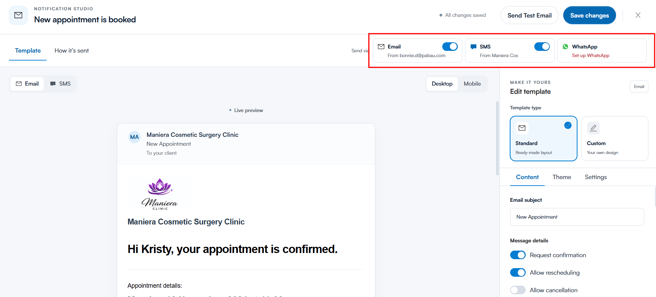
Turn on appointment reminders to help reduce no-shows and keep clients informed.
To do this, open the Upcoming appointment reminder template in Notification Studio. In the top right, switch on the Email and SMS toggles to choose how the reminder is sent, then click Save changes.
Configure Notification Settings
Start by setting up your appointment confirmation so clients get all the details they need.
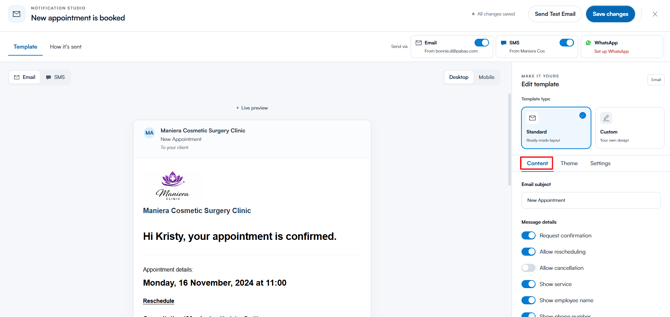
In the New appointment is booked template, open the Content tab on the right. Under Message details, use the toggles to choose what’s included in the notification, such as:
- Request confirmation
- Allow rescheduling
- Allow cancellation
- Show service
- Show employee name
- Show phone number
- Display cancellation policy
The live preview on the left updates as you go, so you can see exactly what your clients will receive. When you’re happy, click Save changes.
Forms
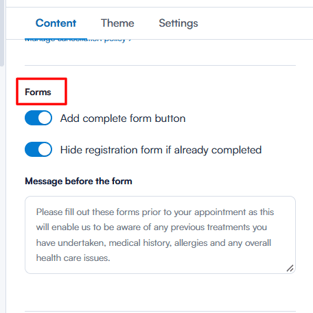
Turn on Add complete form button so clients can fill in their forms straight from the notification, and Hide registration form if already completed so they don’t have to do it twice. Use Message before the form to explain why the forms matter.
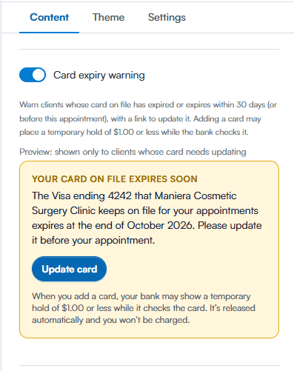
Card expiry warning
Turn this on to remind clients when their card on file has expired or is about to, with an Update card button. It’s only shown to clients whose card needs updating. Adding a card may place a temporary hold of $1.00 or less.
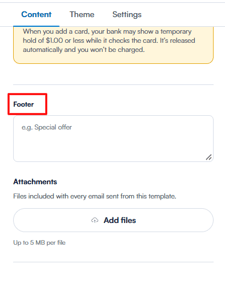
Footer and attachments
Add extra info at the bottom, like a special offer, in the Footer. Under Attachments, click Add files to include files with every email (up to 5 MB each).
Theme
Open the Theme tab to match your notifications to your clinic’s branding.
Enter your clinic website under Import from your website and click Find my branding. Pabau will pull in your website colours, font style and button shape for you.
Or pick a ready-made palette under Start with a palette, like Ocean or Sage, and adjust the colours, text colour, logo size and position, header and footer as you like. Click Save changes when you’re done.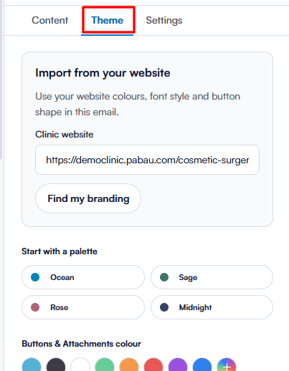
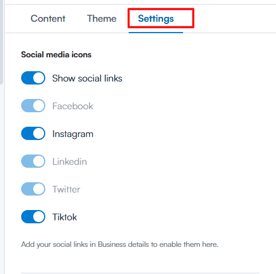
Settings
In the Settings tab, turn on Show social links to add your social media icons to the bottom of the notification, then choose which ones to show, like Instagram or TikTok.
If an icon is greyed out, it means that link hasn’t been added yet. Add your social links in Business details first, and they’ll become available here. Click Save changes when you’re done.
SMS Messages
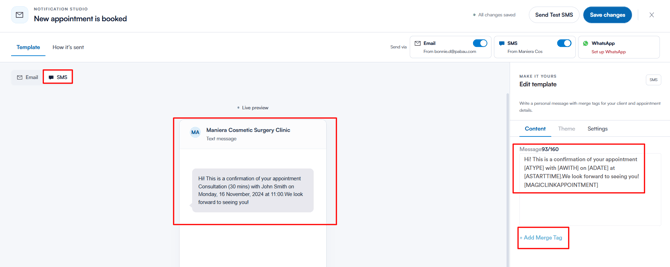
To edit the text message, click SMS at the top of the preview. Write your message in the Message box on the right, and click Add Merge Tag to insert details like the treatment, practitioner, date and time. These are filled in automatically for each client.
The counter above the box shows how many characters you’ve used out of 160, and the live preview shows exactly what your client will receive. Click Send Test SMS to check it on your phone, then Save changes.
By optimizing your client communications, you’ll reduce no-shows, keep your calendar full, and improve client satisfaction. With automated confirmations and reminders, you ensure that your clients are always informed and prepared, making appointments run smoothly and efficiently.
Online Bookings
Online booking is a game-changer for both your clinic and clients. Optimizing this feature ensures clients can easily schedule appointments 24/7. With a user-friendly booking system, you’ll improve client satisfaction, and keep your calendar full.
Step 1: Navigate to Online Booking
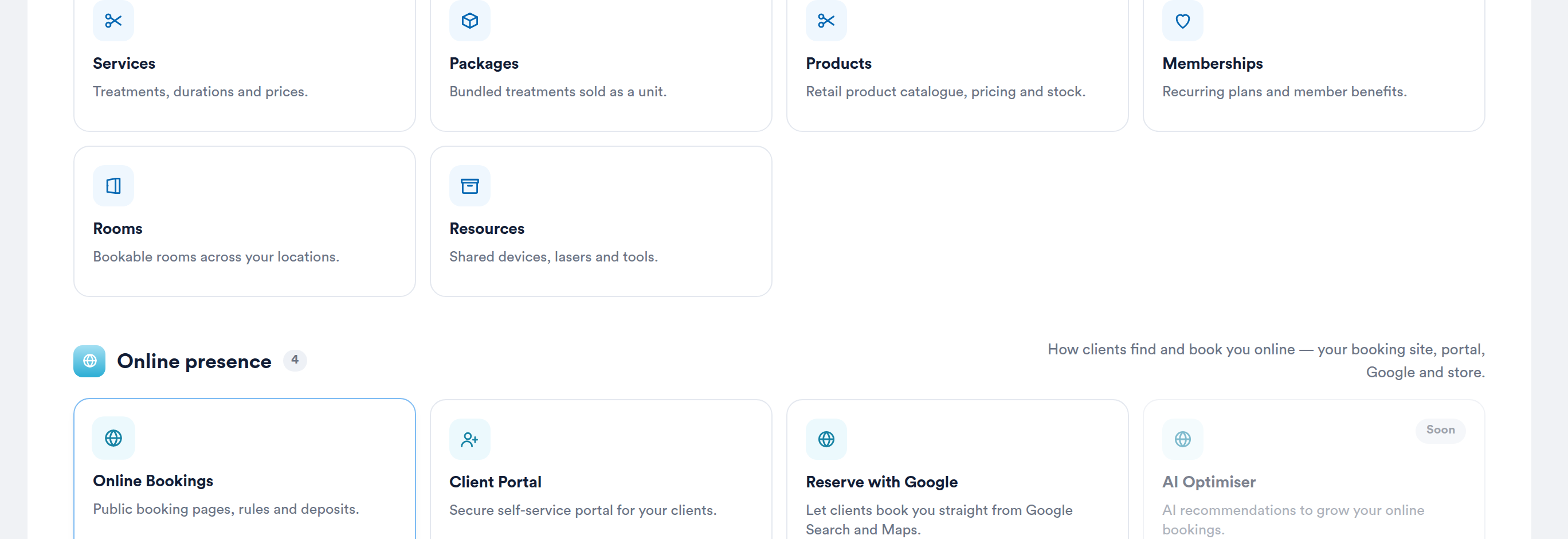
Click Setup in the sidebar, choose Online presence and click Online Bookings (or go to More → Online Bookings). On the Overview tab, work through the booking-page checklist until every check is green — see New Online Bookings Part 1: Get Your Booking Page Ready.
Step 2: Open Pabau Studio
Click Customise page to open Pabau Studio, where you design your booking page and choose how clients book. Nothing reaches clients until you click Publish — see New Online Bookings Part 2: Customise and Publish Your Booking Page in Pabau Studio.

Step 3: Key Areas to Optimize
Here’s what to check in Pabau Studio so your booking page works well for your clients:
Brand Your Booking Page
Click Branding to set your colours, background, heading font and buttons. Use Widgets to add an announcement bar or a text card — header and footer messages from the classic booking page are carried over as these. Your Terms & Conditions and Privacy Policy are set on the Content tab of Setup → Online presence → Client Portal.
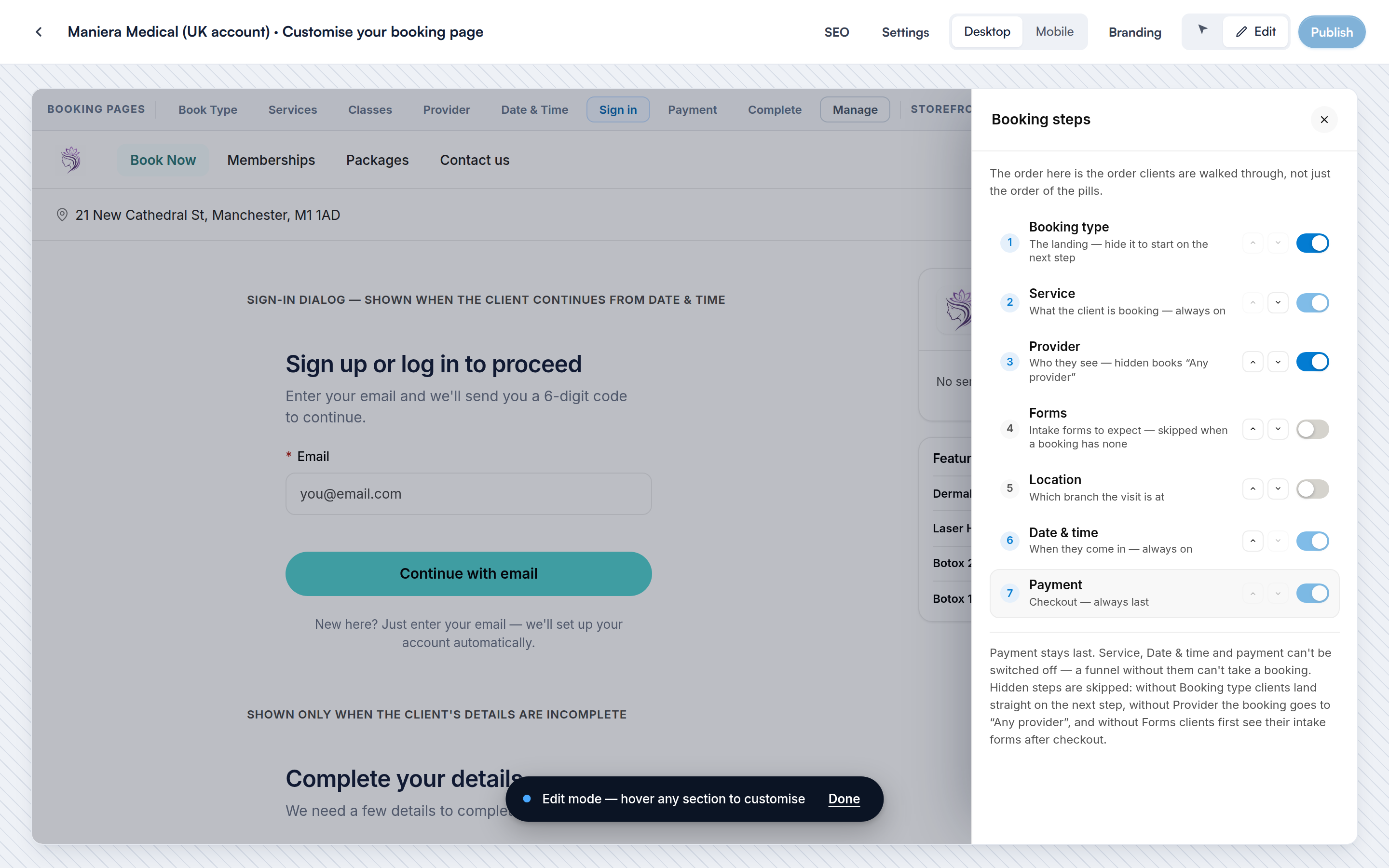
- Sign in: on the Sign in page, click the Sign-up fields label to choose what new clients are asked. Your classic registration fields are carried over.
- Booking steps: click Manage to choose which steps clients go through, including whether they complete their forms while booking — see New Online Bookings Part 3: Set Booking Steps and Availability Rules.
Services and Availability
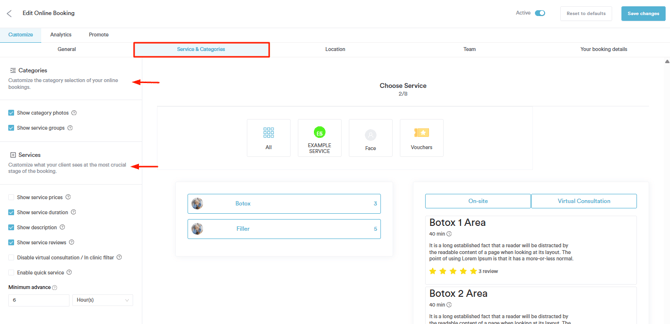
On the Services page, choose how your services are listed. On the Date & Time page, set the Time interval, the Minimum notice (the earliest a client can book) and the Maximum advance (how far ahead they can book), and whether to Show waitlist. Until you set them in Studio, your classic Online Booking settings are used. See Part 3.
Location Optimization
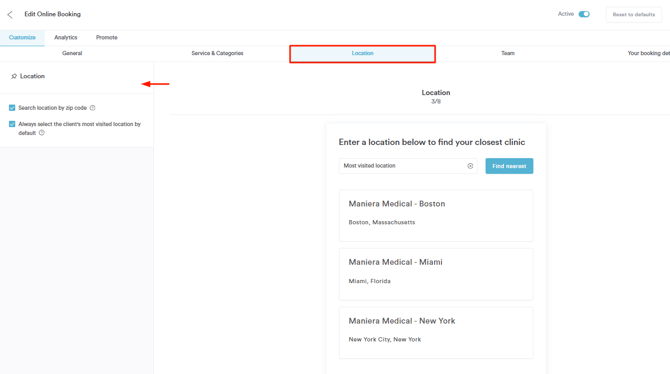
Clients choose a location on the Location page. The address, phone number and opening hours they see come from Setup → Locations, so check them there (see Locations above). A location you keep off your booking page can still be booked through a tailored link — see Part 5.
NOTE: Location rules are covered in Part 3.
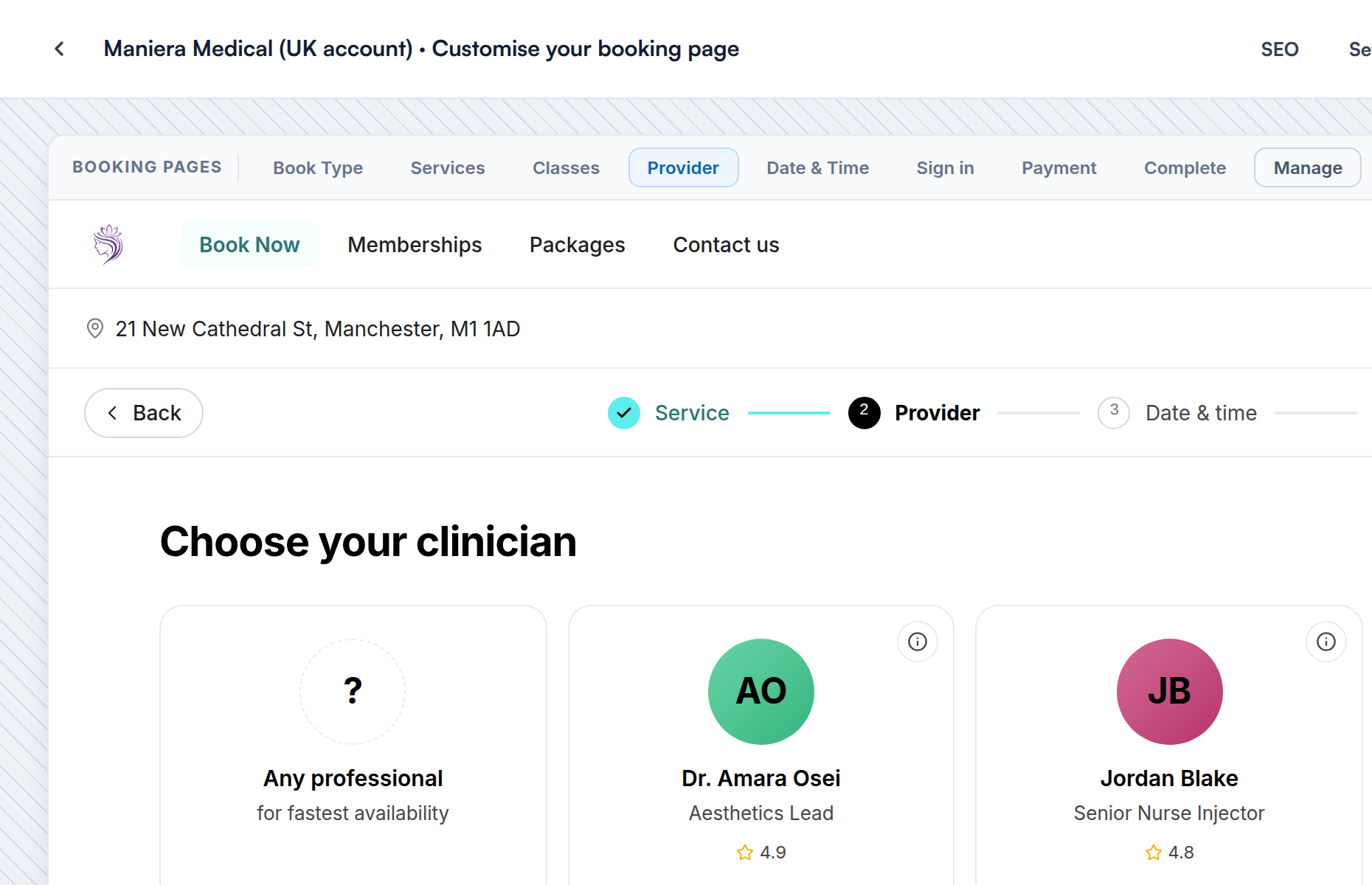
Choose What Clients See About Your Team
The Provider page shows your team. Your classic choices for photos, job titles, review scores and bios carry over until you change them in Studio. If you turn the Provider step off under Manage, the booking goes to Any professional — see Part 3. Bios come from the Team feature.
By optimizing your online booking system, you make it easier for clients to schedule appointments while keeping your calendar organized.
Set up the Reserve with Google integration
Reserve with Google allows your business to appear in Google Search and Google Maps results, with booking buttons that enable clients to book appointments directly.
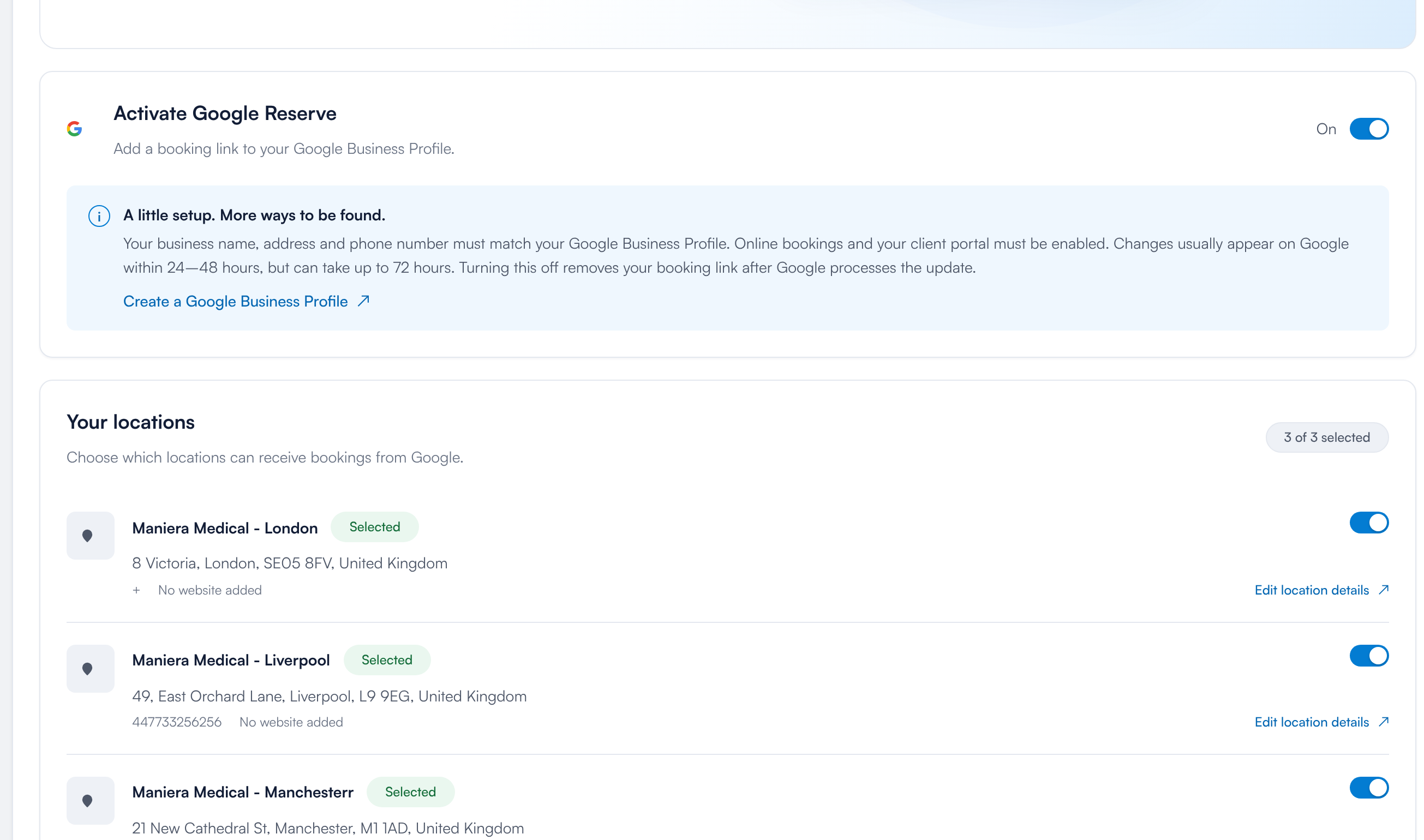
To set it up, open Online Bookings and click the Google Reserve tab (also in Setup → Online presence → Reserve with Google).
Switch on Activate Google Reserve, then under Your locations choose which locations can take bookings from Google Search and Maps. A location marked Needs attention tells you what to fix, so make sure the location is set up correctly in the Locations page. See Part 5.
By following these steps, you can activate Reserve with Google for your online bookings.
Client Portal
Your client portal is a key touchpoint for your clients, giving them access to their records, bookings, and more. Optimizing it ensures a smooth experience while keeping your clinic in control of what information is collected and what features clients can use.
Step 1: Navigate to Client Portal
Click Setup in the sidebar, choose Online presence and click Client Portal.
Step 2: Key Areas to Optimize
To make the most of your client portal, it's important to fine-tune key settings that affect how clients register, what information they provide, and what they can access. Here's what to set up:
Review Sign-up Fields
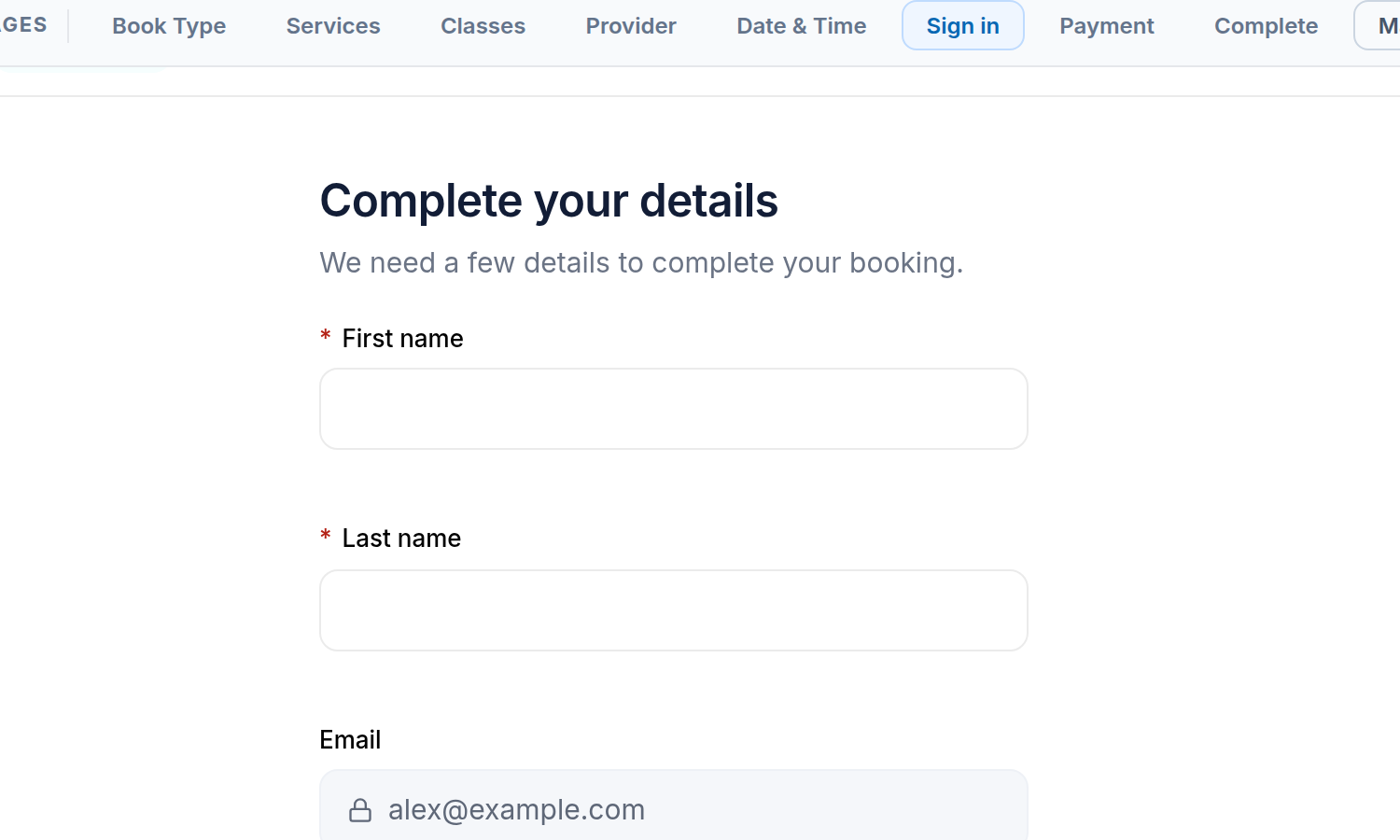
Choose what new clients are asked the first time they sign in. These are the Sign-up fields, set in Pabau Studio on the Sign in page: drag fields into order, switch Required on or off, or hide a field. Your classic registration fields are carried over. See Part 2.
To match the portal to your brand, choose a Palette on the Appearance tab and click Save appearance. The palette is shared with your booking page.
Control Client Access
Choose what signed-in clients can see and do, such as appointments, payments or secure messages, on the Essentials tab.
Each feature has a card. Use its switch to turn the feature on or off — the card shows Enabled or Disabled. Click a card to see its settings.
The preview on the right shows the client’s menu and updates as you switch features on and off.

See How to Set Up the New Client Portal for every tab of the Client Portal settings.
Precares/Aftercares
Optimizing your Precare and Aftercare templates ensures that clients receive the right information at the right time. Precare instructions help clients prepare for their appointments, while Aftercare guides support their recovery and treatment results. Setting these up properly keeps clients informed, improves compliance, and enhances their overall experience with your clinic.
Step 1: Navigate to Templates
Access the Setup page by clicking the "Setup" button in the bottom corner of the left sidebar menu. Once there, navigate to the ''Marketing & Communications'' section. From there, select the "Templates" tab to access and manage your templates.
/Screenshot%20-%202026-08-09T123707.511.png?width=670&height=318&name=Screenshot%20-%202026-08-09T123707.511.png)
Step 2: Key Areas to Optimize
Here are the key areas you should focus on to ensure your templates are set up correctly:
Fill Out Information
Start by filling in the details at the top of the template.
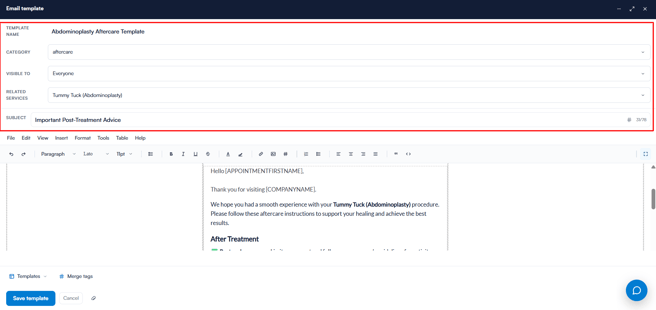
Enter a Template name so your team can find it easily, for example “Abdominoplasty Aftercare Template”. This is for internal use only. Then choose the Category, such as Aftercare, and use Visible to to choose who in your team can see and use the template. Under Related services, select the services this template is for, and add the Subject your clients will see in their inbox.
Then write your email in the editor below. Click Merge tags to add details like the client’s name or your clinic name, which are filled in automatically.
For Aftercare templates, include post-treatment guidelines, restrictions and follow-up recommendations. For Precare templates, include anything clients need to do before their appointment, such as fasting requirements or skincare prep.
Link Services
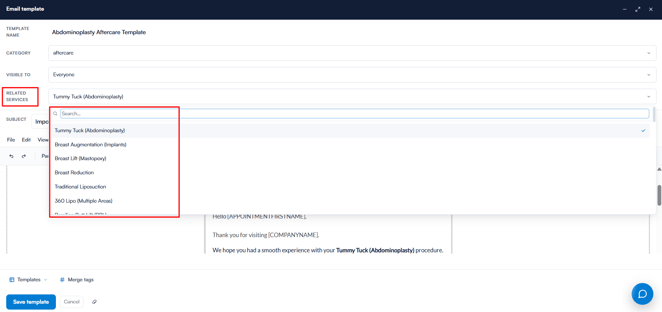
To ensure clients receive the correct information, in the related services field, select all of the services from the dropdown menu that this template should apply to.
Simply tick on the service name to include it. Make sure to click the "Save Template" button in the bottom left corner to apply and save your changes.
Optimizing features like online bookings, the client portal, and precare & aftercare ensures smoother clinic operations, reduces manual tasks, and enhances client satisfaction.
Stock
Step 1: Navigate to Stock
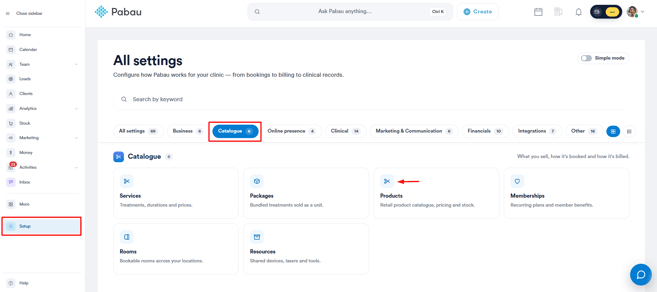
Log in to your Pabau account and in the left sidebar, click Setup. Then, under ''Catalogue'', click Products.
Step 2: Key Areas to Optimize
To optimize your stock management in Pabau, here’s what you need to do:
Categorize Products
On the Products page, categorize your products by dividing them into relevant categories and groups. This makes it easier to manage, track, and report on stock levels.
If necessary, create custom categories or groups to suit your clinic's specific product types, such as "Skincare," "Supplements," "Medical Equipment," etc.
After creating the products, simply assign each to its respective category for better organization. You can set a category to a product on the "General" tab.
/Screenshot%20-%202026-08-09T124255.083.png?width=610&height=290&name=Screenshot%20-%202026-08-09T124255.083.png)
Pricing
To ensure accurate pricing and inventory management, it’s important to add both cost pricing and retail pricing for each product. You can do this easily under the Pricing tab when creating a product.
-
Cost Pricing: This is the price you pay for the product from your supplier or manufacturer. It helps you track your expenses and manage profitability. Ensure to input this price so you can accurately calculate your margin.
-
Retail Pricing: This is the price at which you sell the product to your clients. Setting a retail price is essential for ensuring consistency across your clinic's sales and helping you maintain a competitive pricing strategy.
By adding both cost and retail pricing, you can have a clear understanding of your profit margins and make informed decisions about pricing adjustments.
/Screenshot%20-%202026-08-09T124323.180.png?width=665&height=196&name=Screenshot%20-%202026-08-09T124323.180.png)
Stock Quantity Optimized
When editing or creating a product, you'll have the option to add your current stock quantity, just navigate to the "Inventory Levels" tab.
/Screenshot%20-%202026-08-09T124354.714.png?width=612&height=288&name=Screenshot%20-%202026-08-09T124354.714.png)
Set minimum and maximum stock quantities for each product. By defining these limits, you ensure that you maintain optimal stock levels for each item.
-
Minimum Stock Quantity: This setting lets you define the minimum number of items you want to keep in stock. When the stock level drops below this number, the system will trigger an alert to notify your team, helping you avoid running out of essential products.
-
Maximum Stock Quantity: Setting a maximum stock quantity ensures that you don't overstock products. This helps keep inventory levels balanced and reduces the risk of unnecessary surplus.
You also have the option to allow negative quantities in stock. Enabling this setting means that even if you run out of a particular product, the system will still allow you to process sales or bookings for that item.
You can also track current stock levels by location. This feature is particularly useful for businesses with multiple locations, as it allows you to monitor and edit stock across each site.
The total stock quantity will be shown under the Quantity section on the Products page.
/Screenshot%20-%202026-08-09T124451.476.png?width=591&height=258&name=Screenshot%20-%202026-08-09T124451.476.png)
Suppliers Created
To manage your suppliers, navigate to the Supplier tab. Here, you can check if your suppliers are already created, or add a new supplier if necessary. All of your suppliers will be listed in this section for easy reference.
/Screenshot%20-%202026-08-09T124521.757.png?width=627&height=199&name=Screenshot%20-%202026-08-09T124521.757.png)
You can assign suppliers to specific products to easily track who provides what. This helps you maintain clear records of your stock sources, making inventory management more efficient.
/Screenshot%20-%202026-08-09T124552.252.png?width=626&height=296&name=Screenshot%20-%202026-08-09T124552.252.png)
By optimizing these key areas in your stock management, you can ensure a more organized, efficient, and reliable inventory system for your clinic.
Basic Reports
Save time by optimizing your favorite reports for quick access. Plus, create custom reports tailored to your needs using our advanced filters.
Step 1: Navigate to Reports
To access reports, navigate to the "Analytics" tab located on the left sidebar menu, then, click to expand it. This action will reveal the "Reports" tab.
/Screenshot%20-%202026-08-09T124631.399.png?width=670&height=321&name=Screenshot%20-%202026-08-09T124631.399.png)
Step 2: Review Pre-Created Reports
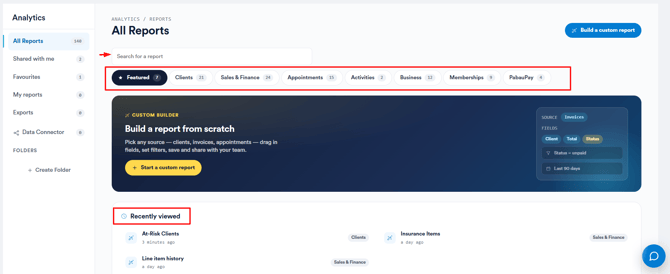
On the All Reports page, you’ll find a selection of ready-made reports, such as At-Risk Clients, giving you instant insights without any setup. Use the search bar to find a report by name, or browse by category, like Clients, Sales & Finance or Appointments. Reports you’ve opened recently appear under Recently viewed.
Step 3: Key Areas to Optimize
Here’s how you can make the most of your reports:
Favourite Reports
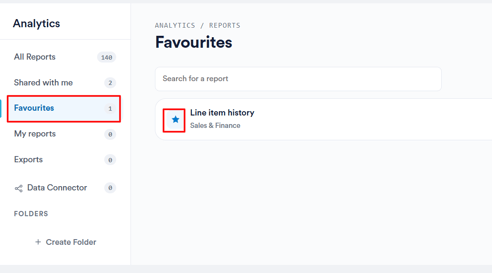
Keep the reports you use most close at hand. Open the report, click the three dots in the top right corner and select Add to favourites. The report will then appear under Favourites in the left menu.
Create a Custom Report
Need data that isn’t covered by the ready-made reports? Click Build a custom report in the top right corner, or Start a custom report on the banner.
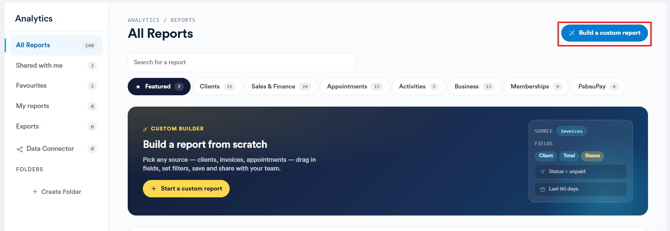
Choose what you want to focus on, such as clients, invoices or appointments, then drag in the fields you need and apply filters. For example, you could see all unpaid invoices from the last 90 days. You can then save the report and share it with your team. For more information, see this article.
Enable the Medical Data Report
View all client responses from medical forms in a structured, easy-to-read format for better organization and analysis by activating the Medical Data report.
To do that, navigate to the Setup page and click to expand the "Integrations" tab, then click the "App Marketplace" sub-tab./Screenshot%20-%202026-08-09T124957.559.png?width=670&height=318&name=Screenshot%20-%202026-08-09T124957.559.png)
Locate the "Medical Data Report" and click on it. You'll see an option to install the feature in the top-right corner. Once installed, the "Medical Data Report" will appear under the "Analytics" tab in the left sidebar menu.
For more details on running the "Medical Data Report," refer to this guide.
Reviews
Step 1: Navigate to Feedback Survey
Navigate to the Setup page by clicking the "Setup" button at the bottom of the left sidebar menu. Under the Marketing & Communications section, you will find the "Feedback Survey" option, which opens the Review setup page.
/Screenshot%20-%202026-08-09T125134.783.png?width=655&height=311&name=Screenshot%20-%202026-08-09T125134.783.png)
Step 2: Key Areas to Optimize
Here’s what you need to do to optimize your reviews:
Settings Optimised
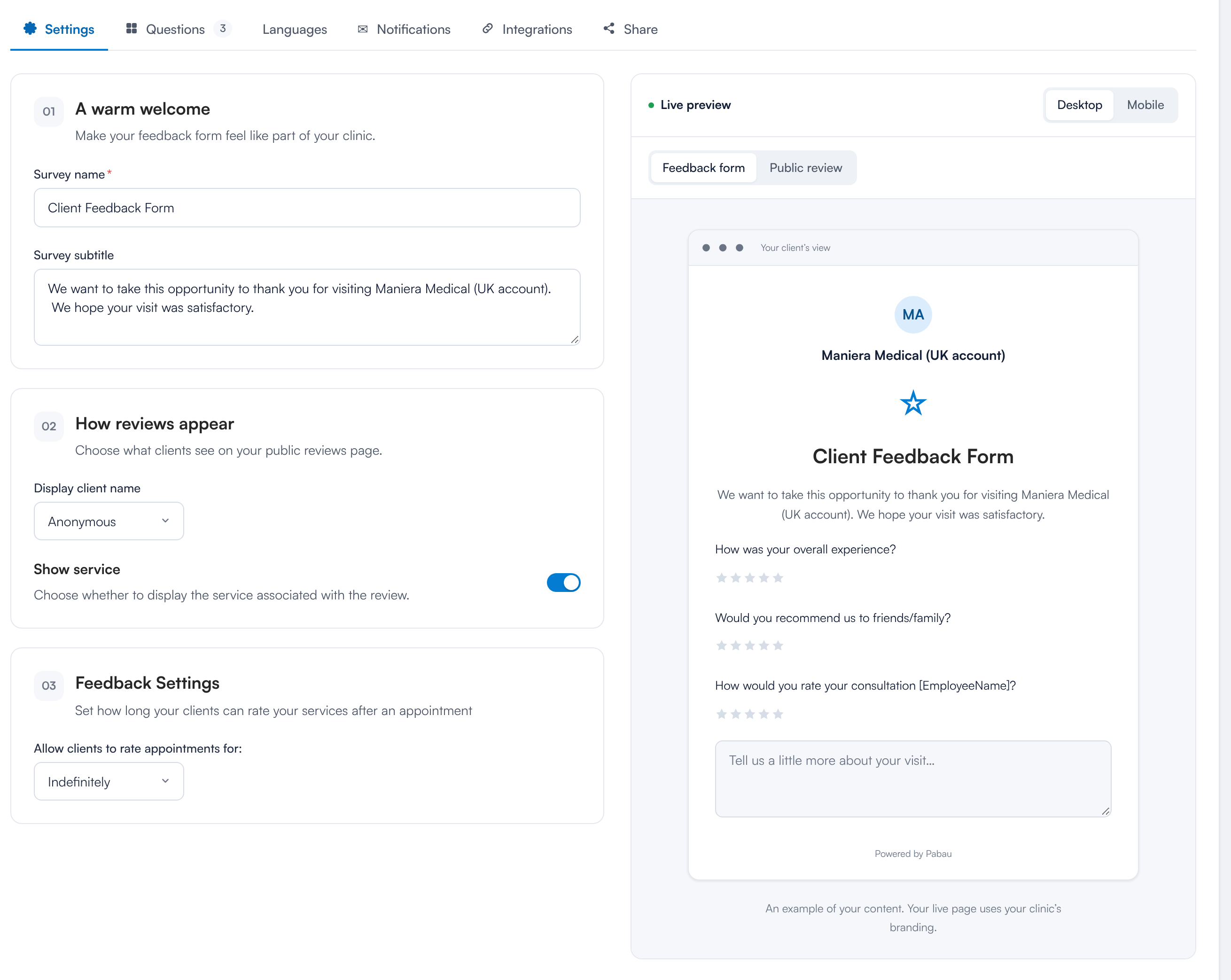
On the Settings tab, set up how your survey looks and behaves. The Live preview on the right shows what your clients will see.
- A warm welcome: enter the Survey name and Survey subtitle clients see at the top of the form.
- How reviews appear: use Display client name to choose how the reviewer’s name is shown on your public reviews page (for example, Anonymous), and turn on Show service to display the service the review relates to.
- Feedback Settings: under Allow clients to rate appointments for, choose how long after an appointment clients can leave a rating.
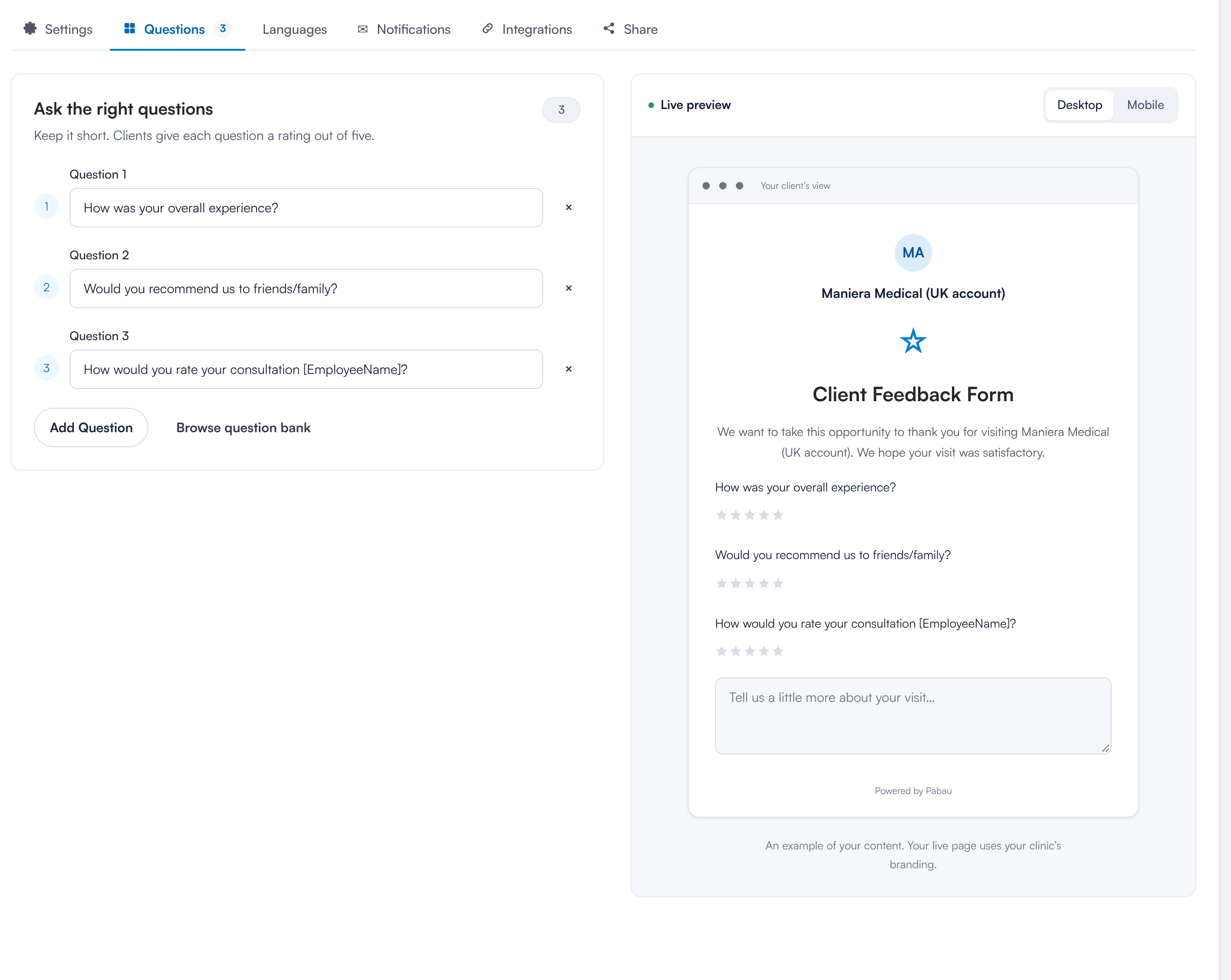
On the Questions tab, keep your survey short — clients give each question a rating out of five.
Click Add Question to write your own question, edit any question in place, or click the × next to a question to remove it. Click Browse question bank to add ready-made questions. Questions include merge tags, which automatically pull appointment details. Choosing different merge tags adjusts the question’s context.
Google Reviews Setup
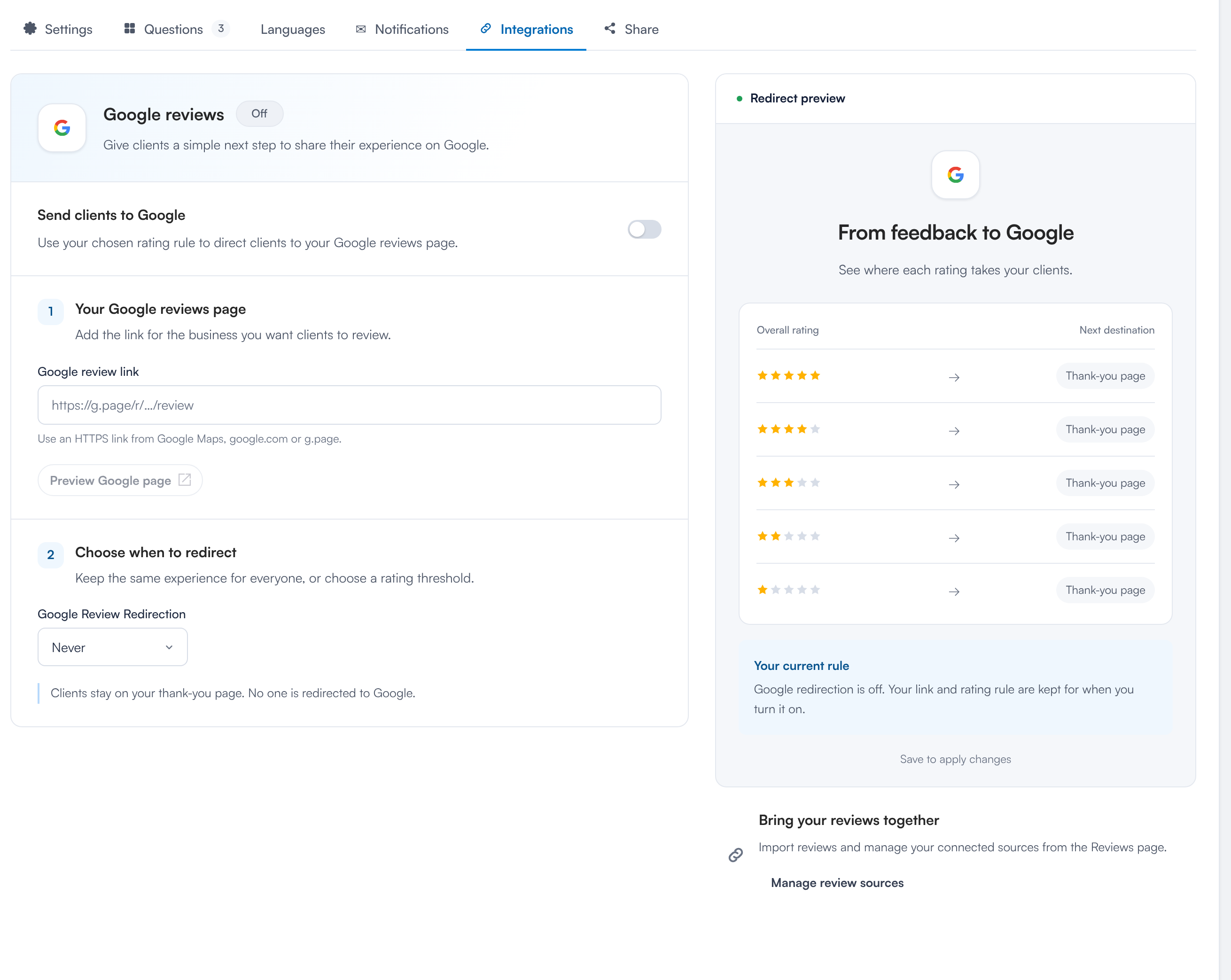
With Google Reviews integration, you have full control over how and when clients are redirected to leave a review. Access the option on the Integrations tab and turn on Send clients to Google. By entering your direct Google Reviews link, you ensure clients are guided to the right place.
You can also define redirection rules to decide when clients should be prompted to leave a review. Whether you want only those who give a perfect 5-star rating to be redirected or allow anyone with a 3+ rating to share their feedback, the choice is yours.
NOTE: For more details, please refer to this article.
Review Notifications Optimized
Check if your review notifications are enabled by clicking Setup on the bottom of the left sidebar menu. Then, navigate to the Marketing & Communications. From there, open "Client Notifications."
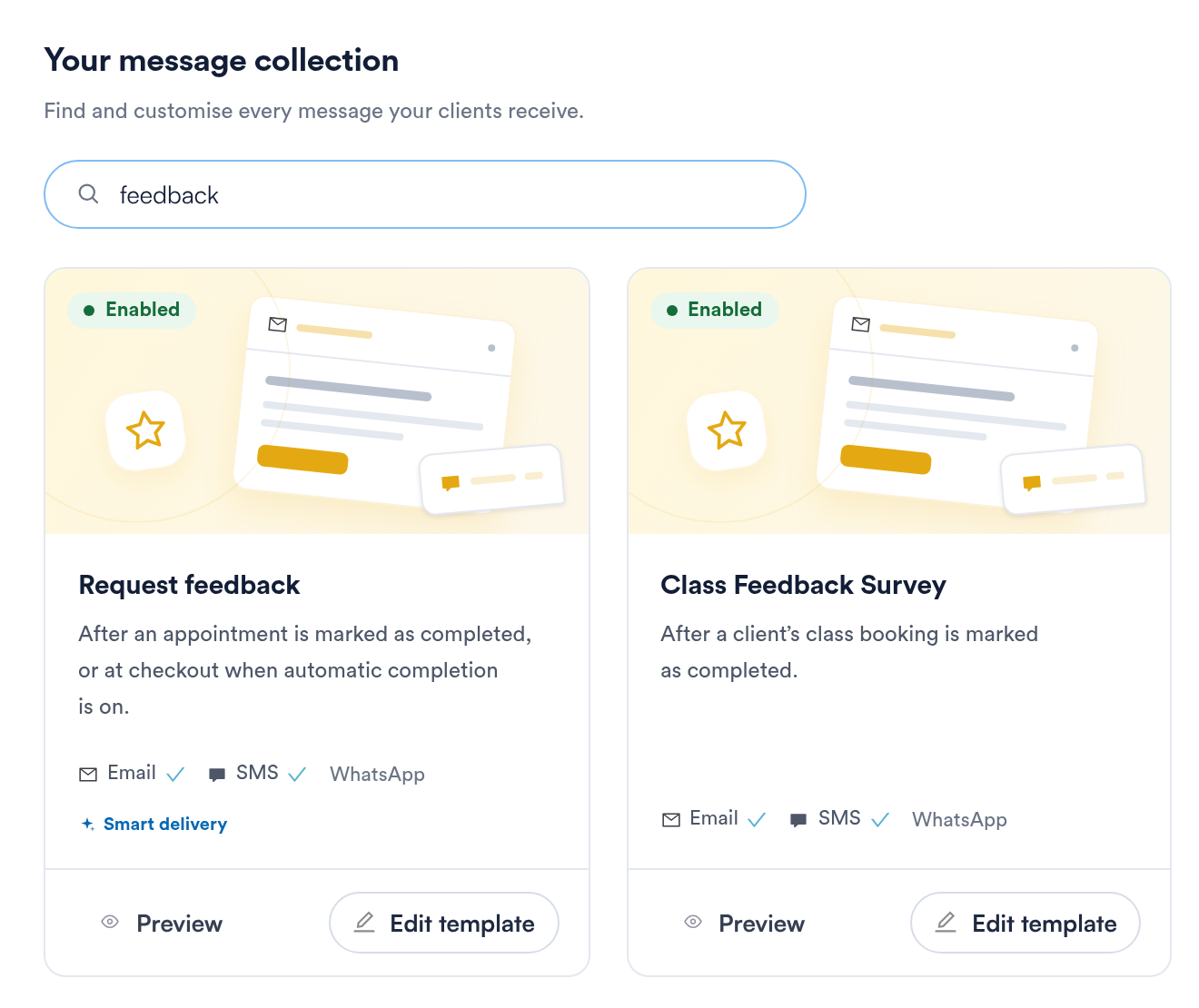
The notification template name is "Request feedback". Type feedback in the search box under Your message collection to find it.
NOTE: To learn more about the Request Feedback notification template, refer to this article.
Leads
The Leads feature helps you track and manage potential clients, making it easier to convert inquiries into bookings.
Step 1: Navigate to Leads
To access Leads, navigate to the Leads tab in the left sidebar menu. Click to expand it, and you'll see the Leads and Pipelines sub-tabs.
/Screenshot%20-%202026-08-09T125528.120.png?width=670&height=320&name=Screenshot%20-%202026-08-09T125528.120.png)
Step 2: Key Areas to Optimize
To optimize your leads, focus on creating a lead pipeline (or multiple pipelines) and adding a lead form to capture and manage potential clients effectively.
Create a Lead Pipeline
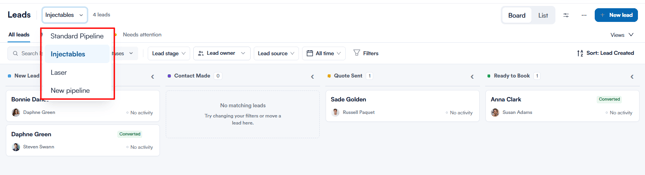
To create a lead pipeline, go to the Leads tab and click the pipeline dropdown next to the page title. You’ll see all your existing pipelines, such as Standard Pipeline, Injectables and Laser. Click New pipeline at the bottom of the list to create a new one.
You can use the same dropdown to switch between pipelines at any time.
NOTE: For more information on lead pipelines, refer to this article.
Optimize Lead Form Fields
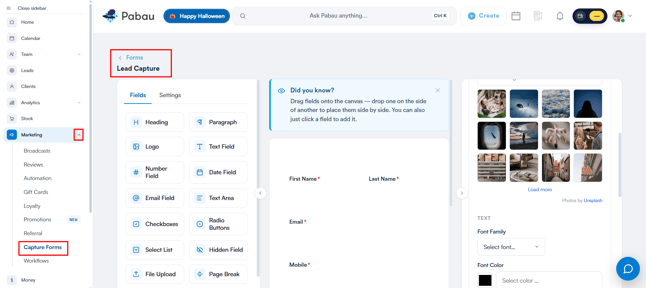
Build and customise your lead form in Capture Forms. Go to Marketing → Capture Forms, open the Forms tab and click Create new form, or open one of your existing lead forms.
Under Fields, add the fields you want, such as Text Field, Email Field or Select List. Click a field to add it, or drag it onto the form. Use the Design panel to match the form to your website’s colours and style.
When it’s ready, add it to your website as an embedded form or a pop-up, or share it as a link or QR code. Every submission is created as a lead in Pabau, so new enquiries go straight into your pipeline.
NOTE: For more detail, see:
Loyalty
Loyalty Campaigns are a great way to reward your clients for their continued business by offering them points for purchasing services, products, or leaving reviews.
Step 1: Navigate to Marketing
Navigate to the Marketing tab on the left sidebar menu and click to expand it. This will display the Loyalty tab.
/Screenshot%20-%202026-08-09T125907.086.png?width=613&height=294&name=Screenshot%20-%202026-08-09T125907.086.png)
Step 2: Create a Loyalty Campaign
Click the "Customize" button in the bottom right corner, and a pop-up window will appear where you can set how much each point earned is worth. This ensures a clear and fair rewards system for your clients.
/Screenshot%20-%202026-08-09T130005.345.png?width=599&height=305&name=Screenshot%20-%202026-08-09T130005.345.png)
After setting the point value, scroll down and click the "+ Add New Campaign" button to begin creating your loyalty campaign.
/Screenshot%20-%202026-08-09T130048.540.png?width=631&height=325&name=Screenshot%20-%202026-08-09T130048.540.png)
Step 3: Key Areas To Optimize
There are two types of loyalty campaigns you can create:
- User-Generated Content – Reward customers for their engagement, such as writing a review, registering for Pabau Connect or Client Portal.
- Sales-Based Rewards – Reward customers for their spending by earning points when purchasing services, gift vouchers, packages, or products, or by gaining 1 point for every dollar spent.
You can customize your loyalty campaign by selecting the rule type you want to include. For example, if you choose Sales-Based Rewards and select "Services Purchased," clicking the Add Rule button will prompt you to specify which services should earn points.
/Screenshot%20-%202026-08-09T130124.409.png?width=627&height=265&name=Screenshot%20-%202026-08-09T130124.409.png)
NOTE: For more information on creating Loyalty campaigns, refer to this article.
Custom Fields
Custom fields give you the freedom to tailor Pabau exactly to your clinic’s unique needs. Whether you want to capture special client preferences, track additional service details, or add custom staff info, this feature lets you create your own fields quickly and easily.
Step 1: Access Custom Field Setup
Log into your Pabau account, go to Setup → Business → Fields. This takes you to the custom fields area where you can create, edit, or archive your custom fields.
/Screenshot%20-%202026-08-09T130528.727.png?width=634&height=302&name=Screenshot%20-%202026-08-09T130528.727.png)
Step 2: Create a New Custom Field
Click the Create (or +New) button. You will first need to select the field object.
/Screenshot%20-%202026-08-09T130630.787.png?width=418&height=343&name=Screenshot%20-%202026-08-09T130630.787.png)
Then fill in:
-
Name: The title of your field (e.g., “Preferred Drink”, “Skin Condition Note”).
-
Category: Choose where this field lives (Client, Lead, Service, Staff, etc.).
-
Field Type: Pick the type of input (e.g., text, dropdown, date).
-
Required / Visibility: Decide if the field must be filled out and who sees it.
Finally, click Create to save your new field.
/Screenshot%20-%202026-08-09T130655.274.png?width=413&height=435&name=Screenshot%20-%202026-08-09T130655.274.png)
Step 3: Use Custom Fields in Reports & Workflows
Custom fields don’t just sit in profiles — you can add them to reports, filters, or use them in automations. For example, capture a custom field like “VIP Client Status” and then filter reports to see how many VIPs are booked this month.
Tips (US)
Giving your clients the option to leave a gratuity is now a seamless part of your checkout experience. With Pabau’s Tips feature, you can set up when and how tipping is offered — at the terminal, online, or after an appointment — so your team gets recognized for outstanding service. Pabau
Step 1: Access Tip Settings
Go to Setup → Financials → Policies. Click Configure next to Tips to begin configuring how and when gratuities are offered.
/Screenshot%20-%202026-08-09T130811.524.png?width=602&height=282&name=Screenshot%20-%202026-08-09T130811.524.png)
Step 2: Enable Tipping Options
Choose the checkout moments when clients will be prompted to tip:
-
At the card-terminal or pay-by-text checkout.
-
In the thank-you message after checkout.
-
On past appointments or feedback pages.
Toggle each option on or off according to your preference.

Step 3: Configure POS and Online Tipping
Decide whether tipping is offered:
-
Directly in-clinic at the POS terminal (prompt appears automatically if enabled).
-
Online via the Client Portal, using the Enable tipping through Pabau Connect option (prompt appears if enabled).
Clients can still add a custom tip amount even if prompts are disabled.

Step 4: Set Suggested Tip Values
Create up to five quick-select tip options (e.g., 10%, 15%, 20%, 25%, 30%). Clients can choose one, enter a custom amount, or select No tip. Having preset amounts encourages tipping and simplifies checkout.

Step 5: Save and Activate Tipping
Once settings and tip values are configured, turn on the main toggle in the top-right of the Tips screen and click Save policy to activate tipping throughout your workflow.
Was this guide helpful? Let us know by voting below - your feedback helps us write clearer articles.
For more guides, browse the related articles below or use the search bar at the top of the page. You can also watch our video learning series, the Pabau Academy, or visit the Support page for additional help.