
Connecting Google to Pabau does two things. Your existing Google reviews are imported so they appear alongside your Pabau reviews, and clients who leave you a good review through Pabau can be sent on to your Google review page to leave a public one - turning happy clients into verified Google reviews with no extra effort.
NOTE: Connecting Google requires the Marketing Plus add-on. Without it, the Connect option opens an upgrade prompt instead.
Step 1: Navigate to Reviews
Log in to your Pabau account and in the left sidebar menu, click on Marketing, then click on "Reviews."
Step 2: Open Manage Sources
In the By platform card, click Manage sources. This is where you connect and disconnect the review platforms that sync into Pabau.
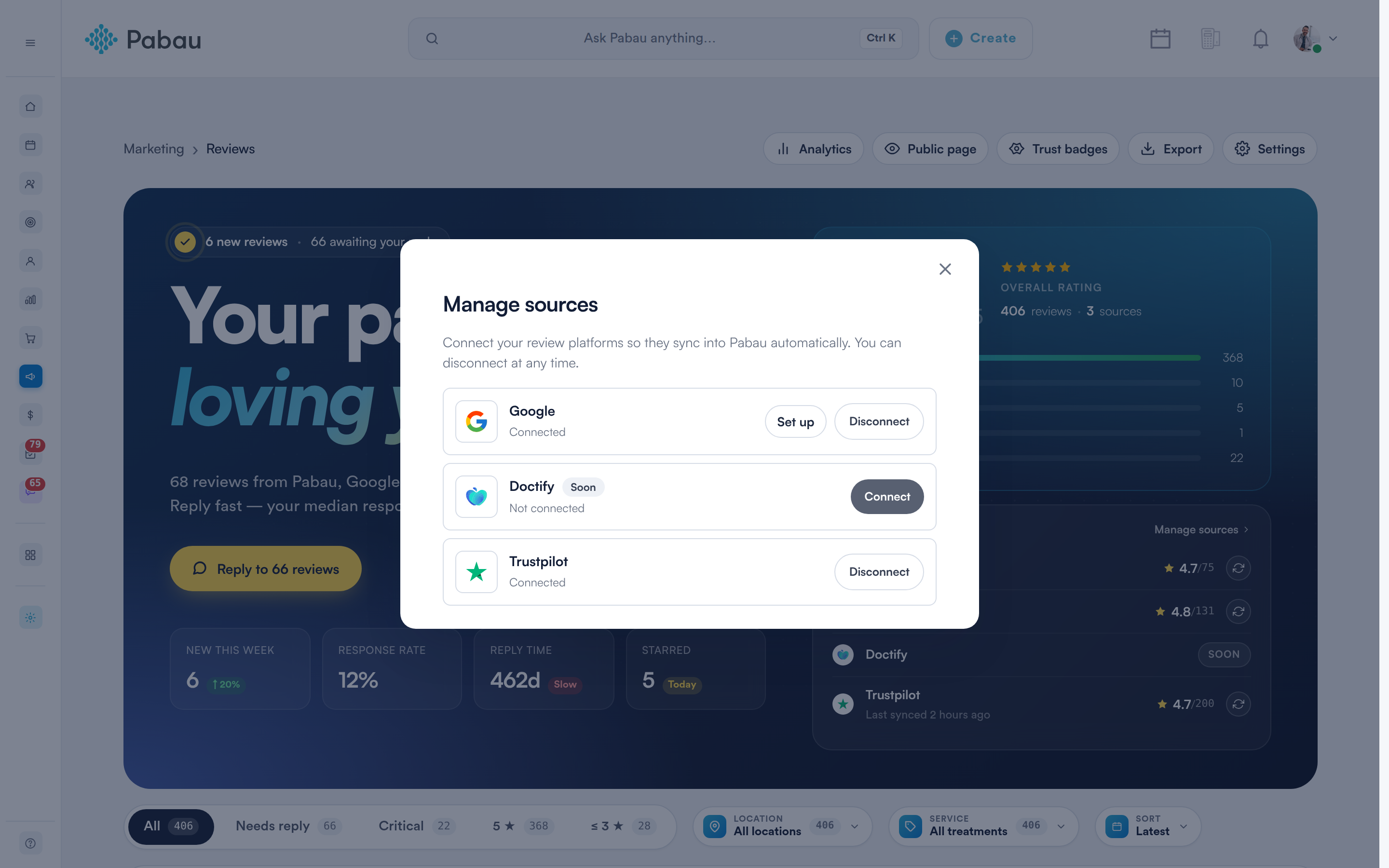
Manage sources, showing each platform and its connection state
Step 3: Connect Your Google Business
Click Connect on the Google row, then search for your clinic by business name or location and select it from the results. Confirm when Pabau asks, and your Google reviews begin syncing - a progress screen shows them arriving.
NOTE: You no longer paste a Google review URL. Pabau builds the review link from the business you connect. To point at a different business, disconnect and reconnect.
Step 4: Open the Google Settings
Once Google is connected, click Set up on the Google row to open Set up Google reviews. The Review link shown here is where a redirected client lands - it is filled in for you from the business you connected.
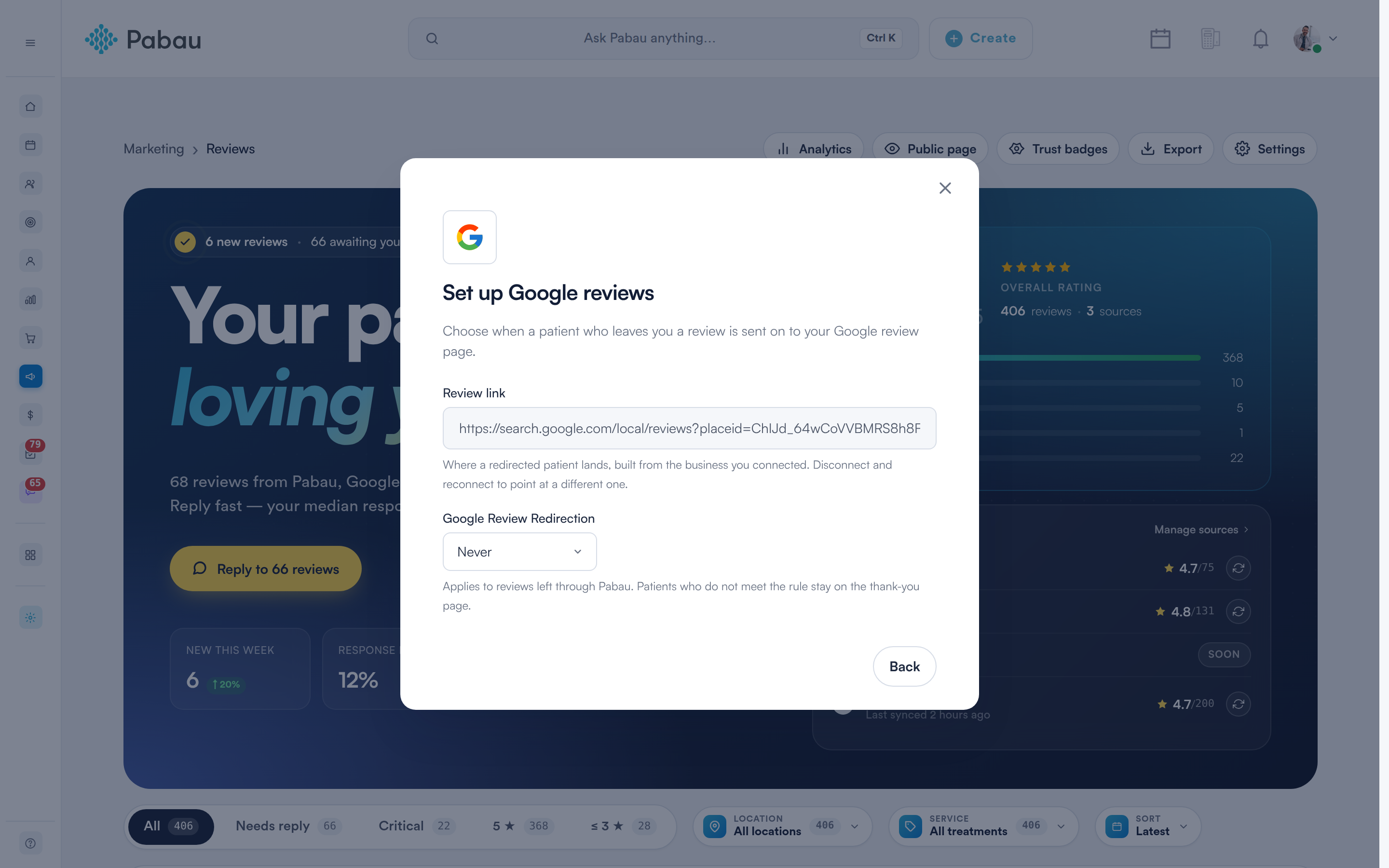
Set up Google reviews
Step 5: Choose When Clients Are Redirected
Use the Google Review Redirection dropdown to decide which clients are sent on to Google after they complete your Pabau feedback survey:
-
Never - no client is redirected.
-
At review submit if rating is 3+ - redirected when their overall rating is 3 or higher.
-
At review submit if rating is 4+ - redirected when their overall rating is 4 or higher.
-
At review submit if rating is 5 - redirected only on a 5-star overall rating.
-
Once a question is answered with 3+ - redirected as soon as any single question is scored 3 or higher.
-
Once a question is answered with 4+ - redirected as soon as any single question is scored 4 or higher.
-
Once a question is answered with 5 - redirected as soon as any single question is scored 5.
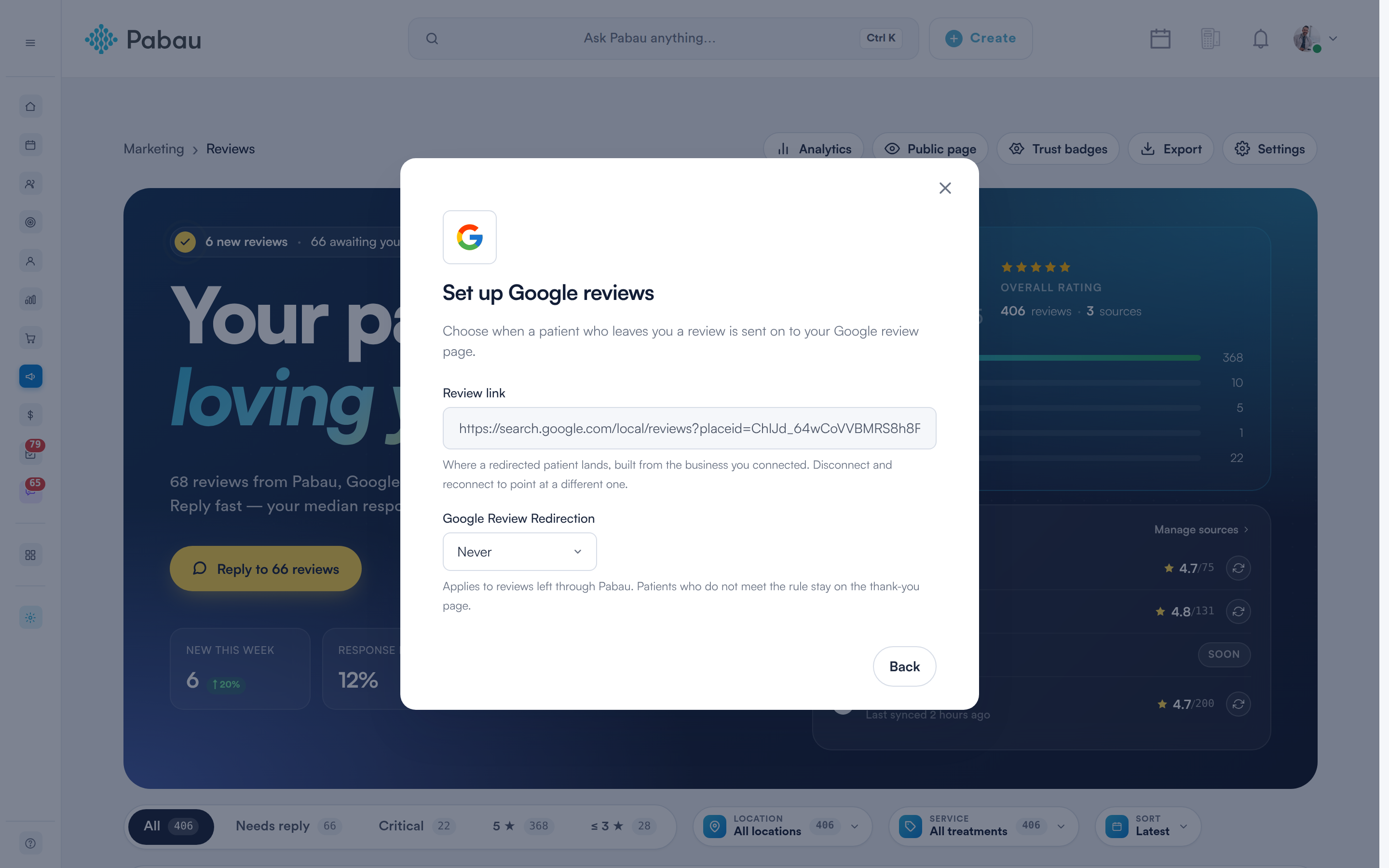
The Google Review Redirection options
NOTE: Redirection applies to reviews left through Pabau. Clients who do not meet the rule stay on the thank-you page. The default is Never, so nobody is redirected until you choose a rule.
Step 6: Save
Your choice is applied to the Google connection. Clients who meet the rule will be offered your Google review page as soon as they finish the Pabau survey.
TIP: Trustpilot connects the same way from Manage sources. Disconnecting a source removes the reviews that were synced from it, so Pabau asks you to confirm first.
What's next?
Was this guide helpful? Let us know by voting below - your feedback helps us write clearer articles.
For more guides, browse the related articles below or use the search bar at the top of the page. You can also watch our video learning series, the Pabau Academy, or visit the Support page for additional help.