
The Reviews feature in Pabau lets your clinic collect, monitor and respond to client reviews from one place. You can see reviews from every connected platform, track how quickly your team replies, answer reviews you received through Pabau, analyse performance over time, and embed a live rating badge on your website.
Step 1: Navigate to Reviews
Log in to your Pabau account and in the left sidebar menu, click on Marketing, then click on "Reviews."
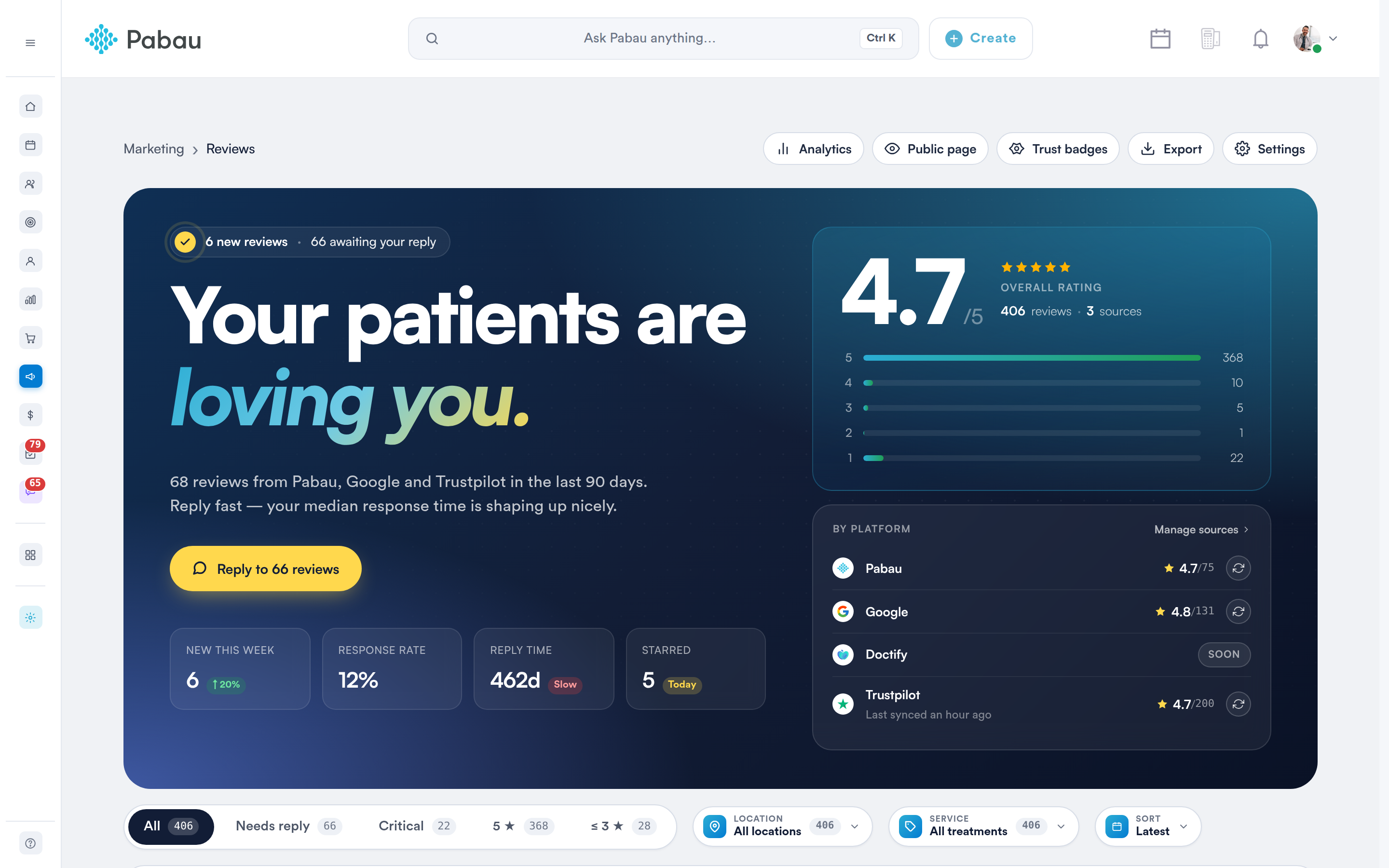
The Reviews dashboard: headline summary, overall rating, platform breakdown and filter tabs
Step 2: Understand the Dashboard
The top of the page gives you an at-a-glance summary of your clinic's reputation:
-
Overall rating: your current star rating and total review count, with a breakdown of how many reviews sit at each star level and how many sources they came from.
-
By platform: a per-platform breakdown of your reviews and their average score. Click Manage sources to connect or disconnect a platform, or use the refresh icon on a row to re-sync it. Platforms that are not available yet are marked Soon.
-
Stat tiles: four figures under the headline - New this week, Response rate, Reply time and Starred.
-
Reply to … reviews: the yellow button opens batch reply mode, which walks you through every review still waiting for an answer, one after another. The button shows how many are outstanding.
NOTE: Response rate, Reply time and the reply count are based on reviews left through Pabau, because those are the only ones you can answer from inside Pabau. See Step 5.
Step 3: Open Your Public Review Page
Pabau hosts a public review page for your clinic where clients can leave and read reviews. Click Public page in the top right to open it. The page goes live once the Review Link toggle is switched on in your Feedback Survey settings - see How to Enable Reviews.
Step 4: Browse and Filter Reviews
Below the summary, your reviews are listed in a table showing the Reviewer, Rating, Source, Review, who it is Assigned to, and an Action column.
Use the filter tabs to jump to a set of reviews. Each tab carries a live count:
-
All - every review across every platform.
-
Needs reply - reviews that have not been answered yet.
-
Critical - reviews flagged as needing attention.
-
5 ★ - only your top-rated reviews.
-
$1
-
Hidden - reviews you have hidden from your public pages (see Hiding a Review below).
You can narrow the list further by Location, by Service, by Source, by Visibility, by Sort order, or by typing into the search box. The Visibility filter shows All reviews (shown and hidden), only Published reviews, or only Hidden ones.
$1
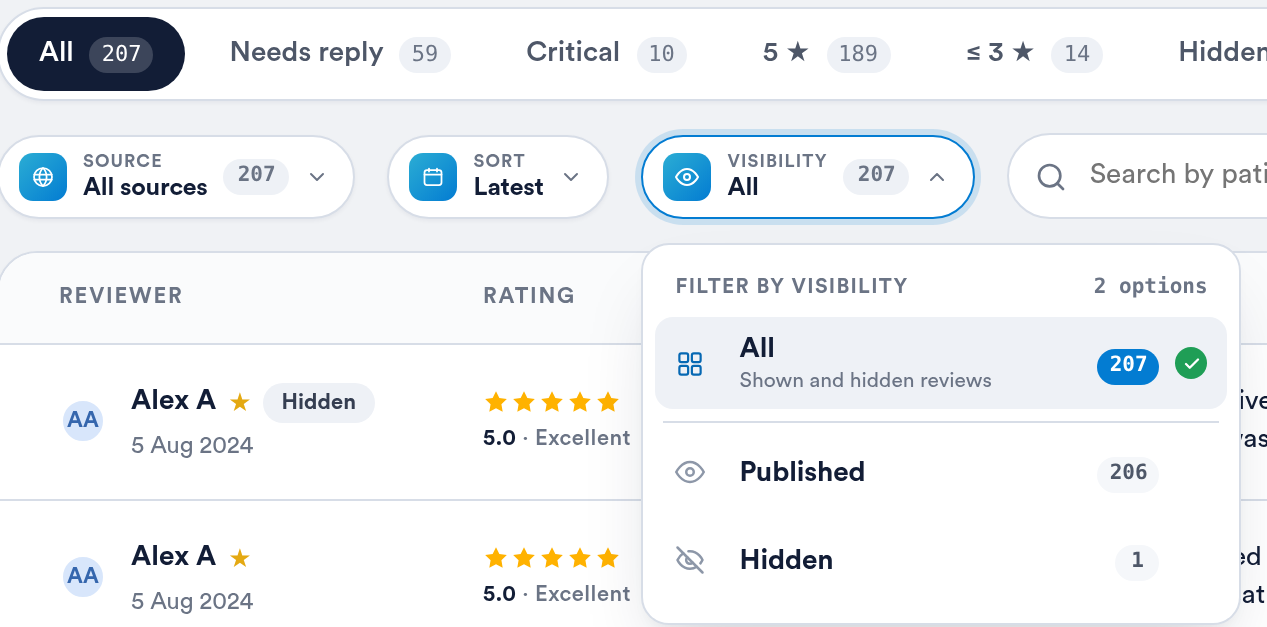
The Visibility filter: All, Published or Hidden
Step 5: Reply to a Review
Click Reply in the Action column. A panel opens showing the original review and its rating for context, the service and practitioner it relates to, and who the reply will be posted as. Type your response and click Send reply.
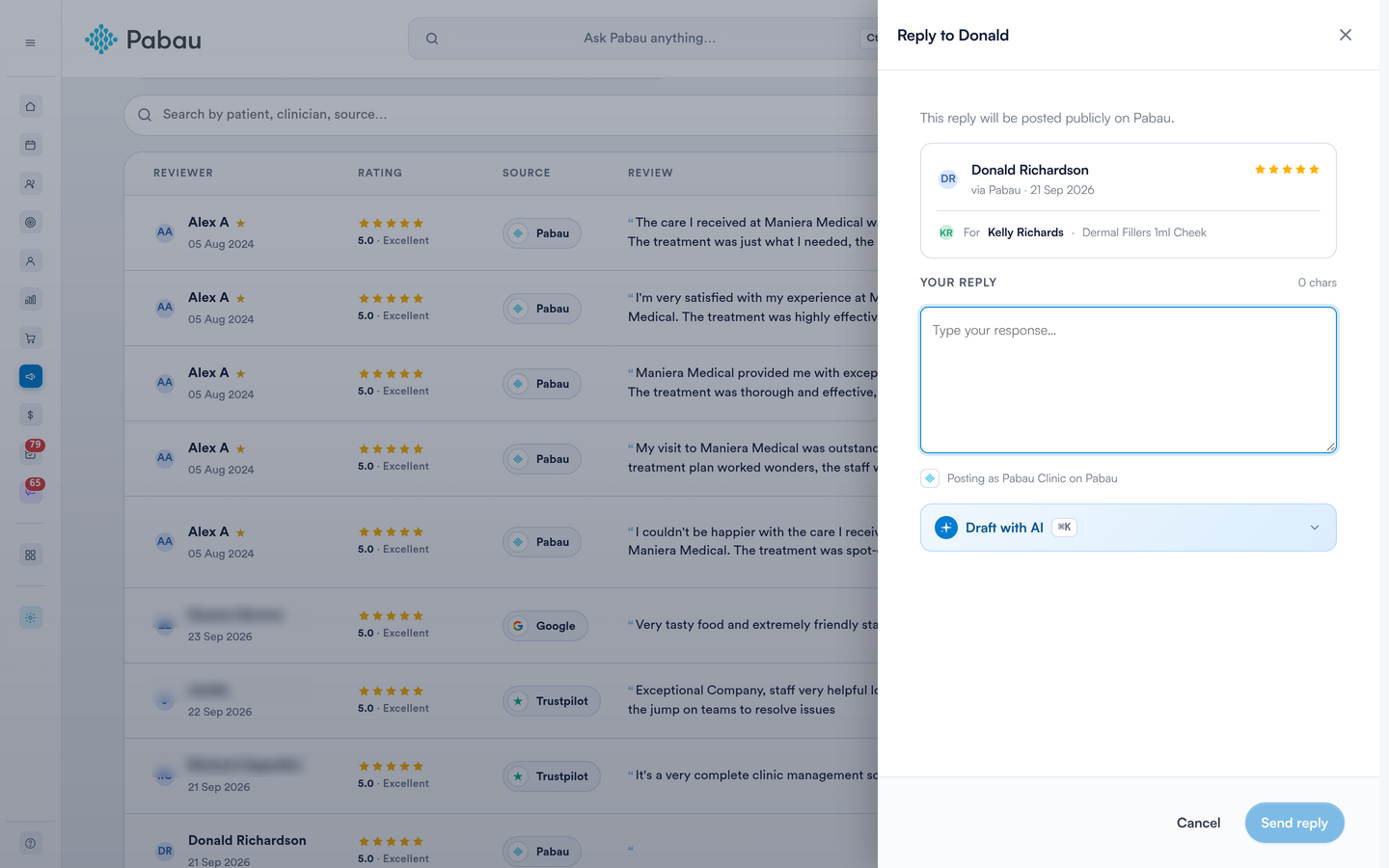
The reply panel, showing the original review for context
IMPORTANT: Replies are posted on your Pabau public review page only. Reviews that were imported from Google, Trustpilot or another external platform cannot be answered from Pabau - their Reply button is greyed out, and the tooltip points you to the originating platform. To respond to those, sign in to that platform directly.
If you would like a starting point, expand Draft with AI. Choose a tone - Warm & personal, Professional, Apologetic or Brief - and click Generate draft. You can edit the draft before sending it.
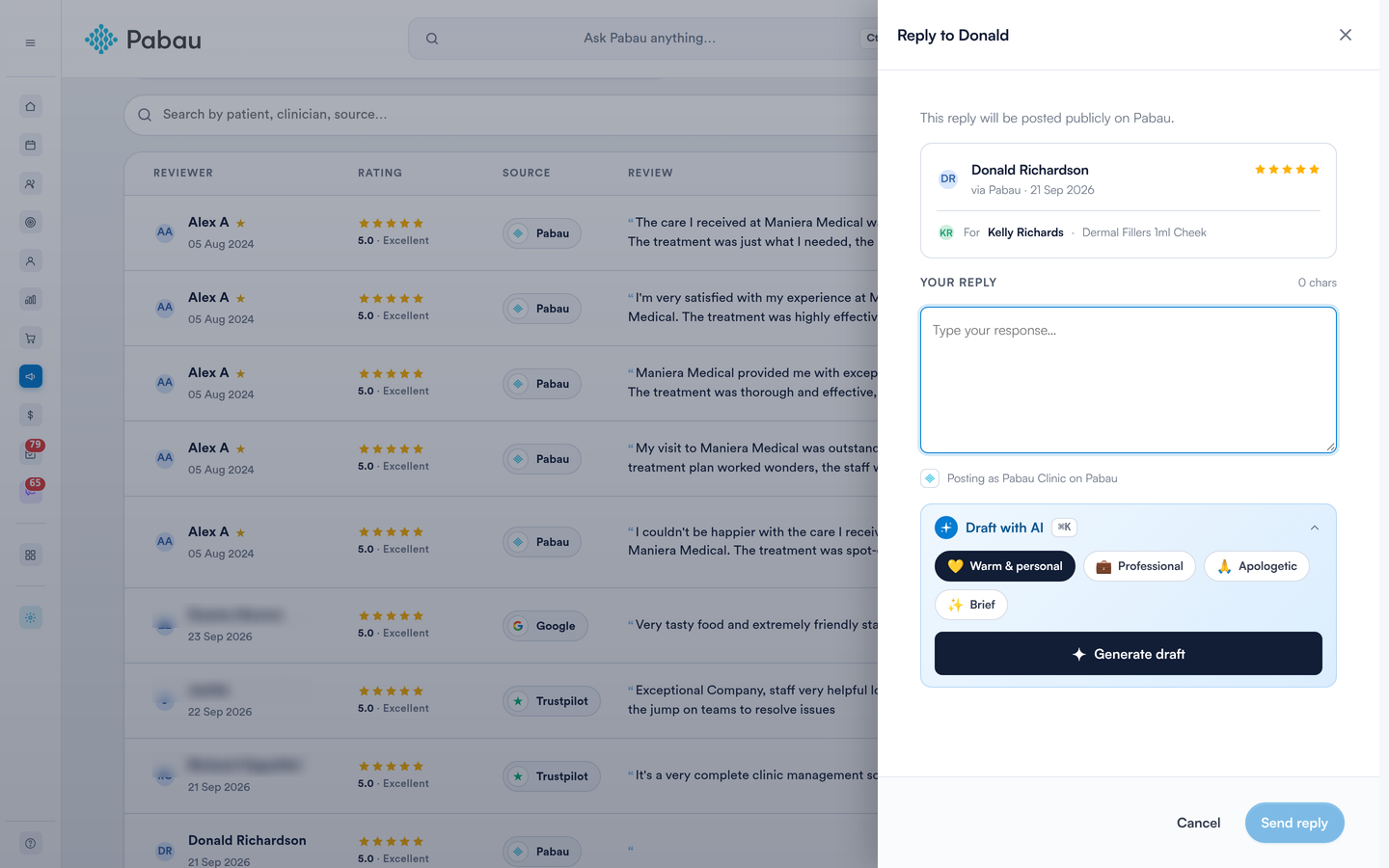
Draft with AI, with the four tone options
NOTE: Generating a draft with AI uses AI credits from your account balance. It is included at no extra cost on the CarePlus plan.
Where Your Reply Appears
When you reply to a review left through Pabau, your reply is shown publicly under the review on your public review page (see Step 3), headed Reply from the clinic with the month you replied (1). Anyone reading your reviews sees the conversation, so write your reply for future clients as well as for the reviewer.
Visitors can also vote on each review with Upvote and Downvote (2). They don’t need to sign in. Each visitor has one vote per review, and can change it or take it back by clicking again.
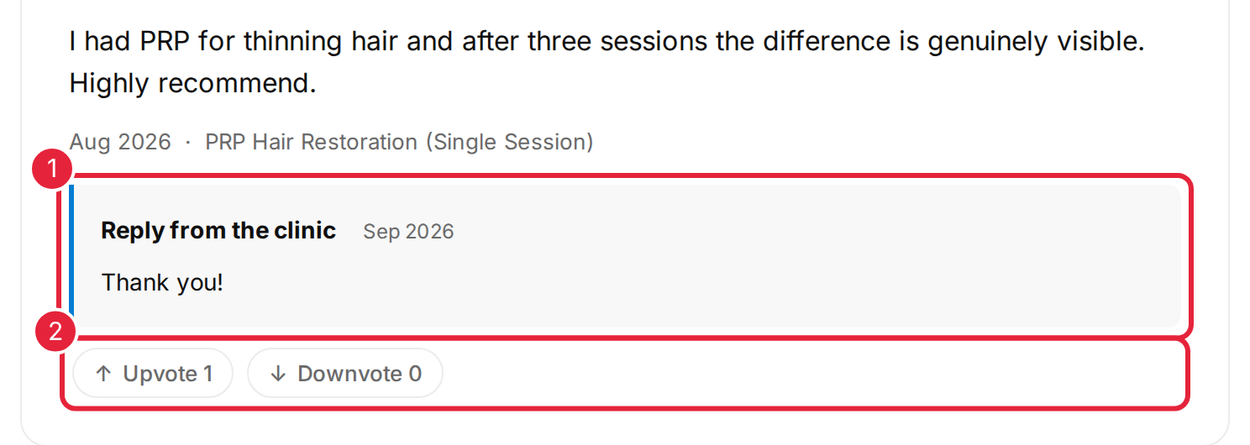
A review on the public review page, with the clinic’s reply (1) and the vote buttons (2)
Step 6: Use the Review Actions Menu
Each row has a three-dot Review actions menu:
-
Open review - opens the review on its own page.
-
Star review / Unstar review - stars a review so it is highlighted.
-
Copy review link - copies a direct link to the review.
-
Mark as unreplied - undoes a reply so the review returns to Needs reply.
-
Hide / Show - takes a published review off your website widgets and public pages, or puts a hidden review back. See Hiding a Review below.
NOTE: Actions that do not apply to a particular review stay in the menu but are greyed out, with a short explanation of why - for example, a review with no public link cannot be opened or copied.
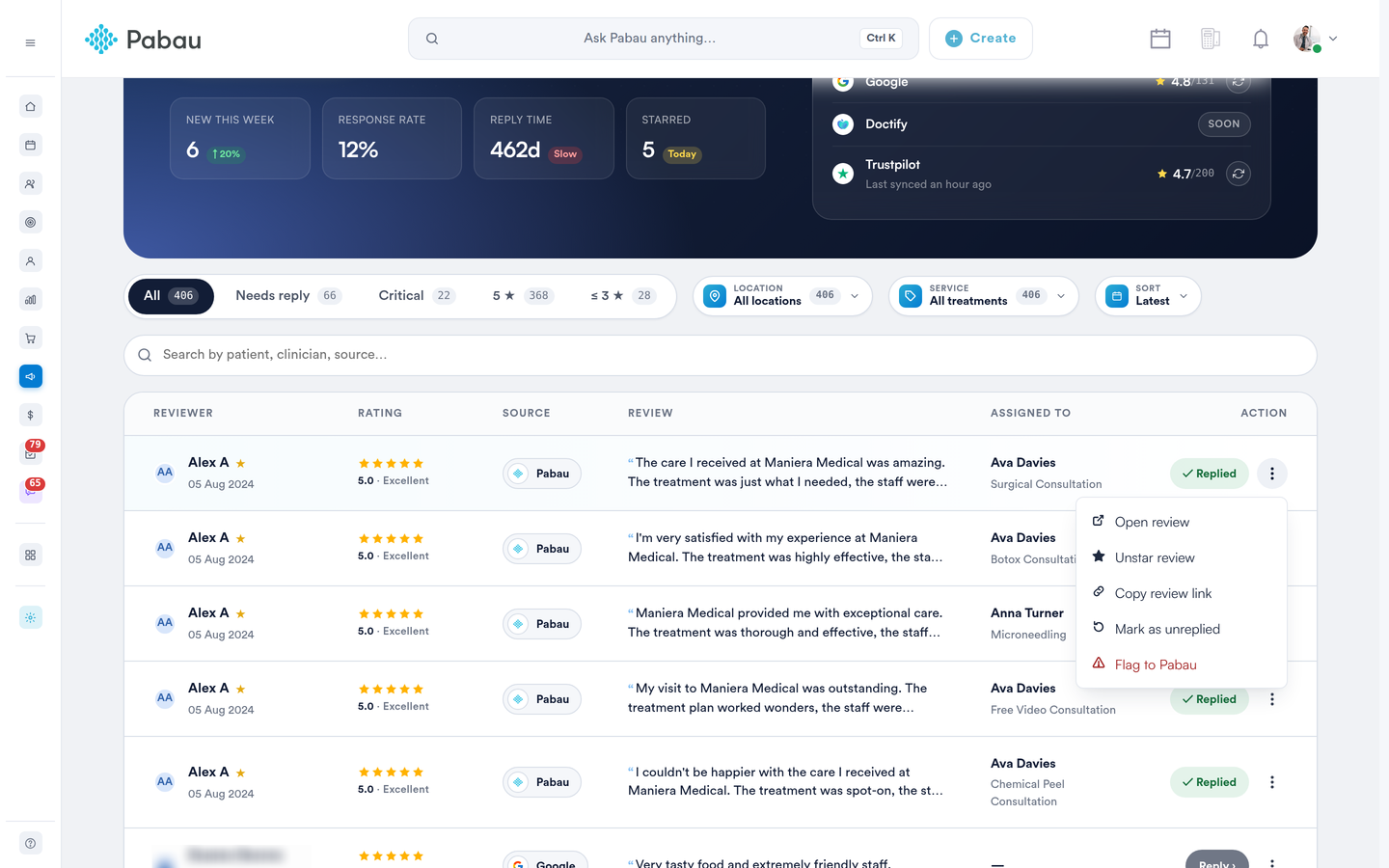
$1
Hiding a Review
If a review should not appear publicly, you can hide it. Open the three-dot Review actions menu on the review and click Hide. You will see the message Review hidden from your widgets and public pages.
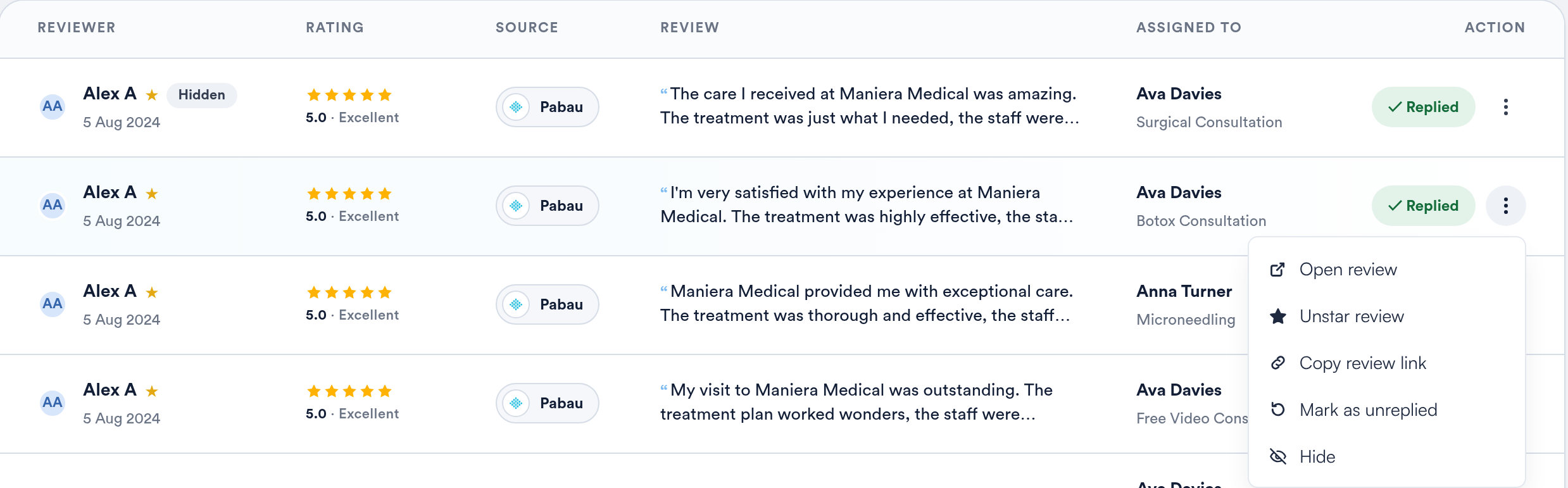
Hide in the review actions menu of a published review
A hidden review stays in your Reviews list with a Hidden badge next to the reviewer’s name, and the Hidden filter tab lists all of them. To put a review back, open its menu and click Show.
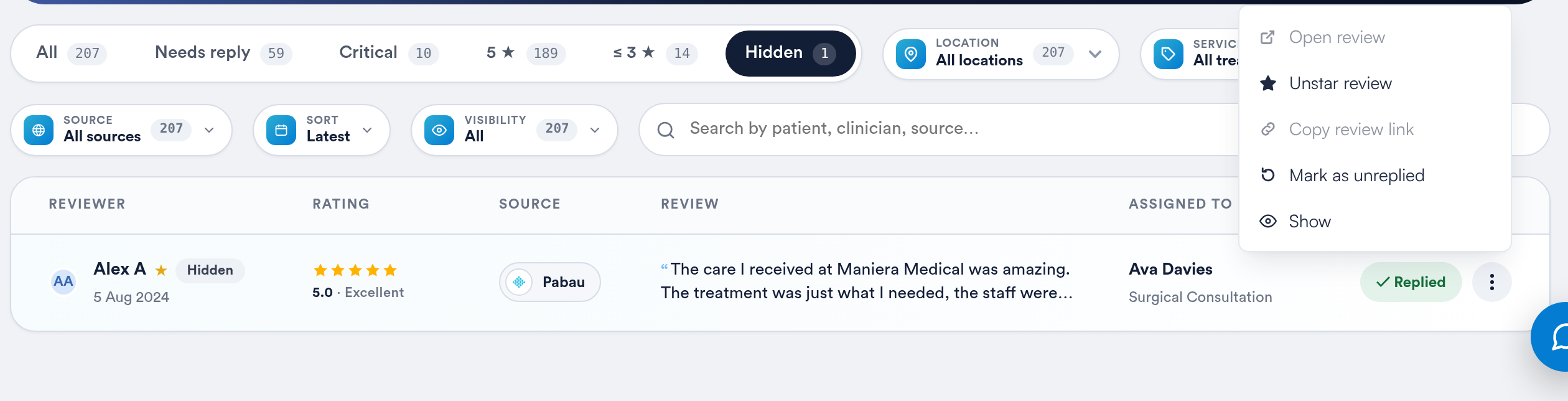
A hidden review with its Hidden badge, and Show in the review actions menu
A hidden review no longer appears on:
-
your review widgets on your website
-
your public review page
-
practitioner ratings
-
your Online Booking page
NOTE: Only a published review can be hidden. On any other review, Hide is greyed out - hover over it to see why.
NOTE: Hiding a review does not delete it and does not change the patient’s consent to share their review. It stays in Pabau, and you can show it again at any time.
Step 7: Review Your Performance in Analytics
Click Analytics in the top right for a date-ranged view of how your reviews are performing. Choose 30 days, 90 days, 6 months or 1 year - the default is 6 months - and click Export report to download the figures.
Four headline cards show your Overall rating, Total reviews, Response rate and Avg response time, each compared against the previous period.
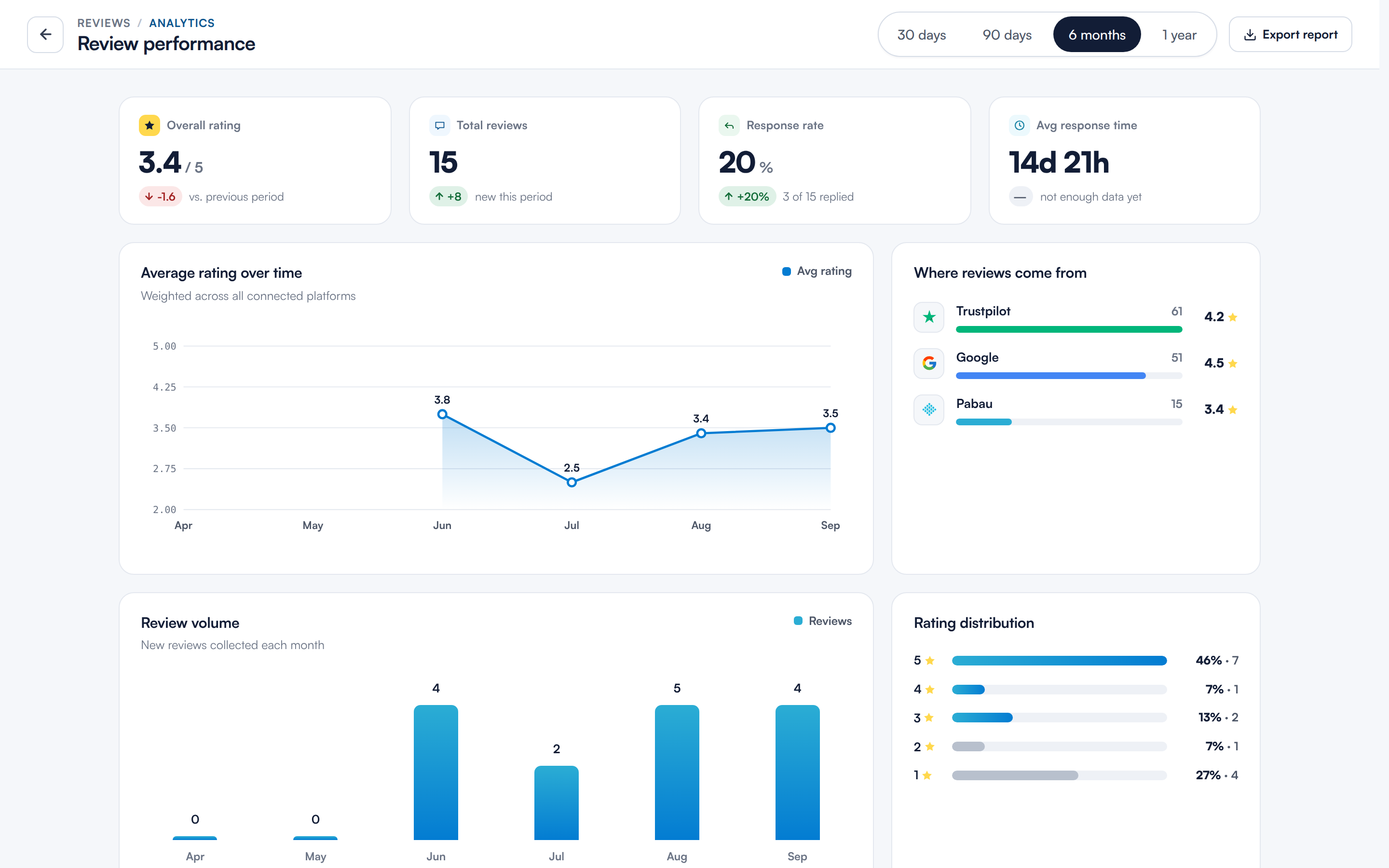
Review performance: the four headline cards and the rating trend
Below those, Average rating over time plots your trend, Where reviews come from breaks your reviews down by platform, and Review volume and Rating distribution show how many reviews you collect each month and how they are spread across the star levels.
Review volume and rating distribution
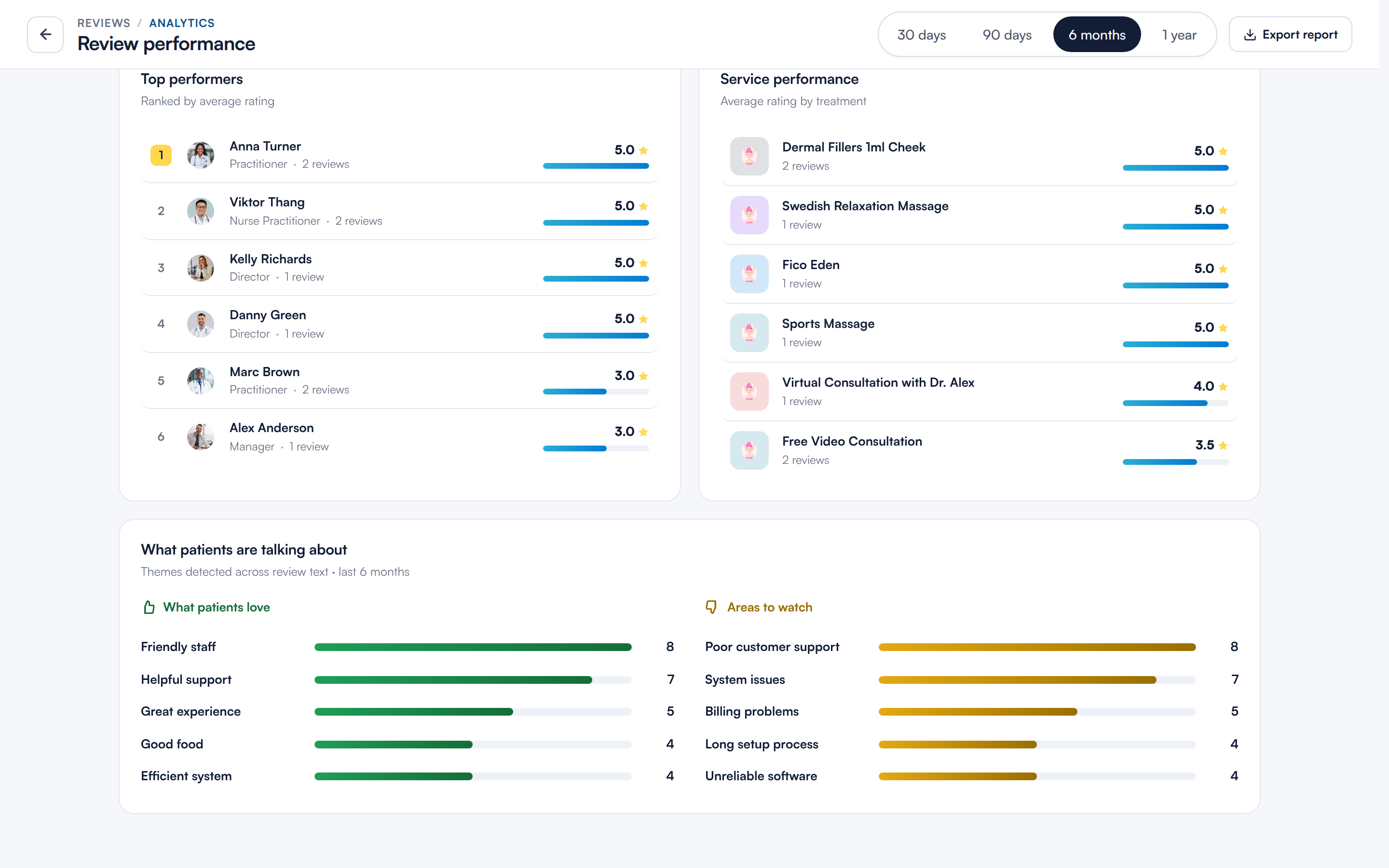
Further down, Top performers and Service performance rank your staff and your treatments by average rating, and What patients are talking about surfaces recurring themes in your review text, split into What patients love and Areas to watch.
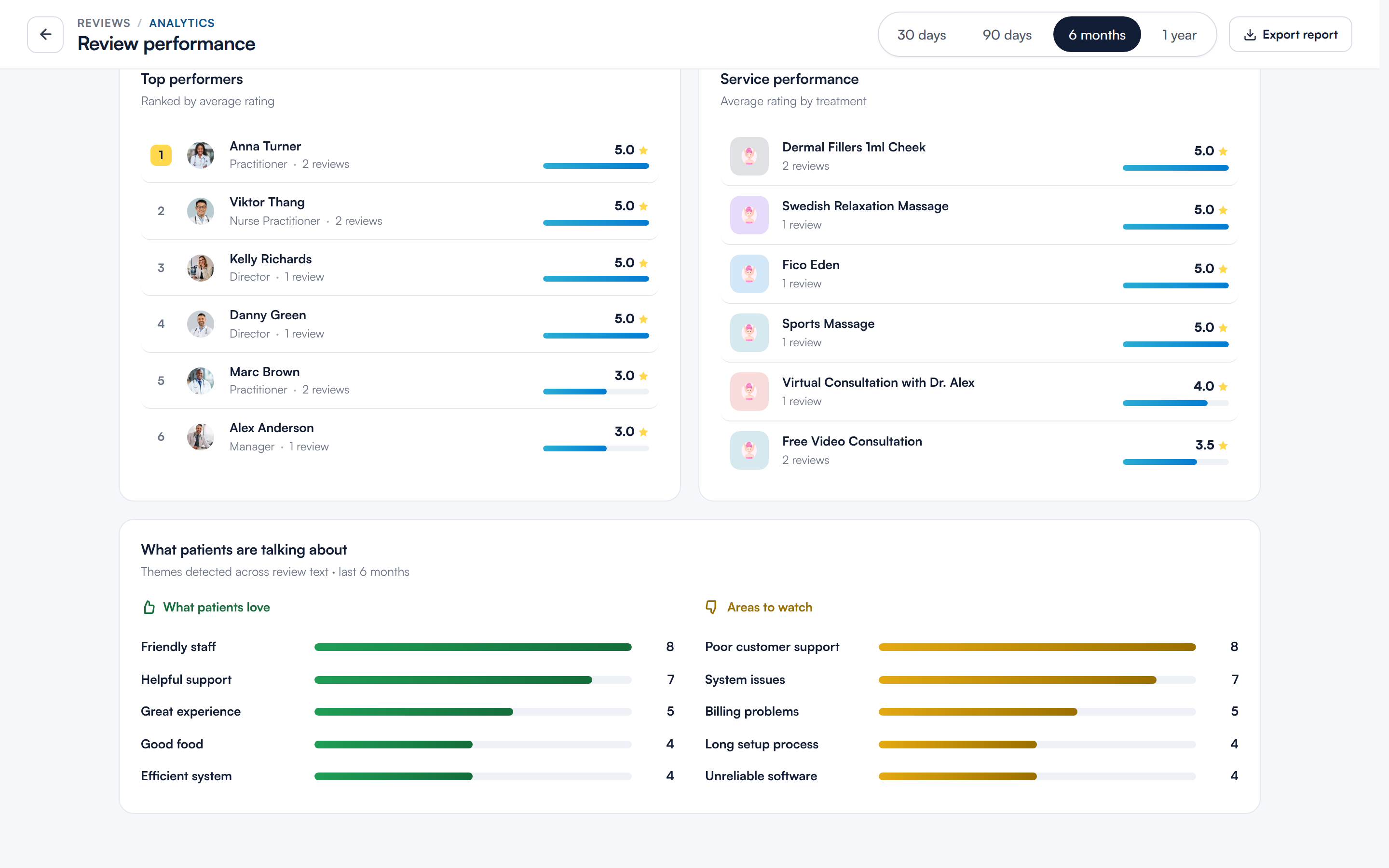
Top performers, service performance and the themes panel
NOTE: What patients are talking about is available on the CarePlus plan. On other plans the panel explains that AI review themes require CarePlus.
Step 8: Add a Trust Badge to Your Website
Click Trust badges to embed a live, auto-updating badge of your Pabau rating on your website. For the full walkthrough, read How to Add Review Widgets to Your Website.
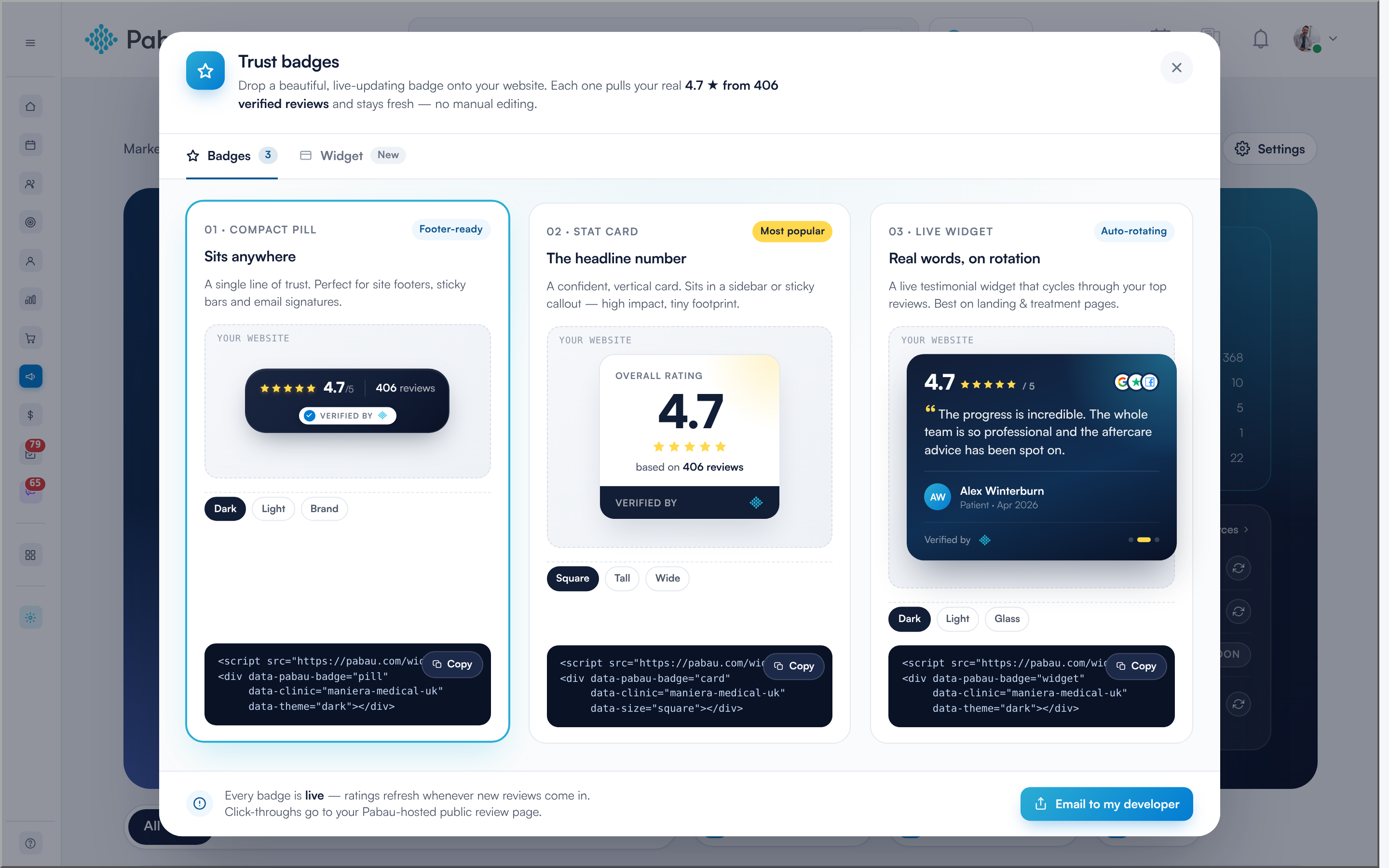
The Badges tab: compact pill, stat card and live widget
Step 9: Export Your Reviews
You can download your reviews as a CSV file for reporting, sharing with your team or keeping offline.
Click Export in the top right of the Reviews page (between Trust badges and Settings). While the file is being prepared the button reads Exporting…, then the file downloads as pabau-reviews-YYYY-MM-DD.csv.
The export follows what you have on screen: the filter tab you are on (All, Needs reply, Critical, 5 ★, ≤ 3 ★ or Hidden), plus any Location, Service, Source, Visibility or date range filter and anything typed in the search box. To export every review, click All and clear your filters first.
The file contains one row per review, with these columns:
| Column | What it shows |
|---|---|
| Date | The date the review was left |
| Reviewer | The client’s name from their client record, or the name entered on the review |
| The client’s email address, where the review is linked to a client record | |
| Rating | The star rating, 1–5 |
| Source | Where the review came from - Pabau, Google, Trustpilot and so on |
| Service | The service the review relates to |
| Status | The review’s status in Pabau |
| Flagged | Yes if you have starred the review |
| Replied | Yes if the review has been answered |
| Assigned to | The team member the review is assigned to |
| Comment | The review text |
NOTE: The Flagged column shows whether you starred the review.
NOTE: If no reviews match your filters, you will see “No reviews to export.” and no file is downloaded. Each export includes up to 25,000 reviews - if you have more, export in smaller date ranges.
TIP: The file opens directly in Excel, Google Sheets or Numbers. Because it can contain client names and email addresses, store and share it in line with your data protection policy.
Can I Move My Pabau Reviews to Google?
No. Reviews left through Pabau cannot be transferred or imported into your Google Business Profile, and this is Google’s rule rather than a Pabau setting. Google only shows reviews that customers post on your profile themselves. Businesses cannot add reviews from other websites - see Google’s About third-party reviews.
Pabau’s Google connection works in one direction: it imports your existing Google reviews into Pabau so you can see them alongside your Pabau reviews. It does not send Pabau reviews to Google.
If you want more Google reviews, ask clients to leave one on Google directly.
With the Reviews dashboard set up, you have everything you need to monitor your clinic's reputation, respond to client feedback and track how your reviews perform over time.
What's next?
Was this guide helpful? Let us know by voting below - your feedback helps us write clearer articles.
For more guides, browse the related articles below or use the search bar at the top of the page. You can also watch our video learning series, the Pabau Academy, or visit the Support page for additional help.