
Showing client feedback on your website is one of the most effective ways to build trust before a prospective client makes contact. Pabau's trust badges are embeddable widgets that display your clinic's live rating on any page of your site, updating automatically as new reviews come in. Each one links back to your Pabau-hosted public review page.
Step 1: Navigate to Reviews
Log in to your Pabau account and in the left sidebar menu, click on Marketing, then click on "Reviews."
Step 2: Open Trust Badges
Click Trust badges in the top right of the Reviews page. The panel has two tabs: Badges and Widget.
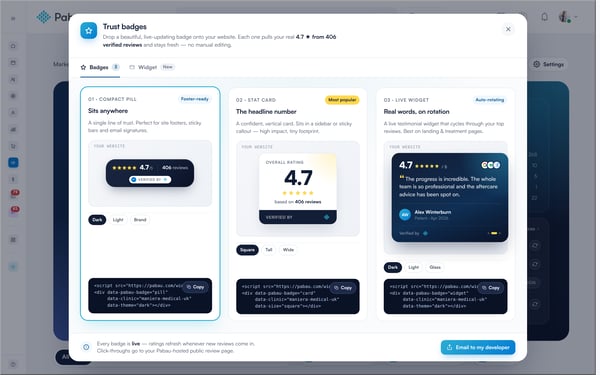
The Badges tab: compact pill, stat card and live widget
Step 3: Choose a Badge
The Badges tab offers three styles, each suited to a different placement:
-
01 · Compact pill - a single line of trust. Ideal for site footers, sticky bars and email signatures. Themes: Dark, Light, Brand.
-
02 · Stat card - a vertical card leading with your headline rating. Suits a sidebar or a sticky callout. Sizes: Square, Tall, Wide.
-
03 · Live widget - a testimonial widget that cycles through your top reviews. Best on landing and treatment pages. Themes: Dark, Light, Glass.
Step 4: Or Use the Full-Width Carousel
Open the Widget tab for the Full-width carousel - a wide embeddable strip that shows your reviews three at a time, with arrows to move between them. Drop it under a hero section, above a call to action, or on a treatment page. Themes: Dark, Light, Glass.
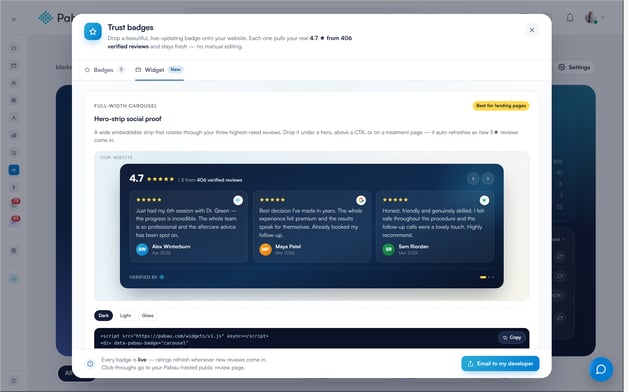
The Widget tab: the full-width carousel
Step 5: Copy the Embed Code
Each style has its own embed code beneath the preview. Pick your theme or size first - the code updates to match - then click Copy. Paste the snippet into your website's HTML where you would like the badge to appear.
Step 6: Or Email the Code to Your Developer
If someone else looks after your website, click Email to my developer at the bottom of the panel. Enter their email address, add an optional note, and click Send code - Pabau sends them the snippet and the instructions directly.
NOTE: Every badge is live. Once it is embedded, the rating refreshes whenever new reviews come in - you never need to update or re-paste the code. Click-throughs go to your Pabau-hosted public review page.
Can visitors open a full review from a badge?
Not from the badge itself. No badge style opens an individual review, and the Live widget and Full-width carousel show each review shortened to four lines. This works the same on desktop and mobile. What a visitor can click depends on the style:
-
Compact pill, Stat card and Live widget - clicking anywhere on the badge opens your Pabau-hosted public review page in a new tab, where visitors can read your reviews.
-
Full-width carousel - visitors use the arrows to move through your reviews, three at a time. The carousel does not link to your public review page; the only link is the Pabau logo next to Verified by, which opens pabau.com.
TIP: If you want visitors to be able to read full reviews from a page that uses the carousel, add a Compact pill or Stat card nearby, or your own link to your public review page.
With a trust badge on your website, visitors see your real-time rating and can click straight through to read your reviews.
What's next?
Was this guide helpful? Let us know by voting below - your feedback helps us write clearer articles.
For more guides, browse the related articles below or use the search bar at the top of the page. You can also watch our video learning series, the Pabau Academy, or visit the Support page for additional help.