
NOTE: The new Online Bookings and Client Portal are being rolled out to clinics in phases. If Setup → Online Bookings does not show the Overview, Share and Add to website tabs described here, your account is still on the classic version — see Online Bookings and Client Portal instead.
Step 1: Open the Online Bookings Dashboard
Go to Setup → Online Bookings. The status pill next to the title tells you whether your page is Online. Along the top you will find AI Onboarding, Preview as a client (opens your live page in a new tab) and Customise page (opens Pabau Studio).
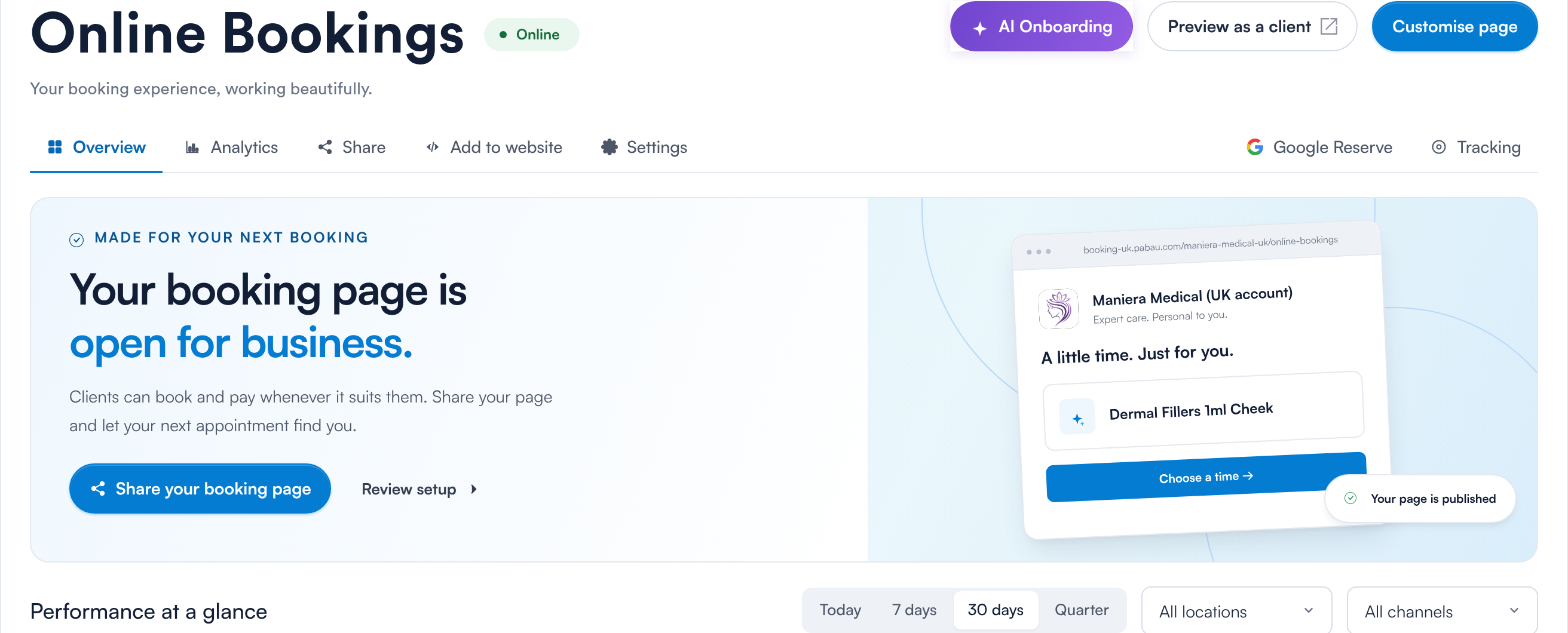
The Overview tab of the Online Bookings dashboard
Step 2: Work Through the Checklist
On the Overview tab, the Make a great first impression card shows how many checks are ready (for example, 5 of 10 ready). Click View checklist to see every check. Each item that needs attention has a button — such as Review payments, Turn them on or Review with the number of items affected — that takes you to the right screen.
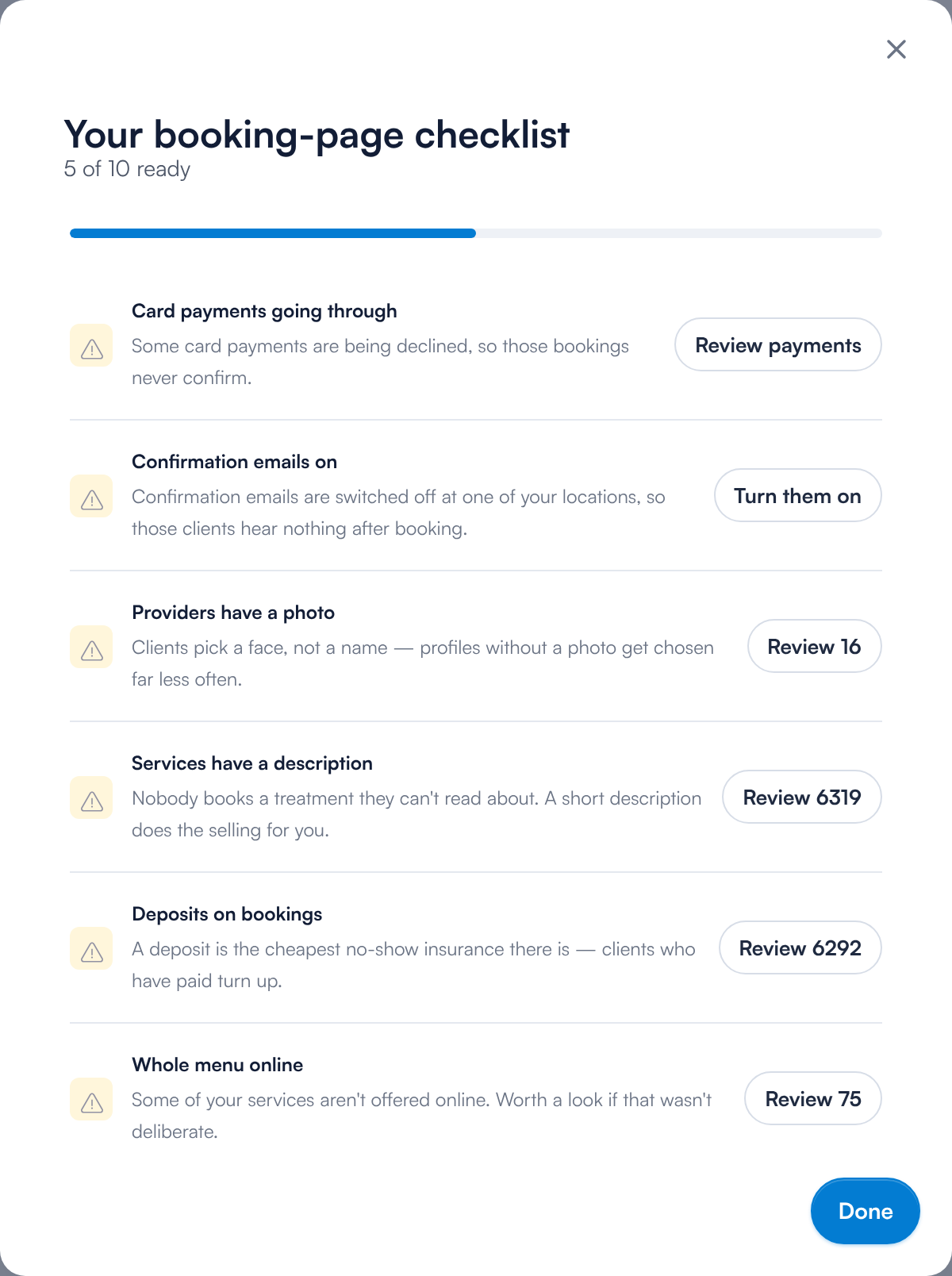
Your booking-page checklist, with a button beside each item that needs attention
What each check looks at, and where you fix it:
| Check | What it means | Where to fix it |
|---|---|---|
| Booking page published | Your page has been published at least once from Pabau Studio. | Pabau Studio → Publish |
| Payment processor connected | A Stripe account is connected, so clients can pay online. | How to Integrate with Stripe |
| Card payments going through | Recent card payments are succeeding. Declined payments mean those bookings never confirm. | The payment review screen the button opens |
| Availability on the rota | Your providers have shifts, so there are times to book. | The staff rota |
| Services bookable online | At least one service is available to book online. | How to Make a Service Bookable Online |
| Whole menu online | Some services are not offered online. Worth a look if that was not deliberate. | Setup → Services |
| Services have a description | Services without a description are harder to sell. | Setup → Services |
| Providers have a photo | Clients pick a face, not a name. | Each staff member’s profile |
| Deposits on bookings | Services that take no deposit. | Part 4: Take Payments and Deposits Online |
| Confirmation emails on | Confirmation emails are switched off at one of your locations. | The button opens the setting |
| Clients can change a booking | Clients can cancel or reschedule from the client portal. | How to Set Up the New Client Portal |
TIP: Fix anything marked as stopping bookings first — payments, availability and services online. The rest improve how many visitors go on to book.
Step 3: Check How Bookings Are Performing
Lower down the Overview tab you will see Performance at a glance (bookings and revenue for Today, 7 days, 30 days or Quarter, filtered by location and channel), From first click to confirmed (how many clients reach each step), Where bookings come from and Booking activity, a list of your recent online bookings.
The Analytics tab goes deeper: the checkout funnel and where clients drop out, performance by location, deposits collected, revenue by channel, the days and times clients want, your top services and how many new clients you have won.
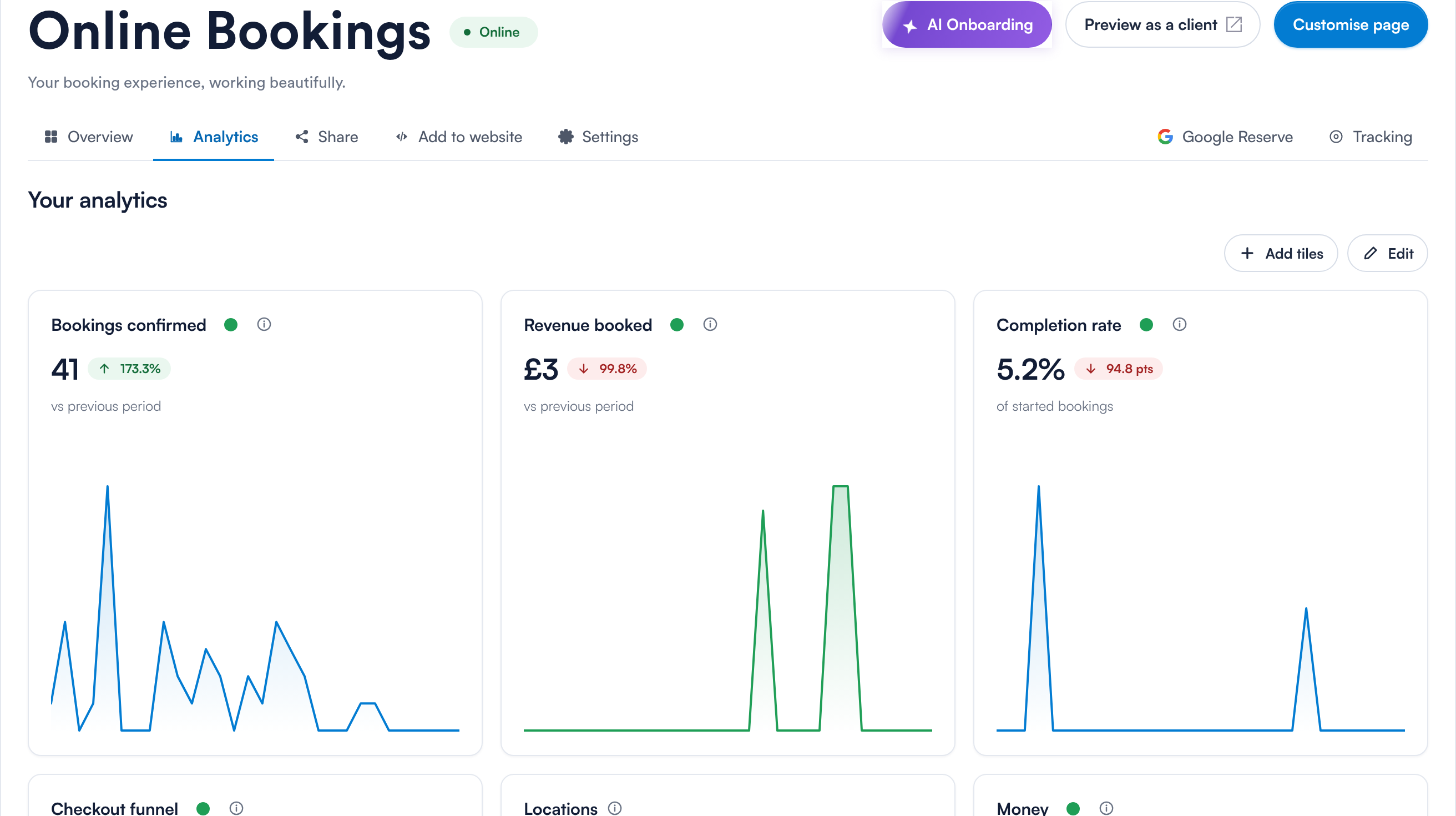
The Analytics tab, with the checkout funnel and booked revenue
NOTE: Bookings are counted against the channel the client arrived from. Links you create on the Share tab are tracked separately, so you can see which campaign brought each booking in — see Part 5.
Once the checklist is in good shape, make the page your own in Part 2: Customise and Publish Your Booking Page in Pabau Studio.
The complete New Online Bookings series:
- Getting Started with the New Online Bookings and Client Portal — start here — what is new and the route through the set
- New Online Bookings Part 1: Get Your Booking Page Ready (this article) — check your booking page is ready to take bookings
- New Online Bookings Part 2: Customise and Publish Your Booking Page in Pabau Studio — brand your page and publish it
- New Online Bookings Part 3: Set Booking Steps and Availability Rules — choose the booking steps and the availability rules
- New Online Bookings Part 4: Take Payments and Deposits Online — take payments, deposits and card details online
- New Online Bookings Part 5: Share Your Booking Page and Add It to Your Website — share your link and put booking on your website
Questions? Reach us any time via the in-app chat — we’re happy to help.
Was this guide helpful? Let us know by voting below - your feedback helps us write clearer articles.
For more guides, browse the related articles below or use the search bar at the top of the page. You can also watch our video learning series, the Pabau Academy, or visit the Support page for additional help.