
NOTE: This guide covers the new Online Bookings and Client Portal, which are being rolled out to clinics in phases. If your screens look different, your account may still be on the classic version — message us via the in-app chat and we will help.
In this article, you will learn where each classic Online Bookings and Client Portal setting lives in the new version, what carries over unchanged and what is not available yet.
Where to Find the New Version
- The Online Bookings dashboard (More ▸ Online Bookings) has tabs for your checklist and performance, sharing, your website, your custom domain, Google Reserve and tracking.
- Customise page opens Pabau Studio, where you design the booking page itself.

The Online Bookings dashboard (1) and Customise page (2)
Both the dashboard and the client portal settings are also in Setup ▸ Online presence:
- Click Setup in the sidebar and choose Online presence.
- Online Bookings opens the dashboard.
- Client Portal opens the portal settings.
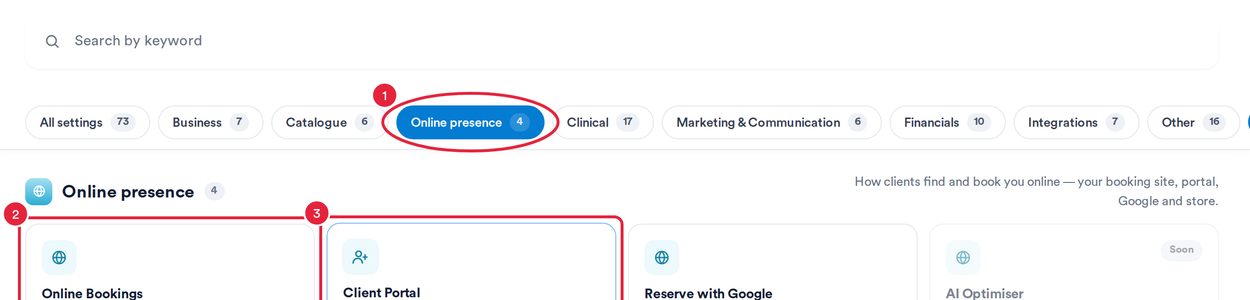
Setup ▸ Online presence
Where Things Have Moved
| In the classic version | In the new version |
|---|---|
| Online booking settings: general, booking details, location and team | Pabau Studio — Online Bookings ▸ Customise page (Part 2, Part 3) |
| Customising the look of your booking page | Branding in Pabau Studio |
| Showing classes on the booking page | Book a class in the Book Type section of Studio (Part 3) |
| Booking notice and how far ahead clients can book | Minimum notice and Maximum advance in the Date & time section (Part 3) |
| Room availability for online bookings | Don't allow booking if room in use (Part 3) |
| Enabling the waitlist in online bookings | Show waitlist in the Date & time section |
| Enabling promo codes in online bookings | Gift cards & promo codes on the Payment page in Studio (Part 4) |
| Allowing clients to cancel or reschedule online | Allow cancellations and Allow reschedules on the Appointments card in Client Portal (Part 4) |
| Meta Pixel and Google Analytics tracking | The Tracking tab (Part 5) |
| Custom online booking links and links for social media | The Share tab (Part 5) |
| Adding online booking to your website | The Add to website tab (Part 5) |
| Client portal customisation and enabling features | Setup ▸ Online presence ▸ Client Portal (How to Set Up the New Client Portal) |
| Connect passwords and password reset links | Clients sign in with a six-digit code or a sign-in link sent by email, so there is no password to reset. A client can set a password under Personal details for your clinic’s patient app. |
What Carries Over Unchanged
These settings are read by the new booking page as before, so there is nothing to redo:
- Which services are available online, and who can book them — How to Make a Service Bookable Online, existing clients only and the service’s booking restrictions.
- Deposits — your default deposit policy and service-specific deposits (see the note below).
- Your cancellation policy.
- Promo codes you create in Setup ▸ Discounts — see How to Create and Manage Promo Codes for Online Bookings.
- Your waitlist in Pabau — online waitlist entries land in the same place.
- Staff, locations, rota and Stripe.
- Membership plans, packages, products and gift voucher templates you sell online.
Do My Old Links Still Work?
Yes. Links to your classic booking page, store and client portal take clients to the matching page on the new site.
What Is Not Available Yet?
- Topping up account credit online.
- Using codes made in Marketing ▸ Promotions on the booking page — create online promo codes in Setup ▸ Discounts instead.
- Choosing a default saved card in the client portal — clients can add and remove cards.
- Deleting an account from the client portal.
- A separate classes page in the client portal.
- Signing in to the booking page or portal with a password — clients sign in with an emailed code or link.
NOTE: If your default deposit policy sets a different deposit for new clients, the new booking page does not use that part yet — it applies your standard deposit to every client.
What's next?
Start the set-up at Getting Started with the New Online Bookings and Client Portal.
Questions? Reach us any time via the in-app chat — we’re happy to help.
Was this guide helpful? Let us know by voting below - your feedback helps us write clearer articles.
For more guides, browse the related articles below or use the search bar at the top of the page. You can also watch our video learning series, the Pabau Academy, or visit the Support page for additional help.