
NOTE: This guide covers the new Online Bookings and Client Portal, which are being rolled out to clinics in phases. If your screens look different, your account may still be on the classic version — message us via the in-app chat and we will help.
In this article, you will learn how to create a promo code that clients can enter when they book online, choose which services it covers, and pause or remove it later.
Step 1: Open Discounts
- Go to Setup and, under Financials, click Discounts.
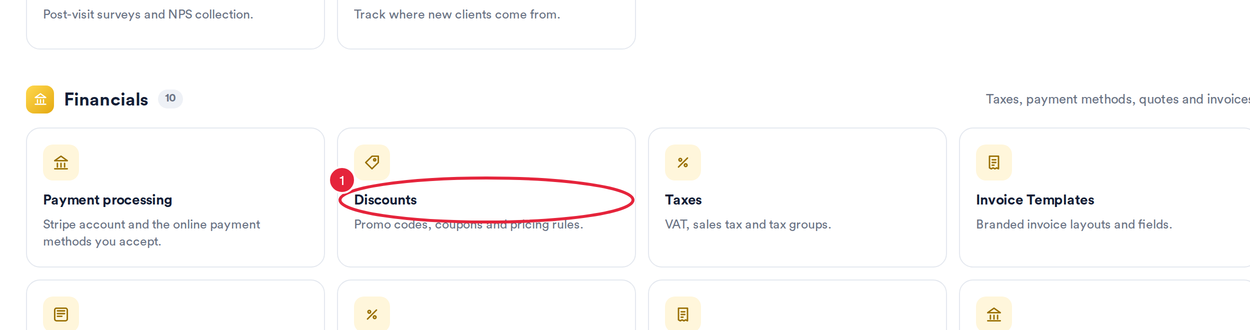
Setup → Financials → Discounts
- Click Create Discount.
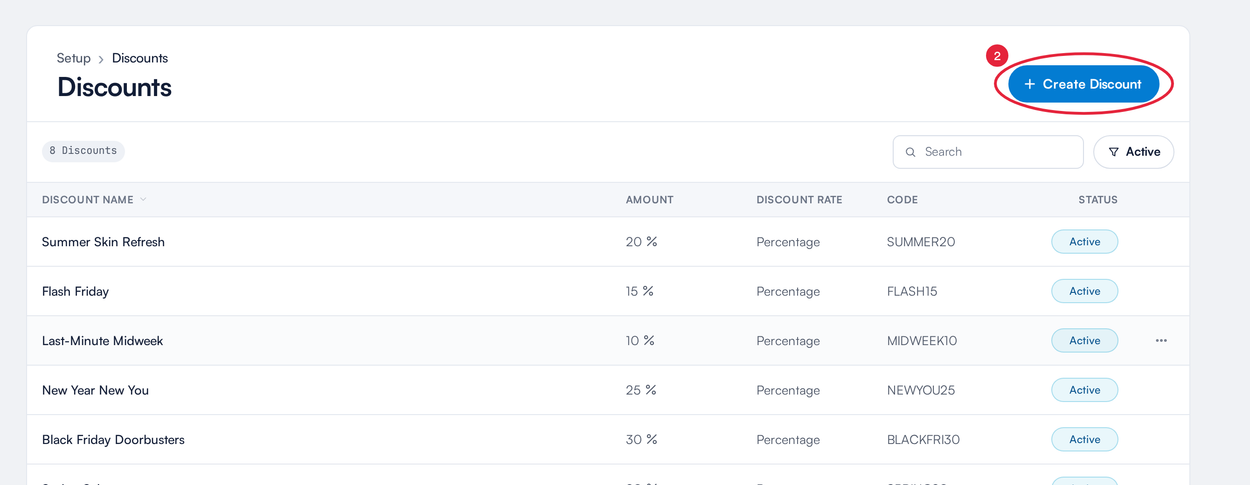
The Discounts list shows each discount and its code
Step 2: Set the Discount and Its Code
On the General tab:
- Under Type, choose Percentage (for example, 15% off) or Flat rate (a fixed amount off). Then enter a Discount name your team will recognise and the amount.
- In Discount code, enter the code clients will type — for example AUTUMN15. Each active code must be unique.
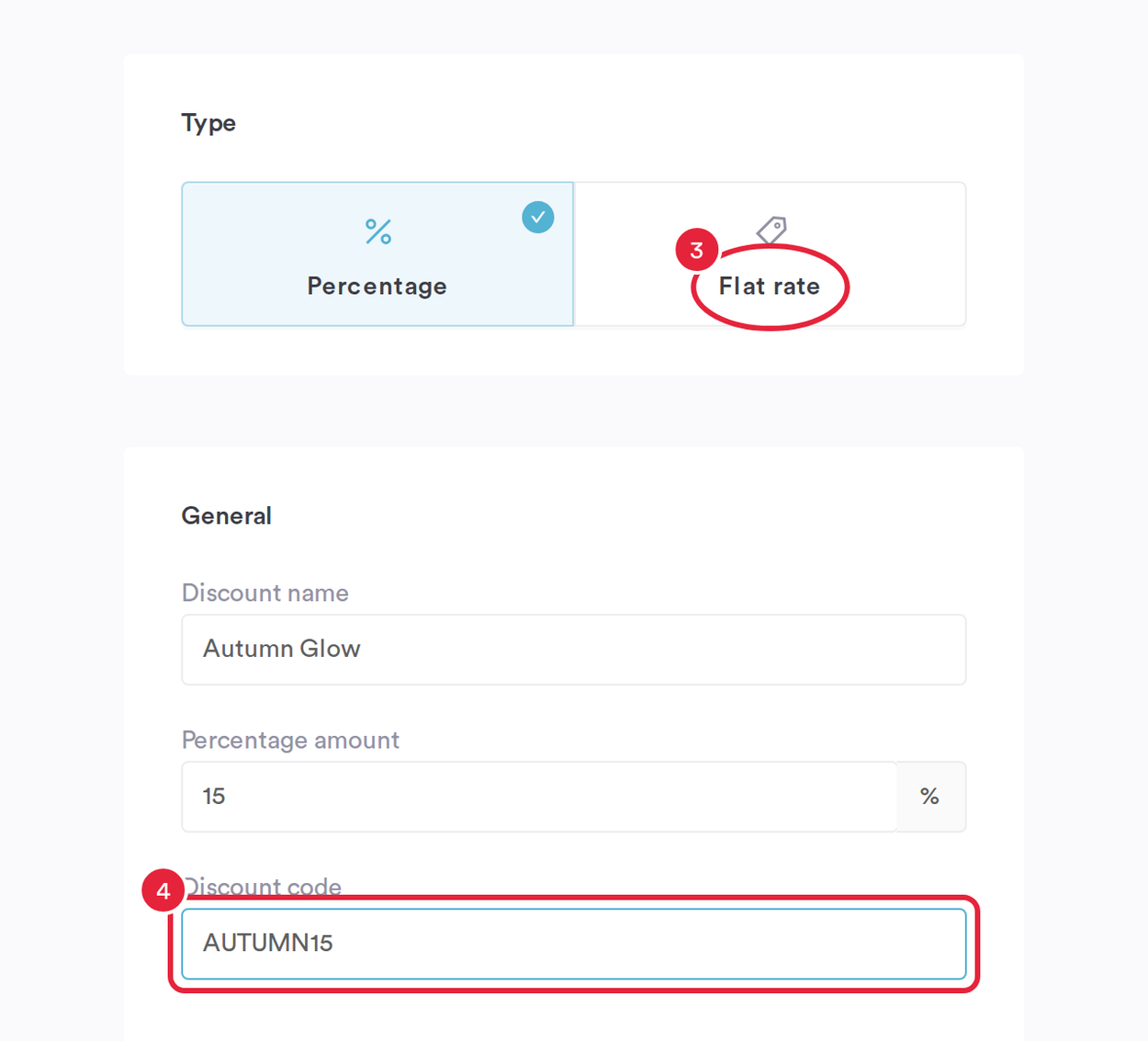
Choose the type, then enter the name, amount and code
TIP: Clients can type the code in capitals or lower case — autumn15 works the same as AUTUMN15. Keep codes short and easy to read.
Step 3: Choose the Services It Covers
- Open the Rules tab. Under Services, tick the services the code applies to. All services are ticked to begin with — untick any you want to leave out.
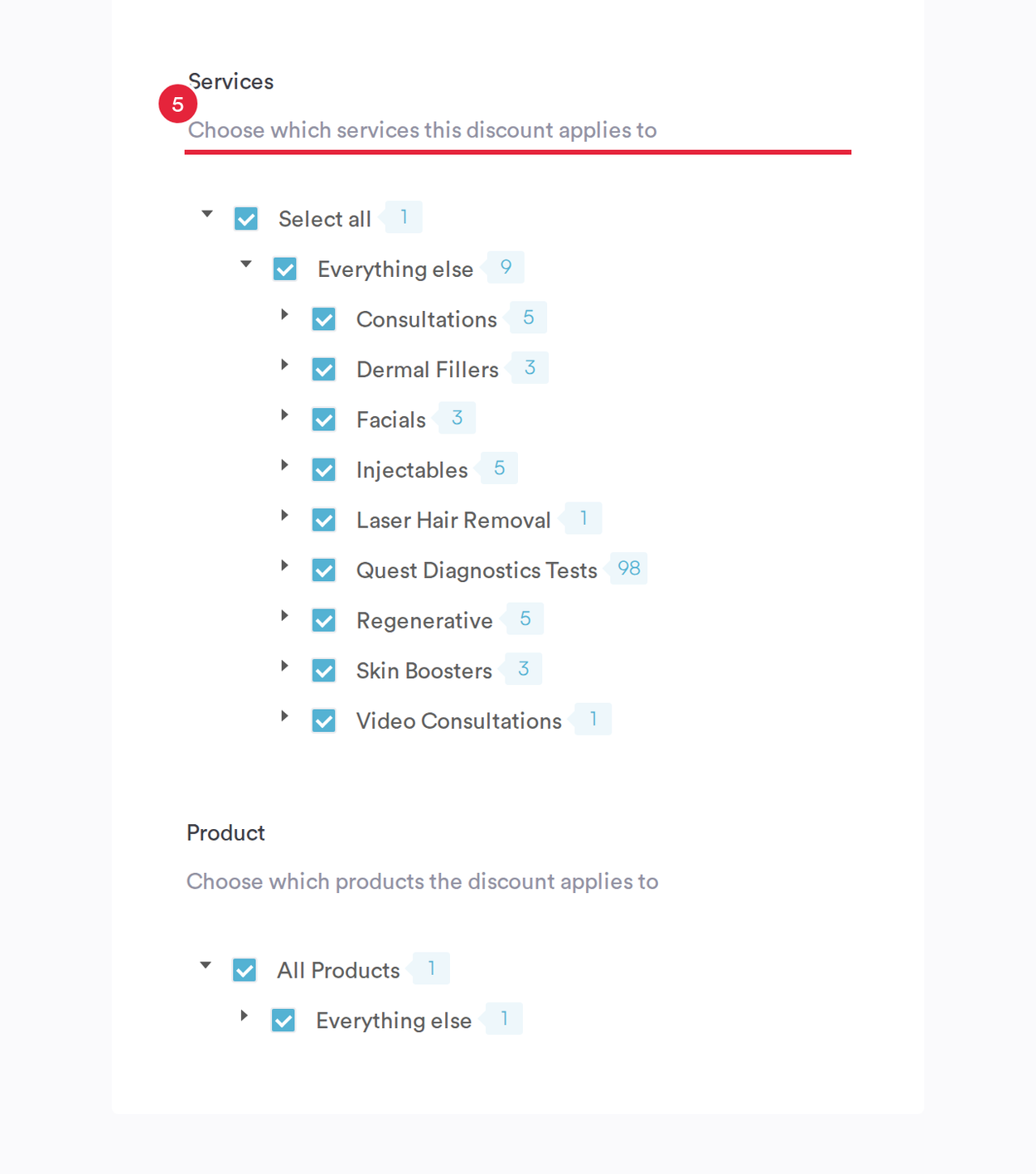
Rules tab: choose which services the code covers
NOTE: If a client enters the code for a booking it does not cover, the code is not applied and they are asked to check it.
Step 4: Activate and Create
- Make sure Active is switched on at the top right, then click Create.
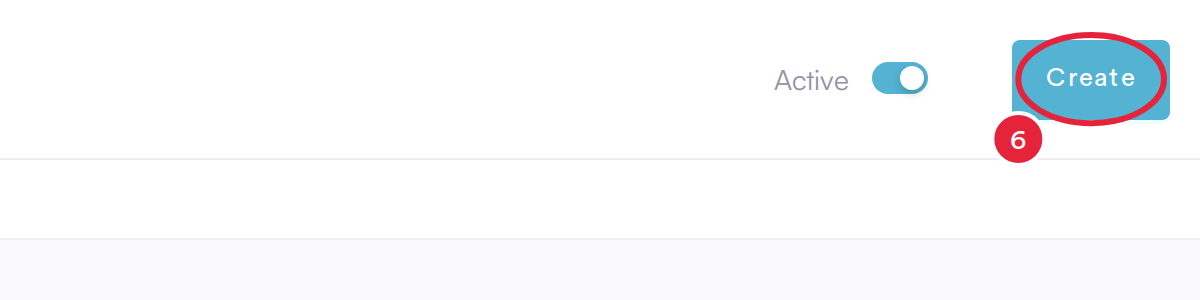
Make sure Active is on, then click Create
The code works on your booking page straight away, as long as the promo code box is switched on — see How to Turn On Promo Codes for Your Online Bookings.
Step 5: Manage Your Codes
All your discounts are listed in Setup → Discounts, with their amount, code and status.
- Change a code — click the discount (or click the menu at the end of its row and choose Edit), make your changes and save.
- Pause a code — open it and switch off Active. From then on, clients who enter it are told the code is not recognised. Switch it back on to reuse it.
- Remove a code — click the menu at the end of its row and choose Delete.
IMPORTANT: If you also use Marketing → Promotions: codes created there can currently be redeemed at Point of Sale only — the Online bookings option is marked Soon. To give clients a code for online booking, create it in Setup → Discounts as shown above. Flash sales you create in Marketing → Promotions do apply on your booking page automatically, without a code.
TIP: Share your code in an email or SMS campaign, on social media, or with a tailored booking link from the Share tab of your Online Bookings page.
What's next?
See How Promo Codes Work on Your Online Booking Page for what clients see when they enter a code. To help clients use their code, send them How to Use a Promo Code When Booking Online.
Questions? Reach us any time via the in-app chat — we’re happy to help.
Was this guide helpful? Let us know by voting below - your feedback helps us write clearer articles.
For more guides, browse the related articles below or use the search bar at the top of the page. You can also watch our video learning series, the Pabau Academy, or visit the Support page for additional help.