
NOTE: This guide covers the new Online Bookings and Client Portal, which are being rolled out to clinics in phases. If your screens look different, your account may still be on the classic version — message us via the in-app chat and we will help.
This article explains what happens when a client uses a promo code on your new booking page: where they enter it, which codes work, how the saving is worked out, and what clients see when a code is refused. To switch the code box on, see How to Turn On Promo Codes for Your Online Bookings. To create codes, see How to Create and Manage Promo Codes for Online Bookings.
Where Clients Enter a Code
On the last step of the booking — Payment, or Confirm your booking when nothing is due online — clients open Add gift card or promo code, type the code and click Add code. When the code is accepted, they see Code applied — saving and the amount, and the code and saving appear as a line in their booking summary.
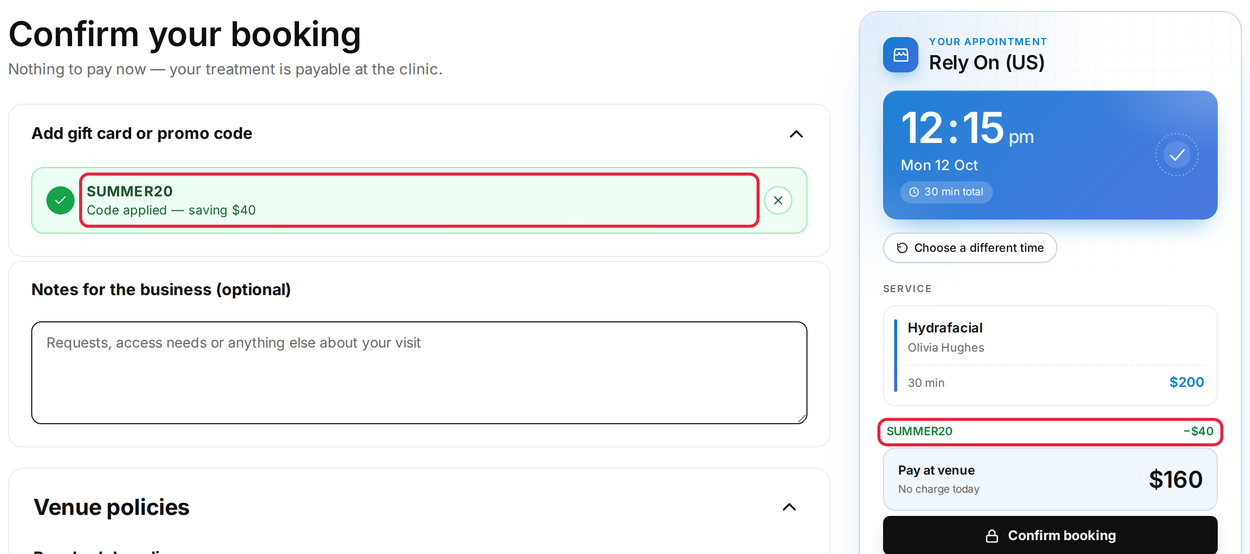
An accepted code: the saving shows in the code box and in the summary
Which Codes Work
| Code | Works on the booking page? |
|---|---|
| A discount code from Setup → Discounts that is Active | Yes — for the services ticked on its Rules tab. |
| A gift card code | Yes, while it has a balance. Signed-in clients also see their own gift cards listed under Your gift cards. |
| A code created in Marketing → Promotions | Not yet — these codes are for Point of Sale only while the Online bookings option shows Soon. |
| A paused (inactive) or deleted code | No. |
How the Saving Is Worked Out
- Percentage codes take that percentage off the price of the services the code covers.
- Flat rate codes take a fixed amount off. The total never goes below zero.
- One code can be used per booking. Clients can remove it (with the ×) and enter a different one.
- Codes work whether the client pays in full, pays a deposit, or pays at the clinic.
When a Code Is Refused
The client sees a message under the box and can try again:
- Code not recognised. Check the spelling and try again. — a typo, a paused or deleted code, or a code that does not cover the services in this booking.
- This code has expired., This code has already been used. or This code isn't active yet. — usually a gift card that cannot be used yet or has nothing left.
- Promo and gift card codes are switched off for this clinic. — the code box has been switched off in Pabau Studio.
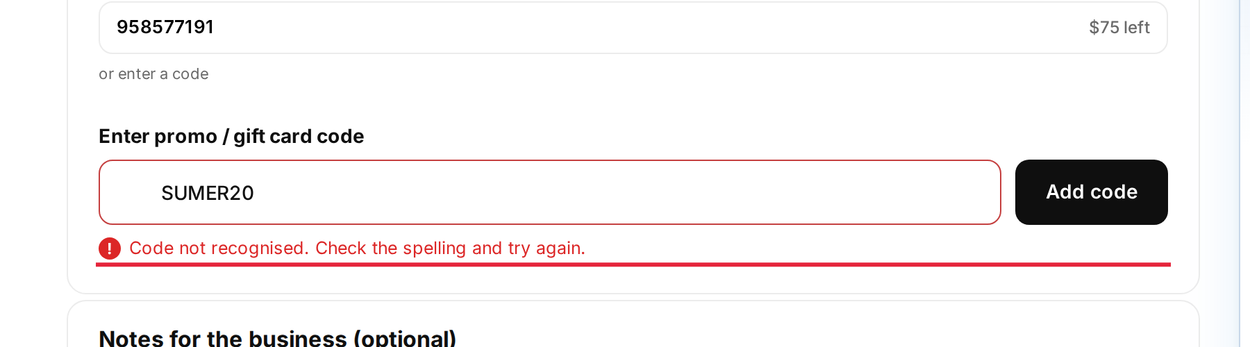
A mistyped code is not recognised
Flash Sales Apply Without a Code
Flash sales you create in Marketing → Promotions apply automatically to the services they cover — clients see a save up to badge next to those services, and the discount is taken off when they book. To show a live countdown next to these services, open the Services page in Pabau Studio, click the Services label, open the Promotions tab and switch on Show timer for flash sales.
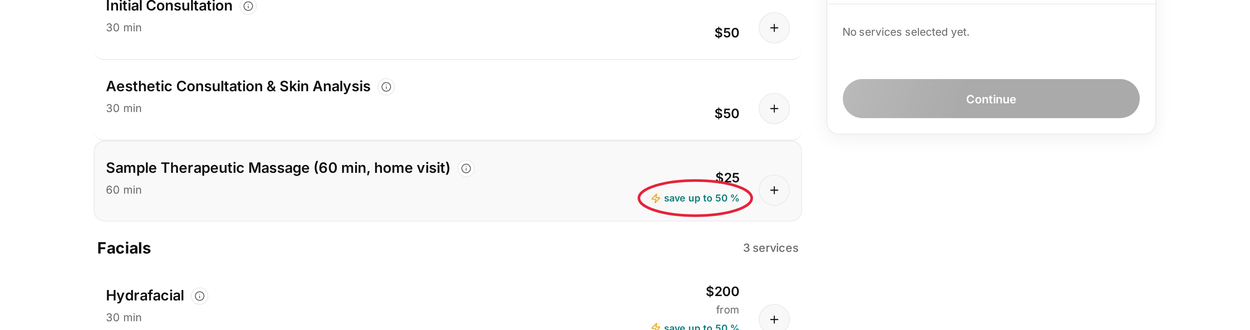
Services in a flash sale show a "save up to" badge
TIP: Before you share a code, open Preview as a client on the Online Bookings page, choose a service the code covers and try it at the last step.
What's next?
Send clients How to Use a Promo Code When Booking Online with your next campaign.
Questions? Reach us any time via the in-app chat — we’re happy to help.
Was this guide helpful? Let us know by voting below - your feedback helps us write clearer articles.
For more guides, browse the related articles below or use the search bar at the top of the page. You can also watch our video learning series, the Pabau Academy, or visit the Support page for additional help.