
A lab request is how you order blood tests or other diagnostics for a client and keep the order, the results and the paperwork together on their client card. The Lab request wizard takes you from choosing the lab to sending the order, and remembers what the client has had before so repeat tests take a couple of clicks.
Step 1: Start a Lab Request
- Open the client’s card and click the + button in the bottom right corner.
- Click Order labs.
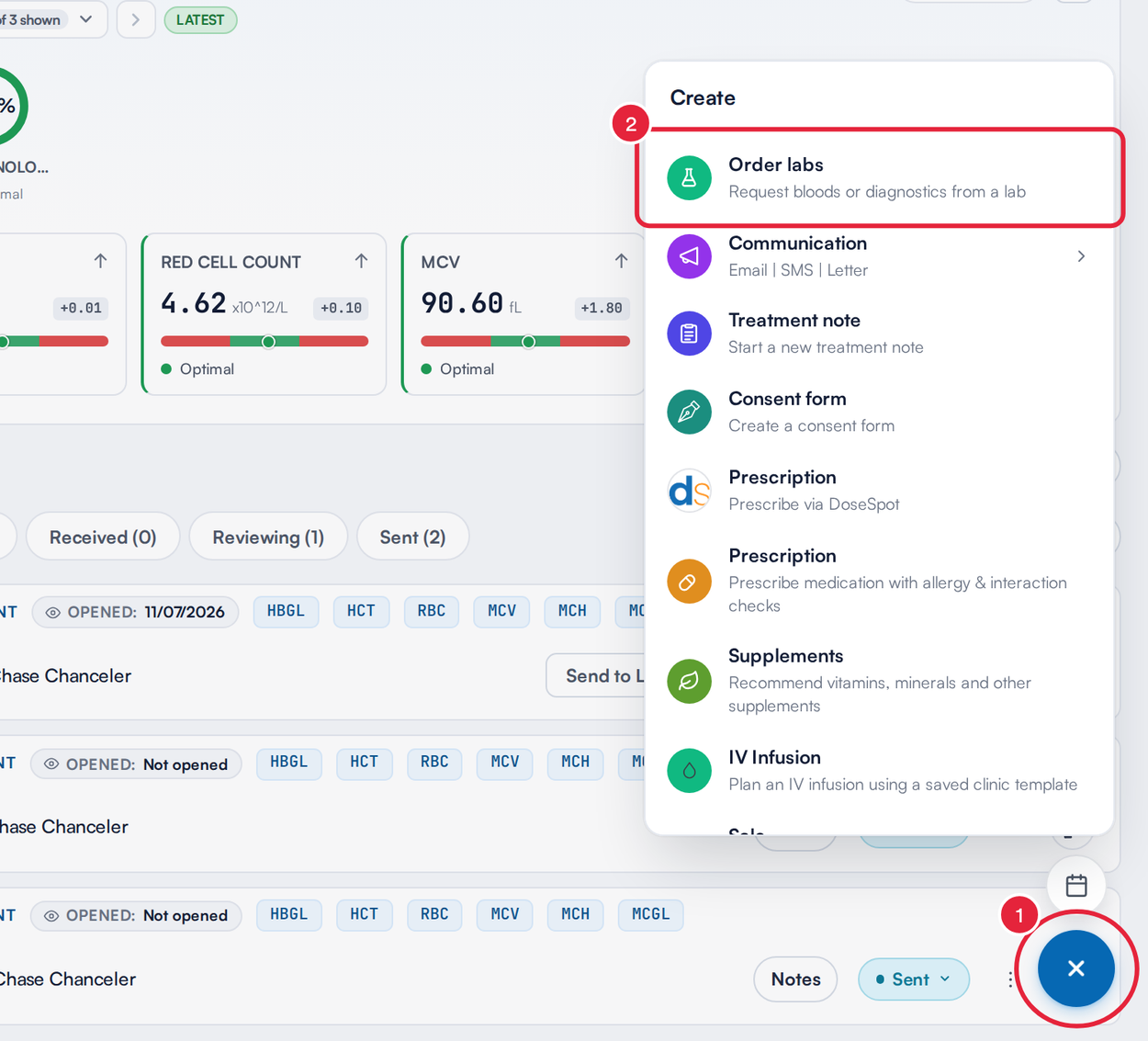
The Create menu on the client card
If the client has an appointment today, the request is linked to it automatically: you’ll see Appointment · auto-linked at the top of the wizard. Click it to pick a different appointment or remove the link.
Step 2: Select a Lab
The first step lists the labs Pabau works with. A tick on a lab’s tile means it matches a lab your clinic has connected.
- Use the country chips (All, UK, US and so on) to show the labs for your region.
- Click Custom request to build a request you can send to any laboratory, even one that isn’t listed.
- Click Multi Lab to order from several labs in one go (see Ordering From Several Labs at Once, below).
- Click Manage lab integration to open your lab settings in a new tab.
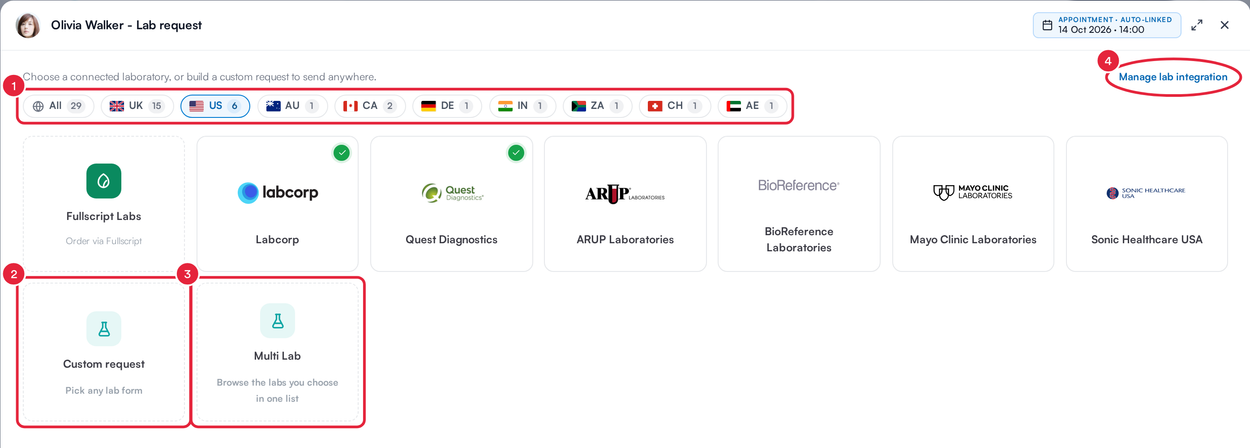
Choose a lab, a custom request or Multi Lab
Click a lab to continue. If the lab isn’t set up for your clinic yet, a short setup opens first (Link your lab, then Map your tests). US clinics also see Fullscript Labs, which hands the order over to Fullscript.
NOTE: When your clinic has connected Quest Diagnostics, Randox or VHL, the order is placed with the lab from the wizard’s Send step, and the lab’s own documents print after it is placed. See How to Order a Quest Diagnostics Test From a Client Record. A connected Labcorp account opens Labcorp’s own ordering portal instead. The Doctors Laboratory (TDL) is only available for clinics in the United Kingdom.
Once you’ve picked a lab, the steps appear across the top of the wizard: Select lab, Catalogue, Pricing (only when a test needs a price), Diagnosis codes (clinics in the United States), Print and Send.
Step 3: Choose Tests From the Catalogue
The Catalogue lists the selected lab’s tests and panels, grouped by category. Search for a test, or narrow the list with Health category, Sample type and Category. Tick Only show favorites to see only starred tests, and switch between the List and Form views.
- In the Form view, tick the tests and panels you want. In the List view, click Add to plan.
- Your clinic’s own items appear under My tests, My panels and My templates.
- Click Build panel or template to create a Custom test, a Custom panel or a Template you can reuse.
Hover over a test name to see what the lab publishes about it: the test code and CPT code, its clinical significance, the reference range, specimen requirements (preferred specimen, minimum volume, transport container and temperature, stability and reject criteria), LOINC codes and which lab performs it.
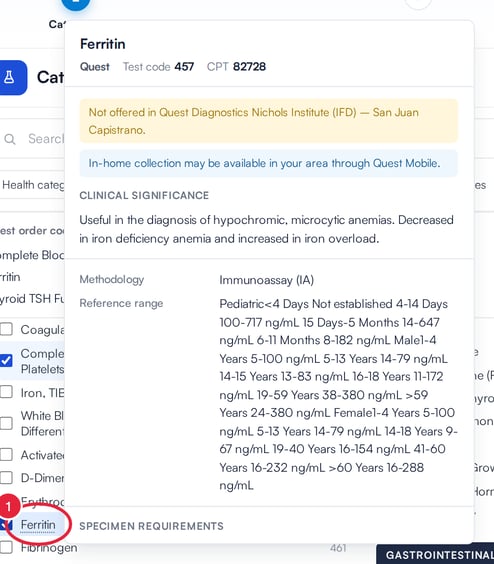
Hover over a test name for the lab’s test details
Step 4: Repeat a Past Request
The Past requests rail on the left lists the client’s earlier lab requests, newest first. Click the arrow at the top of the rail to hide or show it.
- Click a past request to see the tests it asked for, who requested it and its status.
- Click Repeat to tick the same tests in the catalogue. Pabau confirms how many it added, and tells you if any test isn’t in the lab’s current catalogue.
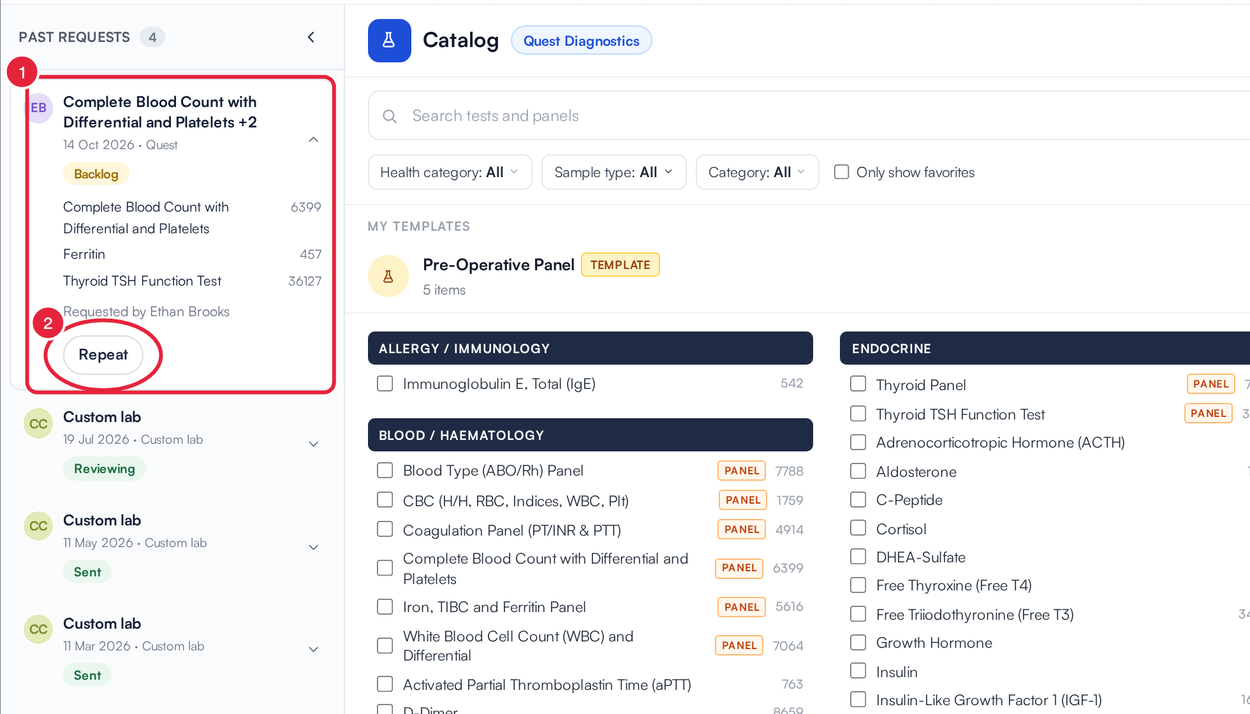
Repeat ticks a past request’s tests again
NOTE: You can repeat a request only from the same lab: select that lab first. Requests sent to a custom lab can’t be repeated.
When you have all the tests you need, click Continue. This creates the lab request, which appears in the Backlog on the Labs page until it is sent. If a test isn’t linked to a priced service yet, the Pricing step opens next so you can set a price.
Step 5: Add Diagnosis Codes (United States)
Clinics in the United States add the ICD-10-CM codes that explain why the tests are being ordered. The codes print on the lab order.
- Search by code or diagnosis in Search diagnosis codes (type at least 3 characters).
- Click a result to add it.
- Check Diagnoses for this request. If the client has active diagnoses on their record, the list starts Pre-filled from the client’s active diagnoses: remove any that don’t apply, and use Move up to put the main reason first.
- Click Save and continue.
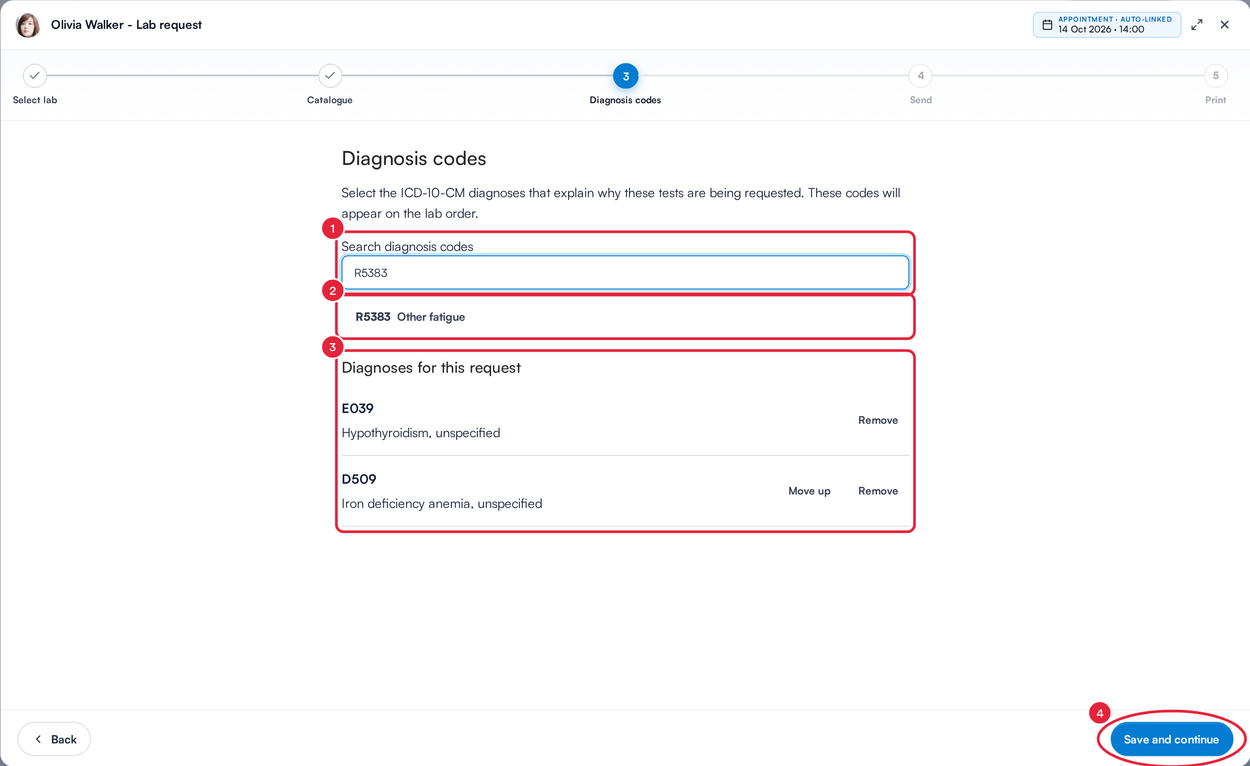
Search, add and order the diagnosis codes
IMPORTANT: You need at least one diagnosis code before you can print or send a request in the United States.
Step 6: Print (Optional)
The Print step offers the documents for the request, such as the Request Form, the Request (Barcode) sheet and Labels for the sample tubes. Choose one and click Print, or click Skip to go straight to Send.
Step 7: Send the Request
The Send step shows the lab, the tests and how the request will reach the lab. For a custom request, choose the laboratory here. Anything you need to fix first, such as a test without a lab code, is shown in red.
Click Send request. For labs that take requests by email, the button reads Send by email.
Ordering From Several Labs at Once
Some tests are cheaper or quicker at one lab, and some are only offered by another. Multi Lab lets you browse several labs’ catalogues in one list and still sends each lab its own order.
- On the Select lab step, click Multi Lab.
- Under Lab provider, tick the labs you want to browse.
- Tick tests as usual. A test stocked by more than one of the labs is listed once, with each lab’s logo and code. To order it from another lab, click that lab’s logo on the test.
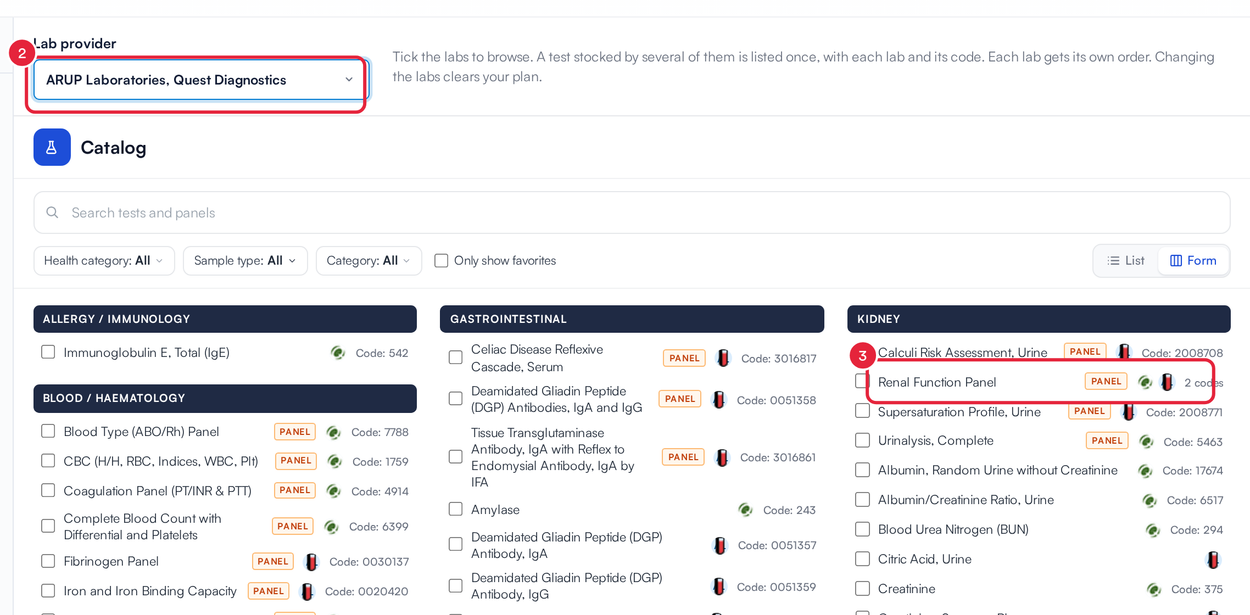
Multi Lab lists the tests from every lab you tick
When you continue, Pabau splits the plan into one order per lab and shows each as Order 1 of 2 · <lab>, and so on. On the Send step, Send all 2 orders sends them one after another.
NOTE: Changing the labs you’ve ticked clears your plan. A lab you order from in its own portal (such as a connected Labcorp account) can’t be part of a Multi Lab order: order those tests from that lab on its own.
After Sending: Linked Appointment and Other Actions
The request appears on the client’s Lab Tests tab.
- Click the three-dot menu on the request.
- Check the appointment the request is linked to: it’s shown under the request’s name.
- Click Change appointment (or Link appointment) to link it to a different visit.
- Reassign the request to another staff member under Assigned.
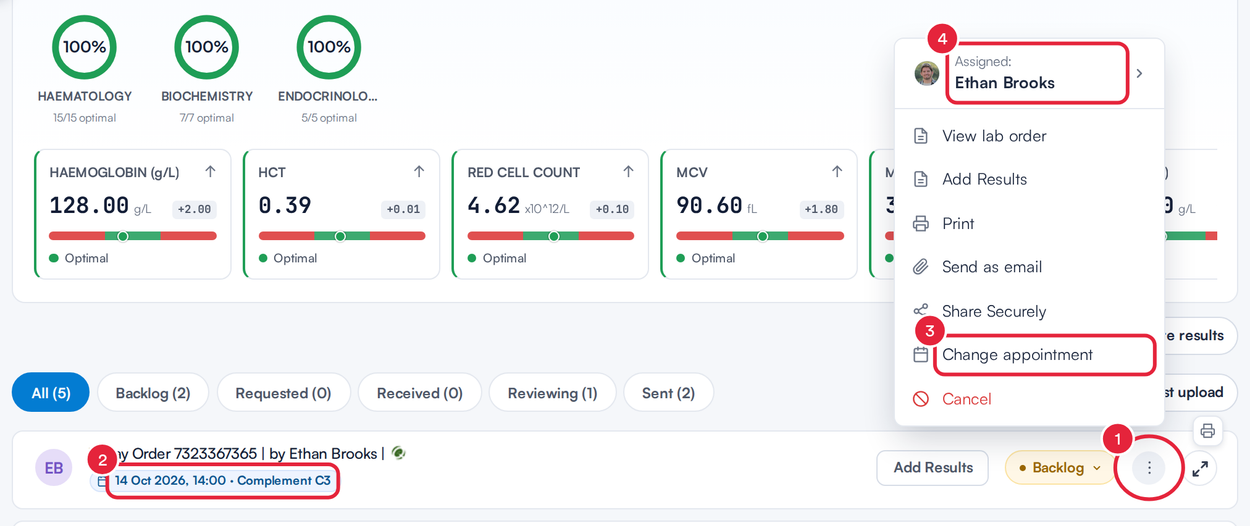
The request’s menu on the Lab Tests tab
The same menu lets you view the lab order, add results, print, send the request as an email, share it securely, or cancel it. When you print the Lab order, it includes the requesting clinician’s registration number (NPI in the United States, GMC number in the United Kingdom) where one is on file.
Who Is the Requesting Clinician, and Can I Change It?
A new lab request is raised in the name of the person who is logged in. If reception raises orders on a doctor’s behalf, change it before you send: click Requesting clinician at the top right of the wizard, next to the linked appointment, search under Search staff and click the clinician’s name. Each staff member’s GMC or registration number is shown beside their name where one is on file.
You can change the clinician until the order has been placed with the lab. If the request already exists (for example, you reopen it from the Backlog to send it), the change is saved to the request straight away and Pabau confirms Requesting clinician updated.
NOTE: Where this comes from: the clinician you pick fills the requesting doctor on the request form, so it is the name (and registration number) printed on the Request Form, the barcode sheet and the lab order, and the name shown under Requested by on the Labs page. It is separate from Assigned, which only decides which staff member the request is assigned to.
What's next?
- Labs (New Client Card)
- How to Order a Quest Diagnostics Test From a Client Record
- How to Review and Share Lab Results (New Client Card)
- How to Set Up The Doctors Laboratory (TDL)
- How to Customise the Lab Order Printout
Was this guide helpful? Let us know by voting below - your feedback helps us write clearer articles.
For more guides, browse the related articles below or use the search bar at the top of the page. You can also watch our video learning series, the Pabau Academy, or visit the Support page for additional help.