
This article covers the new Client Card, available to selected clinics from August 2026. If your Client Card looks different, see the How to Review and Share Lab Results (Classic) guide instead.
Step 1: Navigate to the Labs Page
Log in to your Pabau account and in the left sidebar menu, click on Clients, then select the "Labs" sub-tab.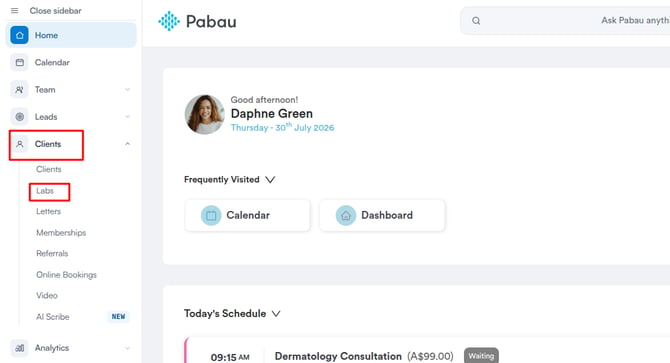
Step 2: Locate the Lab Result
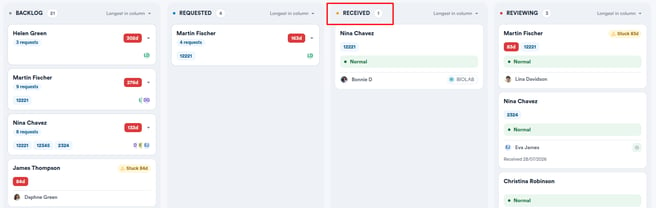
Check the Received column to find the lab result you want to review.
Step 3: Review the Lab Result
Once you have found the result you want, click the client’s name on the request card to open their client card. It opens on the Lab Tests section, focused on that request.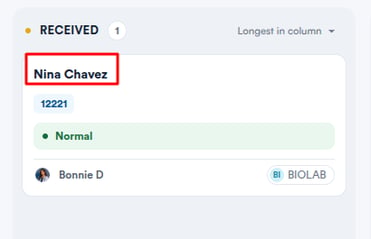
NOTE: If a test result is abnormal, the test name is highlighted in red, and the request shows an abnormal-results badge, to draw attention to it.
Click the expand button on the far right of the request to open the results for detailed review. This also moves the request to the Reviewing stage.
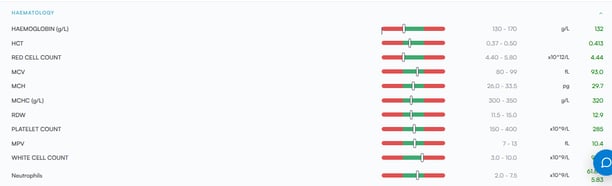
Each individual test row shows:
- Test name: Displayed on the left.
- Visual range bar: A colour-coded bar showing where the result falls within the reference range. The green section represents the normal range and the red sections represent out-of-range values. A marker on the bar shows exactly where the client’s result sits.
- Reference range: The expected normal range for that test (for example, 130-170).
- Unit: The unit of measurement (for example, g/L).
- Result value: Shown in green if normal. If the result is abnormal, the test name is highlighted in red and a "High" or "Low" label appears next to the value.
Step 4: Share Lab Results
Click the three-dot menu on the right of the request. From here you can Print the results or choose "Send as email" to email them to the client as an attachment.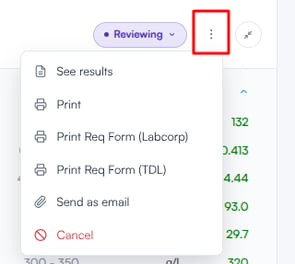
Alternatively, hover over the request and click the Share icon to choose who to share the result with.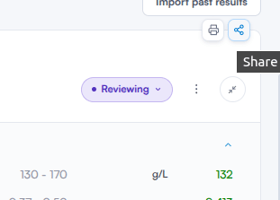
Step 5: Share via Email
Another way to share lab results with a client is by inserting them into an email.
When composing an email, use the "Client Record" option in the toolbar at the bottom of the composer, then choose Labs and select a result to insert it into the email before sending.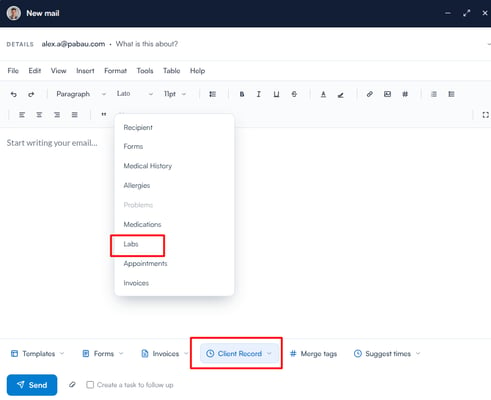
With your lab results reviewed and shared, the client will have access to their results through their preferred channel, keeping them informed and their record complete.
Was this guide helpful? Let us know by voting below - your feedback helps us write clearer articles.
For more guides, browse the related articles below or use the search bar at the top of the page. You can also watch our video learning series, the Pabau Academy, or visit the Support page for additional help.