
If your clinic takes calls through Engage, you don't need to switch apps to use the phone. From anywhere in Pabau you can see your call number, dial any number, call a client or lead straight from their record, and pick up incoming calls. The call itself always runs in Engage, which opens (or comes to the front) in its own browser tab.
NOTE: Calling is part of Engage Plus. If your clinic doesn't have Engage Plus, the phone icon in the header and the call buttons on the client card are still there, but clicking one opens the Engage Plus free trial offer instead. See Engage Plus: Pricing, Features, and Credits Explained.
Step 1: Check Your Call Number
- Click the phone icon (Calls) at the top of the screen, next to the notifications bell. The Your call number panel opens and lists the number or numbers assigned to you in Engage.
- If it says You don't have a call number yet., click Set up calling. Engage opens at the step for getting a number. See Call Setup: Numbers, Team Assignment and Call Settings.
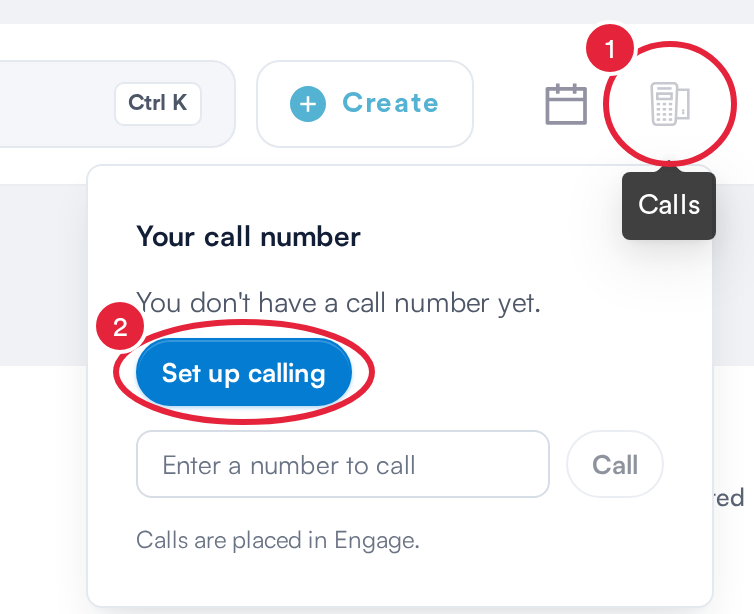
The Calls panel in the Pabau header
TIP: If you have Do not disturb switched on in Engage, the panel reminds you: Do not disturb is on — inbound calls won't ring you.
Step 2: Dial Any Number
- In the same panel, type the number into Enter a number to call.
- Click Call. Engage opens in its own tab and places the call. If Engage is already open, Pabau uses that tab rather than opening another one.
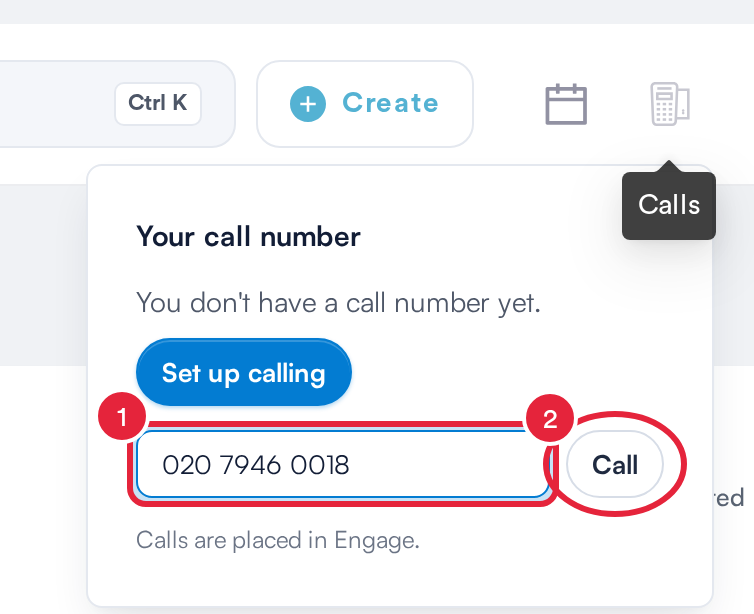
Type a number and click Call
On a phone-sized screen there's no panel: tapping the phone icon opens Engage's dial pad directly.
Step 3: Call a Client From Their Client Card
- Open the client's card. In the details on the left, hover over their Mobile number or Phone number and click the phone button that appears next to it.
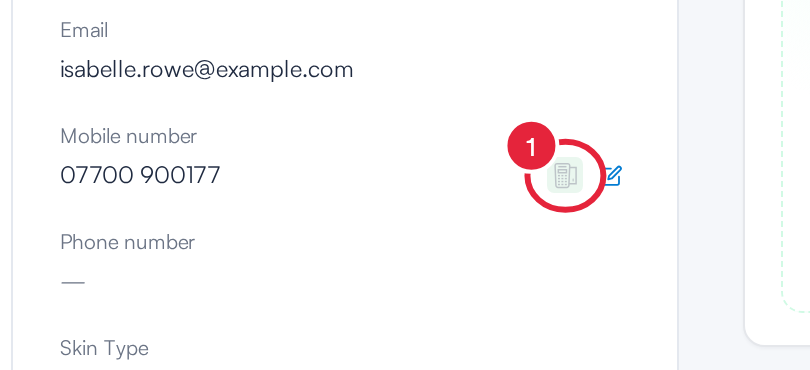
The call button appears when you hover over a client's number
Engage opens and calls that number. You don't need to tidy the format first: Engage handles numbers however they were saved. If a number can't be dialled as it is, Engage puts it in the dial pad so you can correct it. Clicking the number itself still lets you edit it as before.
Step 4: Call a Lead From the Lead Card
- Open the lead. Under Mobile / Phone, hover over the number and click the phone button beside it. The button is only shown to staff who can see the lead's personal details.
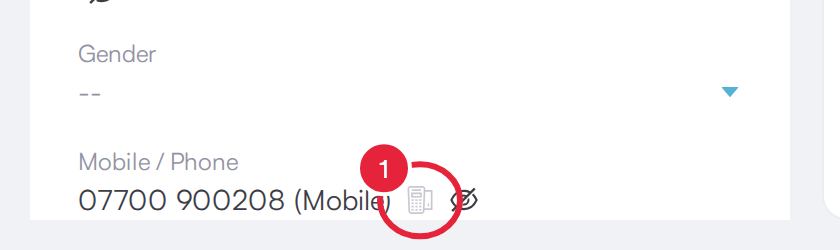
Click-to-call on a lead's phone number
NOTE: If your clinic hasn't set up calling in Engage yet, a call button takes you to Engage's set-up for getting a number instead of dialling. See How to Set Up the Calls Channel in Engage (Buy a Number).
Step 5: Answer an Incoming Call While You Work in Pabau
When a call comes in for you, an Incoming call panel appears in the bottom right corner of Pabau, even if Engage isn't open. It shows the caller's number, or Unknown caller when the number is withheld.
- Click Answer in Engage to take the call. The panel shows Opening Engage to answer…, then Engage opens and picks the call up for you. You talk to the caller in Engage.
- Click Decline to reject the call. This is the same as declining it in Engage.
NOTE: The panel is visual only: Pabau doesn't play a ringtone, so the ringing sound still comes from Engage or your phone. If you have Pabau open in more than one browser tab, the panel appears in one of them, which may not be the tab you're looking at.
What's next?
- How to Make and Receive Calls in Engage
- The Calls Tab: Your Clinic's Call Log in Engage
- Call Recordings, Transcripts, Outcomes and Notes in Engage
- Fixing Microphone and Audio Problems in Engage
Was this guide helpful? Let us know by voting below - your feedback helps us write clearer articles.
For more guides, browse the related articles below or use the search bar at the top of the page. You can also watch our video learning series, the Pabau Academy, or visit the Support page for additional help.