
The Calls channel gives your clinic a phone number that rings in the browser, records calls, takes voicemail and routes callers — all inside Pabau. This article shows you how to set it up.
Step 1: Open the Calls Channel Settings
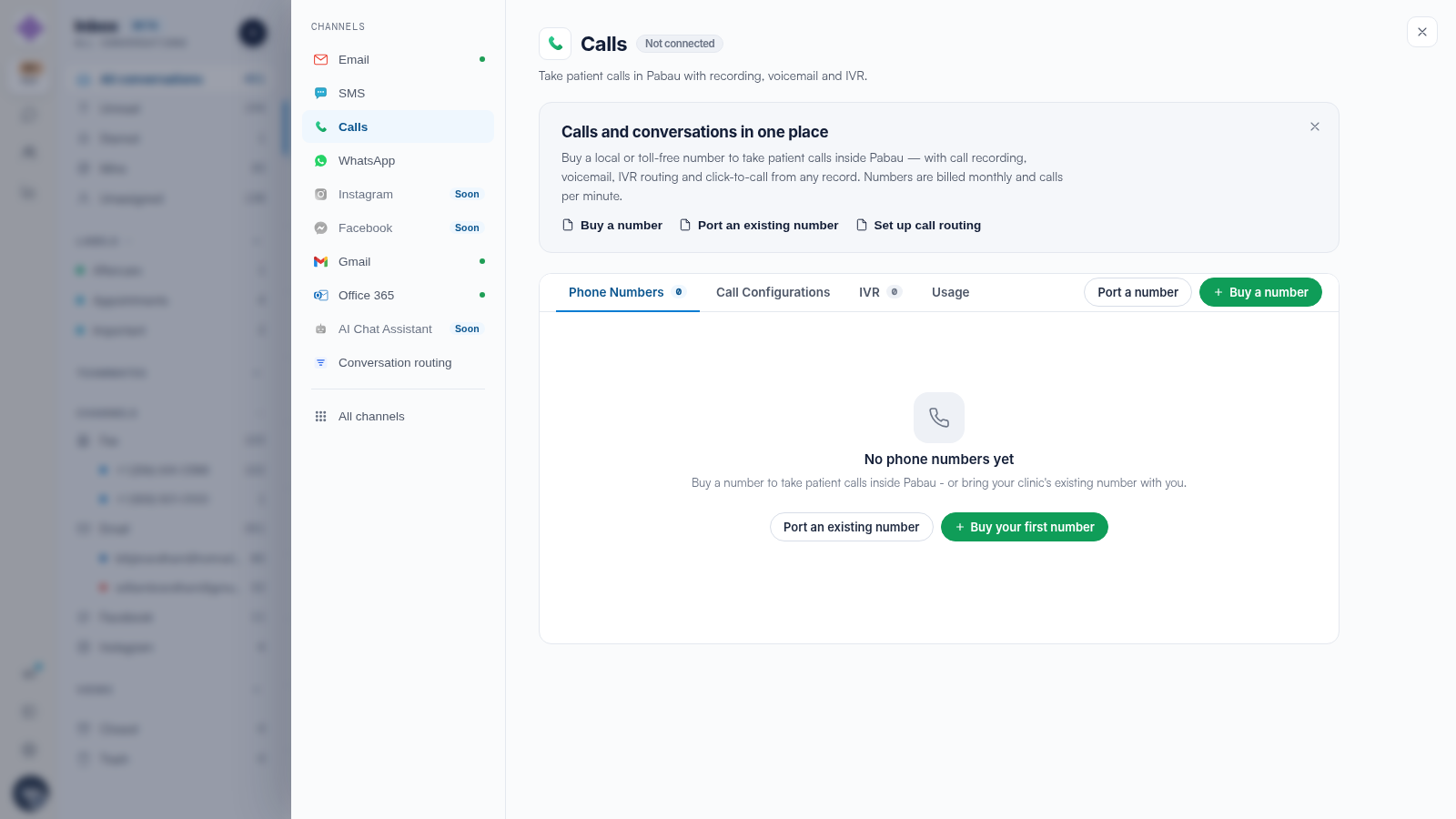
Click the Settings cog in the icon rail and choose Calls. The panel has four tabs — Phone Numbers, Call Configurations, IVR and Usage — plus Port a number and Buy a number buttons.
Step 2: Buy a Number (or Port Yours)
Click Buy a number and choose a local or toll-free number for your country — numbers are billed monthly and calls per minute, with the exact price shown before you confirm. Already have a clinic number? Choose Port an existing number instead and keep it — see our How to Port Your Phone Number to Pabau article.
NOTE: Buying a UK number involves a short business-verification step required by UK regulations — see our Buying a UK Number: Business Verification in Engage article.
Step 3: Configure How Calls Behave
The Call Configurations tab controls what happens when your number rings — opening hours, who it rings and where voicemail picks up — and the IVR tab holds call menus ("press 1 for bookings"). See our How to Set Up Call Routing for a Number and How to Set Up a Call Menu (IVR) in Engage articles.
Step 4: Assign Numbers to Your Team
Each teammate who takes calls needs a number assigned — done from the avatar menu at the bottom of the icon rail. See our How to Make and Receive Calls in Engage article.
Step 5: Watch It Work
Calls appear in the Calls tab of the inbox with recordings and outcomes, and the Usage tab of this panel tracks minutes.
Related Articles
We suggest reading our How to Make and Receive Calls in Engage article next.
For more guides, refer to related articles below, select additional guides, or use the search bar at the top of the page. These guides will help you get the most out of your Pabau account.
Additionally, to help you fully utilize and understand your Pabau account, we recommend exploring additional guides and resources offered at the Pabau Academy.