
Every call in Engage carries its evidence with it: a recording, an outcome, and — for AI-answered calls — a full transcript with a summary. This article shows you where to find each.
Open a Call
Click any call — in the Calls tab or on a conversation timeline — to expand it.
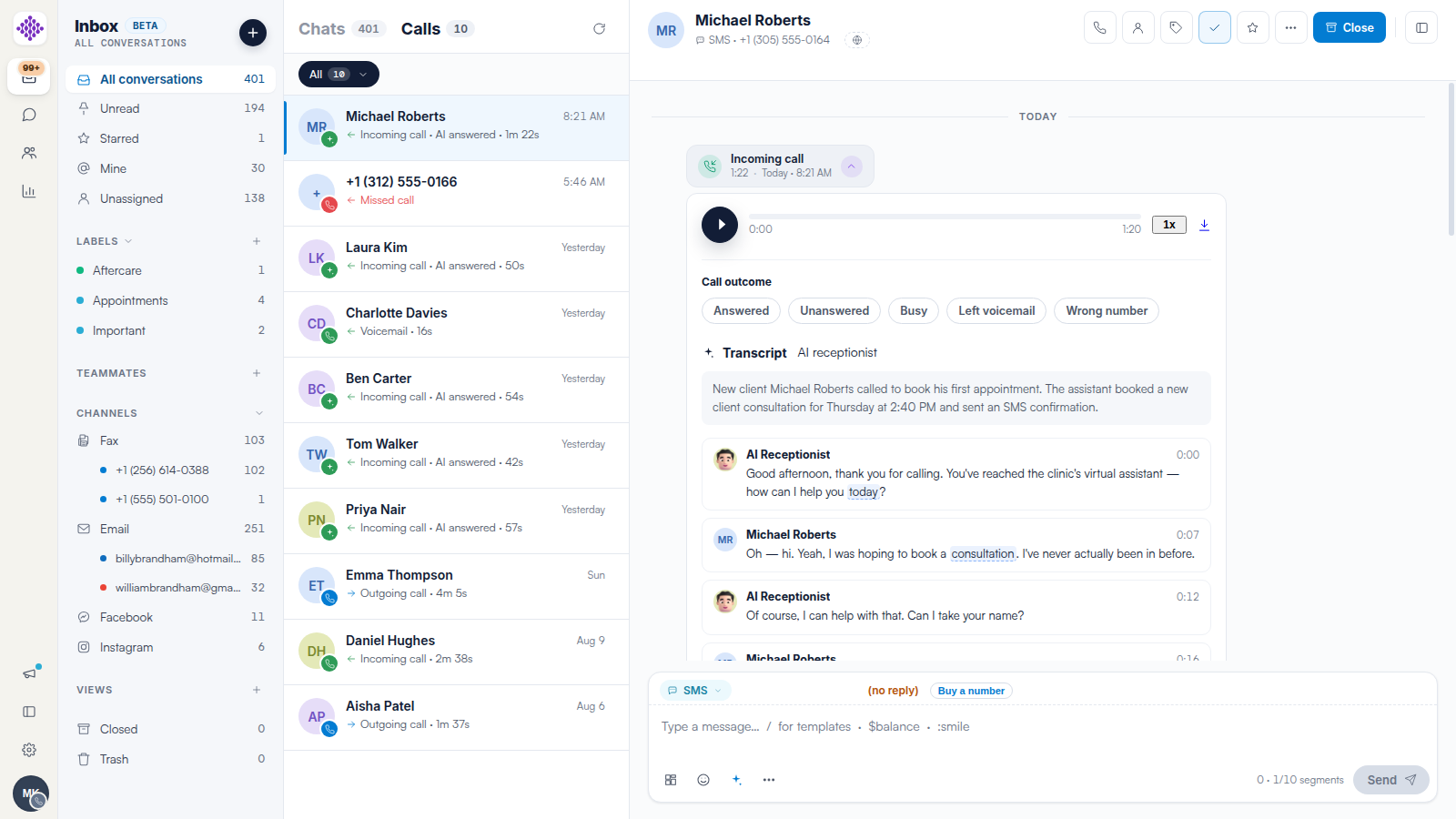
The Recording Player
The player has play/pause, a scrubber with the call length, a playback speed control (1x) and a download button for saving the audio.
Call Outcomes
Below the player, tag what happened: Answered, Unanswered, Busy, Left voicemail or Wrong number. Outcomes keep the call log honest and searchable.
Transcripts and Summaries
Calls answered by the AI receptionist arrive with a Transcript: a one-paragraph summary of what happened ("New client called to book his first appointment. The assistant booked a new client consultation for Thursday at 2:40 PM and sent an SMS confirmation."), followed by the conversation turn by turn with timestamps.
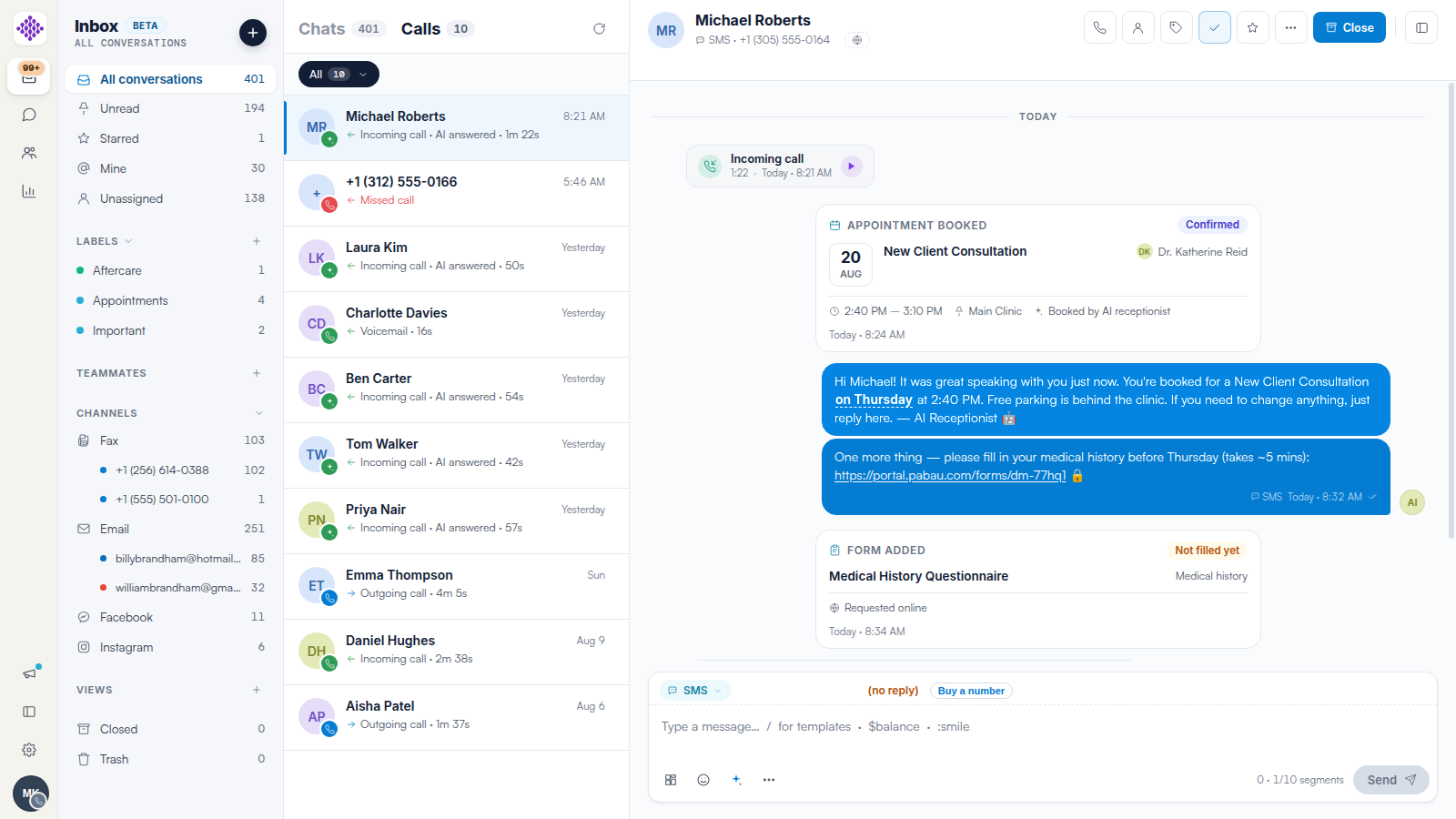
Everything Lands on the Timeline
What the call produced — an appointment card, a form request, a confirmation SMS — appears on the same conversation timeline, so the paper trail is complete without leaving the thread.
Related Articles
We suggest reading our The Calls Tab: Your Clinic’s Call Log in Engage article for the log itself.
For more guides, refer to related articles below, select additional guides, or use the search bar at the top of the page. These guides will help you get the most out of your Pabau account.
Additionally, to help you fully utilize and understand your Pabau account, we recommend exploring additional guides and resources offered at the Pabau Academy.