
In this article, you will learn what Capture Forms is, how to open it, and where to find the guide for each part of it.
NOTE: Capture Forms is primarily used for enquiry-stage lead capture and non-medical data collection. If you are looking to collect clinical or patient intake information for existing or registered clients, please refer to the Medical Forms guide.
Capture Forms is built into Pabau and helps you gather the right information at the right time, whether you're working with leads, new clients or anyone in between. Because it is designed for non-medical data collection, it gives you flexibility without touching the client's clinical records.
With Capture Forms you can:
- Build your own forms - start from blank or from a ready-made starter, add the fields you need and style the form to match your brand.
- Put forms on your website - embed them in a page, open them in a pop-up, or share a link, QR code or email.
- Send answers into Pabau - each form can create a lead or a client, so enquiries land straight in your CRM.
- Track submissions and performance - see who submitted what, and how many people view, start and finish each form.
Open Capture Forms
- Log in to Pabau.
- In the left sidebar, go to Marketing → Capture Forms.
- Capture Forms opens on the Dashboard tab.
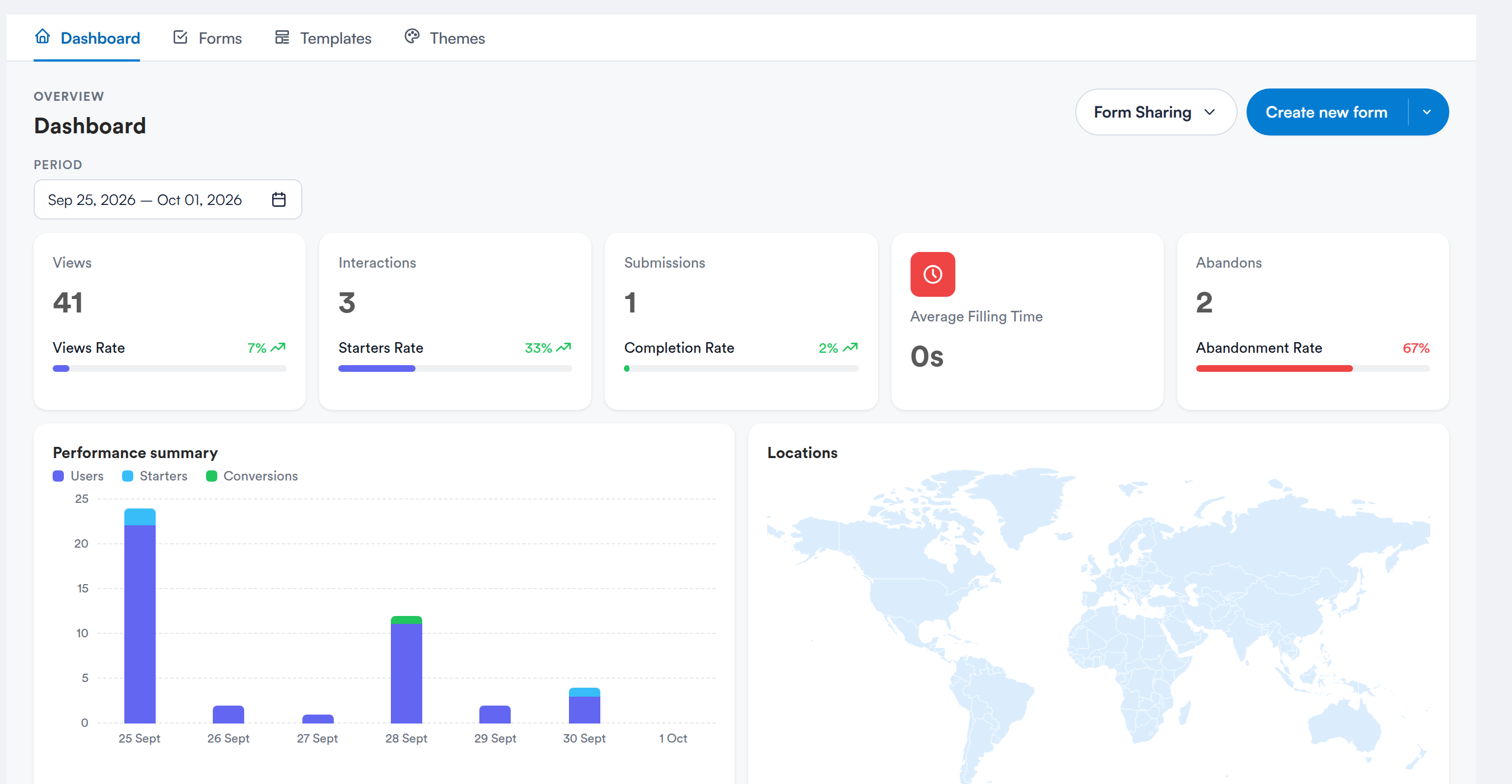
The Capture Forms Dashboard
The four tabsThe tab bar at the top of Capture Forms takes you to each area:
- Dashboard — the overview of views, interactions, submissions and your busiest forms. See How to Use the Capture Forms Dashboard.
- Forms — every form your clinic has, organised into folders, with the Actions menu for each one. See How to Manage Your Forms in Capture Forms.
- Templates — reusable starting points for new forms. See How to Use Templates in Capture Forms.
- Themes — saved styles you can apply to any form. See How to Design Forms in Capture Forms.
Get started
- How to Use the Capture Forms Dashboard — read the figures and panels on the Dashboard.
- How to Manage Your Forms in Capture Forms — folders, filters, the Actions menu, copying, deleting, and tracking submissions.
- How to Create Forms Using Capture Forms — start a form from blank or a starter, then save it.
Build your form
- How to Add Form Fields When Using Capture Forms — the field palette and how to place fields side by side.
- How to Edit Form Fields When Using Capture Forms — field settings, Pabau Fields and Conditional Rules.
- How to Add/Edit the Name of Your Form in Capture Forms — rename a form without breaking shared links.
- How to Edit Your Forms in Capture Forms — reopen and change an existing form.
- How to Design Forms in Capture Forms — colours, fonts, backgrounds and themes.
Set up and publish
- How to Configure Your Form Settings in Capture Forms — availability, security, confirmations and notification emails.
- How to Add Forms to Your Website — embed codes, pop-ups, links, QR codes and email invitations.
- How to Use Templates in Capture Forms — save and reuse your own templates.
The complete Capture Forms guide series:
- How to Use the Capture Forms Dashboard
- How to Manage Your Forms in Capture Forms
- How to Create Forms Using Capture Forms
- How to Add Form Fields When Using Capture Forms
- How to Edit Form Fields When Using Capture Forms
- How to Add/Edit the Name of Your Form in Capture Forms
- How to Edit Your Forms in Capture Forms
- How to Configure Your Form Settings in Capture Forms
- How to Design Forms in Capture Forms
- How to Add Forms to Your Website
- How to Use Templates in Capture Forms
Questions? Reach us any time via the in-app chat — we're happy to help.
Was this guide helpful? Let us know by voting below - your feedback helps us write clearer articles.
For more guides, browse the related articles below or use the search bar at the top of the page. You can also watch our video learning series, the Pabau Academy, or visit the Support page for additional help.