
At the bottom of the client card’s Summary tab, a bar sums up the client in a few numbers: how often they book, when they last came in and where they stand financially. It stays in view while you scroll, so you never have to open another tab to check how a client is doing.
Step 1: Find the Bar
Open the client’s card. The bar floats at the bottom of the Summary tab, whichever view you are on (Fact Sheet, Timeline or Snapshots). It doesn’t appear on the other tabs of the card. On a narrow screen, scroll the bar sideways to see every figure.
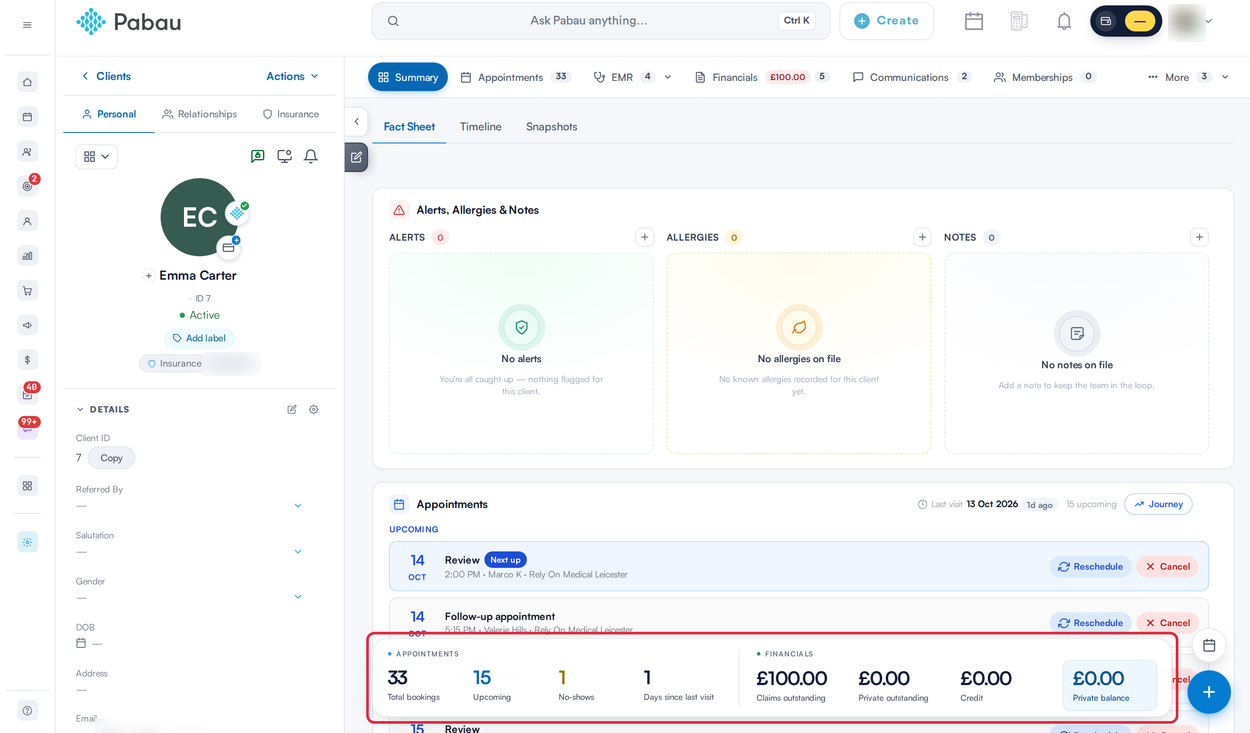
The bar floats at the bottom of the Summary tab
Step 2: Read the Appointment Figures
- Total bookings: every appointment booked for the client, including cancelled ones and no-shows. Online bookings still waiting to be confirmed aren’t counted.
- Upcoming: future appointments that haven’t been cancelled.
- No-shows: appointments marked as a no-show. The number is highlighted when it is above zero.
- Days since last visit: the number of days since the client’s most recent appointment that wasn’t cancelled or a no-show. A dash (—) means they haven’t had a visit yet.
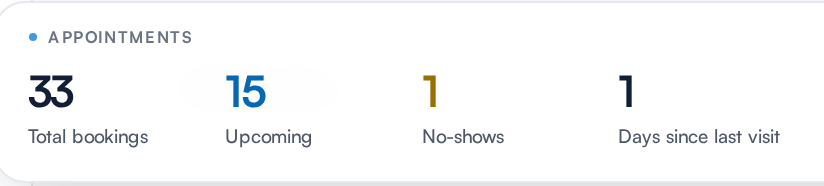
Appointment figures
Step 3: Read the Financial Figures
- Credit: money held on the client’s account. It turns green when the client has credit.
- Private balance: what the client still owes you, less any credit on their account. A negative balance means the client is in credit. Hover over it for a reminder: Private outstanding less available account credit. A negative balance means the client is in credit.
If your clinic uses insurance billing, two more figures appear before them:
- Claims outstanding: the unpaid amount on invoices billed to an insurer.
- Private outstanding: the unpaid amount the client pays themselves, including any outstanding balance on their account.

Financial figures (Claims outstanding and Private outstanding appear only with insurance billing)
TIP: For the full breakdown of invoices and payments, open the Financials tab or the client’s financial statement.
Why a Figure Might Be Missing
- The financial figures don’t appear at all: your user group can’t see invoices. Credit and Private balance also need access to payments.
- A dash (—) instead of a number: the figure couldn’t be loaded. Hover over it to see Unable to load this figure, then refresh the page.
- Invoice history is too large to summarize here. View Financials for balances. appears for clients with a very long invoice history. Use the Financials tab instead.
What's next?
- How to View a Client’s Financial Statement (New Client Card)
- Understanding the Appointments Tab on the Client Card (New Client Card)
- How to Configure the Summary View in Client Card (New Client Card)
- Clients (New Client Card)
Was this guide helpful? Let us know by voting below - your feedback helps us write clearer articles.
For more guides, browse the related articles below or use the search bar at the top of the page. You can also watch our video learning series, the Pabau Academy, or visit the Support page for additional help.