
This article covers the new Client Card, available to selected clinics from August 2026. If your Client Card looks different, see the How to View a Client’s Financial Statement (Classic) guide instead.
Step 1: Navigate to the Client Card
Start by logging in to your Pabau account using your login credentials. Then, navigate to the search bar at the top of the screen to search for the client. Type at least three letters of the client’s name for their client card to pull up.
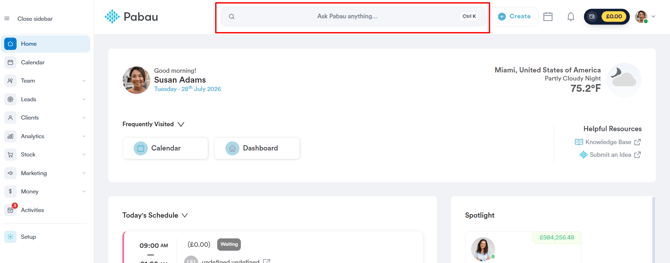
Step 2: Switch to the Financials Tab
Once you’re in the client card, click on the Financials tab at the top of the client card. This section gives you access to all financial activity related to the client, including invoices, payments, and account balances.
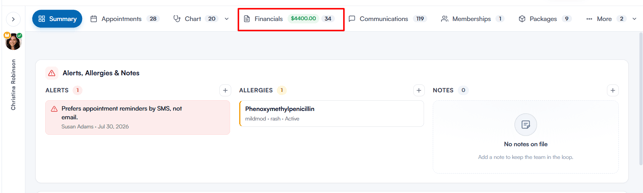
Step 3: Open the "Statements" Sub-Tab
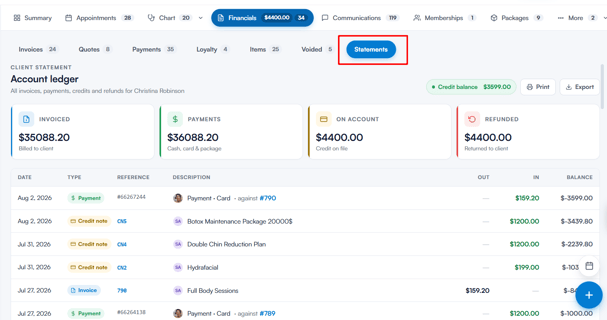
In the Financials tab, select the Statements sub-tab — the last one in the row of sub-tabs. This opens the Account ledger, giving you a full financial overview for the selected client.
Step 4: Understand the Account Ledger
The Account ledger is divided into a few key sections:
Summary cards
- Invoiced – total amount billed to the client
- Payments – total payments received (cash, card, package, and so on)
- On account – any credit balance held on file
- Refunded – total amount returned to the client
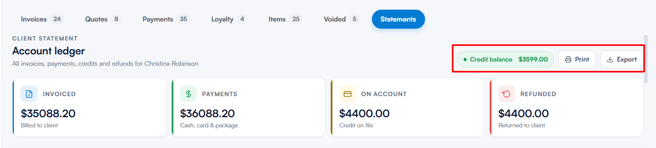
At the top of the ledger, a balance indicator shows the client’s overall position — Owed by client, Credit balance, or Settled in full — alongside Print and Export buttons. Print opens a print-ready statement, while Export downloads the ledger as a CSV file.
Transaction ledger
Below the summary cards, a detailed table lists every transaction, including:
- Date – when the transaction occurred
- Type – whether it’s an invoice, credit note, payment, on-account credit, or refund
- Reference – the transaction or invoice number
- Description – the item or service the transaction relates to
- Out / In – amounts charged (Out) or received (In)
- Balance – the running account balance after each transaction
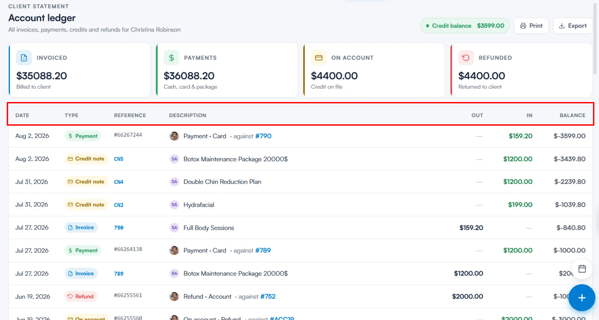
The Closing balance at the bottom of the table shows the client’s final position. You can also click any invoice or credit note reference to preview that invoice without leaving the statement.
This gives you a complete, chronological record of all invoices, payments, credits, and refunds for the client.
By following these steps, you can efficiently review and manage your client’s financial activity, ensuring clear and accurate records that support smooth billing and account tracking.
Was this guide helpful? Let us know by voting below - your feedback helps us write clearer articles.
For more guides, browse the related articles below or use the search bar at the top of the page. You can also watch our video learning series, the Pabau Academy, or visit the Support page for additional help.