
NOTE: The redesigned Home page and sidebar are being rolled out gradually. If your Pabau looks different from the screenshots below, your clinic has not been moved across yet — your existing Home page and menu continue to work exactly as before.
Table of Contents:
Accessing the Home Page
To open the Home page, click the Home icon at the top of the left sidebar menu. This is also the default page shown after logging in.
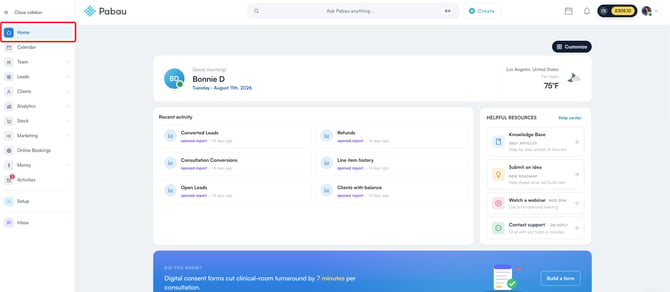
NOTE: The Home page is the default landing page on new Pabau accounts. Different teams and staff members can have a different landing page configured via the Team page. To learn how to set this up, read this article.
Home Page Widgets
The Home page is made up of modular widgets. Each one covers a different part of your day and can be reordered, removed, or restored using the Customize feature covered below.
NOTE: Which widgets you see depends on your role. KPI Dashboard and Quarterly Review are shown to admins and owners only; Today’s Schedule requires the Can access calendar page permission and My Tasks requires Can access activities page.
Greeting
At the top of the page, the greeting widget shows your name, the current date, and a local weather readout based on your clinic's location. The temperature is shown in Fahrenheit for clinics in the United States and a small number of other countries, and in Celsius everywhere else.
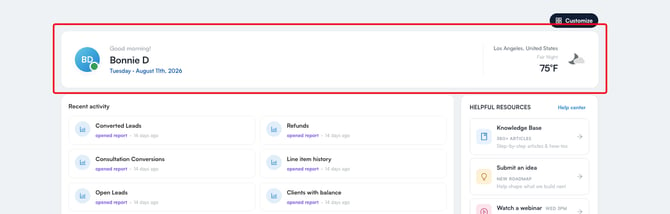
Where this comes from: your name comes from your staff record (Team → People → [staff member] → Personal details). The city shown in the weather comes from the location assigned to you, set at Setup → Business → Locations. The date and time format come from Setup → Business details → Details.
NOTE: Whether the temperature is shown in Celsius or Fahrenheit is decided by your company’s country, not by the location’s. A company registered in the United States with a branch in London will see London’s weather in Fahrenheit.
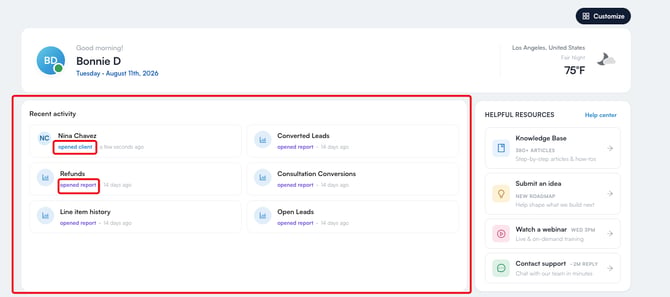
The Recent Activity widget is a feed of the records you have opened most recently — clients, leads and reports. Each entry shows the record name, the tab you were on (for example, Appointments, Treatment notes, Prescriptions, or Packages), a chip marking it as a client, lead or report, and a relative timestamp. Up to six entries are shown, and clicking one takes you straight back to that exact tab.
Helpful Resources
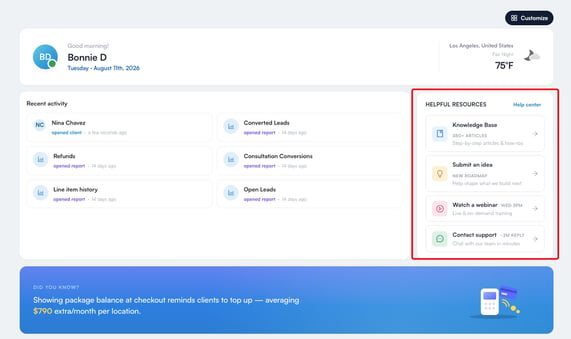
This widget links to support content to help you get the most out of Pabau:
- Knowledge Base - step-by-step articles and how-tos.
- Submit an Idea - suggest new features via the Pabau Community page.
- Watch a Webinar - live and on-demand training sessions on the Pabau Academy page.
- Contact Support - start a live chat with the support team.
Did You Know?
The Did You Know widget is a rotating carousel of tips and feature spotlights. It advances on its own every few seconds and pauses while your mouse is over it. Move between tips using the arrows on either side or the pagination dots, and where a tip has one, use its button to jump straight to the feature.


KPI Dashboard
NOTE: The KPI Dashboard is available to admins and owners only.
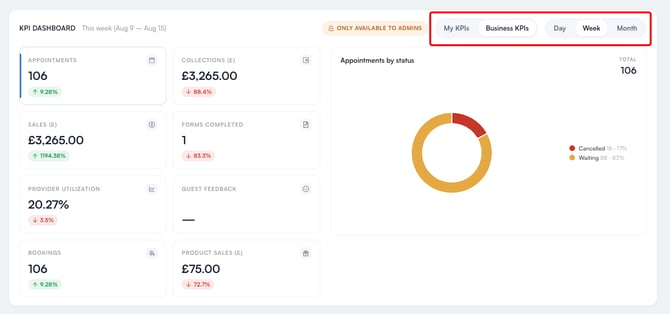
The KPI Dashboard gives you a performance summary for the practice. Use the toggle at the top to switch between My KPIs (your own performance) and Business KPIs (the whole business), and use the Day, Week, and Month options to change the reporting period.
The dashboard displays metric tiles for Appointments, Collections, Sales, Forms Completed, Provider Utilization, Guest Feedback, Bookings, and Product Sales. Each tile shows its current value and the percentage change against the previous period.
Click a metric tile to select it and display its related chart in the panel on the right. For example, selecting Appointments shows a breakdown of the period's appointments by status, while selecting Provider Utilization shows a donut chart of booked versus open capacity.
Client Spotlight
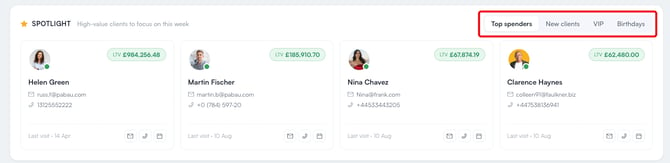
The Client Spotlight widget highlights high-value clients to focus on for the week. Use the filters to switch between Top Spenders, New Clients, VIP, and Birthdays. Each card shows the client's lifetime value (LTV), contact details, and last visit date, along with quick actions to email, call, or book them.
Today's Schedule
Today's Schedule lists the day's appointments, showing the time, duration, the client, the service booked, and the status for each one. Use the All and My Schedule filters to switch between everyone's appointments and your own, and click "Open calendar" to go through to the full calendar.
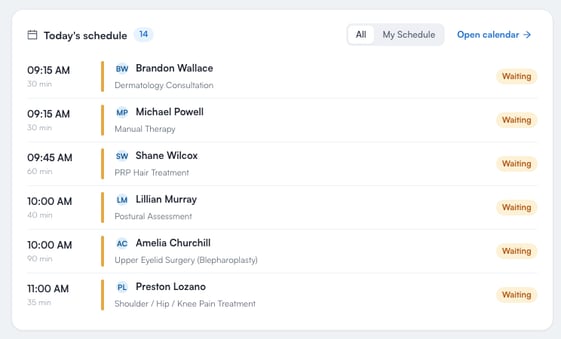
NOTE: The All option requires the Can view everybody’s calendar permission. Without it the widget stays on My Schedule and All is greyed out.
My Tasks
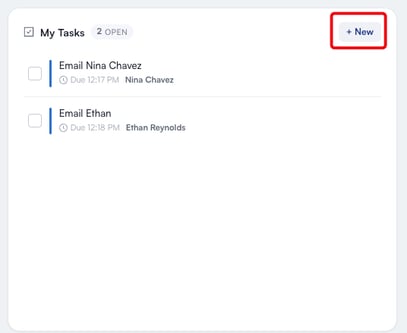
The My Tasks widget shows your pending activities, such as calls and emails, along with their due dates. Use the checkbox next to each task to mark it complete, and click the "+ New" button to create a task directly from the widget. Creating a task requires the Can create an activity permission — without it the button is visible but disabled.
Ending Authorisations
Two counts are shown in the corner of the widget: Needs new, for cases that have run out and require a fresh authorisation, and Ending, for those approaching their limit. When there is nothing to act on, the widget shows “No authorisations ending”.NOTE: This widget requires the Can access clients page permission, and is only relevant to practices using insurance billing.
Where this comes from: the warning thresholds default to 2 visits remaining and 7 days to expiry. They are set per clinic from a client card, under Insurance → Cases, using the Authorisation Warnings option. Setting either threshold to zero switches that warning off.
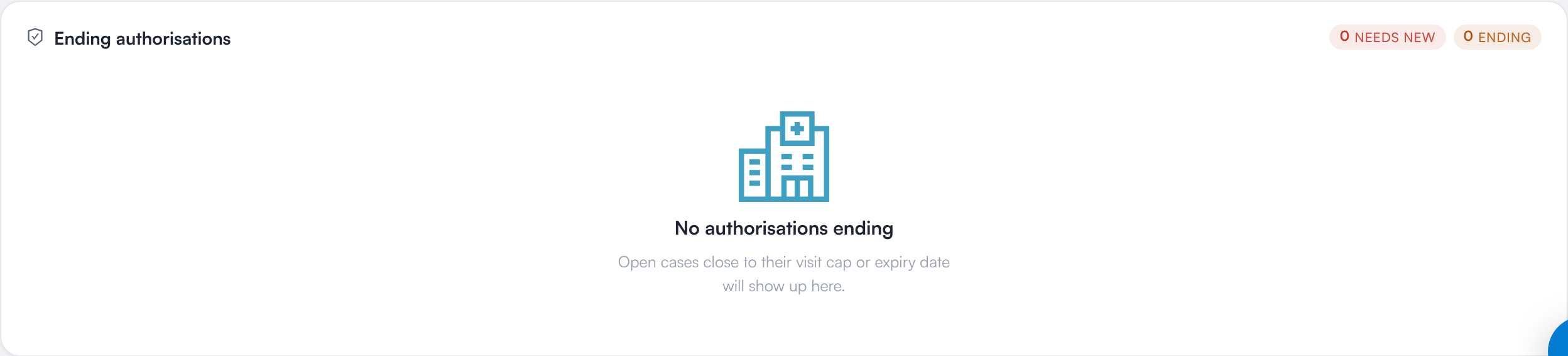
The Ending authorisations widget with no cases due
NOTE: The Quarterly Review is available to admins and owners only.
The Quarterly Review widget links to a personalized performance review for your clinic for the quarter. Click "View now" to open it.

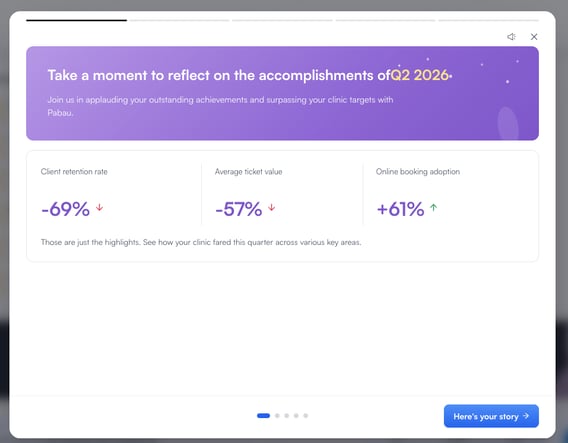
What's New
The What's New widget summarizes product updates from the past quarter, including the number of new features and key performance figures. Click "See what's new" to view the full changelog on the Pabau Community page.

NOTE: The headline figures shown on this widget summarise a release period and are updated when we publish a new round-up — they are not live statistics for your own clinic. For your clinic’s own numbers, use the KPI Dashboard or Analytics.
Click "Customize" in the top right corner of the page to enter edit mode.
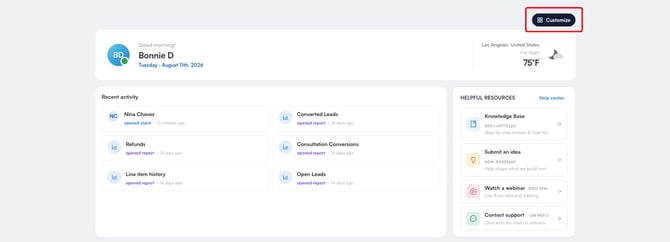
The button is replaced with "Edit dashboard", and the instruction "Drag widgets to reorder · click the × to remove" appears at the top.
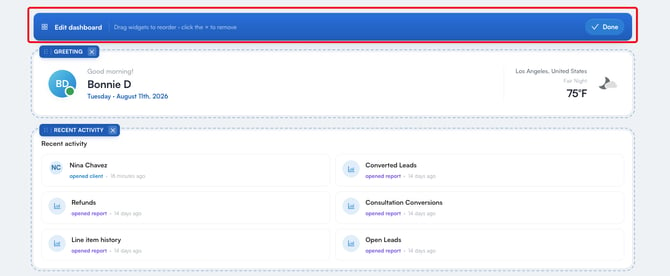
In edit mode, each widget is labeled (for example, GREETING, RECENT ACTIVITY, KPI DASHBOARD) and has a drag handle to reorder it and a × button to remove it from the dashboard.
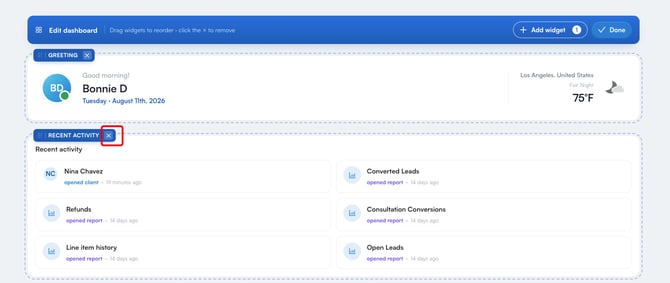
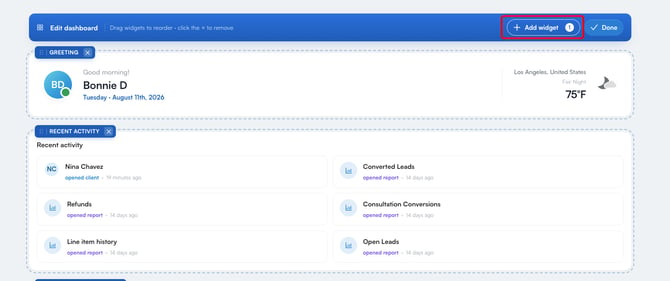
Once you remove a widget, an "Add widget" button appears at the top, with a badge showing how many widgets are hidden. Click it to open the Hidden Widgets list, which shows each removed widget's name and a short description. Click an entry to restore it to the dashboard. When nothing is hidden, the list shows "All widgets are showing on your dashboard."
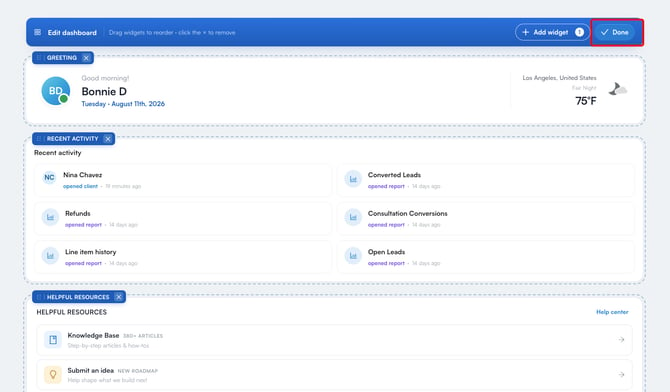
When you are finished, click "Done" to exit edit mode and save your layout.
IMPORTANT: Your layout is saved when you click "Done" — not as you drag. If you reorder or remove widgets and then navigate away or close the tab while still in edit mode, those changes are discarded and your previous layout returns.
NOTE: Your layout is yours alone — changing it never affects anyone else’s Home page. It is saved to your Pabau user account, so signing in on another computer or tablet gives you the same arrangement. When a new widget is released it is added to the end of your existing layout rather than resetting it.
What’s next?
- How to Customize Your Home Page Dashboard
- Getting Started with the Pabau Sidebar
- How to Customize Your Sidebar
- How to Set the Default Homepage for Staff Members
Was this guide helpful? Let us know by voting below - your feedback helps us write clearer articles.
For more guides, browse the related articles below or use the search bar at the top of the page. You can also watch our video learning series, the Pabau Academy, or visit the Support page for additional help.