
Every claim has an actions menu in its header. From there you can open the client's policy, view, edit or print the invoice the claim bills, record a payment, and set the claim's status yourself, for example to park a claim On Hold while you wait for information, or to track a claim you sent to the insurer outside Pabau.
NOTE: The menu works the same for UK (Healthcode) and US (Claim.MD) claims. US clinics also see Download superbill and Export file (837P). Changing a claim's status and editing the invoice need the Can edit invoices permission.
Step 1: Open the Claim's Actions Menu
- Go to More → Claims, click View on the claim, then click the three dots (More actions) at the top right of the claim.
- Pick an action:
- View policy / Edit policy: open the client's insurance policy linked to this claim.
- View invoice / Edit invoice: open the invoice the claim bills.
- Print invoice: print the detailed invoice.
- Record payment: record a payment received for this claim.
- Under Set claim status, choose the status you want (see Step 2).
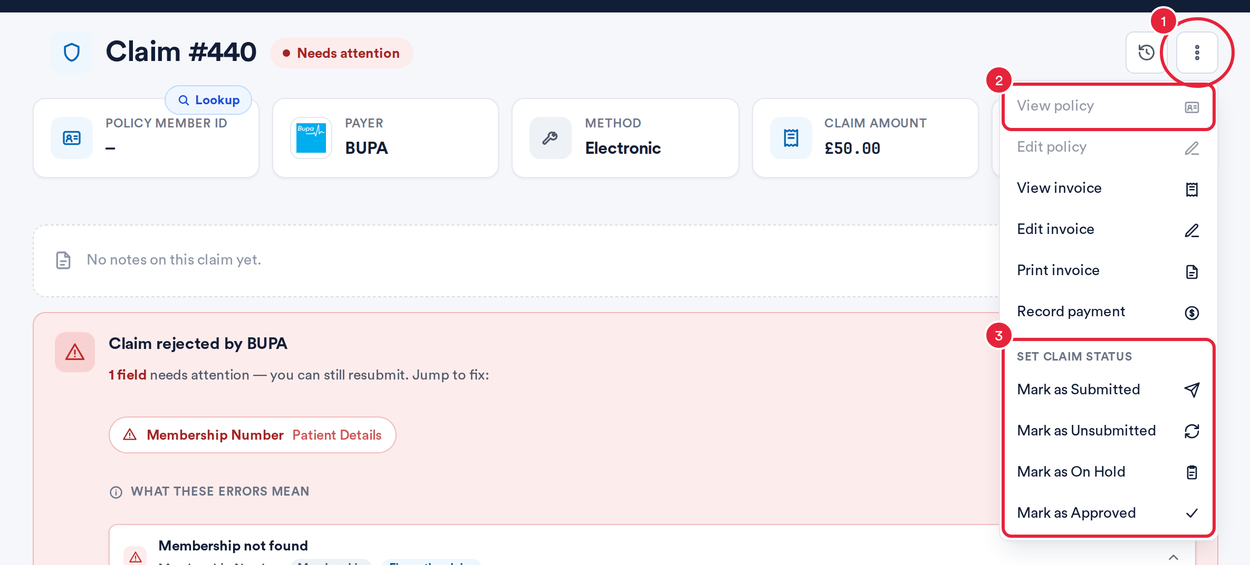
The actions menu, with the status options at the bottom
TIP: Items you can't use are greyed out rather than hidden. Hover over one to see why: No policy is linked to this claim, You need the 'Can edit invoices' permission to change a claim's status, or The claim is already in this status.
Step 2: Set the Claim's Status
Use these when a claim's real progress happened outside Pabau, or to park it:
| Option | When to use it |
|---|---|
| Mark as Submitted | You sent the claim to the insurer outside Pabau. The claims list shows it as Submitted. |
| Mark as Unsubmitted | A submission was recorded by mistake. The claim goes back to Pending (unsubmitted). |
| Mark as On Hold | Park the claim while you wait for information or a decision. It stays out of the submission worklist until you take it off hold. |
| Mark as Approved | The insurer approved the claim and you are waiting for the money. Recording the payment then settles it to Paid. |
Pabau confirms the change with a message such as Claim status set to On hold, and records who changed it and when.
IMPORTANT: Paid and Partially paid can't be set by hand. They come from the money: record the insurer's payment (or process its remittance) and the claim shows as Paid. If payments are already on the invoice, the claim keeps showing as paid whatever status you choose. If the claim is also being tracked electronically by Healthcode or Claim.MD, Pabau warns you that the next status update from the clearinghouse will replace the status you set.
Step 3: Use the Tracking Options (Only When a Submission Is Stuck)
Some claims have a third section at the bottom of the menu: Healthcode tracking for UK clinics or Claim.MD tracking for US clinics.
- On a Healthcode claim that has been sent and is locked, Reset submittal clears Pabau's stored submission so the claim can be corrected and sent again. Use it only for a submission that left the claim stuck with no response from Healthcode. It clears Pabau's record only; it does not withdraw anything Healthcode has already received.
- Claim.MD claims offer Mark as submitted (paper), Mark as denied and Revert to draft; see Exporting and submitting CMS1500 claims manually.
Step 4: Open a Claim From the Client Card
You don't have to go through More → Claims to reach a claim. On the client card, open the client's invoices under Financials. An invoice that has been sent as a claim shows a claim status badge. Click the badge (View claim) to open the claim in a side drawer.
What's next?
- Insurance Guide Part 4 (UK): Submit and track claims with Healthcode
- Insurance Guide Part 4: Submit and track insurance claims in Pabau
- Understanding claim statuses on the Insurance claims list
Was this guide helpful? Let us know by voting below - your feedback helps us write clearer articles.
For more guides, browse the related articles below or use the search bar at the top of the page. You can also watch our video learning series, the Pabau Academy, or visit the Support page for additional help.