
The Insurance claims list sorts every claim into a status folder, so you can see at a glance what needs your attention and what is waiting on someone else. In this article, you will learn what each folder means, what to do with the claims in it, and how to use the worklist filters to find claims that need chasing.
NOTE: These folders apply to practices that submit US claims through Claim.MD.
Step 1: Open the Insurance Claims List
Go to More → Claims. The folders sit across the top of the page.
- Each folder shows how many claims it holds and the amount still owed on them. Click a folder to show only those claims in the table. Click All claims to see everything again.
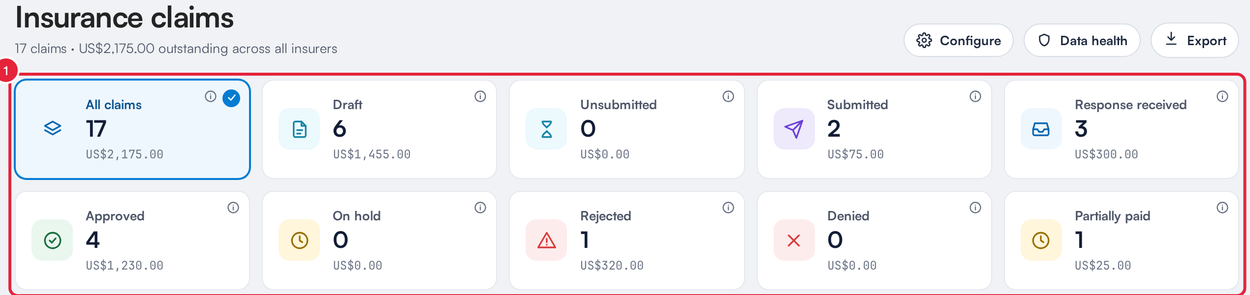
The status folders on the Insurance claims list
The counts cover the period chosen under the folders (Last 90 days to start with), plus any team member, location or insurer filters you have set.
TIP: If every folder shows 0 when you first open the page, give it a few seconds. The counts fill in once your claims have loaded.
Step 2: Read What a Folder Means
Every folder has a short explanation built in.
- Point at the i icon in the corner of a folder to read what it means.
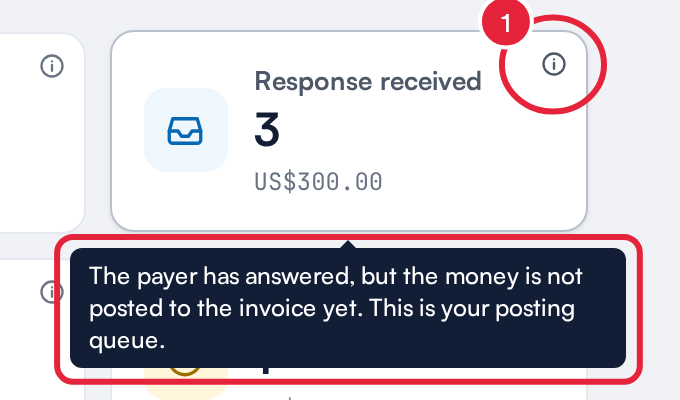
Point at the i icon for a folder’s explanation
The table below gives the same explanations, with what to do next. Most practices work through the folders from left to right.
| Folder | What it means | What to do |
|---|---|---|
| Draft | The claim has been started (the visit was billed to an insurer) but nobody has validated it yet, so it cannot be sent. | Open the claim, fill in anything the visit did not supply and click Validate. |
| Unsubmitted | The claim has passed validation and is ready to go, but it has not been sent to Claim.MD yet. | Click Send Invoice to Claim.MD on the claim, or tick several claims on the list and send them together. |
| Submitted | The claim is with Claim.MD or the payer, waiting for a response. | Nothing yet. Click Refresh now and then to pull the latest updates. If it sits here too long, see Step 3. |
| Response received | The payer has answered, either through an electronic remittance (ERA) or a payment you recorded, but the money has not been posted to the invoice yet. This is your posting queue. | Post the payment on the Remittance tab beside Claims, so the claim moves to Approved or Partially paid. |
| Approved | Paid in full and reconciled. Nothing is left to collect. | Nothing. If the client has a secondary policy, bill the balance to it (see Step 3). |
| Waiting on primary | Only shown when you bill secondary payers. A payer ahead of this one still owes money. | Wait for the earlier payer to settle, or release the hold if you need to bill this payer now. |
| On hold | Claim.MD is holding the claim until a supporting document arrives, for example a chart note you chose to send, or notes a workers’ compensation payer asked for. The payer has not seen it yet. | Open the claim. Usually it moves on by itself once the document arrives. If it stays here, attach the document and send again. |
| Rejected | Claim.MD or the payer sent the claim back before assessing it, usually because of data problems such as eligibility, codes or format. | Open the claim, fix the fields named in the errors, validate and send again. |
| Denied | The payer assessed the claim and refused to pay. | Read the payer’s reason. Correct and resubmit only if something on the claim was wrong, otherwise appeal or bill the client. Sending it again unchanged will not work. |
| Partially paid | Some money has come in and a balance is left. | Check the remittance for the reason for the shortfall, then bill a secondary payer, the client, or appeal. |
NOTE: Rejected and Denied are different. A rejected claim never reached the payer’s decision, so fixing the data and sending it again is the right move. A denied claim was decided, so it needs a correction, an appeal or a different payer.
Step 3: Use the Worklist Filters
Under the folders, the worklist filters pick out claims that need a follow-up. Click one to filter the table.
- Secondary due: the primary payer has paid, and the client has another policy you can bill for the balance.
- Secondary rejected: a secondary claim came back rejected and needs fixing.
- Stalled: submitted claims that have not moved for longer than usual. Open the claim and check its history (the clock icon in the claim header). If the payer never acknowledged the claim, check it in the Claim.MD portal. If the payer acknowledged it but has sent no remittance since, chase the payer.
- Refresh pulls the latest statuses from Claim.MD.

The worklist filters and Refresh
Stalled only appears when you have stalled claims. In the same way, Awaiting approval appears only when your Claim.MD account is set to require approval before claims are sent. Claims under it are waiting in the Claim.MD portal until someone approves them there.
What's next?
- Insurance Guide Part 4: Submit and track insurance claims in Pabau
- Tracking electronic claim submissions
- Submitting secondary claims in Pabau
- How long does it take to process ERA and claims?
Was this guide helpful? Let us know by voting below - your feedback helps us write clearer articles.
For more guides, browse the related articles below or use the search bar at the top of the page. You can also watch our video learning series, the Pabau Academy, or visit the Support page for additional help.