
Almost every payer accepts electronic claims through Claim.MD, and that is always the fastest route: statuses, rejections and remittances flow back into Pabau by themselves. Some payers still want a mailed paper claim, though, and some plans only take claims keyed into their own provider portal. This guide covers that manual path end to end: exporting the CMS-1500, sending it yourself, and keeping the claim tracked in Pabau so your claims list stays accurate.
NOTE: Insurance billing is available for practices in the United States. Claims go to payers electronically through the Claim.MD clearinghouse, using your own Claim.MD account.
NOTE: The export builds the form from your validated claim, so the same Setup essentials apply as for electronic billing: a completed billing profile, an NPI for the rendering provider, and the insurer linked to a payer under Setup → Claims → Claim.MD. See Insurance Guide Part 1.
Step 1: Export the CMS-1500 Form
Open the claim from More → Claims and fix anything the claim screen flags. The export validates the claim first and only a clean claim prints, so what lands on paper is exactly what would have gone electronically.
- Click Export in the claim header.
- Choose Print CMS-1500 form to print the full NUCC 02/12 form with the claim filled in. Print it, or choose Save as PDF in the print dialog for a portal upload.
- Choose Print CMS-1500 text only to print just the claim values, for pre-printed red-ink forms (see Step 2).
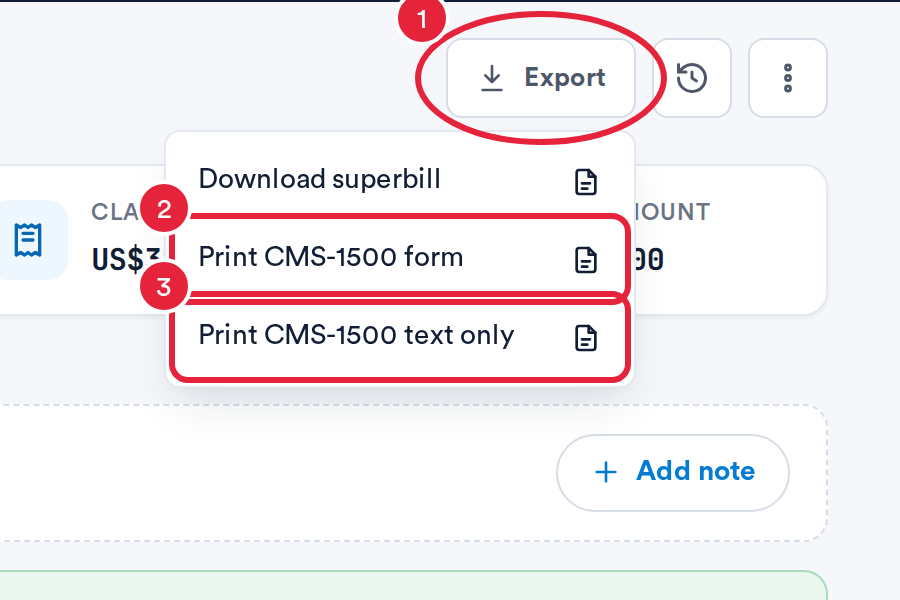
Export → Print CMS-1500
The same menu offers Download superbill: a statement the client can send to their plan for out-of-network reimbursement. It is a different document from the CMS-1500 you send to a payer.
Step 2: Print Onto Pre-printed CMS-1500 Forms
Payers that scan paper claims need the official form in red dropout ink, and reject a plain-paper copy. For those, load your pre-printed CMS-1500 stock into the printer and use Export → Print CMS-1500 text only. It prints only the claim values, placed to land in the boxes of the official form.
TIP: Alignment can take a test page or two. Print the text-only version on plain paper first and hold it against a pre-printed form to check the values sit in their boxes. If they don't, adjust your printer margins, and print at 100% scale (no "fit to page").
Step 3: Mark the Claim as Submitted
Once you have mailed the form, or keyed the claim into the payer's portal, tell Pabau:
- Click the ⋮ (More actions) button in the claim header.
- Choose Mark as submitted (paper).
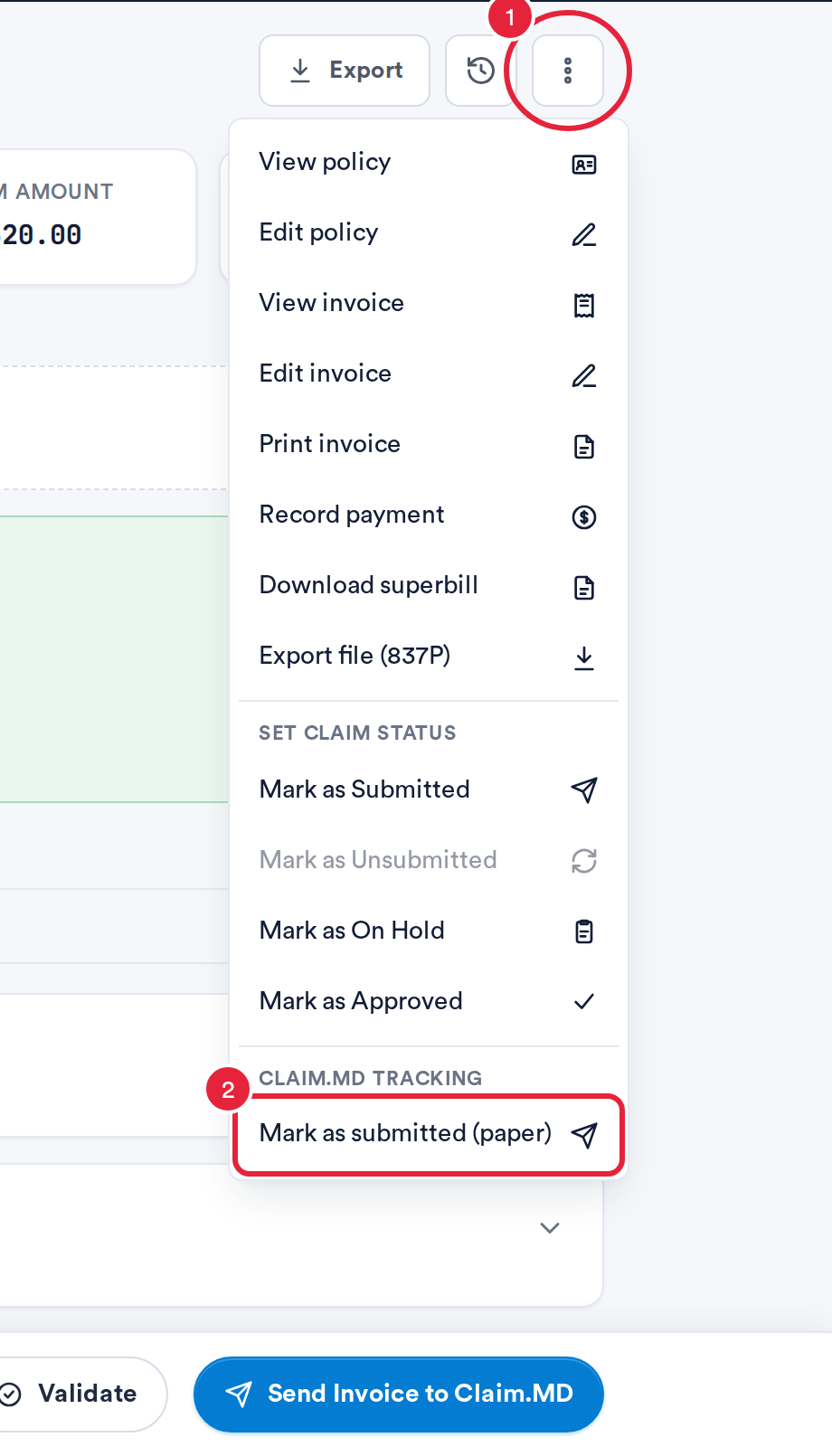
Mark as submitted (paper)
Pabau validates the claim one last time, then moves it to Submitted. The claim locks against edits, appears in the Submitted folder with your other claims, and its history records that it was submitted manually.
IMPORTANT: A manually submitted claim gets no electronic status updates, rejections or remittances, because the payer has no electronic link back to it. Record the outcome yourself with the steps below.
Step 4: When the Payer Pays
Paper claims are usually answered with a mailed EOB (explanation of benefits) and a check. Record the payer's decision on the claim: open it, scroll to Record payer payment (or choose Record payment from the ⋮ menu), and fill in the window from the EOB:
- Payment date: the date on the EOB. Add the Payer claim ref too if the EOB shows one; you will need it to void or correct the claim later.
- Paid: what the payer paid on each charge line.
- Adj group: the adjustment group on the EOB for any amount the payer didn't pay, such as CO (contractual obligation) or PR (patient responsibility).
- Adj code: the reason code from the EOB (for example 45 or 1), with its Adj amt.
- Click Record payment.
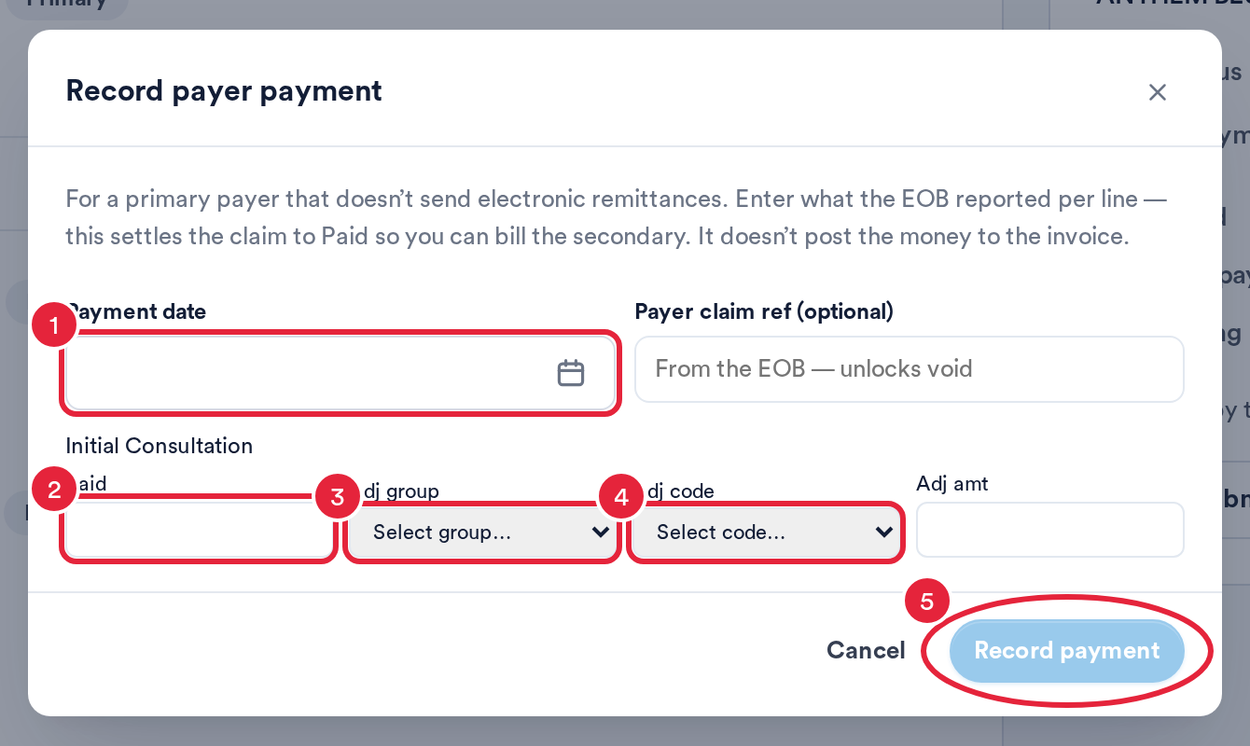
Record what the EOB says, line by line
The claim settles as paid and the adjudication is stored, so you can still bill a secondary payer afterwards. Recording the payer payment does not put the money on the invoice: take the insurance payment on the invoice as normal. See Insurance Guide Part 4.
Step 5: When the Payer Denies
If the EOB comes back as a denial, open the ⋮ menu and choose Mark as denied.
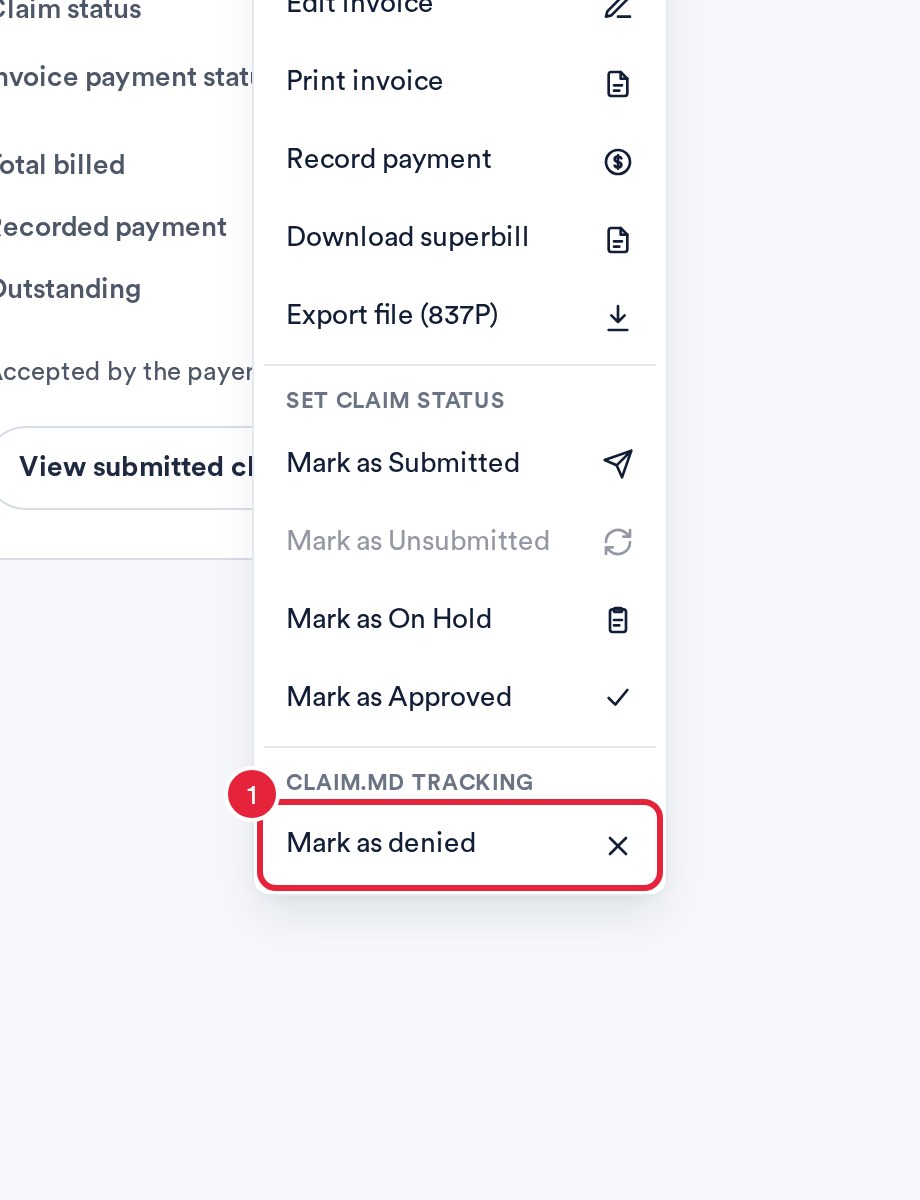
Mark as denied
The claim moves to Denied and unlocks, so you can correct and resubmit it, or appeal with the payer. Every manual change is recorded in the claim's history alongside the electronic events.
Step 6: Correct and Resubmit on Paper (Box 22)
When you resubmit a corrected claim on paper, the payer needs box 22 filled in: the resubmission code (7 = replacement, 8 = void) and the original reference number, which is the payer's claim number (ICN) from the EOB or denial letter.
- If the claim is locked, open the ⋮ menu and choose Revert to draft. This is available for validated, rejected, denied and manually submitted claims. An electronically submitted claim that is still with the payer can't be reverted; void it instead.
- Make your corrections, then open the Claim details section and set Resubmission code (box 22) and Original reference no. (payer ICN). The two fields go together: Pabau won't validate one without the other.
- Export the CMS-1500 again (box 22 now carries the code and reference), mail it, and choose Mark as submitted (paper) once more.
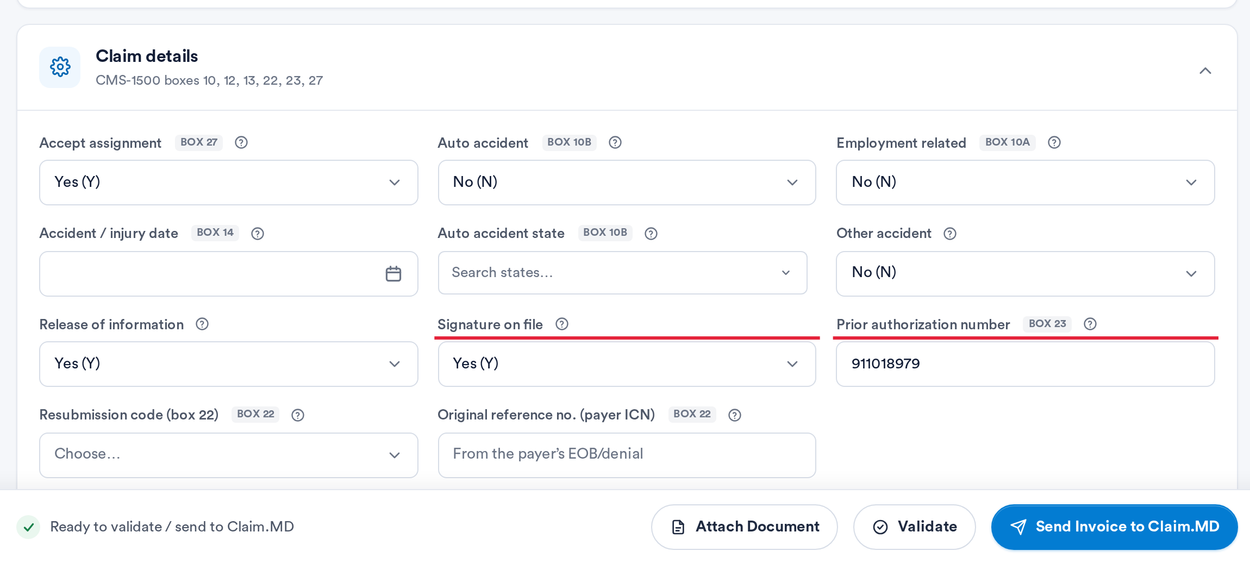
Box 22 sits in Claim details
NOTE: Box 22 only applies to paper resubmissions. When you resubmit electronically, Pabau sets the frequency code and payer claim number itself: a denied claim re-sends as a correction on its own, and these fields are ignored.
Frequently Asked Questions
Do I need a connected Claim.MD account to export a CMS-1500?
No. Validation for the export runs inside Pabau, so printing and manual tracking work before (or without) connecting an account. You still need the Setup essentials: billing profile, provider NPIs, and the insurer linked to a payer.
Will Pabau chase the payer for updates on a paper claim?
No. There is no electronic trail to check. The claim stays Submitted until you record the payer's decision with Record payer payment or Mark as denied.
Why can't I revert my claim to draft?
Only validated, rejected, denied and manually submitted claims can be reverted. A claim submitted electronically is in the payer's queue: correct it with a resubmission, or void it. Paid claims never revert.
Which resubmission code do I pick?
7 replaces a claim the payer has already processed with corrected data; 8 voids it entirely. Both need the payer's original claim number from the EOB.
Should I use paper or electronic?
Electronic, whenever the payer supports it. It is faster and tracked for you. Keep this manual path for the exceptions.
What's Next?
- Insurance Guide Part 4: Submit and track insurance claims
- Creating a US Professional (CMS 1500) Claim
- Tracking electronic claim submissions
Questions? Reach us any time via the in-app chat. We're happy to help.
Was this guide helpful? Let us know by voting below - your feedback helps us write clearer articles.
For more guides, browse the related articles below or use the search bar at the top of the page. You can also watch our video learning series, the Pabau Academy, or visit the Support page for additional help.