
Secure share sends a client, or someone linked to them, an encrypted link to a form, treatment note, prescription or letter instead of attaching the file to an ordinary email. The link expires after one month and can be protected with a PIN, and the client can also open the item from their client portal.
NOTE: Secure sharing uses the secure-share email and SMS notifications. If both are switched off in Setup → Client Notifications, the share options are hidden or greyed out with Secure share notifications are disabled. Enable them in Setup > Client Notifications to share items securely.
Step 1: Open the Share Window
Open the client's card, then start from the item you want to share:
Forms and treatment notes
- Click EMR (Chart in the US) and find the form or treatment note. Click its ⋮ (More actions) button.
- Choose Share Securely.
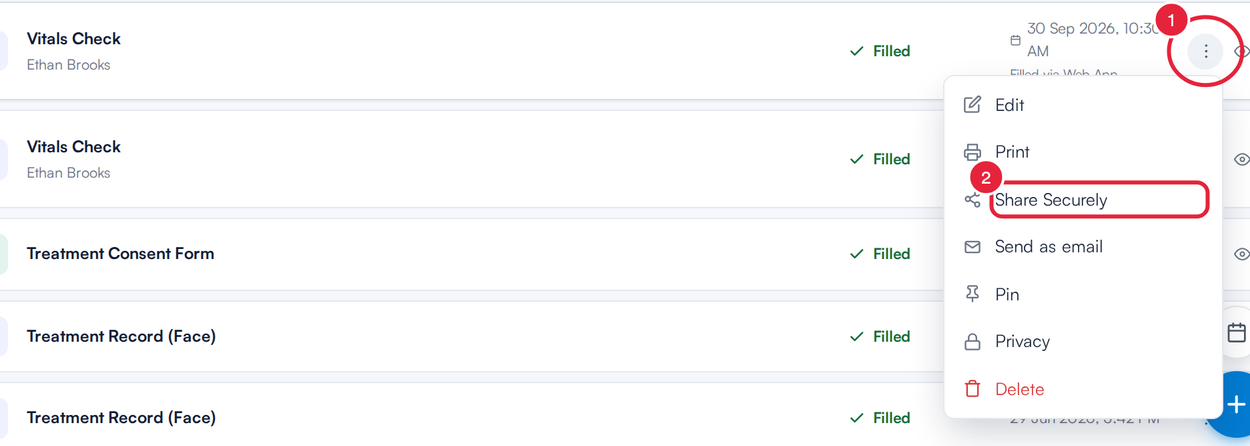
Share Securely in a form's menu
Prescriptions
- Click EMR (Chart in the US) and open Prescription. Click the Secure share button among the prescription's buttons. A draft prescription has to be signed before it can be shared.

Secure share on a prescription
Letters
- Click Communications and find the letter. Click its ⋮ button.
- Choose Secure Share.
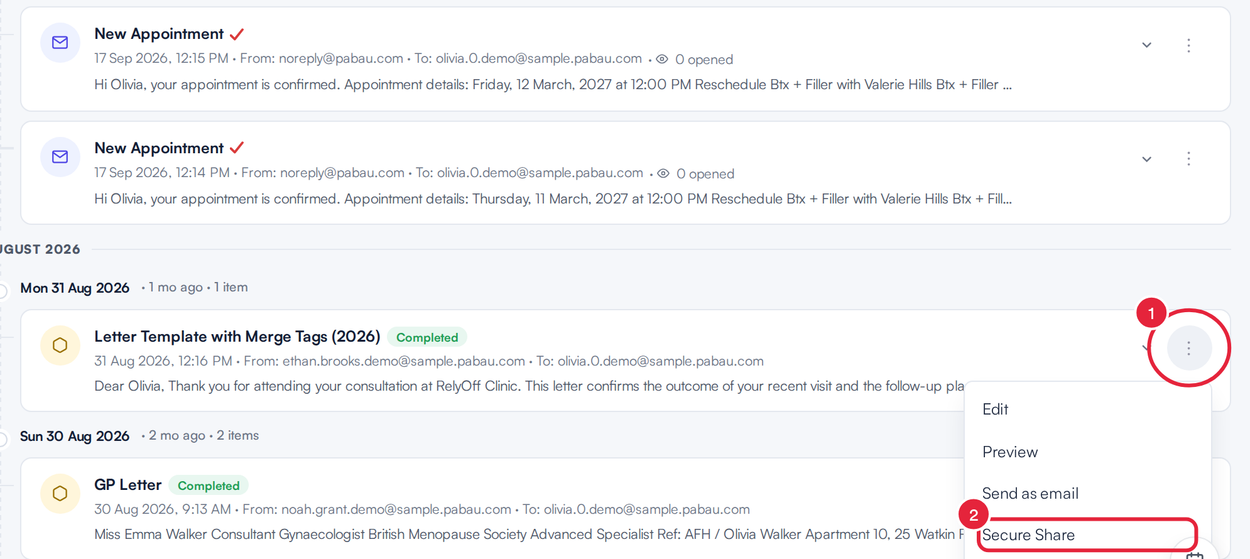
Secure Share in a letter's menu
The share window opens with your item already selected. Its title tells you what you're sharing, for example Share Forms, Share Prescriptions or Share Letters.
Step 2: Choose What, Who and How, Then Share
- Sharing these forms (or prescriptions, or letters) lists what will be sent. To add more, click an item under Recent forms; to take one out, click the × on it.
- Under Share with, choose who receives it: the client, or a contact linked to them such as a family member or an insurer. A note under a contact tells you if they're missing an email address or a mobile number.
- Choose how it's sent:
- Also share via SMS texts the link as well as emailing it.
- Password protect puts an access PIN, valid for 30 days, in the email. The recipient needs it to open the item.
- Share on client portal lets the client also open the item from their portal, alongside the secure link.
- Add a message in Write a comment for the email, or click + Add a macro to insert saved text.
- Click Share Securely. It reads Share Securely via Email or Share Securely via SMS when only one channel is on, and stays greyed out until you've chosen at least one recipient and one item. Click Close to leave without sending anything.
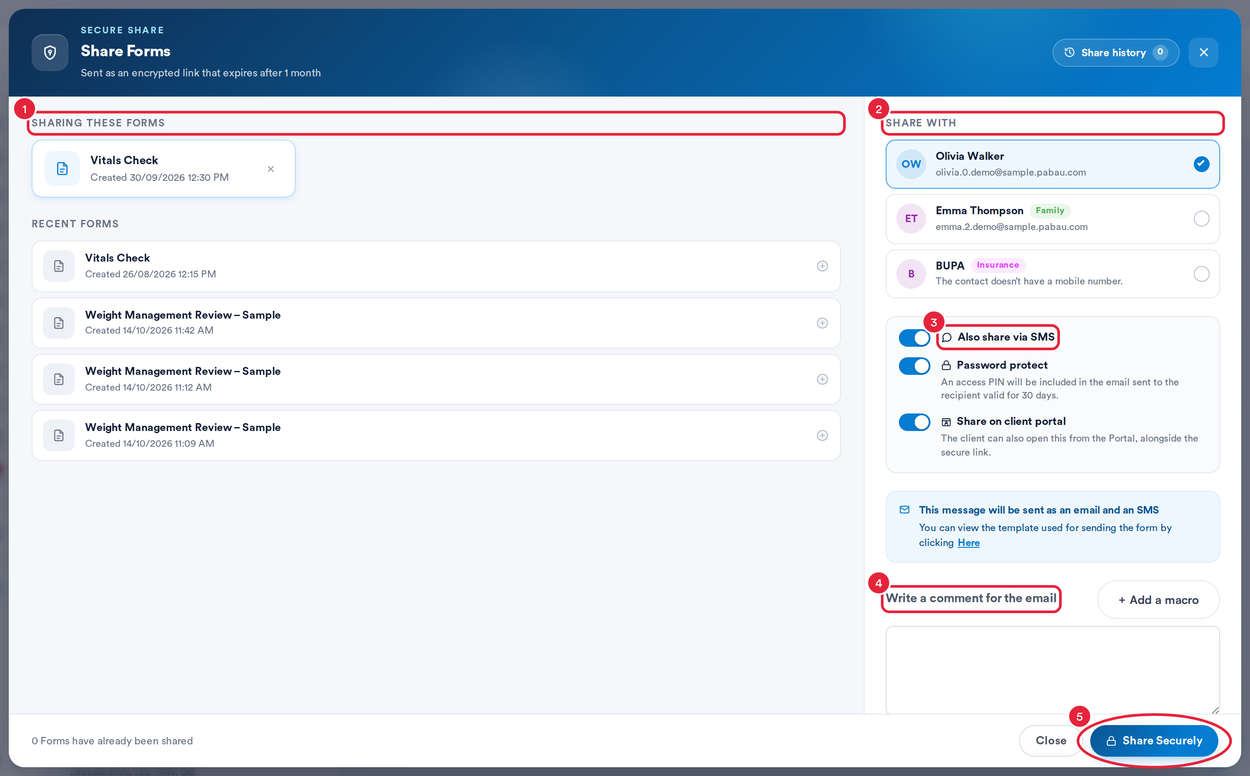
The Share window
The count at the bottom of the window shows how many of these items have already been shared with the client. Click Share history at the top right to see what was shared, when, by whom, and when it was opened.
NOTE: A relationship that's set to keep information private is listed but can't be chosen. Its note reads This relationship is set to keep information private. Set it to Share in the Relationships tab to send to them. If your clinic has HIPAA compliance mode switched on, secure sharing is turned off and the window shows Disabled due to HIPAA compliance.
Step 3: Emailing Instead? Add It to the Portal Too
When you email a form, prescription, letter, document, photo or lab result from the client card (for example with Send as email), you can put the same item in the client's portal at the same time.
- In the email window, switch on Securely share via the portal as well before you send. Pabau also sends the item as an encrypted secure-share link, so it appears in the client's portal alongside your message. The switch is off by default.

Securely share via the portal as well, in the email window
What the Client Sees
The client gets an email (and a text, if SMS is on) with a link to the shared item. If you left Password protect on, they enter the PIN from the email, then the item opens in their client portal, where they can view, download or print it. The link stops working after one month; share the item again if they need it later.
What's next?
- How to Share Documents Securely from the Client Card (New Client Card)
- How to Review and Share Lab Results (New Client Card)
- Prescriptions (New Client Card)
- How to Open, Download and Print Forms Your Clinic Shares With You (for your clients)
Was this guide helpful? Let us know by voting below - your feedback helps us write clearer articles.
For more guides, browse the related articles below or use the search bar at the top of the page. You can also watch our video learning series, the Pabau Academy, or visit the Support page for additional help.