
NOTE: Your clinic decides which options you see, so some of the steps below may look slightly different or be skipped.
In this article, you will learn how to open, download and print a form your clinic has shared with you, and where to see the forms saved to your record in your client portal.
Step 1: Open the Shared Form
When your clinic shares a form with you, you receive an email (and sometimes a text message) with a secure link to it.
- Open the email from your clinic and click the link in it.
- The shared form opens, with its name and the date it was shared. Click Open file.
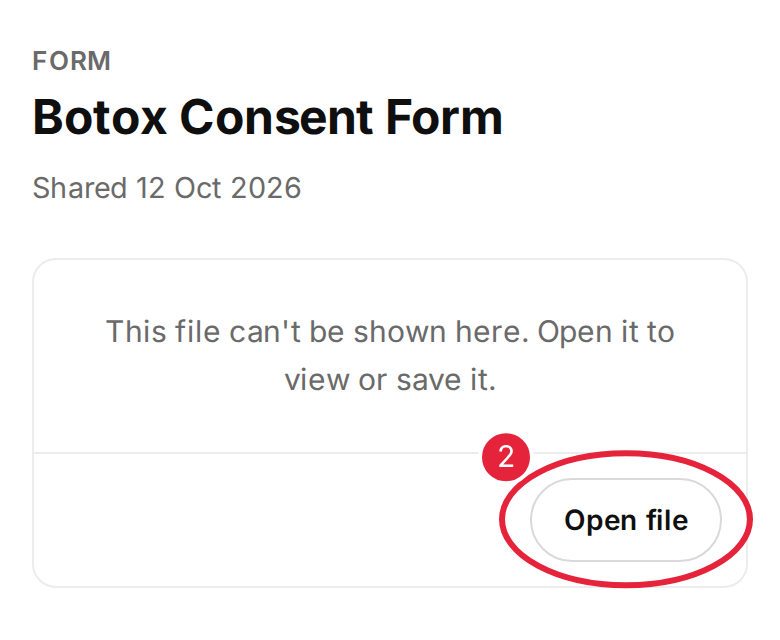
Click Open file to view the form
NOTE: If the clinic has protected the form with a PIN, you will see Enter your PIN first. The PIN is in the same email as the link. Type it in and click Open. If the PIN has expired, ask the clinic to share the form again.
Step 2: Download or Print the Form
The form opens as a PDF in a new browser tab. Use your browser’s or phone’s own Download and Print buttons to save a copy or print it. On a phone, use the Share button to save the PDF to your files or send it to a printer.
See the Forms Saved to Your Record
- In your client portal, click Forms in the menu. On a phone, tap the menu button (☰) at the top left first.
- Type in Search forms to find a form by name.
- Click All, Consents, Questionnaires or Treatment to show one type of form.
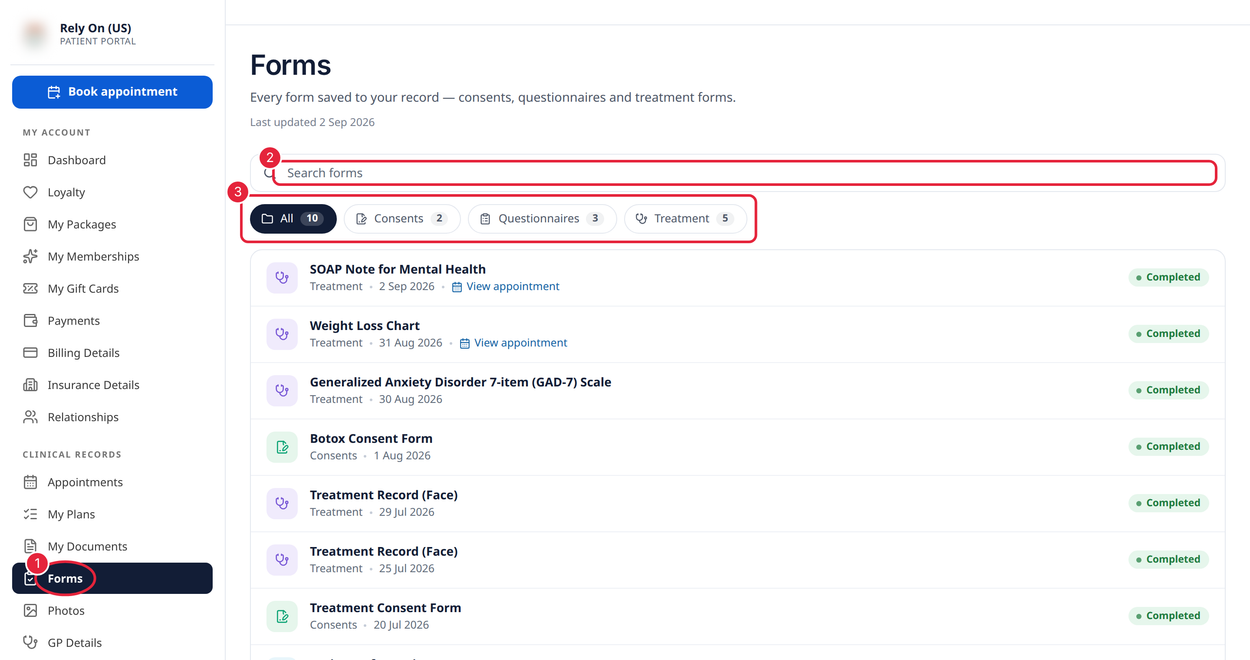
The Forms page lists every form saved to your record
Each form shows its type, its date and whether it is Completed or In progress. If it was filled in for an appointment, click View appointment to see that appointment.
TIP: The Forms page is a list only. To get a copy of a completed form to download or print, ask your clinic to share it with you — it will arrive as a secure link, as in Step 1. If you don’t see Forms in your menu, your clinic hasn’t turned it on.
What's next?
To fill in a form before your appointment, read How to Complete a Medical Form Before Your Appointment. For letters and other documents, read How to Check Your Documents.
Questions? Reach us any time via the in-app chat — we’re happy to help.
Was this guide helpful? Let us know by voting below - your feedback helps us write clearer articles.
For more guides, browse the related articles below or use the search bar at the top of the page. You can also watch our video learning series, the Pabau Academy, or visit the Support page for additional help.