
Referrals, pre-authorisations and lab results still travel by fax — Engage receives them as HIPAA-secure conversations in the same inbox as everything else, no machine required. This article shows you how to set the channel up.
Step 1: Open the Fax Channel
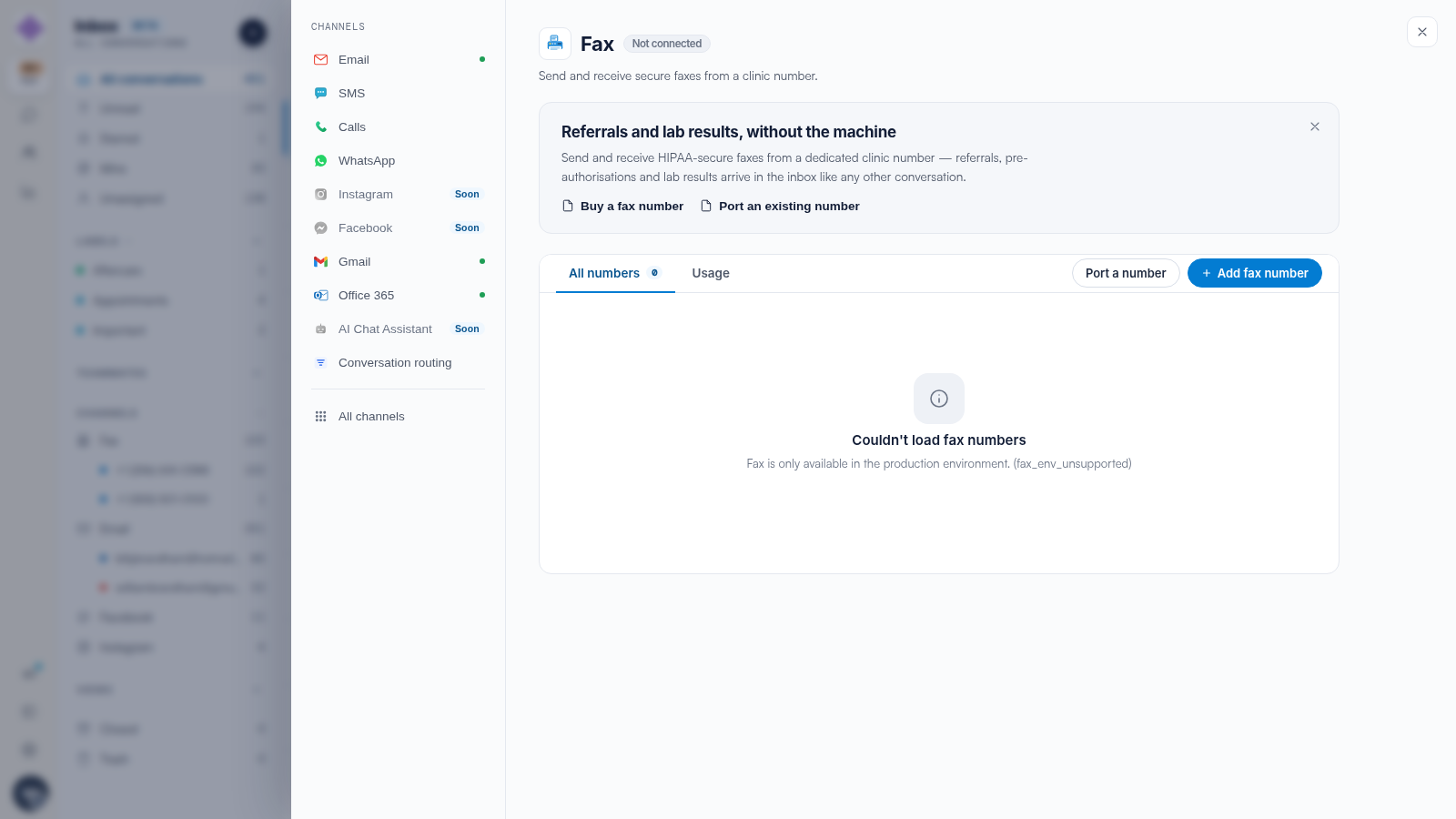
Click the Settings cog in the icon rail and choose Fax from the All channels grid. The panel has All numbers and Usage tabs, plus Buy a fax number and Port an existing number.
Step 2: Get a Number
Click Buy a fax number and pick a number for your region — fax numbers are billed monthly, with the price shown before you confirm. If your clinic’s fax number is already printed on every referral pad in town, port it instead — see our How to Port Your Fax Number to Pabau article.
Step 3: Watch Faxes Arrive
Once the number is live, Fax appears in the inbox sidebar with the number nested beneath it. Inbound faxes arrive as conversations with the document attached — read them, assign them, and file them to the client’s chart. See our Receiving Faxes and Saving to a Client’s Chart article.
TIP: The Auto-assign faxes to clients AI skill can read each inbound fax and suggest the matching client record for your approval — ask about enabling it if your clinic receives a steady stream of referrals.
Related Articles
We suggest reading our How to Send a Fax from Engage article next.
For more guides, refer to related articles below, select additional guides, or use the search bar at the top of the page. These guides will help you get the most out of your Pabau account.
Additionally, to help you fully utilize and understand your Pabau account, we recommend exploring additional guides and resources offered at the Pabau Academy.