
Inbound faxes land in the Engage inbox as conversations — referrals, lab results and pre-authorisations arrive next to your SMS and email, ready to be read and filed. This article covers the receive-and-file flow.
Where Faxes Arrive
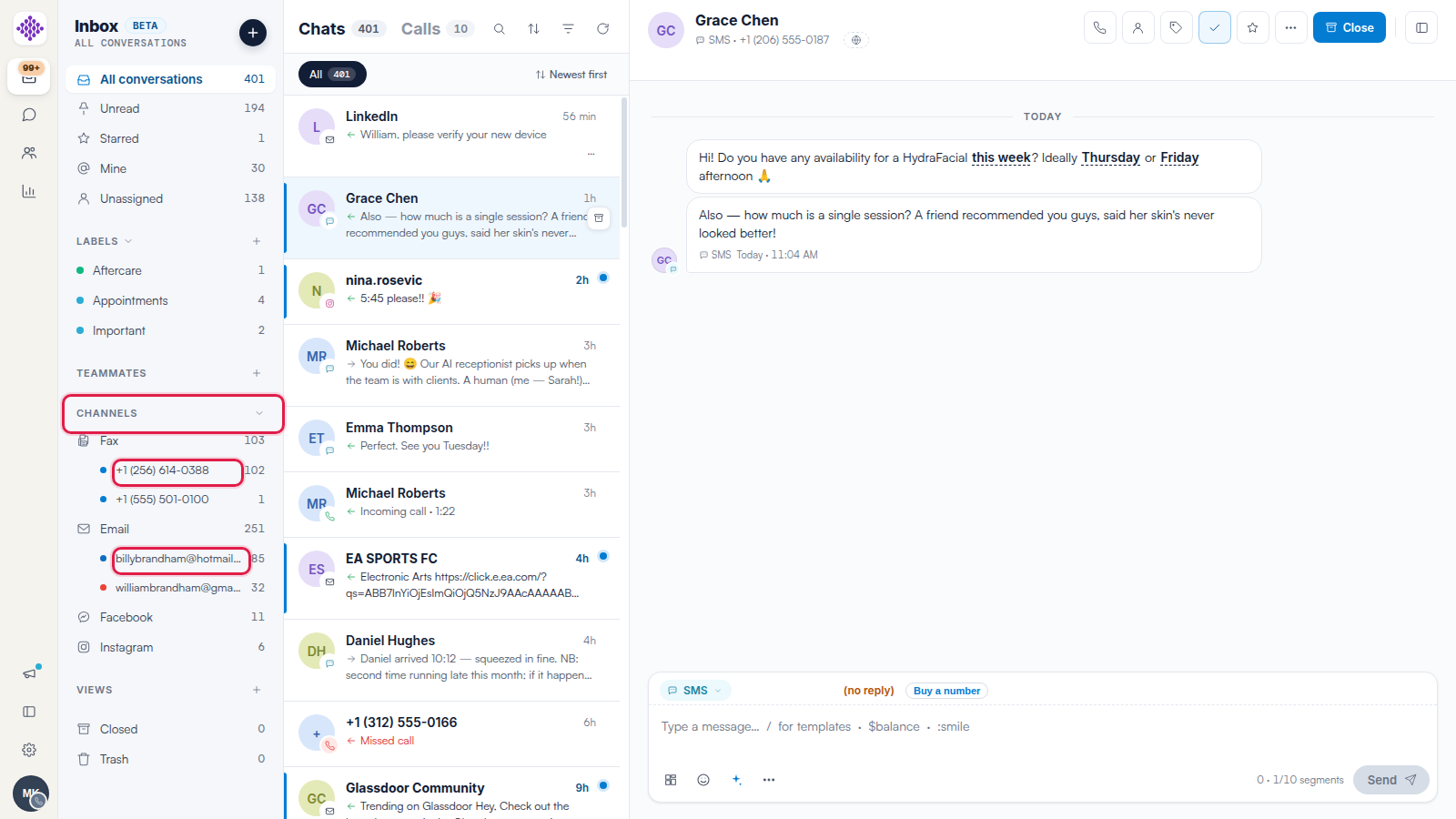
The Fax channel in the sidebar collects every inbound fax, with each of your fax numbers nested beneath it. A new fax is a new conversation from the sender’s number, with the document attached as a PDF you can open full-screen.
Step 1: Open and Read
Click the conversation and open the attached document. Faxes from repeat senders — a local GP surgery, a lab — thread into the same conversation over time, so the history stays together.
Step 2: Link the Right Client
Faxes arrive from machines, not patients, so link each fax’s subject manually: use Link patient in the header to attach the conversation (or use the patient panel to confirm an existing link). See our How to Link a Conversation to a Client in Engage article.
Step 3: File to the Chart
With the client linked, file the document to their record so it lives on their chart — where the clinical team expects to find it. The patient panel’s Chart shortcut takes you straight there.
TIP: The Auto-assign faxes to clients AI skill reads each new inbound fax and proposes the matching client for your approval — a big time-saver for referral-heavy clinics.
Related Articles
We suggest reading our Managing Fax Numbers and Usage in Engage article next.
For more guides, refer to related articles below, select additional guides, or use the search bar at the top of the page. These guides will help you get the most out of your Pabau account.
Additionally, to help you fully utilize and understand your Pabau account, we recommend exploring additional guides and resources offered at the Pabau Academy.