
If your clinic has booked you in for a video consultation, you see your practitioner by video from your computer, phone or tablet. There's nothing to download: the consultation opens in your web browser from the link in your booking email.
TIP: Use an up-to-date browser such as Chrome, Safari or Edge, find a quiet spot with a good internet connection, and open your link a few minutes before your appointment.
Step 1: Open Your Video Link
Your appointment confirmation email says "Your call will be a video appointment" and has a Join with Pabau Video button. Click the button around the time of your appointment. Can't find the email? Contact your clinic and they can send you the link again.
Step 2: Allow Your Camera and Microphone
The first time you open the link, your browser asks whether the page can use your camera and microphone. Choose Allow, otherwise your practitioner won't be able to see or hear you.
Step 3: Check How You Look and Sound
The page greets you by name (for example, Hi Olivia, welcome) and shows who your consultation is with, the service and the time. When your devices are working, you'll see Camera & microphone ready. Only you can see the preview at this stage.
- Use the buttons under the preview to turn your microphone or camera on or off.
- Click the cog to choose a different camera, microphone or speaker, for example a headset.
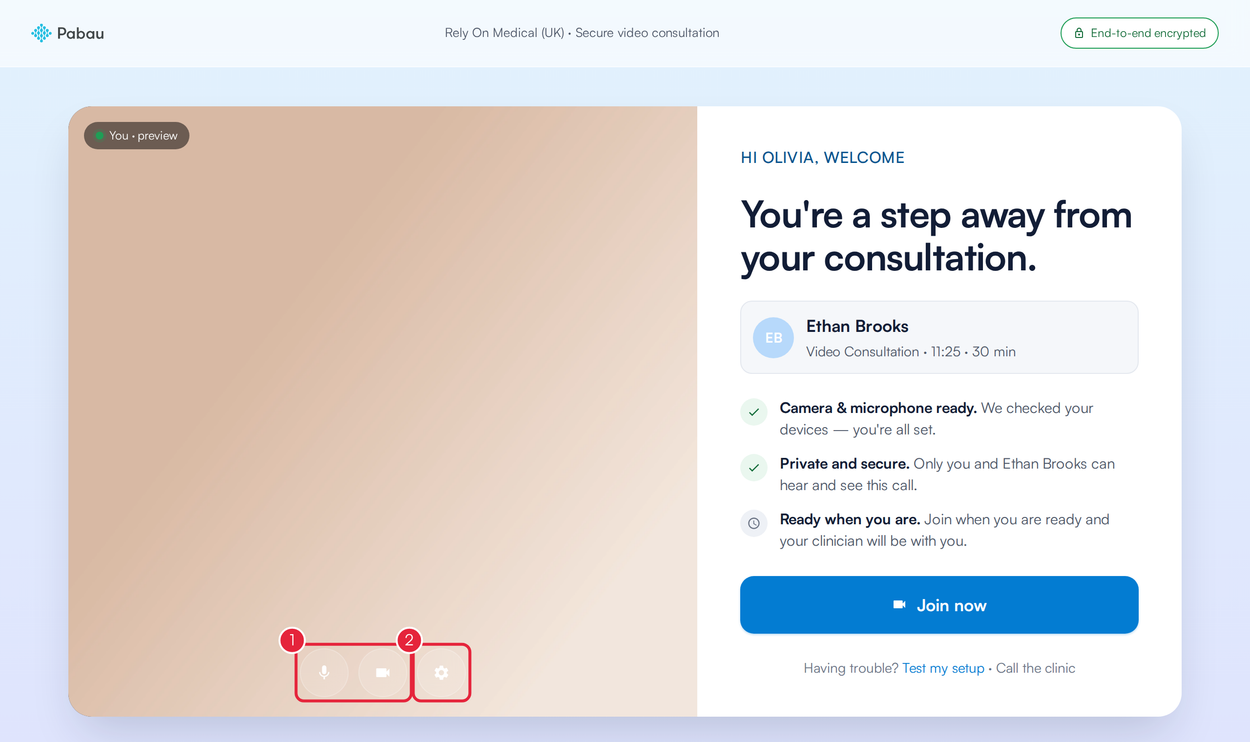
Check your preview before you join
Step 4: Test Your Setup (Optional)
Having trouble, or want to be sure before the call? Click Test my setup under the join button, then Run test. In about 10 seconds it checks your Microphone, Camera, Network connection and the Pabau media servers, and shows You are ready for the call. when everything works. Click Close to go back.
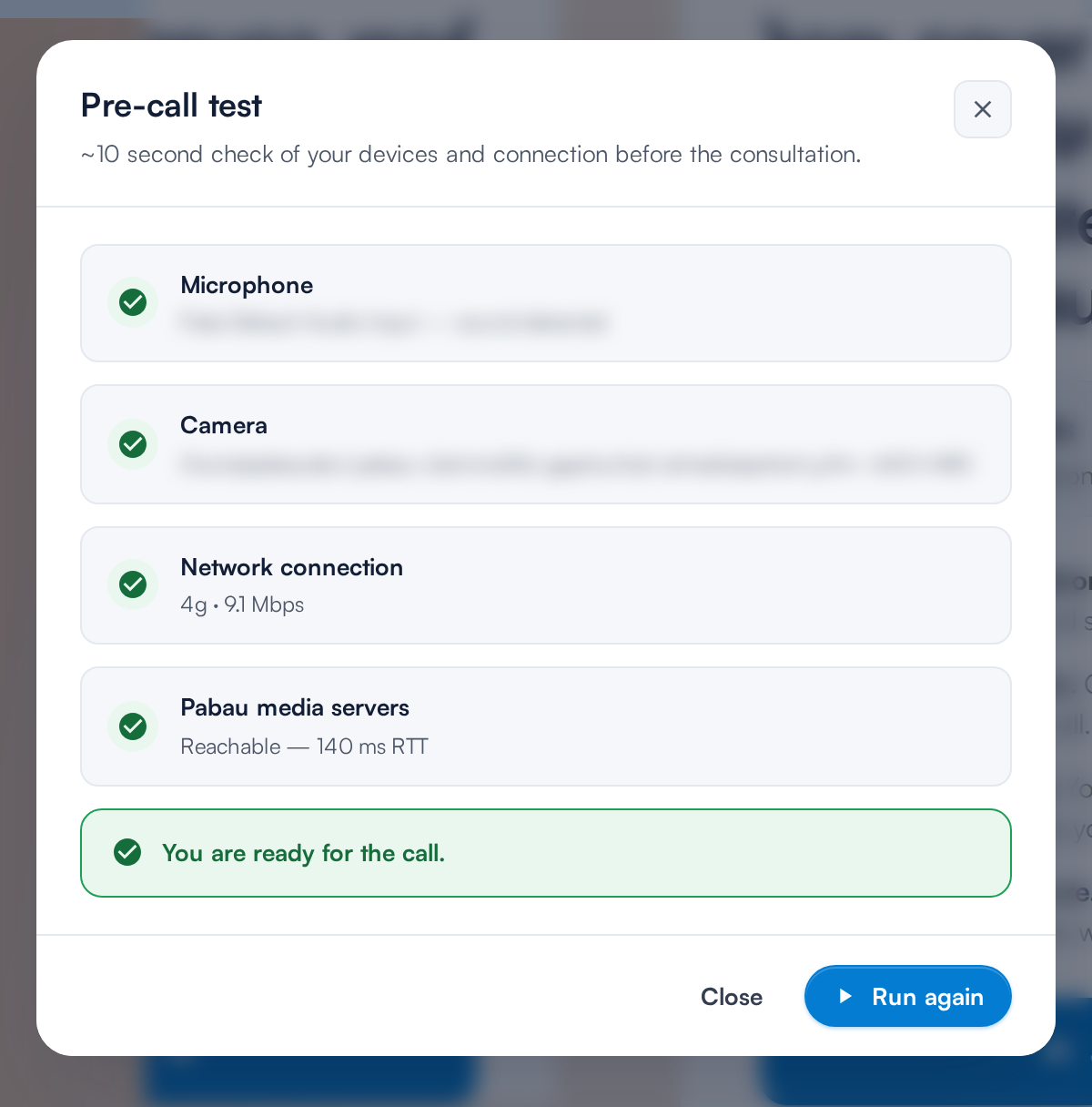
The setup test checks your devices and connection
Step 5: Join the Consultation
- Click Join now.
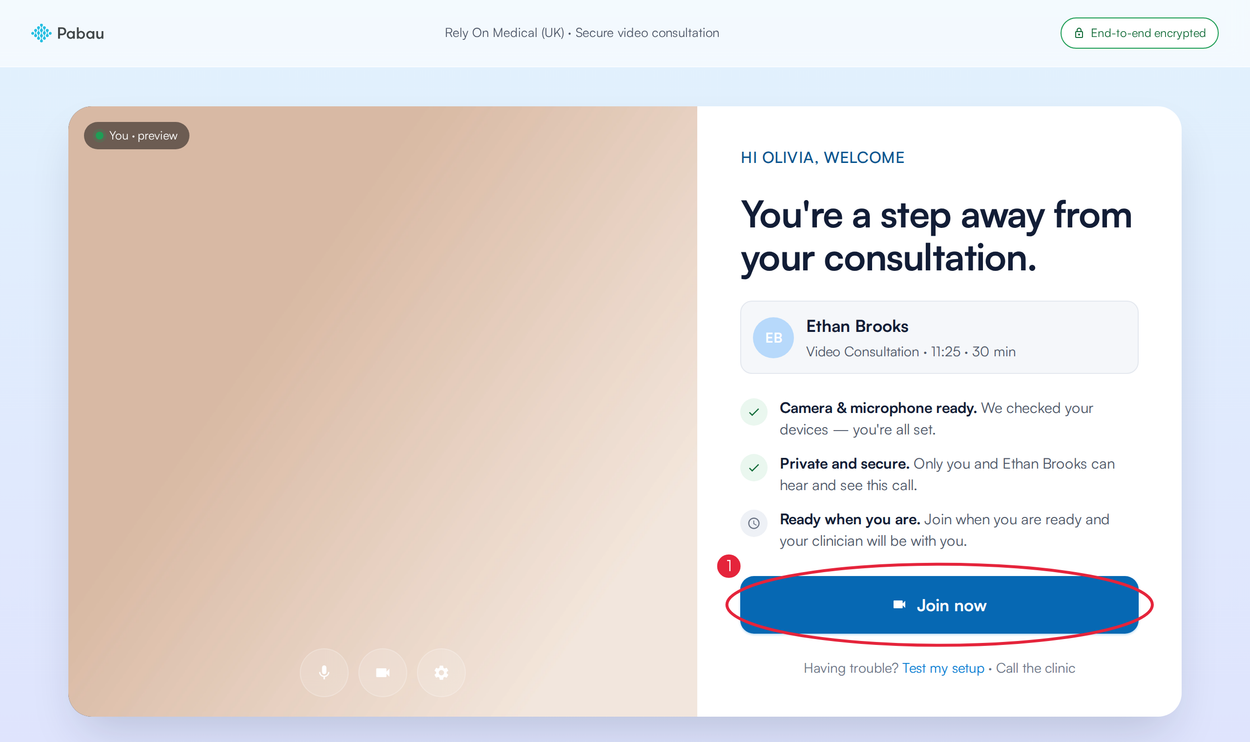
Join when you're ready
Step 6: Wait for Your Practitioner
If your practitioner hasn't started the call yet, the button changes to Waiting for … to start…, with their first name, for example Waiting for Ethan to start…. You don't need to do anything: keep the page open and you're brought into the call automatically as soon as they start.
- Keep this page open while you wait.
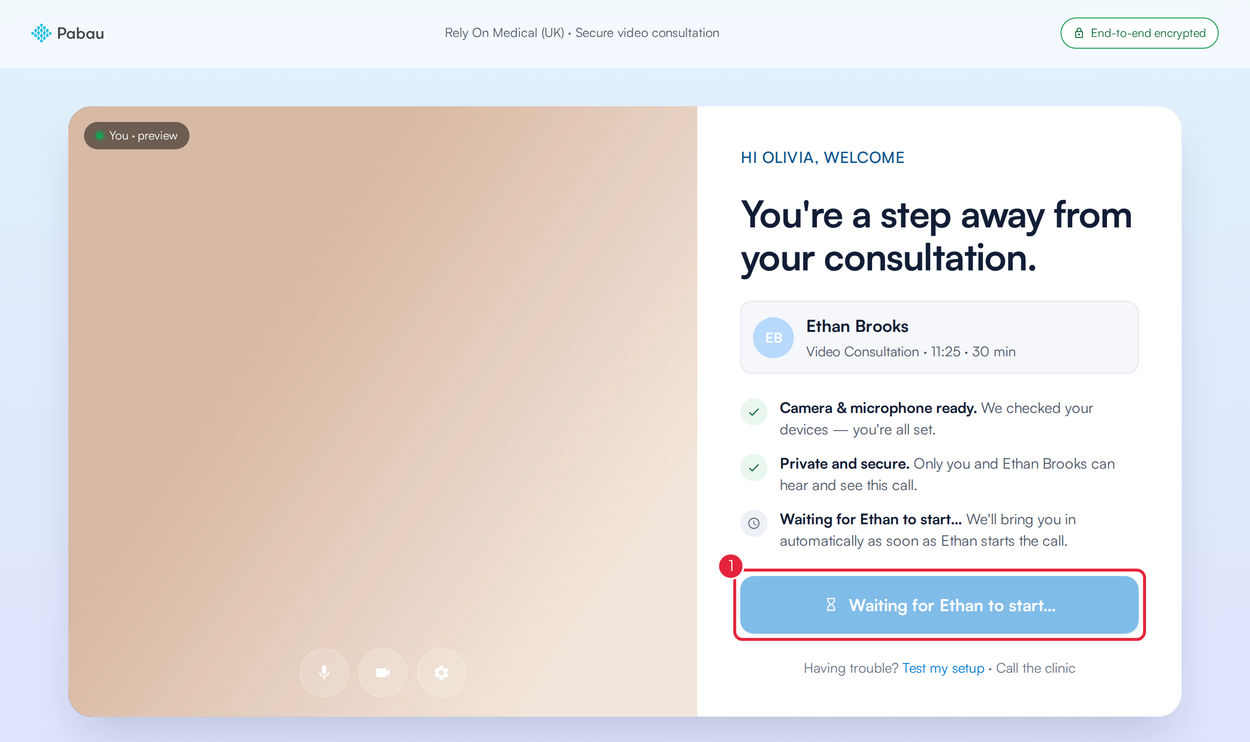
You join automatically when your practitioner starts the call
Step 7: During the Call
You see your practitioner in the main view, with a tile for each of you on the right. The top of the page shows how long the call has been running and that it is End-to-end encrypted.
- Mute turns your microphone off and on.
- Camera turns your camera off and on.
- End call leaves the consultation when you've finished.
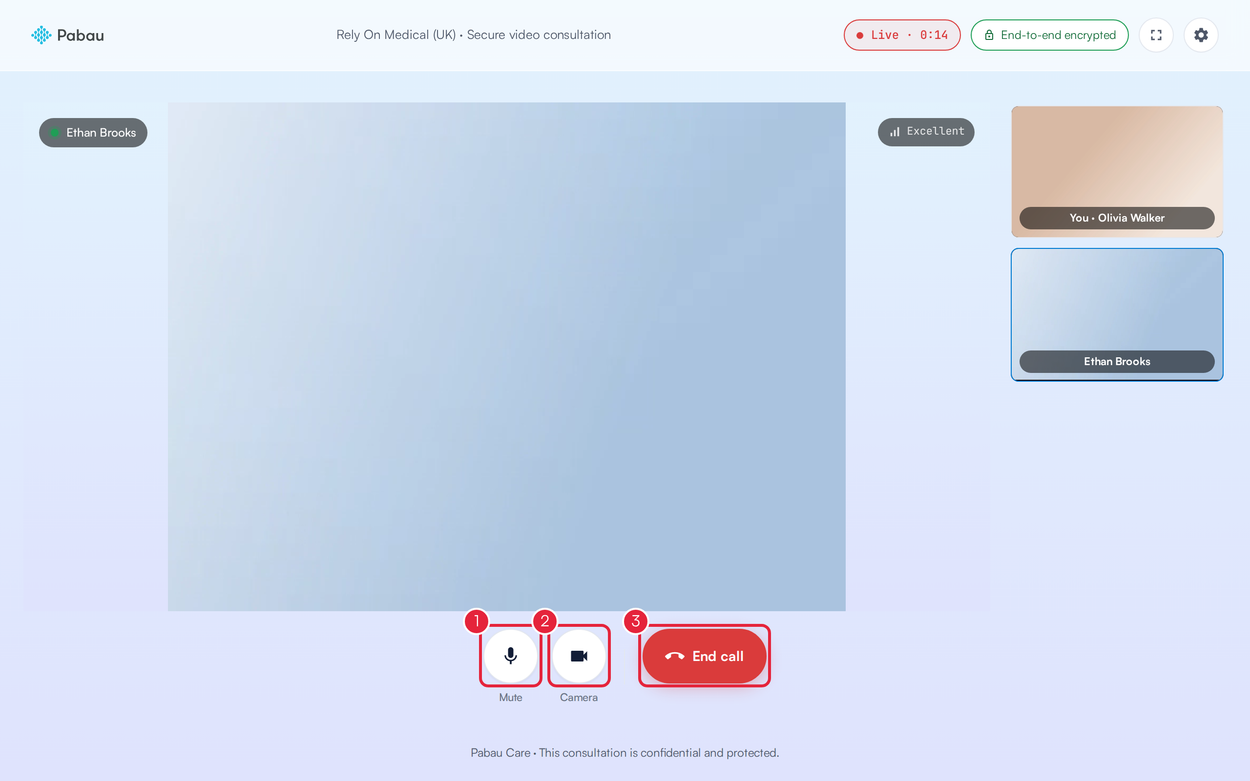
Your controls during the call
NOTE: Closed the page or left by mistake? Open the link from your email again and click Join now.
Bringing Someone With You
If a family member or carer needs to join, your confirmation email also includes a separate guest link. Send it to them: they open it, type their name under Your name and join the same consultation.
What's next?
- How to Confirm Your Appointment via Email or SMS
- How to Reschedule Your Appointment
- How to Cancel Your Appointment
Was this guide helpful? Let us know by voting below - your feedback helps us write clearer articles.
For more guides, browse the related articles below or use the search bar at the top of the page. You can also watch our video learning series, the Pabau Academy, or visit the Support page for additional help.