
An internal order is a treatment plan for your team only. It records what a provider has ordered for a client, such as a course of treatments with the dosage and route, so the team can book and deliver it. It has no prices, and it is never sent to the client or shown in their portal.
NOTE: NOTE: Plans are being rolled out to clinics in phases. Only treatment plans can be internal orders; supplement, nutrition, IV infusion and exercise plans can't.
Step 1: Start a Treatment Plan
On the Plans page, click Build plan, choose Treatment plan and pick the client. You can also click Create plan on the client card's Plans tab. Choose the appointment, then start from a template or Start from scratch. How to Build and Send a Treatment Plan explains the builder.
Step 2: Switch On Internal Order
Under Plan summary on the right, switch on Internal order ("For your team only: not sent to the client, no prices."). The prices disappear, and the Complete and Save draft buttons are replaced by Save internal order.
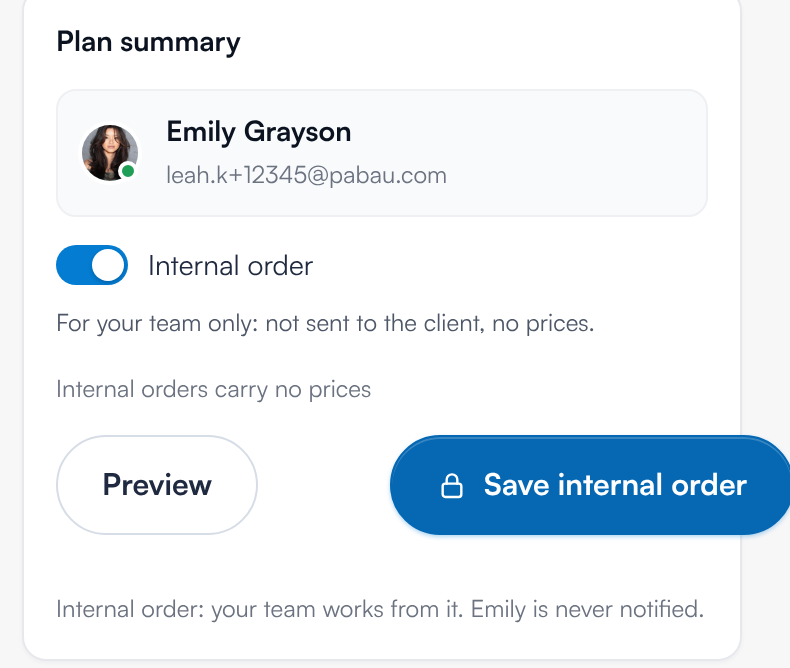
Internal order switched on
IMPORTANT: IMPORTANT: Once saved, an internal order can't be turned into a client plan, and a plan that has already been sent to the client can't become an internal order.
Step 3: Add the Services and Order Details
Add the services as usual, then fill in each service's order details, such as Dosage and Route. The fields shown depend on the service: Dosage, Route, Infusion rate, Session length, Settings or Injection site, as chosen for that service in Setup. They are optional, up to 255 characters each.
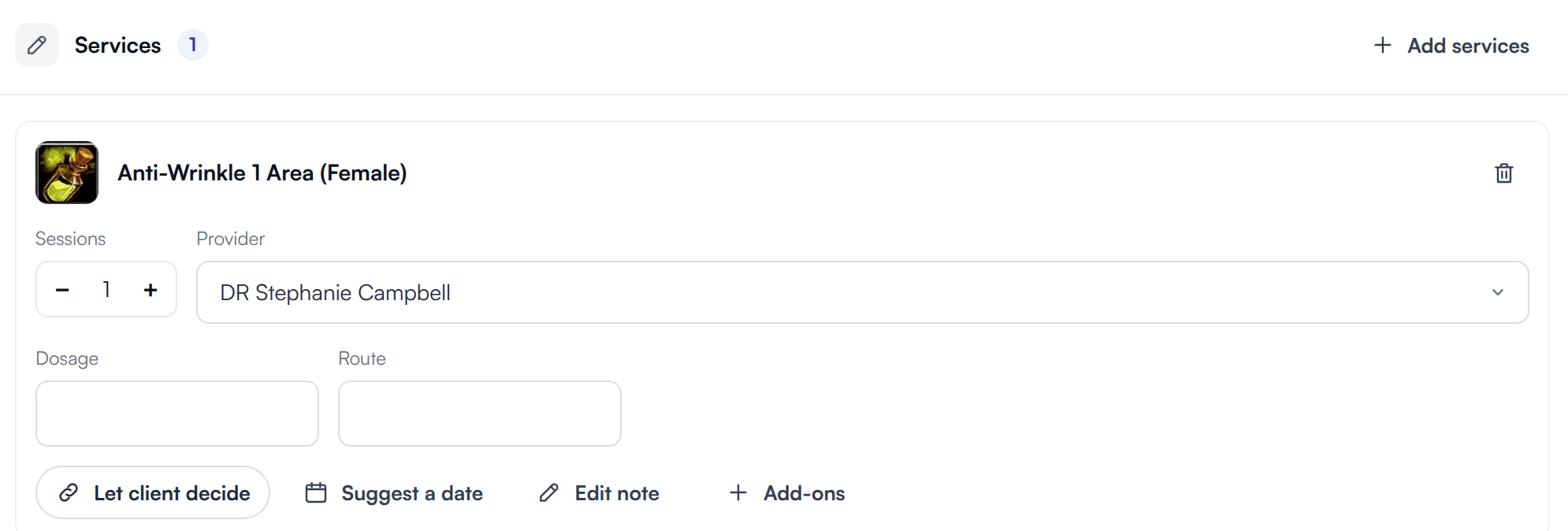
Order details on each service
Step 4: Save the Internal Order
Click Save internal order. You'll see Internal order saved. The order is active straight away, and it records you as the person who ordered it ("Ordered by [name] on [date]"). The client is never notified.
Step 5: Find Internal Orders
- On the Plans page, click the Internal order status tab.
- On the client's card, open the Plans tab and click Internal orders. Internal orders that are still in force are listed first.

An internal order on the Plans page
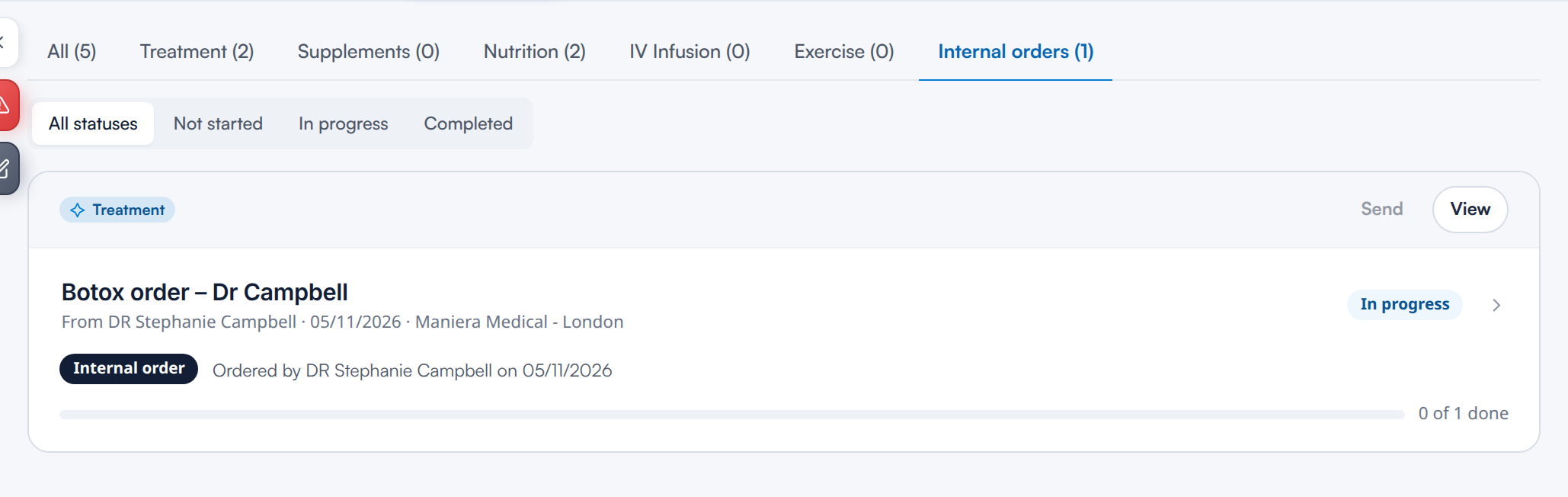
Internal orders on the client card
What can I do with an internal order?
- Book from it. Book the services as usual while the order is in date. If a service is set to require an order and the client has none, Pabau warns "No current order for this service" when you book, with Book anyway or Go back.
- Edit, print or cancel it. The printout shows no prices.
- Extend it. An internal order expires on its expiry date. When it does, you'll see "This order has expired. Extend it so the team can keep booking from it."
An internal order can't be sent, shared, paid for or combined with other plans. Send is greyed out with "Internal orders are not sent to clients", and internal orders don't count towards your plan conversion rate.
What's next?
- How to Use the Plans Page
- How to View and Manage a Client's Plans on the Client Card
- How to Build and Send a Treatment Plan
- How to Build and Send a Supplement Plan
- How to Build and Send a Nutrition Plan
- How to Plan and Record IV Infusion Sessions on the Client Card
- How to Build and Send a Home Exercise Programme
Was this guide helpful? Let us know by voting below - your feedback helps us write clearer articles.
For more guides, browse the related articles below or use the search bar at the top of the page. You can also watch our video learning series, the Pabau Academy, or visit the Support page for additional help.