
NOTE: Plans is switched on clinic by clinic. If you can't find Plans in your sidebar, message us via the in-app chat and we'll help.
The Plans page is where you see every plan your clinic has built for its clients: treatment plans, supplement plans, nutrition plans, IV infusion plans and exercise programmes. In this article, you will learn how to read the page, find a plan quickly and understand what each status means.
Step 1: Open the Plans Page
Click Plans in the sidebar. It starts under More until you move it into your main sidebar. You need permission to access the clients page to see it.
The buttons at the top of the page are:
- Migration: moves your existing quotes across into plans.
- Plan types and Booked by: see Plans Settings.
- Templates: see How to Create and Use Plan Templates.
- Build plan: see How to Build and Send a Treatment Plan.

The top of the Plans page
Step 2: Check Your Conversion Rate
The Conversion rate card shows how many of the plans you sent have been paid, for example 11 of 23 sent plans. A plan counts as sent once it has left Draft; internal orders are not counted. The bars show the rate for each of the last 12 months, with the current month on the right.
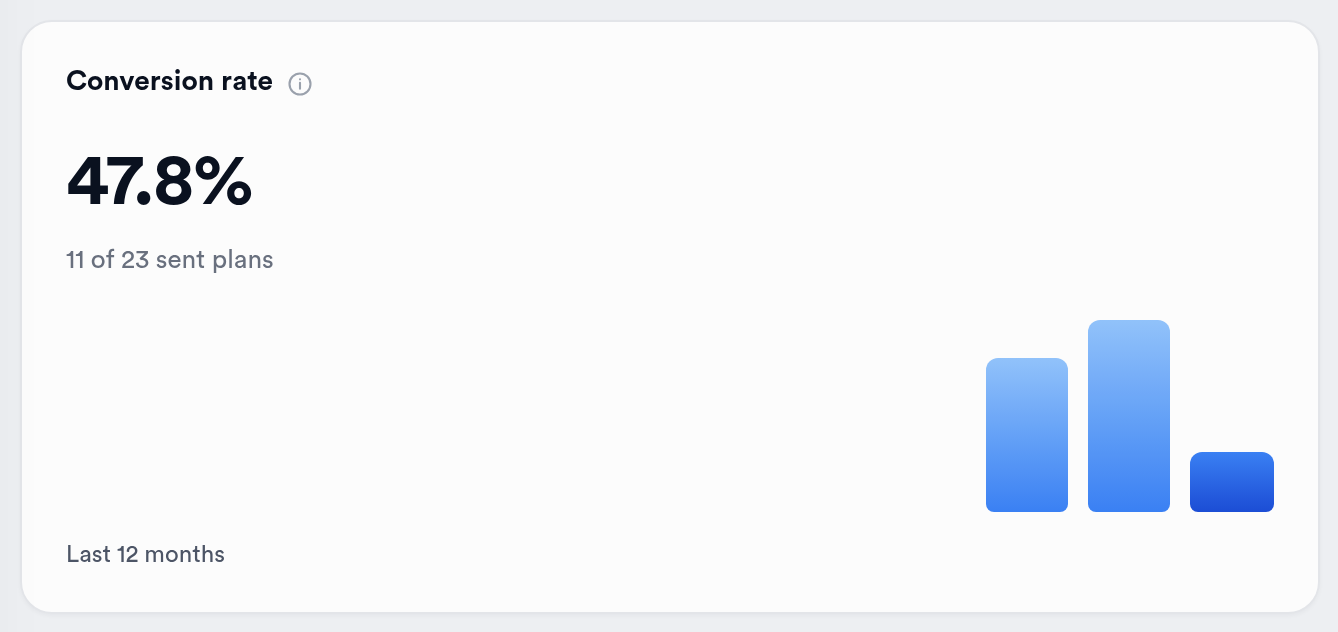
The Conversion rate card
Step 3: Work Through the Needs Attention Queue
The Needs attention card tells you how many plans need a follow-up. Click View follow-ups to open the queue. It is sorted with the oldest due date first.
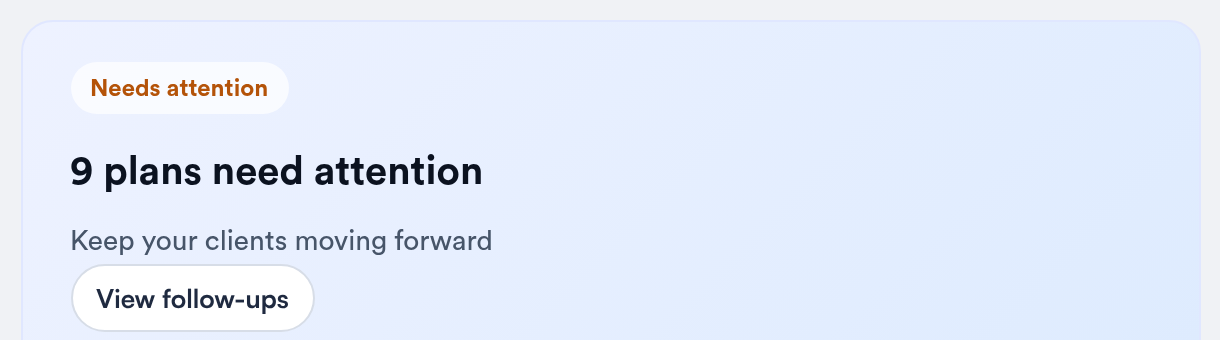
The Needs attention card
Each row shows the client, the plan, why it needs attention, when it became due and the Plan author. A plan joins the queue for one of four reasons:
- Plan not opened: the plan was sent 3 days ago and the client hasn't opened it.
- Awaiting a decision: the client opened the plan at least 2 days ago but hasn't accepted or paid.
- First visit to book: the plan was paid 3 days ago and none of its visits are booked yet.
- Visit overdue: the plan is in progress and the suggested date for its next visit has passed without a booking.
Click Review plan to open the plan, or View visits to open the Plans tab on the client's card.
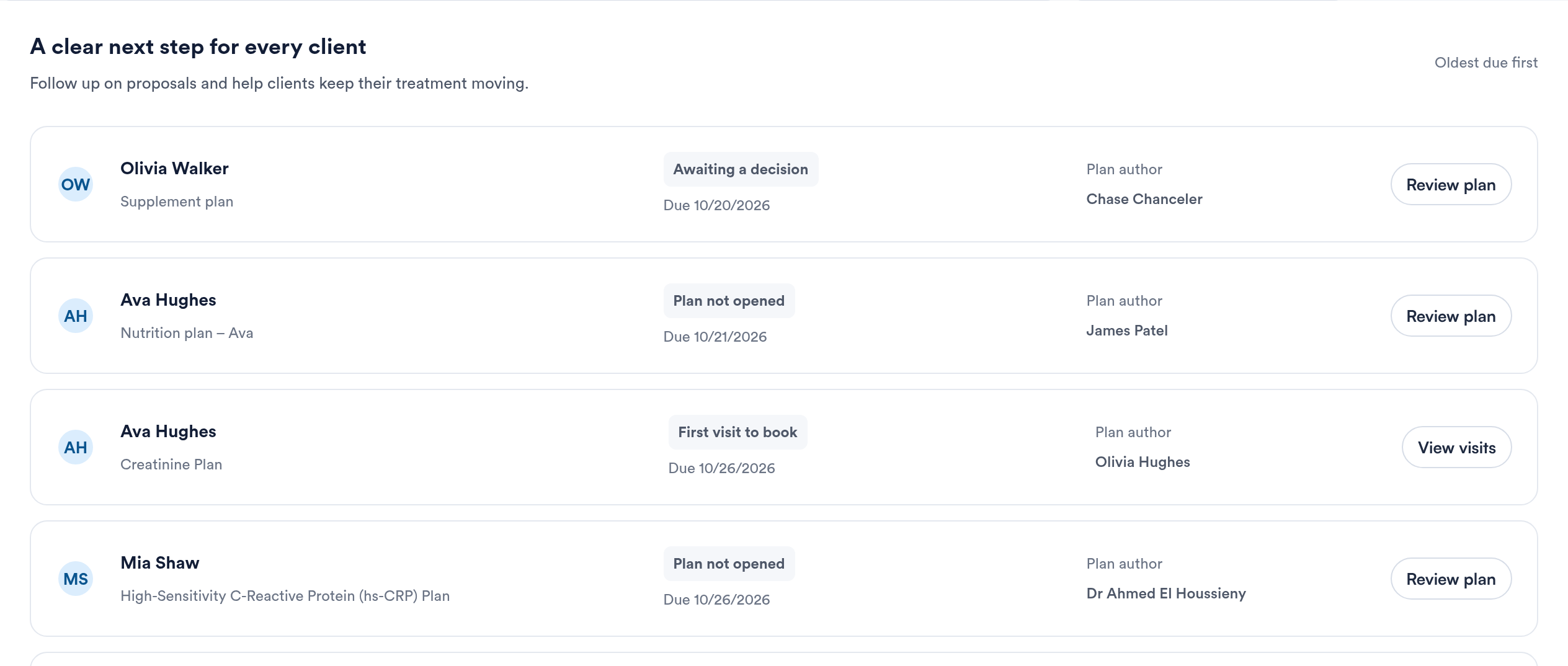
The follow-up queue
Step 4: Filter by Plan Type and Status
The first row of tabs filters by plan type: All, Treatment, Supplements, Nutrition, IV Infusion and Exercise. Only the types your clinic offers are shown, each with its count.
The second row filters by status: Needs attention, All plans, Draft, Proposed, Paid, In Progress, Completed, On Hold, Expired, Cancelled and Internal order. IV infusion plans and exercise programmes only have All, Draft, In Progress and Completed.

Plan type and status tabs
Step 5: Understand What Each Status Means
Pabau works out each plan's status for you from its payments and appointments, so there is nothing to tick off:
- Draft: saved with Save draft. The client can't see it yet.
- Proposed: sent to the client, or published so you can share its link. The client can view and accept it.
- Paid: a payment or invoice is linked to the plan.
- In Progress: at least one of the plan's sessions is booked.
- Completed: every session on the plan has had its appointment.
- On Hold: you paused a paid or in-progress plan.
- Expired: the plan's expiry date has passed with no payment and no bookings.
- Cancelled: the plan was cancelled.
- Internal order: a staff-only order for your team. It has no prices and is never sent to or charged to the client.
NOTE: The list refreshes every minute, so a plan the client has just paid for or booked moves to its new status on its own.
Step 6: Search, Filter and Sort
Use Search by client name or email to find a client's plans. Created by anyone narrows the list to plans created by one team member, and Sort switches between Newest and Oldest.

Search, filter, sort and view
Step 7: Read a Plan in the List
Each row shows:
- The client. Click their name to open their client card.
- The plan's name, how many items it has (click the items count to see what's in it), its total and how much has been paid.
- The status, with small icons beside it: an envelope or message icon when it was sent by email or SMS, an invoice icon once it's paid, and an eye with the number of times the client has opened the plan in the portal.
- When it was last updated.
- Book appointments on paid plans that still have visits to book, Preview to see the plan as the client does, and Open (or Edit for a draft).
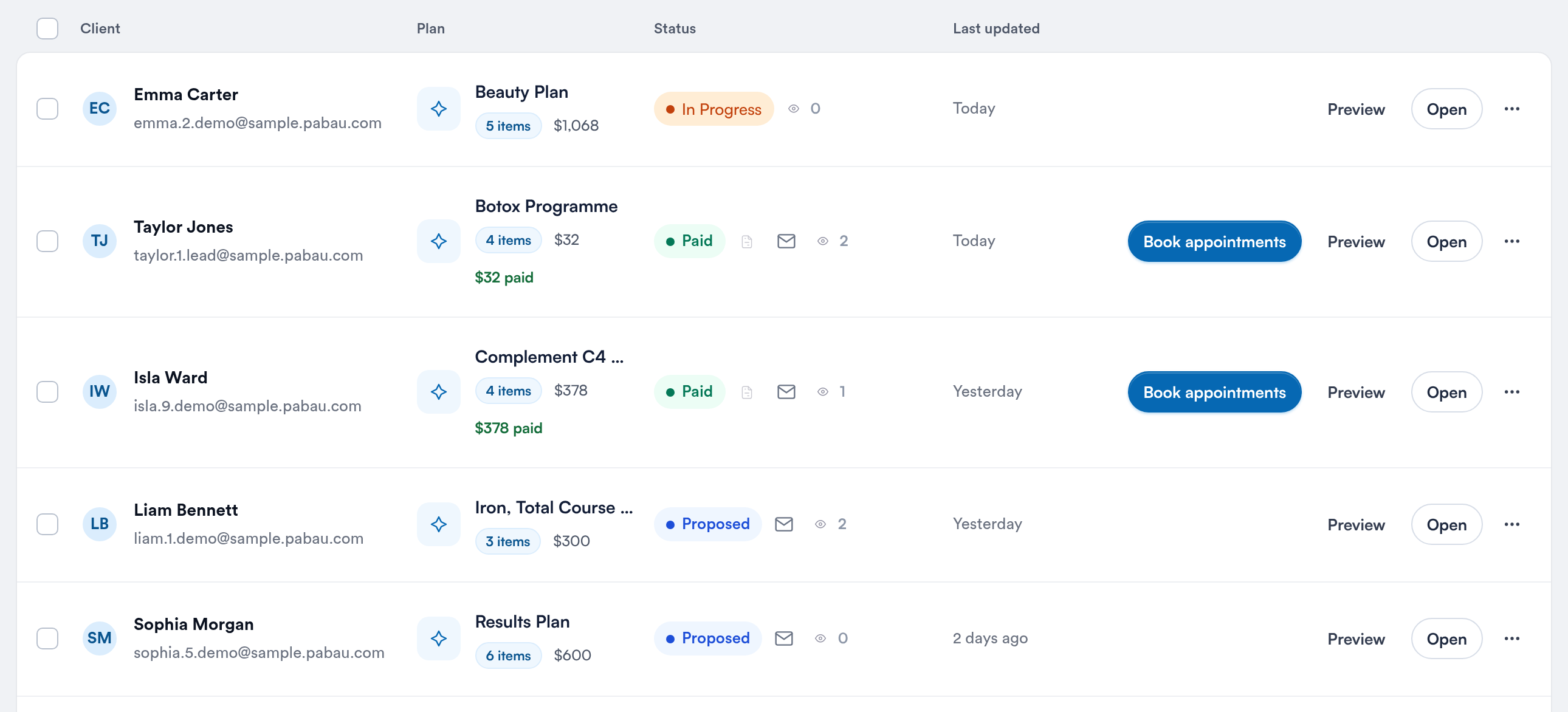
Plans in List view
Step 8: Hover for Progress, Payment and Opens
Hover over a status or its icons for more detail:
- In Progress shows Plan progress: how many sessions are completed, upcoming and still to book, for each service and package.
- The invoice icon shows Payment details: the invoice number, Amount paid and Last payment. Click it to preview the invoice.
- The eye shows Patient opens: how many times the client has opened the plan and when they last did.
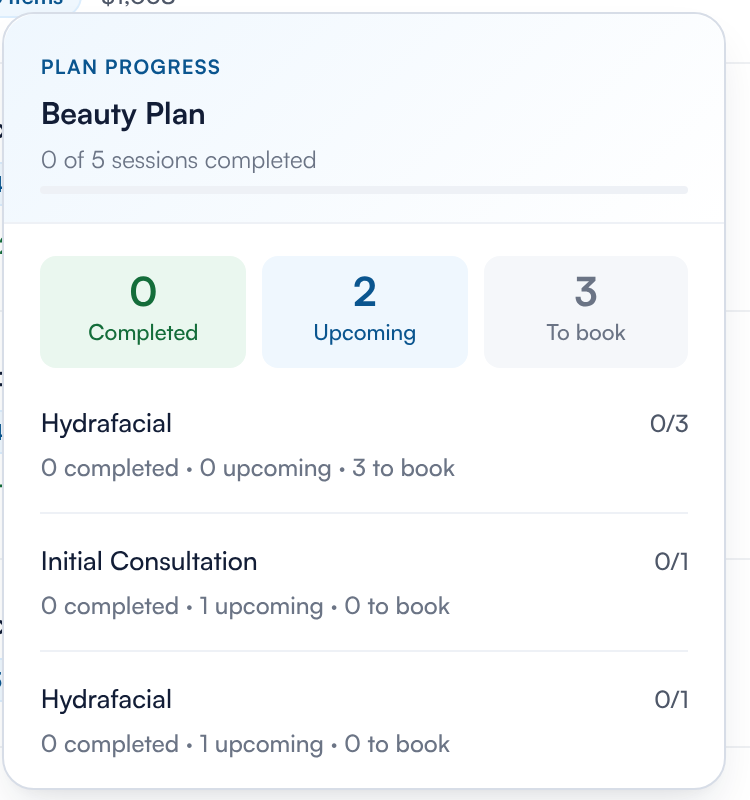
Plan progress
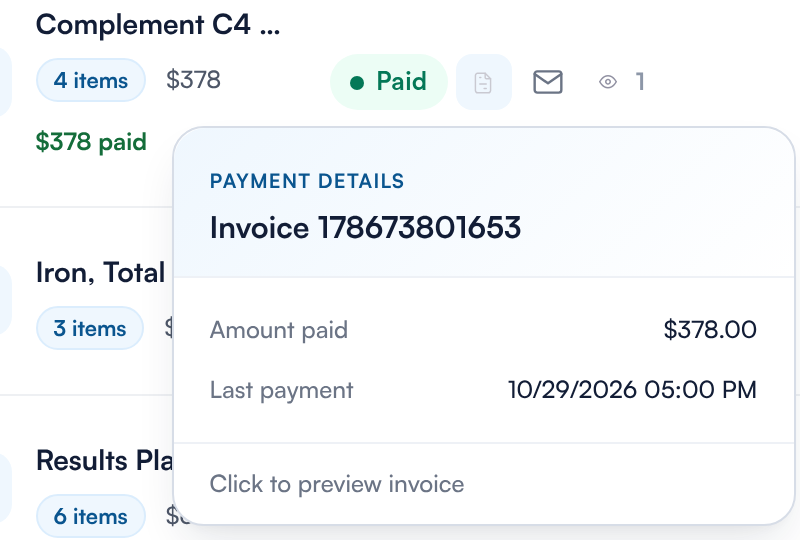
Payment details
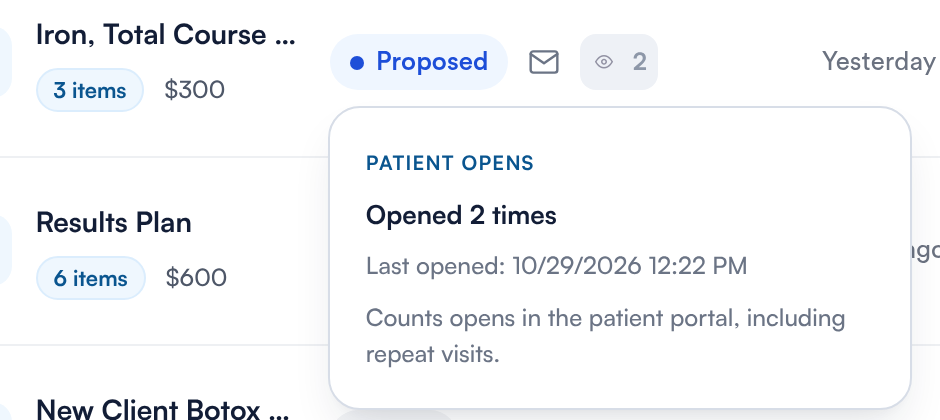
Patient opens
Step 9: Use the Row Menu
Click ⋯ at the end of a row for more actions. Options that don't apply to a plan are greyed out or hidden:
- Edit: only for unpaid plans that are a draft, proposed or expired.
- Send and Share link: send the plan or copy a link to it. See How to Build and Send a Treatment Plan.
- Print plan: prints the plan with your print template.
- Clone plan: copies the items you choose into a new draft plan for the same client.
- Delete: not available once a plan is paid or treatment has started.
- Put on hold (or Hold details) and Cancel: see How to Take Payment for a Plan and Book the Visits.
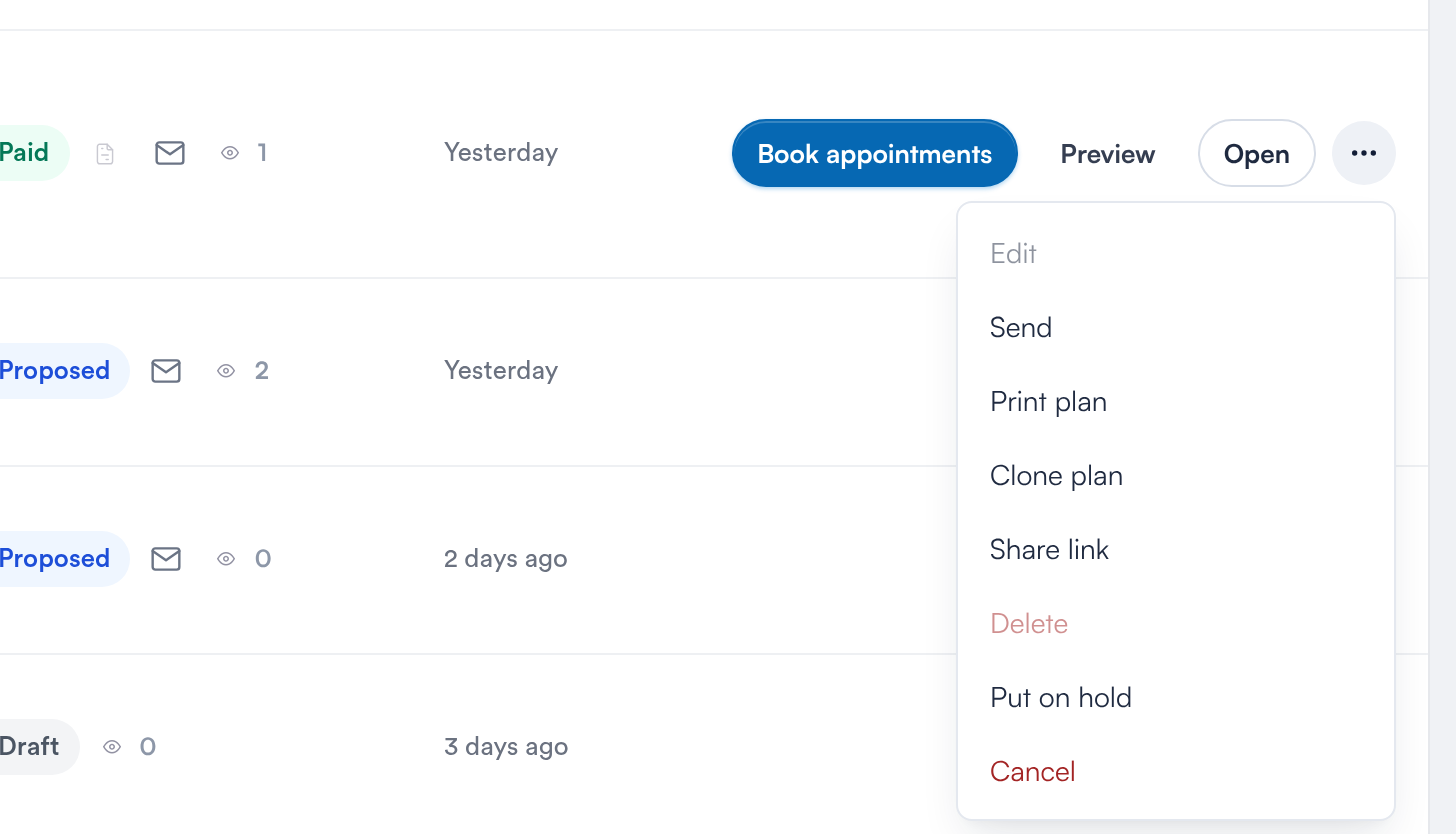
The row menu on a paid plan
Step 10: Switch to Board or Detail View
Use List, Board and Detail to change how plans are shown. Pabau remembers your choice in this browser.
- Board shows a column for each status: Draft, Proposed, Paid, In Progress, On Hold and Completed. Switch on Show expired and cancelled to add those columns. Each card has the same buttons as a list row.
- Detail shows plans as a table. Click Edit Columns to choose the columns, sort by any column and save your own views. The plan type and status tabs, search and Created by still apply.
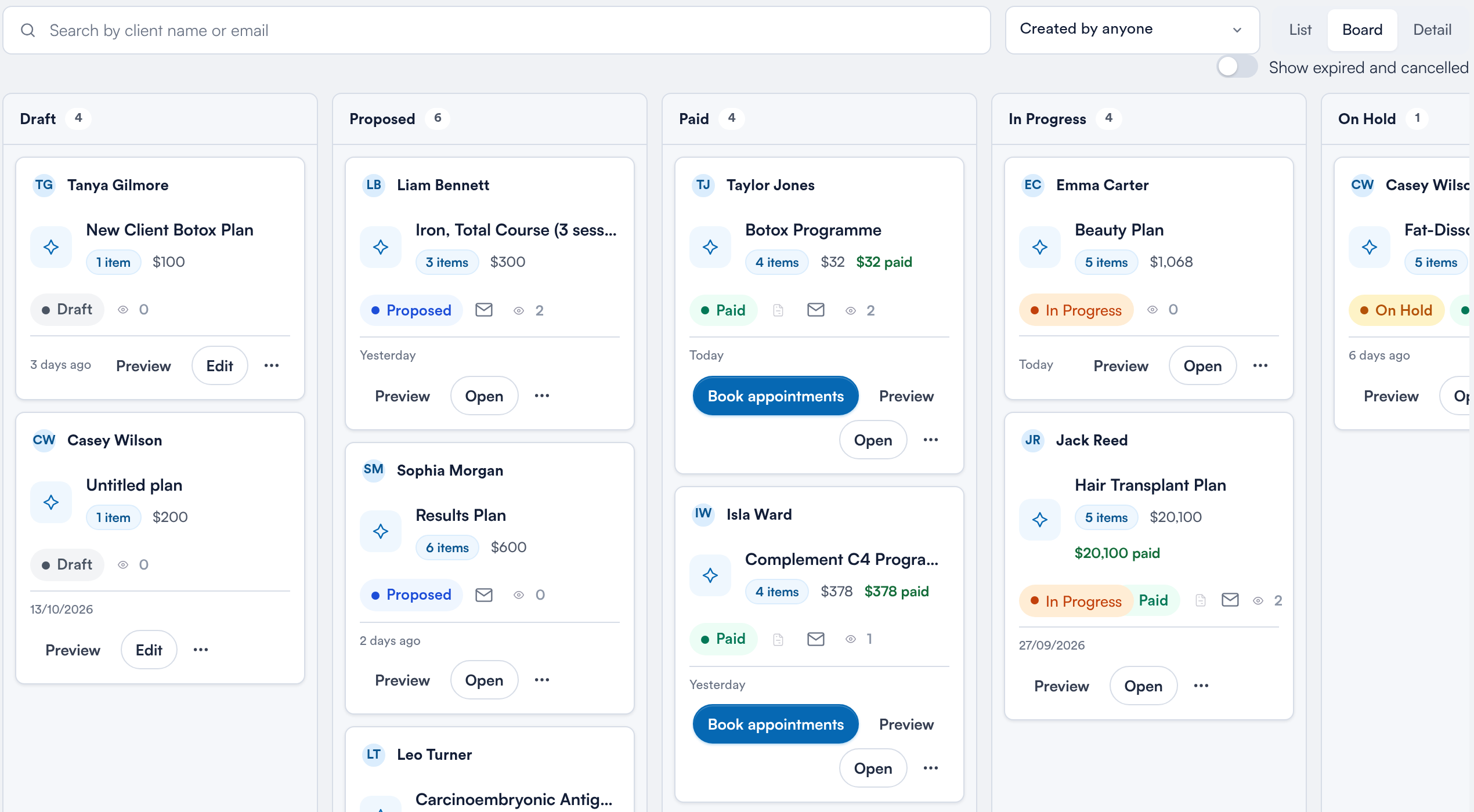
Board view
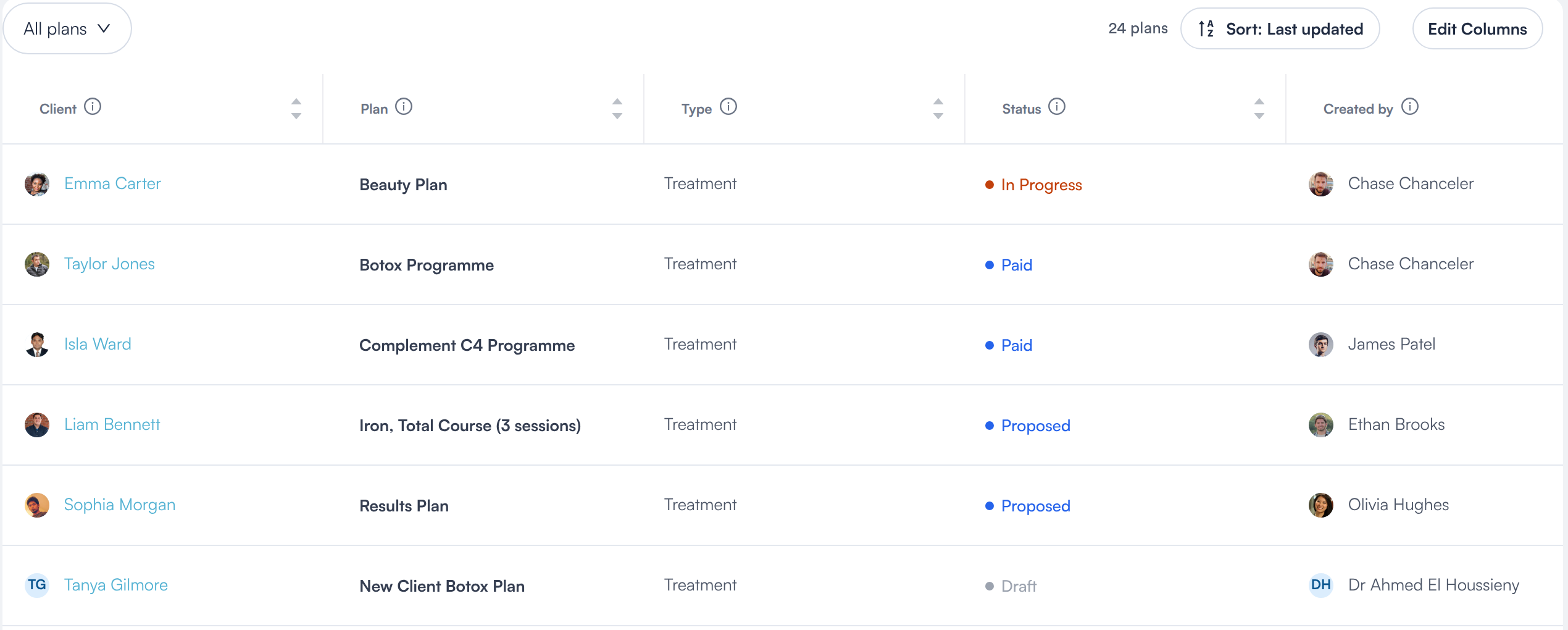
Detail view
What's next?
- How to Build and Send a Treatment Plan: build a plan for a client and send it.
- How to Take Payment for a Plan and Book the Visits: take payment, book the visits and put plans on hold.
- Plans Settings: choose your plan types and the services that book a plan.
Questions? Reach us any time via the in-app chat. We're happy to help.
Was this guide helpful? Let us know by voting below - your feedback helps us write clearer articles.
For more guides, browse the related articles below or use the search bar at the top of the page. You can also watch our video learning series, the Pabau Academy, or visit the Support page for additional help.