
Exercises lets you build a home exercise programme for a client in a couple of minutes: pick exercises from your clinic's library or Pabau's starter library, set the sets, reps and how often for this client, then print the programme or email it to them as a PDF with links to the videos. It suits physio, sports medicine and rehab clinics that would otherwise use a separate exercise app.
NOTE: NOTE: Exercise programmes are being rolled out to clinics in phases, and your clinic can switch each plan type on or off in Plans Settings. If you can't see it, it isn't switched on for your clinic yet.
Step 1: Switch On Exercises for Your Clinic
Go to Setup → Business Details.
- Click Features.
- Find Exercises (“Build home exercise programmes from an exercise library and send them to clients.”) and switch it on. The change applies straight away for all staff.
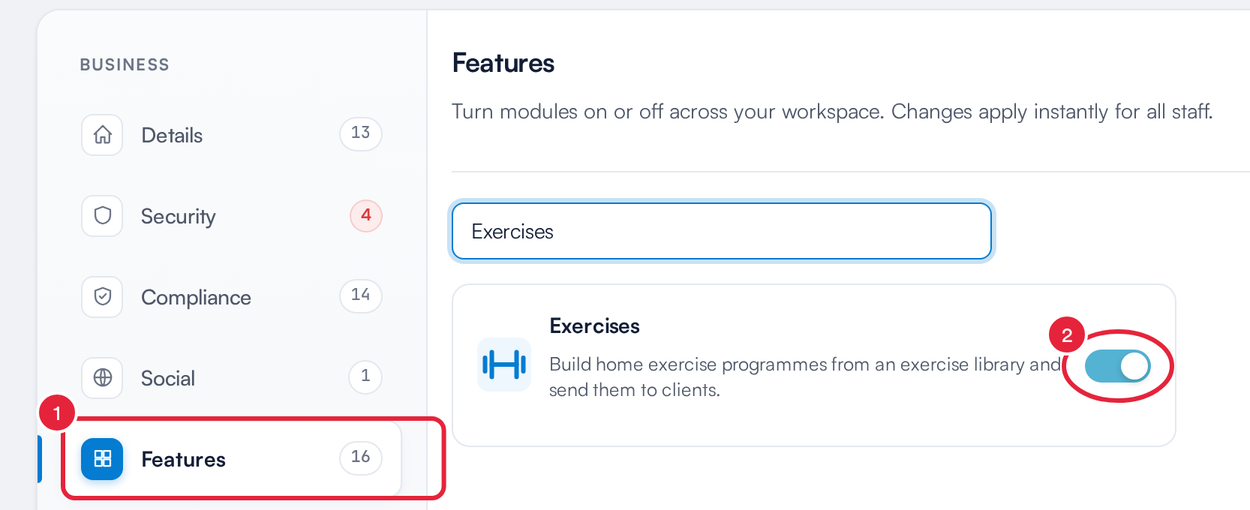
Switch on Exercises under Setup → Business Details → Features
Step 2: Open Your Exercise Library
Go to Setup and, under Clinical → Aftercare, click Exercises. The list shows your clinic's own exercises and Pabau's starter exercises, each with its body area, type and default dosage. Exercises with a demonstration video are tagged Video.
- Click Add exercise to create your own exercise.
- Use the All exercises menu to show Your clinic's exercises, the Pabau library or Archived exercises. You can also search, or filter by body area and type.
- To change one of Pabau's exercises, click the ⋯ button on its row.
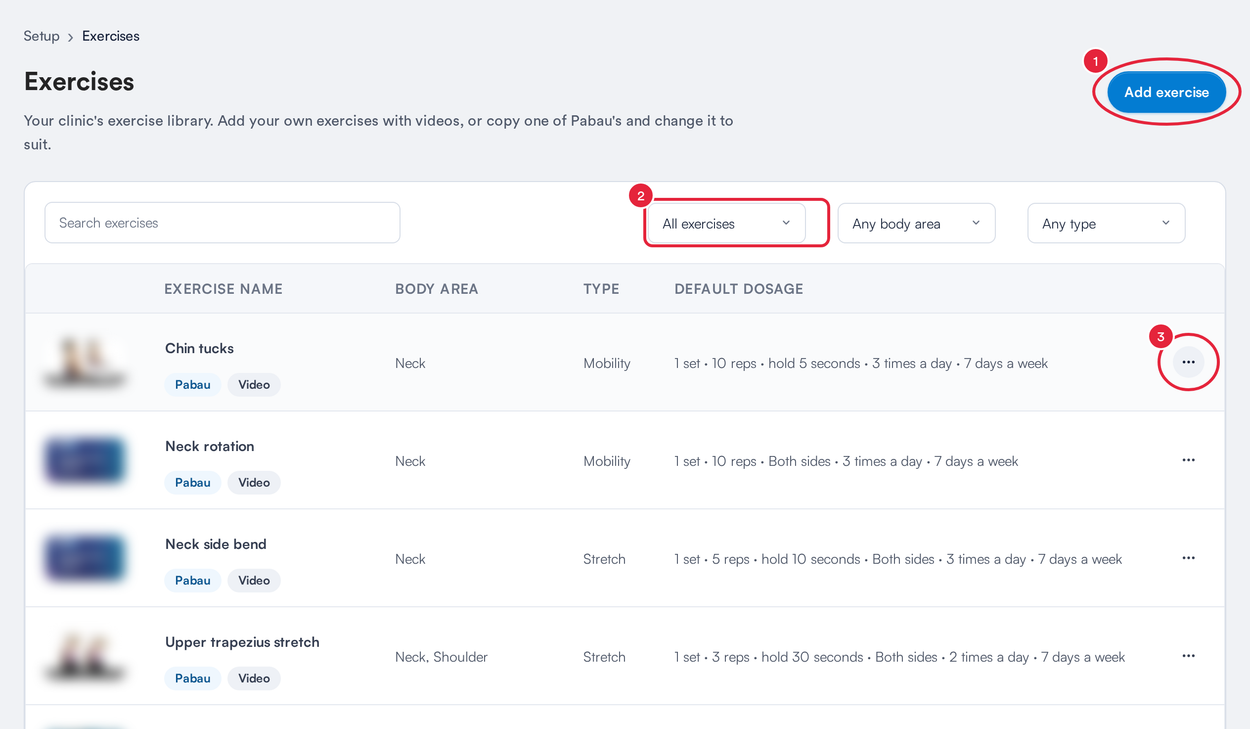
Your clinic's exercise library in Setup
- Choose Copy to your library. Saving it creates your own copy that you can change. The Pabau version stays as it is. Choose Preview to see an exercise without changing it.

Copy one of Pabau's exercises to change it
Your clinic's own exercises have Edit, Duplicate and Archive on the same menu. An archived exercise no longer appears when you add exercises to a programme, but programmes that already include it don't change. Use Restore to bring it back.
Step 3: Fill In the Exercise
The Add exercise window (or Copy to your library) has four parts:
- Details: the Exercise name, and optionally its Type, Position, Difficulty, Body area and Equipment. These are what your team filters by when they build a programme.
- Instructions: the Instructions for the client, one step per line, and any Precautions & tips, such as when to stop.
- Video & image: upload a video (MP4, MOV or WebM, up to 100 MB) or switch to Link and paste a YouTube or Vimeo link, and add an image (PNG, JPG or WebP, up to 10 MB). If you don't add an image, the video's thumbnail is used.
- Default dosage: the Sets, Reps, Hold (seconds), Time (seconds), Rest (seconds), Times a day, Days a week, Side and Weight or resistance used when you add the exercise to a programme. Leave a box empty if it doesn't apply.
- Click Save exercise. You'll see Exercise saved.
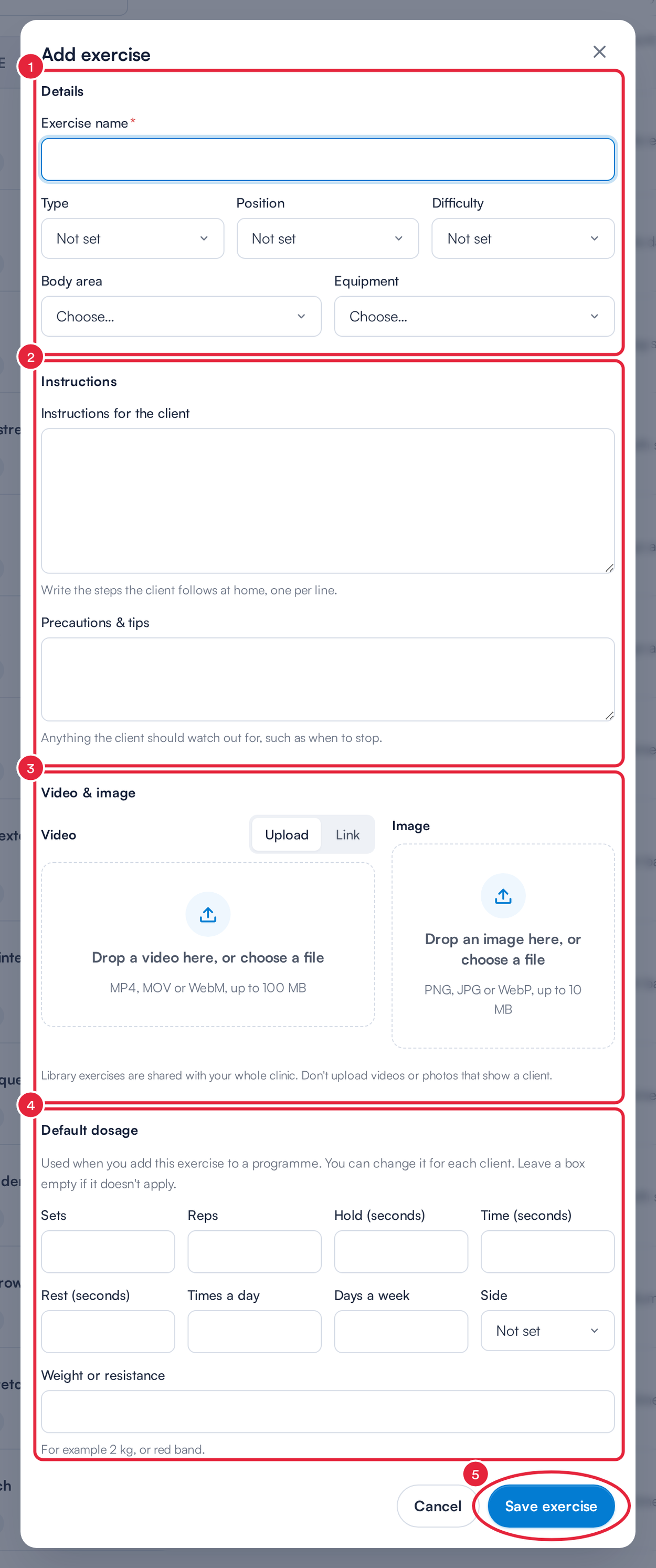
Details, instructions, media and default dosage
IMPORTANT: Library exercises are shared with your whole clinic. Don't upload videos or photos that show a client.
Step 4: Choose Exercises for a Client
- Open the client's card, go to EMR → Exercises (Chart in the United States) and click Add exercises. You can also click the + button at the bottom right and choose Exercises, or on the Plans page click Build plan and choose Exercise programme, then search for the client.
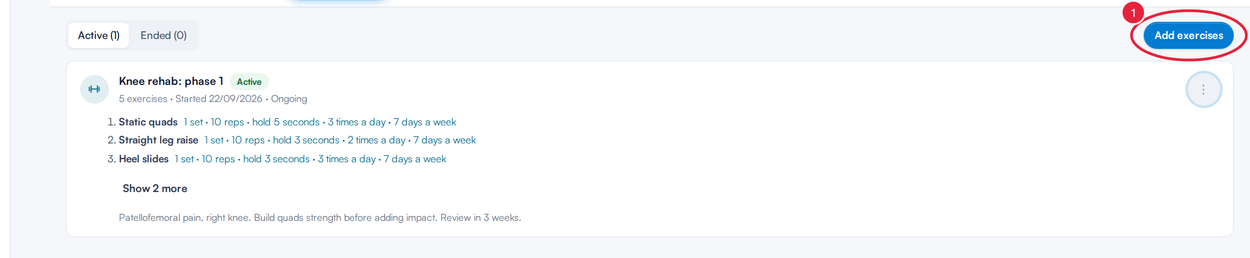
Add exercises starts a new programme
- Under Choose exercises, narrow the list with the search box and the Source, Body area, Type and Equipment filters.
- Tick each exercise you want. Click Preview on a tile to see its instructions and video first.
- Click Continue with N exercises. If an exercise you need is missing, click Add exercise to add it to your library, or Manage library to open the library.
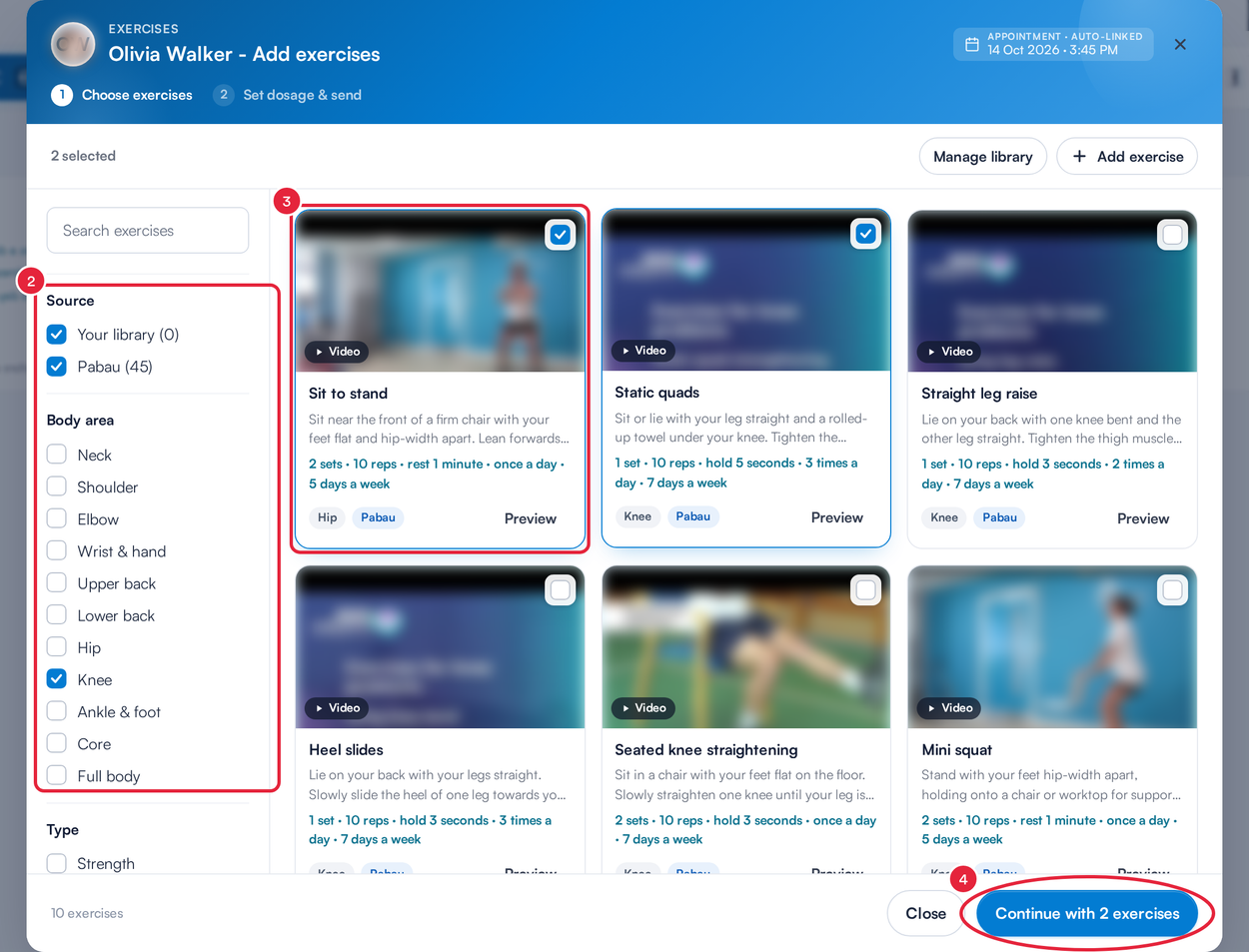
Filter the library and tick the exercises
Step 5: Set the Dosage and Save the Programme
Under Set dosage & send, each exercise starts with its default dosage, which you can change for this client.
- To give every exercise the same frequency, enter it under Frequency for every exercise (Times a day and Days a week) and click Apply to all.
- Adjust each exercise's Sets, Reps, Hold (seconds), Times a day, Days a week, Side and Weight or resistance, $1 Each exercise allows up to 20 sets, 500 reps, a 600-second hold, 12 times a day and 7 days a week. Use the arrows to change the order, or the cross to remove an exercise. Add more exercises takes you back to the library.
- Under Programme, check the Programme name, Start date and How long (1, 2, 4, 6, 8, 12, 26 or 52 weeks, or Ongoing, the default), and add any Notes for the client. They're shown at the top of the printout and the email.
- Optionally, under the fee section, enter a Fee and choose the service to Bill as service. The fee is only charged when the programme is paid for as part of a combined plan. $1
- Choose Save. Save & send to client saves it and opens a step to send it to the client.
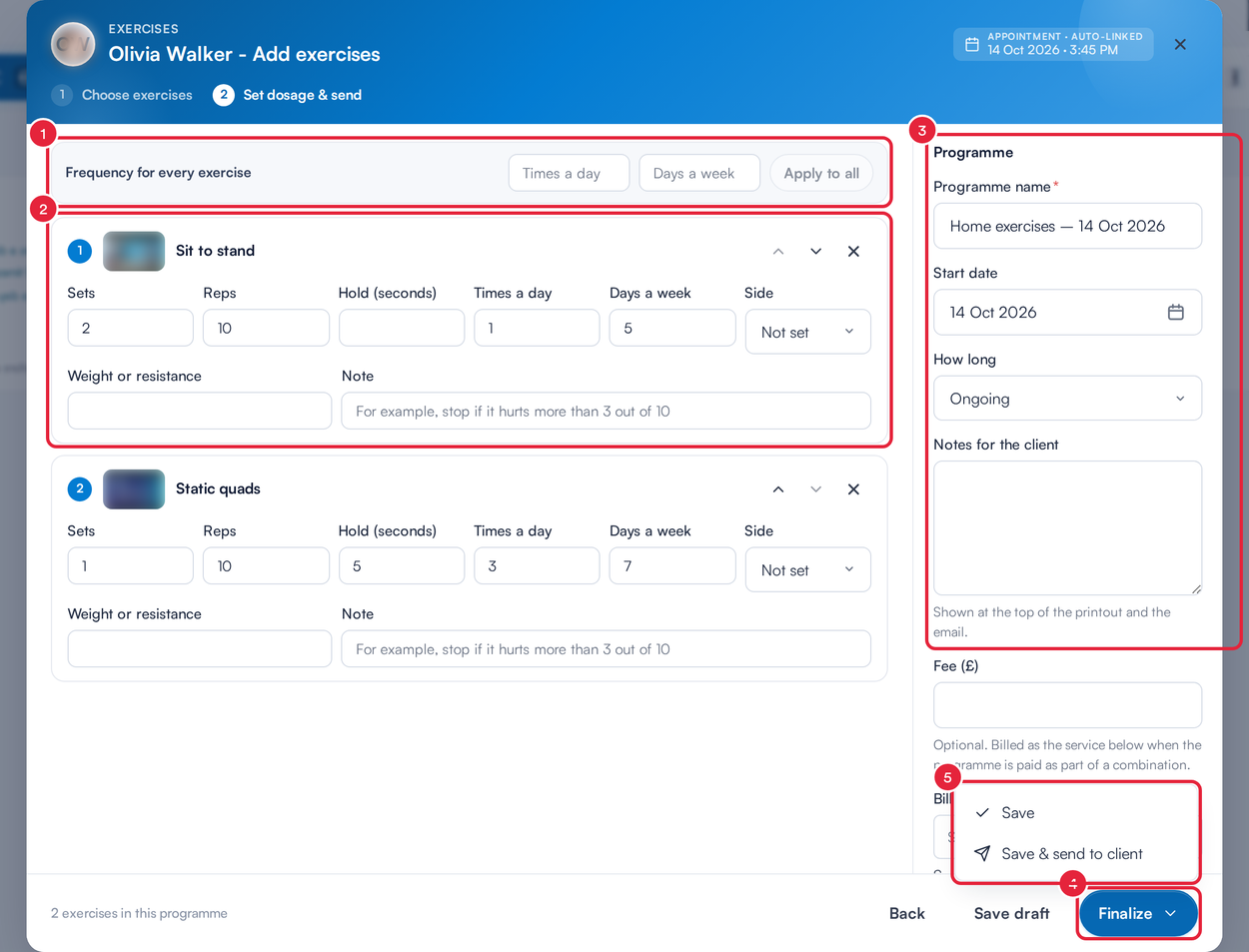
Set the dosage and programme details, then save
Step 6: Print, Email or End a Programme
The client's Exercises tab lists their programmes under Active and Ended.
- Click the ⋮ button on a programme.
- Choose what to do:
- View opens the whole programme.
- Print prints it, with the instructions and links to the videos.
- Email to client opens a new email to the client with the programme attached as a PDF. Check it and send it as usual. Once sent, it's logged with the client's communications.
- Send sends the client a link to the programme in their client portal, by email or SMS.
- Edit changes the exercises, dosage or details.
- End programme moves it to Ended. Use Make active again to restore it. A draft programme is listed under Active, and its menu has no Email to client or End programme until you finalise it.
- Delete removes it from the client's record. This can't be undone.
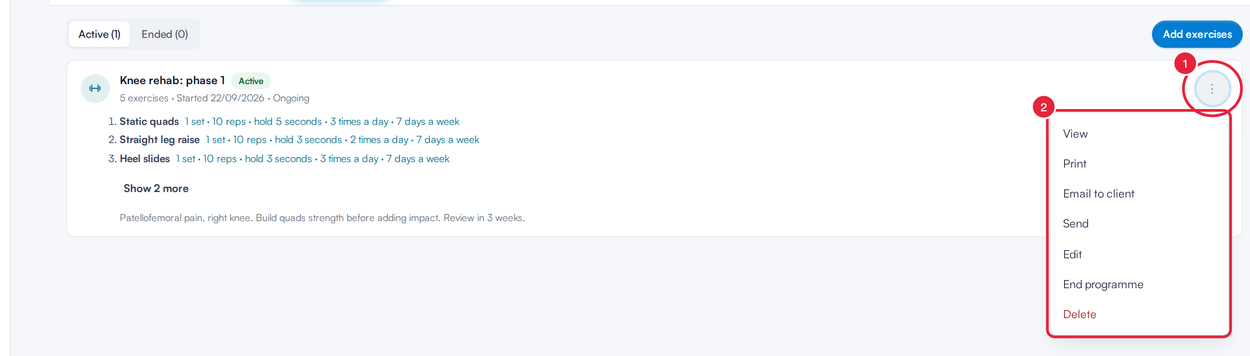
Print, email, edit or end a programme
NOTE: Each programme keeps its own copy of the exercises, so later changes to your library never change a programme you've already given a client. Check that every exercise, including Pabau's, suits the client before you prescribe it.
What's next?
- How to Use the Plans Page
- How to View and Manage a Client's Plans on the Client Card
- How to Build and Send a Supplement Plan
- How to Build and Send a Nutrition Plan
- How to Plan and Record IV Infusion Sessions on the Client Card
- Managing Clinic Features from the Sidebar
Was this guide helpful? Let us know by voting below - your feedback helps us write clearer articles.
For more guides, browse the related articles below or use the search bar at the top of the page. You can also watch our video learning series, the Pabau Academy, or visit the Support page for additional help.