
Welcome to insurance billing in Pabau. It works best when it is set up in the right order. Work through the four steps below in order and you'll send accurate claims, avoid needless denials and get paid on time. Each step links to a detailed guide you can come back to at any time:
- Insurance Guide Part 1: Set up the insurance essentials
- Insurance Guide Part 2: Client insurance setup
- Insurance Guide Part 3: Connect appointments to insurance
- Insurance Guide Part 4: Submit and track insurance claims
NOTE: Electronic claims through our clearinghouse partner, Claim.MD, are available for United States payers only. If you bill UK private medical insurers, see our Healthcode articles instead.
Step 1: Set Up Your Insurance Billing Foundation
Everything starts in Setup → Claims → Claim.MD. The Overview tab is a checklist that turns green as you complete each piece:
- Connect your Claim.MD account on the Credentials tab: enter your AccountKey, and Pabau checks it with Claim.MD and stores it encrypted.
- Complete your billing profile: the billing provider name, NPI, tax ID and address. This identifies your practice in box 33 of every CMS-1500 claim.
- Set up your practitioners on the Providers tab: each one who renders billable care needs their own NPI (box 24J).
- Add your payers: link each insurer you bill to its Claim.MD payer so claims route electronically, or add payers straight from the Claim.MD catalog.
- Enroll with your payers: enrollment switches on claim filing, ERA payment reports and eligibility checks. Some payers approve at once; others take up to 30 days.
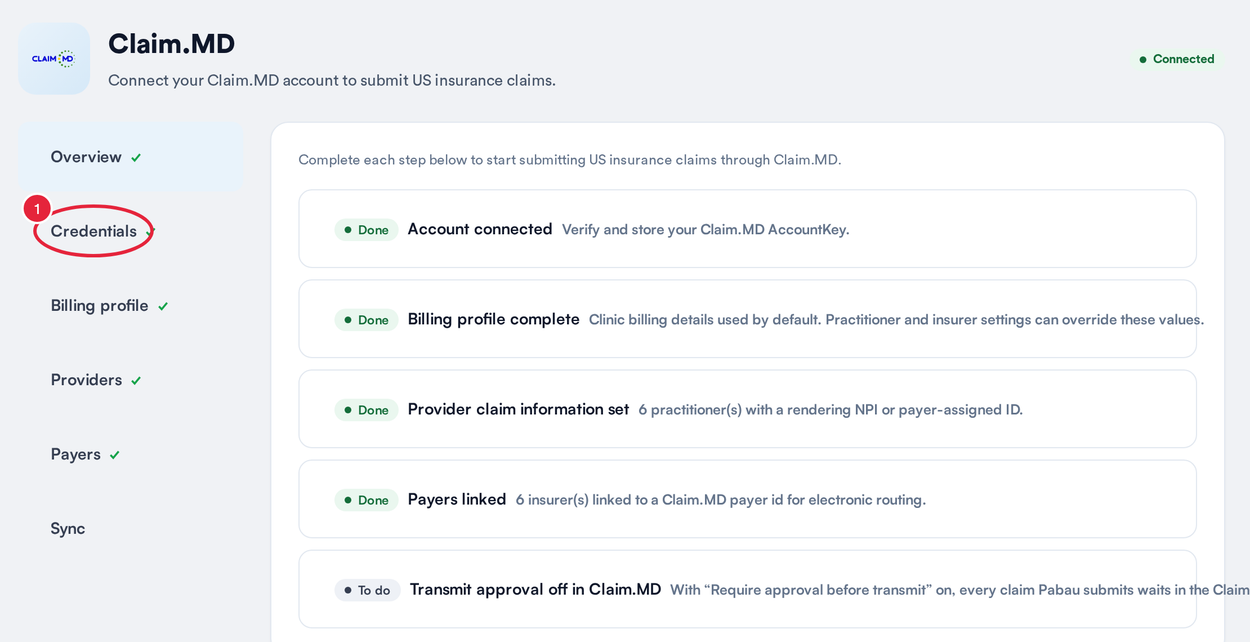
The Overview checklist shows what is done and what is left
Full walkthrough: Insurance Guide Part 1 and Electronic enrollments with insurance payers. Billing massage or mobile care? See Insurance billing checklist for massage therapy and mobile practices.
Step 2: Set Up Client Insurance Details
Accurate policy details are what keep claims from bouncing.
- On the client card, open the Insurance tab.
- Click New Policy, choose the insurer and enter the member ID exactly as printed on the insurance card.
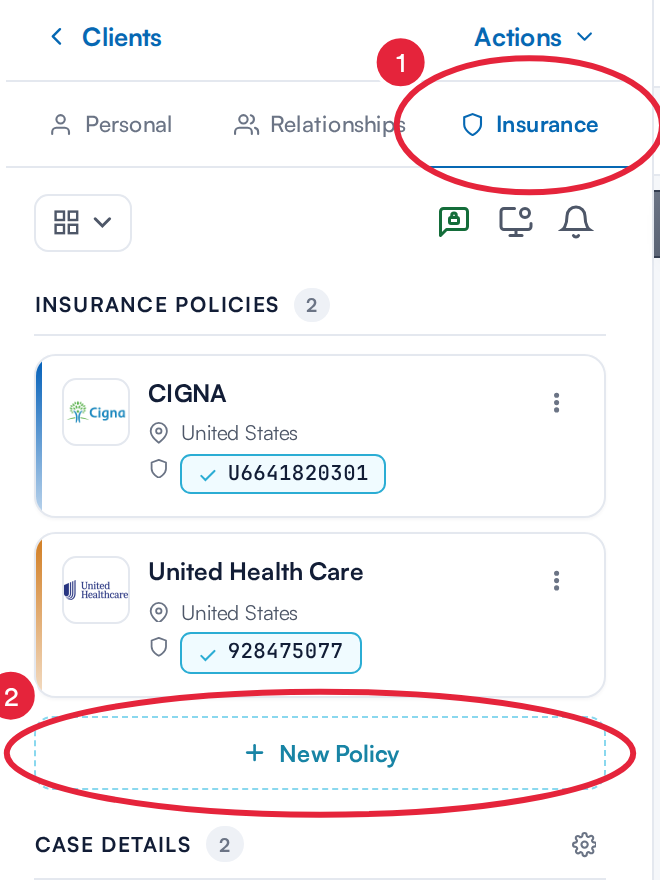
Policies live on the client’s Insurance tab
Then record the details that drive billing:
- The policy holder (the client or someone else), policy dates, co-pay or coinsurance and deductible.
- Front and back scans of the insurance card, saved to the client's documents.
- Claim defaults such as signature on file, condition details and default billing codes, so every new claim starts filled in. See How to set claim defaults on a client’s insurance policy.
Check eligibility and benefits before you treat: the report shows active coverage, co-pays, deductibles and out-of-pocket amounts per service type. Full walkthrough: Insurance Guide Part 2 and Request eligibility and benefits report.
Step 3: Connect Appointments to Insurance
- Choose who pays when you book: when you pick the client, Pabau asks how the appointment will be paid. Pick a saved policy (with its authorization), add a new one, or choose self-pay.
- Track authorizations: each insurance case records the authorization code, visits allowed and expiry, and Pabau warns you before either runs out.
- Code your services: give each service its CPT/HCPCS billing code, default units and place of service, so every claim line is filled in for you.
- Collect the co-pay: take the client's share at checkout so only the insurer's portion goes on the claim.
Full walkthrough: Insurance Guide Part 3.
Step 4: Submit and Track Claims
Every invoice issued to an insurer is already a claim, pre-filled with the patient, policy, provider, diagnoses and charges from the records you set up in Steps 1 to 3.
- Find it on More → Claims, where claims are sorted into folders from Draft to Approved.
- Click View to open it, click Validate with Claim.MD to catch errors without sending anything, then send it.
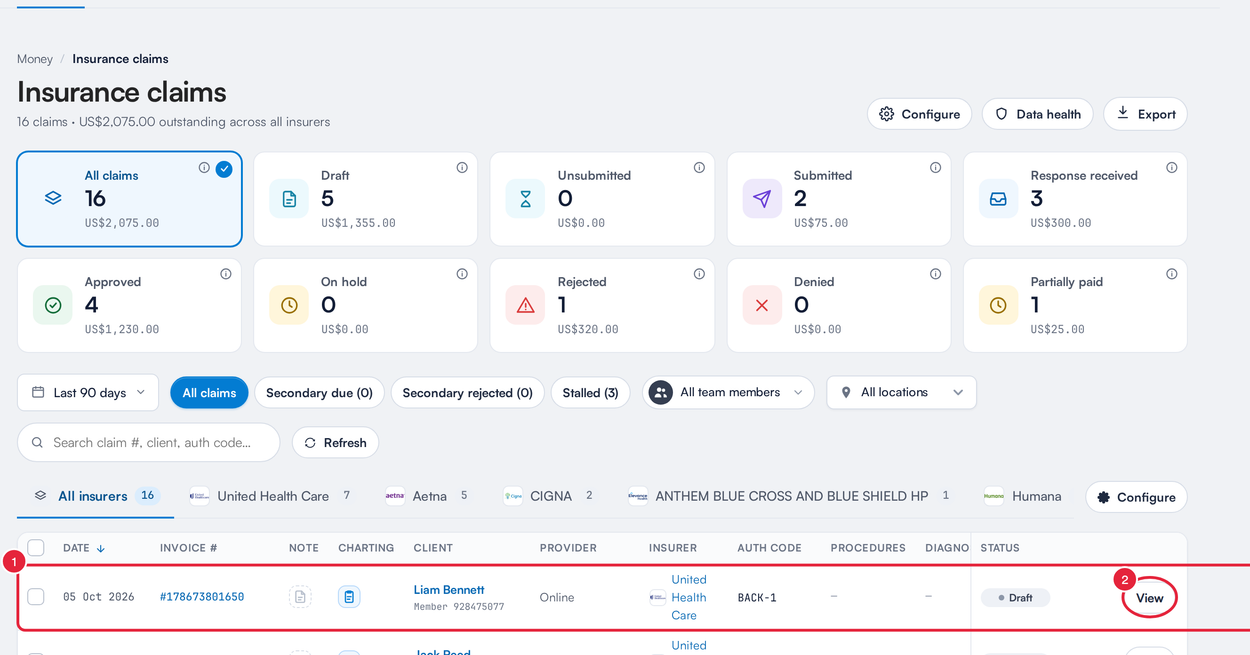
Every invoice issued to an insurer is a claim
- Fix and resend: rejections show the reason on the claim; correct it and send again. Pabau reuses the claim's identity, so a resubmission updates the original rather than creating a duplicate. A denied claim goes out as a corrected claim when you resend it, or you can appeal.
- Post insurance payments: ERAs (electronic remittance advice) arrive on the Remittance tab of More → Claims. Pull one in, review the invoice matches Pabau suggests, and post it.
- Go further: bill a secondary payer, print CMS-1500 forms for paper payers, or download superbills for out-of-network clients.
Full walkthrough: Insurance Guide Part 4, Tracking electronic claim submissions and Submitting secondary claims in Pabau.
Frequently Asked Questions
Is insurance billing available outside the United States?
Electronic claims through Claim.MD cover US payers only. UK practices billing private medical insurers should use Pabau's Healthcode integration instead.
What do I need before I can connect?
A Claim.MD account (your AccountKey is in the Claim.MD portal under Settings), your practice's billing NPI and tax ID, and the NPI of each practitioner who renders care.
Why can't I submit claims yet?
Check the Overview tab in Setup → Claims → Claim.MD. A billing profile missing its NPI or tax ID, a practitioner without an NPI, or an insurer that isn't linked to a Claim.MD payer will keep claims from going out.
Can I submit claims while a payer enrollment is still processing?
Often yes: many payers accept claims before enrollment completes. ERA payment reports and eligibility checks start once the payer approves the enrollment, which can take from a few days up to about 30.
Why did my eligibility check fail?
Check that the member ID and date of birth match the insurance card, and that the payer's eligibility enrollment is active. A small number of payers don't support real-time eligibility at all; Pabau tells you before you submit the check.
What's the difference between Rejected and Denied?
A rejected claim was stopped before the payer assessed it, usually because of a data issue: fix the claim and send it again. A denied claim was assessed and refused payment: correct and resend it (Pabau marks it as a corrected claim for you) or appeal.
How often should I re-check eligibility?
There's no universal rule. Common practice: whenever the plan changes, every 30 days for ongoing care, at each new episode of care, or just before the appointment.
Do insurance payments post automatically?
No, you stay in control. ERAs arrive on the Remittance tab of More → Claims; pull one in, review the matches and post it. See How long does it take to process ERA and claims?.
Can I bill on paper or help out-of-network clients?
Yes. From the claim's Export menu you can print a CMS-1500 (the full form, or text only for pre-printed red-ink forms) and download a superbill your client can send to their insurer. See Exporting and submitting CMS1500 claims manually.
What's Next?
Start with Insurance Guide Part 1: Set up the insurance essentials. New to the vocabulary? Keep the Insurance billing glossary open alongside.
Questions? Reach us any time via the in-app chat. We're happy to help.
Was this guide helpful? Let us know by voting below - your feedback helps us write clearer articles.
For more guides, browse the related articles below or use the search bar at the top of the page. You can also watch our video learning series, the Pabau Academy, or visit the Support page for additional help.