
This is where the setup pays off. Connecting a visit to insurance ties together the client's coverage (Part 2), the appointment and your clinical notes, so the claim you send in Part 4 is right from the start. In this article, you will learn how to book an insured visit, check coverage, document the visit and bill it to the payer.
NOTE: Insurance billing is available for practices in the United States. Claims go to payers electronically through the Claim.MD clearinghouse, using your own Claim.MD account.
NOTE: In Pabau the claim comes from the visit's invoice. As soon as an invoice is issued to an insurer, it appears on More → Claims. Booking the visit against the client's insurance carries the payer, the authorization and the prices through to that invoice for you.
Step 1: Book the Visit and Choose Who Pays
- On the calendar, click an open slot. The booking panel opens with the date, time, practitioner and location filled in.
- Search for the client by name, phone or email (or add a new client).
- Select the client. If they have insurance on file, an Insurance policy window opens and asks you to choose how the appointment will be paid for.
- Pick one of the client's Saved policies. Each one shows the payer, the authorization number and its status, and Pabau points out the one Used on their last appointment. An authorization that is running low says so (for example Expires in 4 days), and one with No visits left or that has expired cannot be chosen.
- Booking under a new authorization? Click New policy, enter a Case title and, if you have them, the Authorization code, Visits allowed and Expiry date, then click Use this policy.
- Choose Self-pay if the client is paying for this visit themselves.
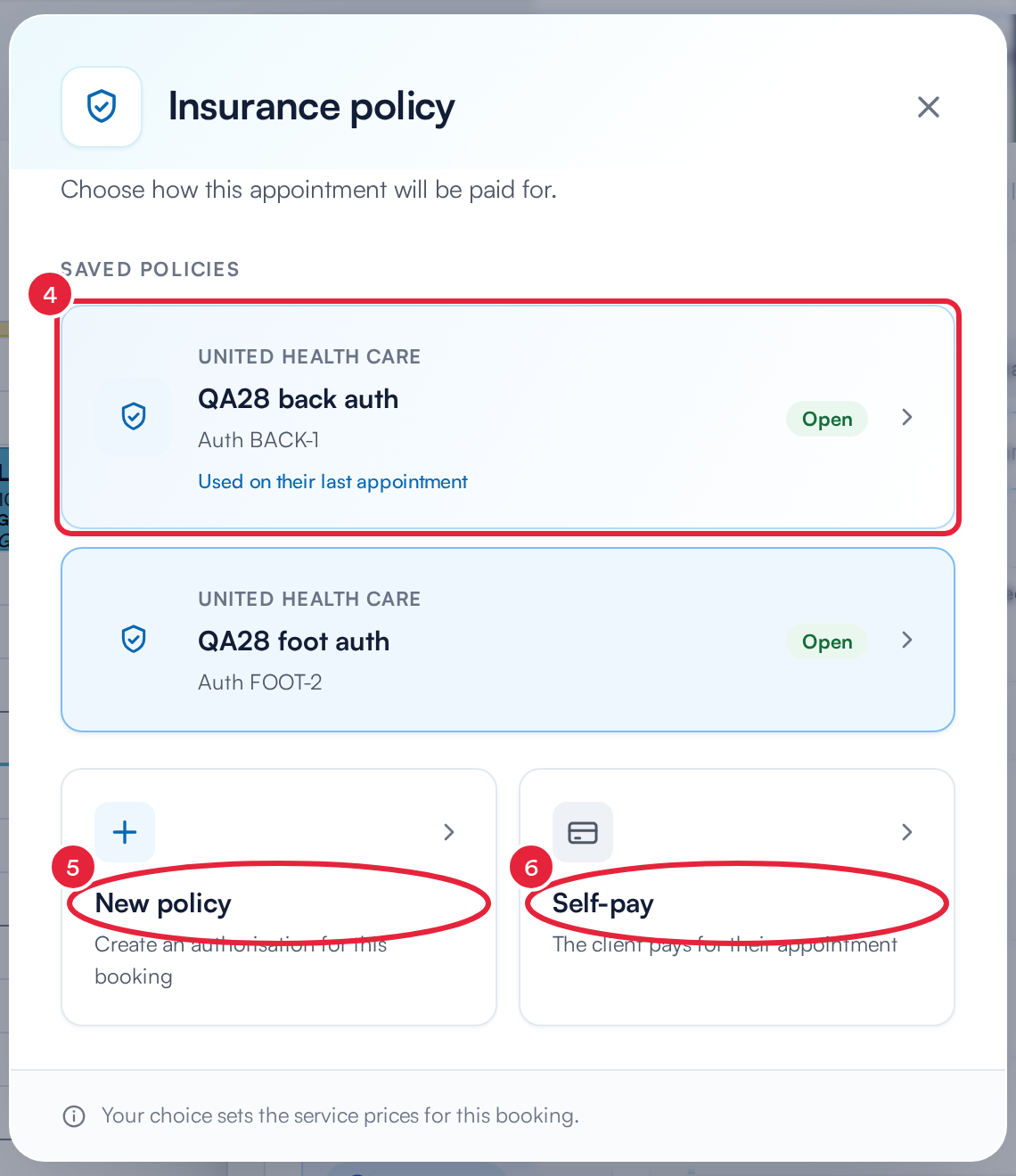
Choose how this appointment will be paid for
Your choice sets the service prices for the booking (the payer's fee schedule, if you have one). Then finish the booking:
- Pick the service. It appears under Services with its time, length, practitioner and price.
- Picked the wrong payer? Click Change who pays to reopen the Insurance policy window.
- Check the Payment Policy (an insurer-billed booking normally needs no deposit), then click Book appointment.
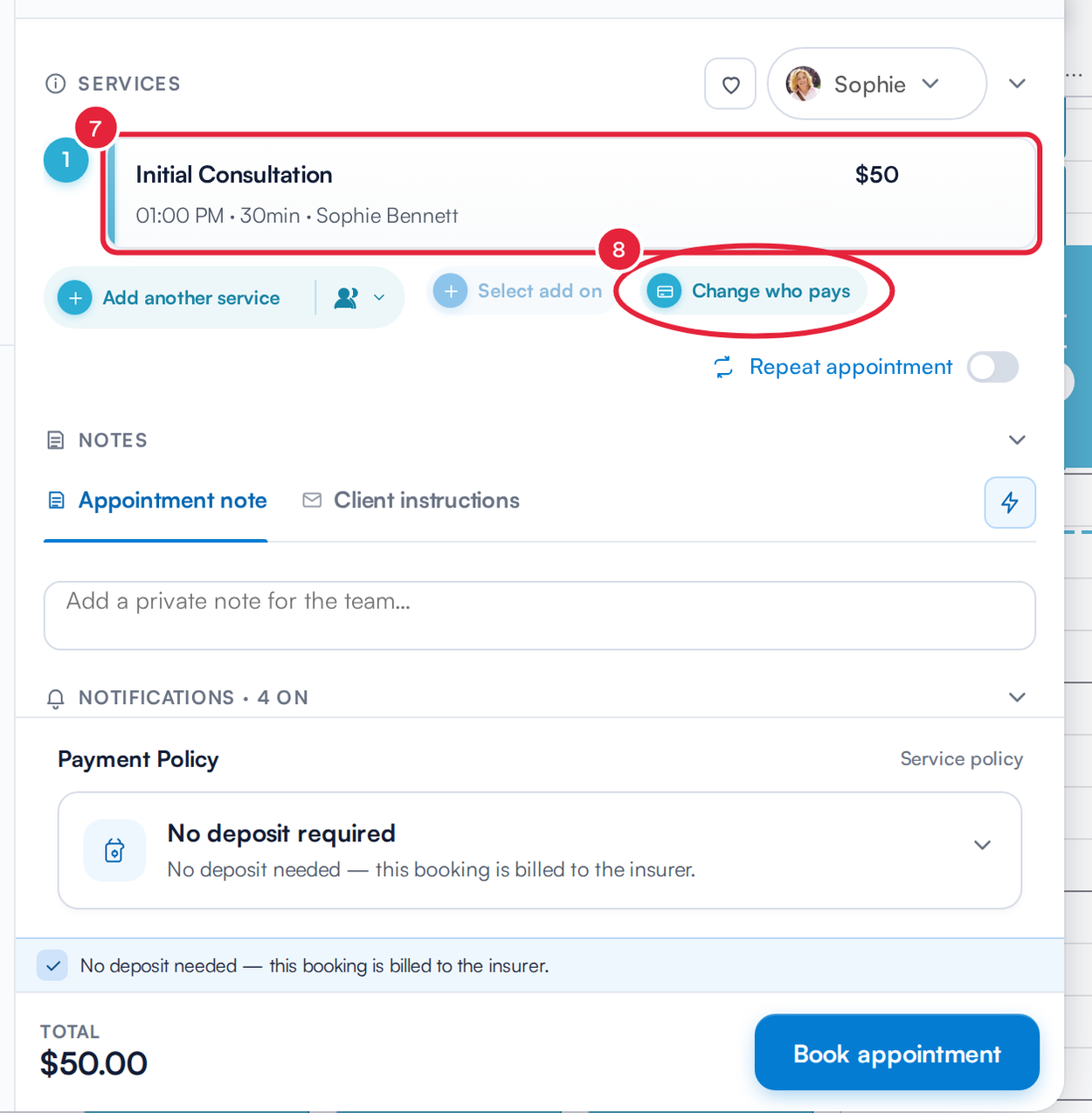
The service, who pays, and Book appointment
The payer and authorization you choose here follow the visit: the invoice comes out issued to the insurer, and the authorization number fills box 23 (prior authorization) on the claim.
NOTE: Each service on a booking counts against the authorization separately. A booking with two services under the same authorization uses two of its visits.
Step 2: Confirm Coverage Before Each Visit
Coverage changes: plans end, deductibles reset, benefits get used up. Checking before the visit catches problems while they are still fixable.
- Run an eligibility check from the claim, or use Search coverage on the client's policy. See Request eligibility and benefits report.
- Re-check when the plan changes, every 30 days for ongoing care, at each new episode of care, or right before the appointment.
- Check the co-pay and deductible on the policy so the front desk knows what to collect.
Step 3: Complete the Visit and Document Diagnoses
Good notes support the medical necessity your claim asserts.
- Record the client's conditions as problems on their record. When you open the claim, Pabau fills the ICD-10 diagnosis slots from the client's active problems, and you can search the full ICD-10 library for anything else.
- A service's Default diagnosis (set on the service in Part 1) is used when a claim line has no diagnosis of its own.
- Every charge line on the claim points at a diagnosis (CMS-1500 boxes 21 and 24E). Pabau sets those pointers for you.
Step 4: Check Out and Bill the Visit to the Insurer
- When the visit is finished, open the appointment and click Checkout.
- In the point of sale, the service is charged to the insurer you chose at booking. Under the insurer, the Co-pay is filled in from the appointment or the client's policy; change it if you need to.
- Complete the sale. Pabau creates two invoices with the same number: one to the insurer, ending -C01, and one to the client for the co-pay, ending -P01. Take the client's co-pay on the spot.
The insurer invoice appears on More → Claims straight away, pre-filled from the appointment, the client record and the policy:
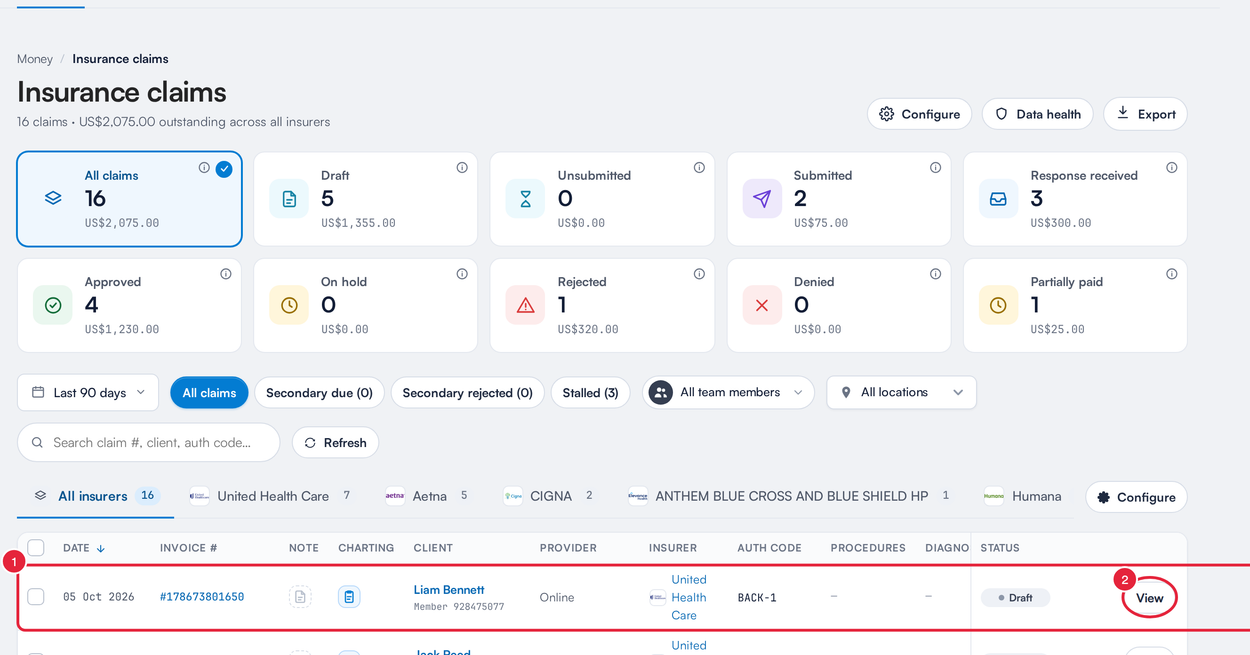
The visit is now a claim
TIP: The co-pay is billed to the client on their own invoice and taken off the insurer's invoice, so the claim only asks the payer for their share.
What's Next?
Your visit is booked, documented and billed to the payer. Now send and track the claim: Insurance Guide Part 4: Submit and track insurance claims. Or go back to Getting started with insurance billing for the full picture.
Questions? Reach us any time via the in-app chat. We're happy to help.
Was this guide helpful? Let us know by voting below - your feedback helps us write clearer articles.
For more guides, browse the related articles below or use the search bar at the top of the page. You can also watch our video learning series, the Pabau Academy, or visit the Support page for additional help.