
The Memberships — Members report is the roster of every member across your memberships — including add-on members — with their plan, current status, contact details, fee, and the staff member who sold the membership.
It answers: who is a member right now, which plan each member is on and what state it's in, who is a primary member versus an add-on, and who sold each membership. There is no date filter — it's a live list of your member base.
For example, typing "Emma" into the search box instantly narrows the list to members like Emma Thompson, while setting the Membership status filter to Frozen shows everyone whose membership is currently on hold.
NOTE: The report card in the catalog is named Memberships — Members, but once opened the page is titled Member List — they are the same report.
How to find it
Step 1: Open Reports
Log in to your Pabau account. In the left sidebar, hover over Analytics and click Reports. The reports catalogue opens, with every report you have access to.
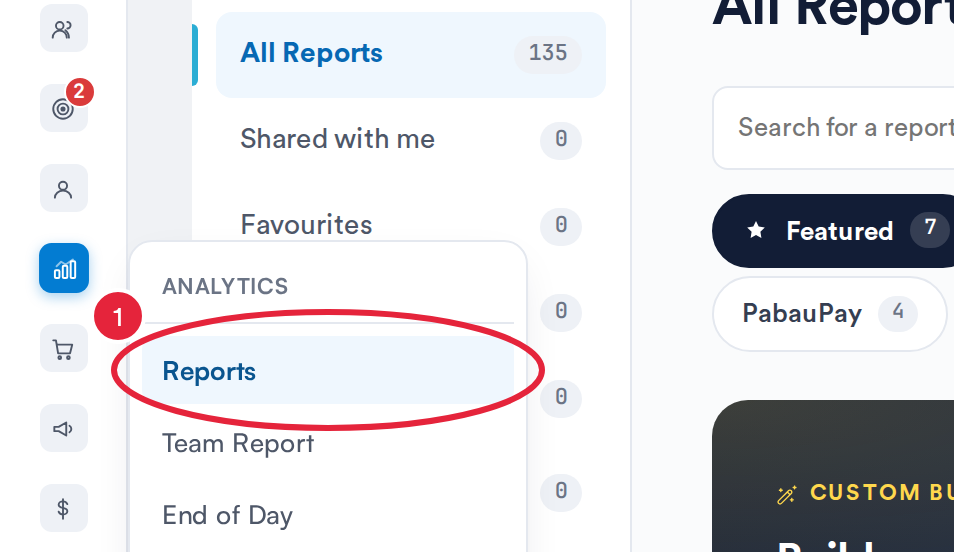
Analytics → Reports opens the reports catalogue
Step 2: Open the Report
Click the Memberships tab, then click Memberships — Members (marked with a New badge) in the Members & status section to open the report. You can also type the report’s name in Search for a report.
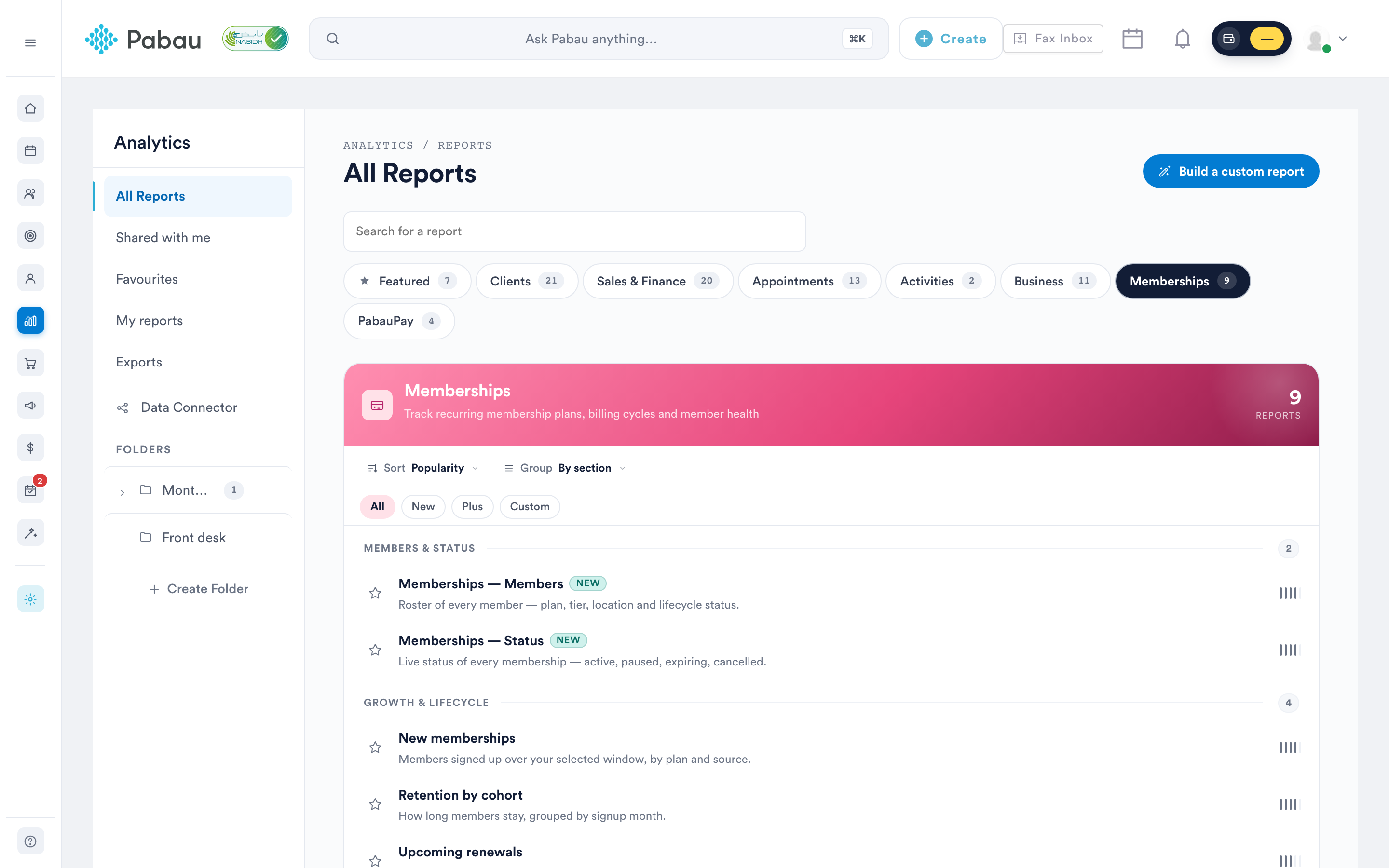
Toolbar controls
| Button | What it does |
|---|---|
| Columns | Opens the column manager — show or hide any of the 15 table columns. Your choice is remembered in your browser for this report. |
| Export | Downloads the on-screen table as a CSV file (e.g. member-list-2026-08-04.csv). |
| Opens your browser's print dialog, formatted for landscape paper. | |
| Help | Opens the in-app help panel — an overview, how-to steps, and a definition of every column. |
| Refresh | Re-runs the report with your current filters, showing "Refreshing…" while loading. |
Filters and search
- Search – A free-text box with the placeholder "Search by client, membership, email or staff…". It matches against the client's name, the membership name, the client's email and phone number, and the staff member who sold the membership.
- Locations – Optional, searchable. Defaults to All locations. Only the locations you're permitted to access are listed.
- Membership status – Optional, multi-select with an All statuses option. Choose any combination of Active, Frozen, Cancelled, Expired, Suspended, and Inactive.
NOTE: The report loads the first 500 members. The Membership status filter is applied at the source, while the Locations filter and the search box narrow within those loaded rows — so on a very large member base, filter by status first to make sure you're searching within the right set.
Understanding the report
Each row is one member — a primary member or an add-on member. A membership with add-ons therefore appears as several rows: one for the primary member and one per add-on.
| Column | What it shows |
|---|---|
| Location | The location the membership was sold at. |
| Client ID | The client's ID. |
| Member ID | The member ID, prefixed M for a primary member (e.g. M2041) or A for an add-on member (e.g. A2042). |
| Member type | A pill showing whether this row is the Primary member or an Add-on. |
| Client name | The member's name. Click it to open their client card. |
| Membership | The membership plan name (e.g. Glow Membership). |
| Status | A colour-coded pill with the membership's current status (Active, Frozen, Cancelled, Expired, Suspended, or Inactive). |
| Type | Whether the membership is recurring or non-recurring. |
| The client's email address. | |
| Phone | The client's phone number. |
| DOB | The client's date of birth. |
| Age | The client's age. |
| Membership fee | The recurring fee for the membership. |
| Add-ons | The number of add-on members on this membership. |
| Sold by | The staff member who sold the membership. |
The report shows a results count (e.g. "212 members") and pages through 50 rows at a time — use the Previous and Next arrows in the footer ("Page 1 of 5") to move between pages. This report has no totals row.
NOTE: This report lives in the Memberships category of the reports catalogue, which is visible to users who have the All Sales & Finance reports switch turned on under Report access in their own or their role’s permissions (alongside "Can access reports page"). That switch covers every Memberships report, and an admin can also give a staff member or role access to this report on its own (see How to Give a Staff Member or Role Access to Individual Reports).
Related guides
- Memberships - Status Report — a live view of memberships by lifecycle status, with a summary dashboard.
- Memberships - Payments Report — every membership installment and its collection status.
- New Memberships Report — every membership sold within a date range.
With this understanding, you can confidently use the Member List report as the master list of who is currently a member — and quickly find any member by name, plan, contact details, or the staff member who sold to them.
Was this guide helpful? Let us know by voting below - your feedback helps us write clearer articles.
For more guides, browse the related articles below or use the search bar at the top of the page. You can also watch our video learning series, the Pabau Academy, or visit the Support page for additional help.