
NOTE: Both emails are switched on for every clinic by default, so members can fix a failed payment themselves without you chasing it. They only go to members whose membership is charged by card online (through Stripe), and only by email.
Which Emails Are Sent?
- Membership payment failed — sent automatically an hour after a membership renewal payment is declined for the first time, if it is still unpaid by then. It gives the plan, the Amount due, the card that was declined (for example Visa ending 4242) and the Next payment attempt date. Subject: Your [membership] membership payment didn't go through.
- Membership paused for non-payment — sent automatically when a membership is paused because its final payment attempt was declined. It gives the plan, the amount due and the card. Subject: Your [membership] membership is paused.
Both emails have an Update card and pay button. It opens the member's client portal with the card form ready for that membership — see How to Update Your Card and Pay an Overdue Membership in Your Client Portal.
When Is No Email Sent?
- The payment has gone through by the time the email is due, or the membership has ended.
- The payment that failed was the first payment of a new sign-up, not a renewal.
- The membership was paused by you or by the member — only a pause for non-payment sends an email.
- The member has no email address, or you have switched the email off (below).
Each failed payment is emailed once, and each pause for non-payment once. These are service messages about the member's own account, so they are sent whether or not the member has opted in to marketing.
Step 1: Find the Emails
Go to Setup → Notification Messages and click the Billing tab. You'll see Membership payment failed and Membership paused for non-payment, each marked Enabled. Click Preview to see what members receive.
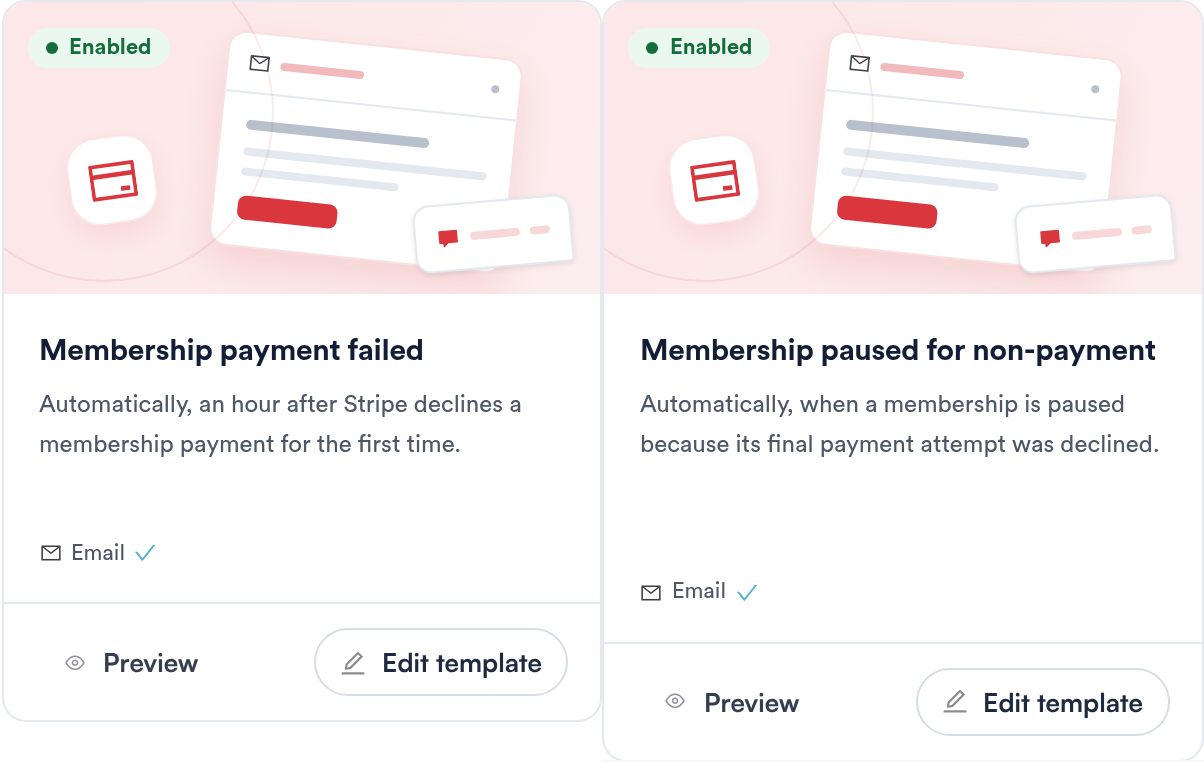
The two emails on the Billing tab
Step 2: Edit the Wording
Click Edit template on either card to open it in the Notification Studio. Change the subject or content in the Content tab, then click Save changes.
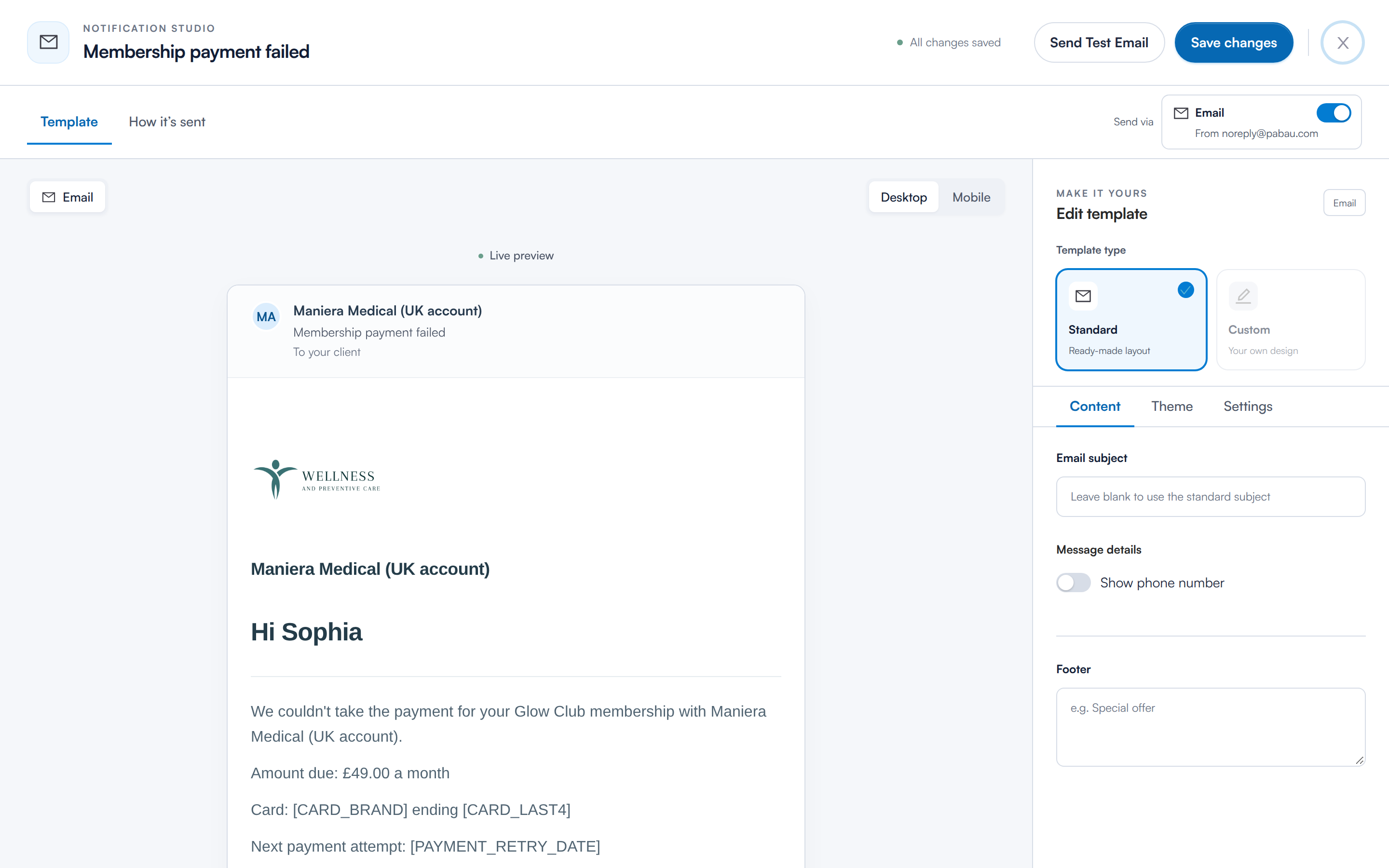
The email in the Notification Studio
NOTE: The preview uses sample details, so the card and next payment date show as merge tags such as [CARD_BRAND]. Real emails fill them in. If Stripe can't tell us a detail, the email shows "—" in its place.
Step 3: Switch an Email Off
- Open the email with Edit template.
- Next to Send via, turn the Email switch off.
- Click Save changes.
The How it’s sent tab shows when the email goes out and whether email is on.
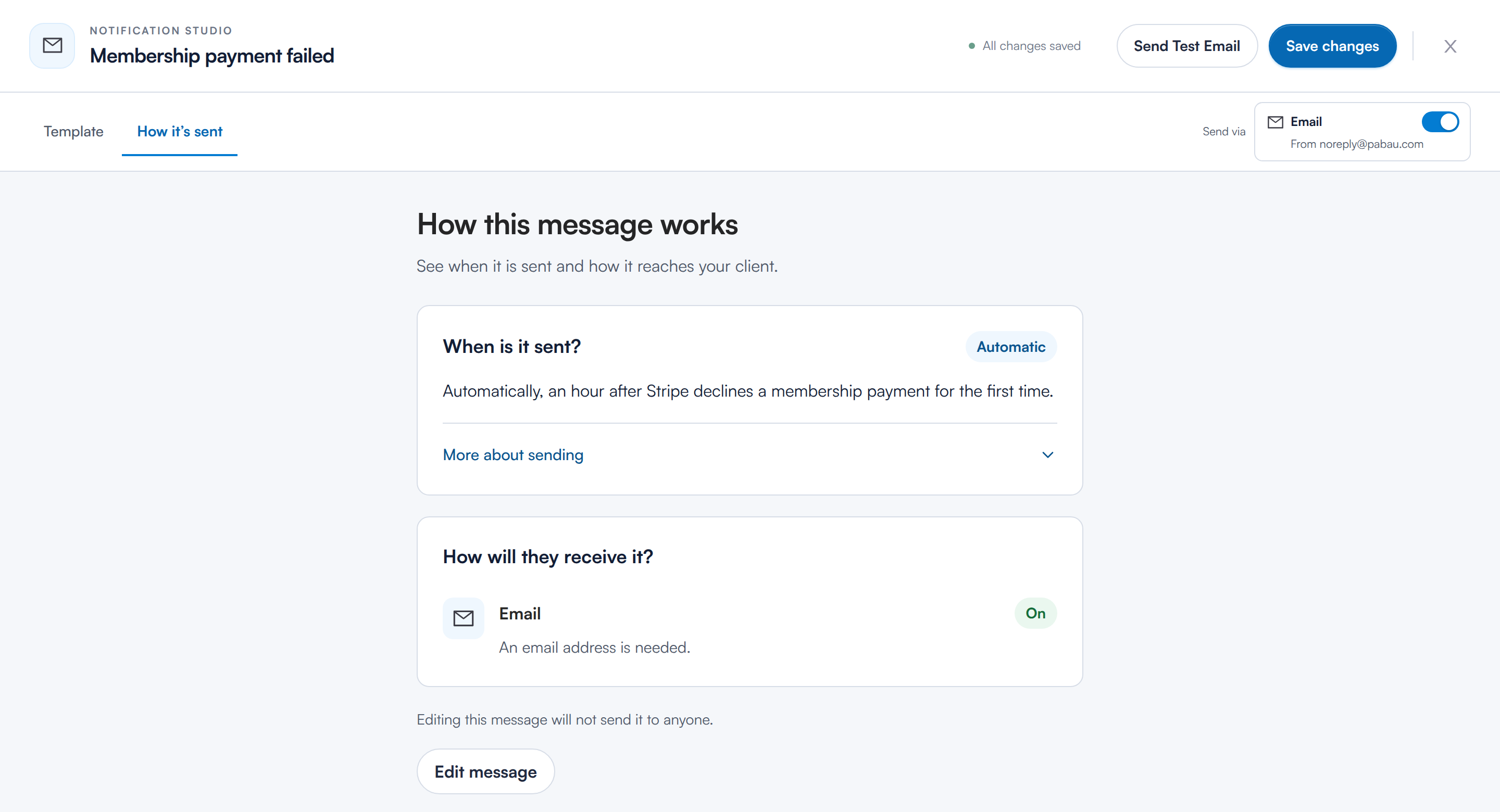
When the email is sent, and the Send via switch
Switch each email off separately. Turning them off does not stop Stripe retrying the payment.
What Will My Team See?
When a member pays this way, the membership's event log on the client card shows Card updated by patient (with the card) and Paid by patient from payment-failed email (with the amount). There is no separate staff alert for it. A membership paused for non-payment restarts automatically once the payment is recorded.
What's next?
- How to Update Your Card and Pay an Overdue Membership in Your Client Portal — share this with members
- How to Edit a Client Notification in the Notification Studio
- Understanding the Notification Messages Page
- Failed Payments Report
- How to Save, Replace or Delete a Client's Card on File
Was this guide helpful? Let us know by voting below - your feedback helps us write clearer articles.
For more guides, browse the related articles below or use the search bar at the top of the page. You can also watch our video learning series, the Pabau Academy, or visit the Support page for additional help.