
Step 1: Navigate to the Client Card
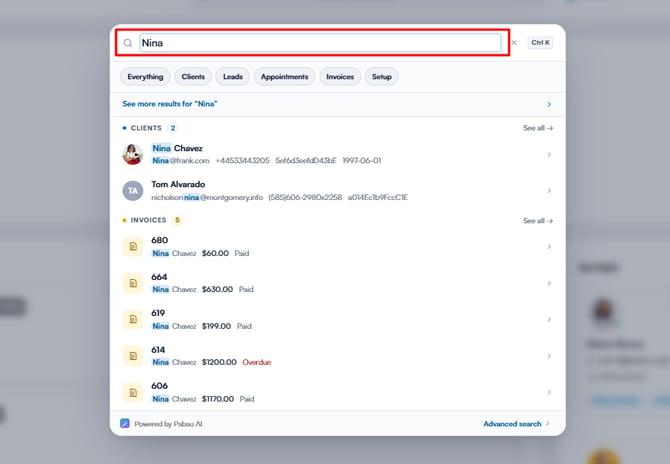
Start by logging in to your Pabau account, then use the search bar at the top of the page to find the client. Type at least three letters for the client to appear, then select them to open their client card.
NOTE: To learn more about packages and how to create them, please refer to this article.
Step 2: Open the Packages Tab
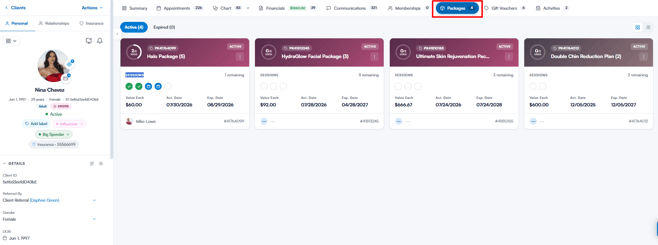
Once the client card opens, click on the Packages tab. Packages are grouped into two tabs: Active and Expired. Each package shows how many sessions have been used and how many remain, the value of each session, and the activation and expiry dates. Use the icons in the top-right corner to switch between the grid and list views.
NOTE: The Expired tab also lists packages whose sessions have all been used.
Step 3: Manage a Package
Click the three dots on a package to open its menu. For an active package, you can choose Expire Package, Change package duration, or More Details. For an expired package, you can choose Reopen package (+ 30 days) or More Details.
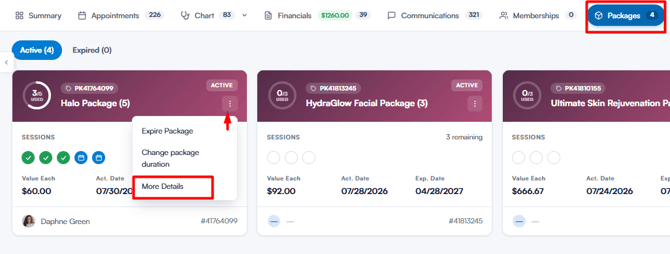
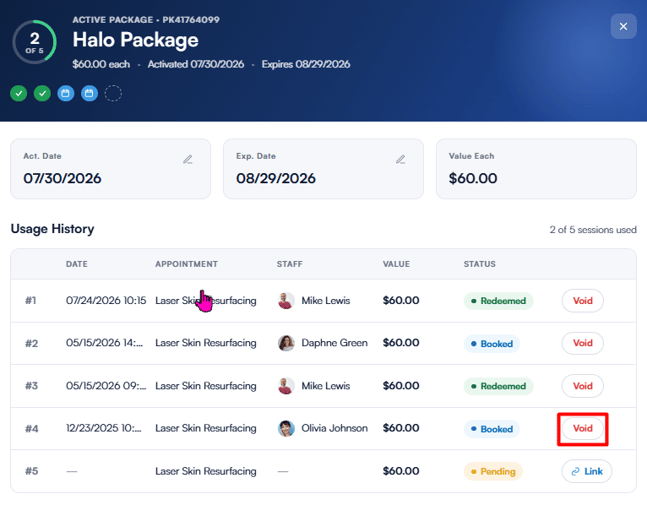
Select More Details (or click the package name) to open the package overview. Here you’ll find the package dates, the value of each session, and the usage history — the date, appointment, staff member, value, and status of every session. From this view, you can void a redeemed or booked session, or link a pending session to an appointment.
By following these steps, you can easily locate and manage packages from the client card.
Can I edit the number of sessions used or remaining on a package?
No. There is no option to type in a new used or remaining count, and a package's total sessions cannot be changed after it has been sold. The counts change only when a session is redeemed, voided or refunded, so to correct them, change the session itself.
- A session was missed (should be used): open More Details, find a Pending row under Usage History and click Link. Pick the appointment the session was used for. Only unpaid appointments are listed, and for a package set to its own service, only appointments for that service. Redeeming raises an invoice for that visit, paid with one package session.
- A session was used by mistake (should be returned): click Void on the Redeemed or Booked row. Voiding a redeemed session voids the whole invoice it was paid on, so the Void Session pop-up lists every item on that invoice before you confirm. The session goes back to Pending and can be linked again.
- The client should have fewer sessions (refund): open the package invoice from Financials, choose Refund and select Refund package sessions. Tap each session to refund it at its value each. Refunded sessions are removed from the remaining count; the package expires only when nothing usable is left. See How to Refund an Invoice.
- More time, not more sessions: use Change package duration on an active package, or Reopen package (+ 30 days) on an expired one. Neither adds sessions, and a package whose sessions are all used cannot be reopened.
Where this comes from: USED counts redeemed sessions (voided ones are excluded), and the remaining figure is the package's total sessions minus those used, booked and refunded.
NOTE: The Void button needs the Can void sales permission and stays greyed out without it. Every change leaves a financial record: a redemption is an invoice, a void marks that invoice as voided, and a refund appears in Financials → Payments. If your company is connected to Xero, Refund opens the Create Credit Note pop-up instead, and crediting a package expires it rather than refunding individual sessions.
Was this guide helpful? Let us know by voting below - your feedback helps us write clearer articles.
For more guides, browse the related articles below or use the search bar at the top of the page. You can also watch our video learning series, the Pabau Academy, or visit the Support page for additional help.