
Step 1: Navigate to the Client Card
Start by logging in to your Pabau account. Then click the search bar at the top of the page and type at least three letters of the client’s name — Pabau filters the results as you type. Select the client to open their client card.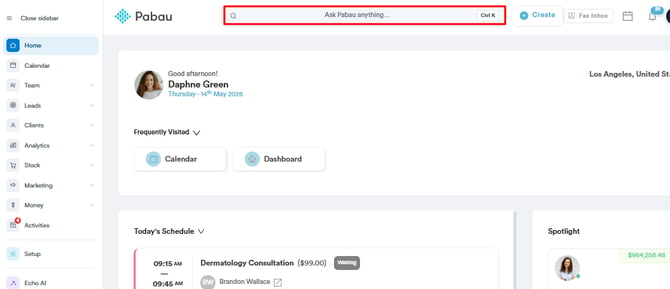
Step 2: Switch to the Financials Tab
In the client card, select the Financials tab. This section holds the client’s invoices, payments, and other financial records.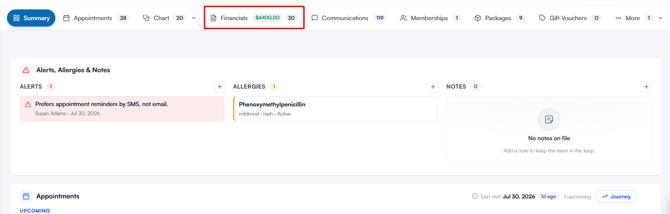
Step 3: Locate the Invoice
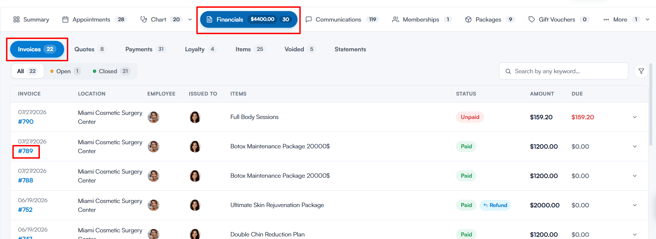
Within Financials, open the Invoices sub-tab, where all raised invoices are listed. To initiate a refund, locate the invoice and click its invoice number to open it.
Step 4: Navigate to Options
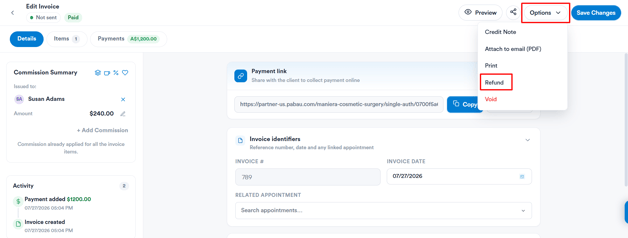
With the invoice open, click the Options button in the top right corner. A dropdown lists the actions you can take with the invoice, one of which is Refund.
Step 5: Complete the Refund
Clicking Refund opens the Create Credit Note pop-up. Select a reason, then under "Items to credit", tick the items you're refunding and adjust the quantity or amount for each. The total updates automatically.
/Screenshot%20-%202026-08-09T131748.516.png?width=406&height=458&name=Screenshot%20-%202026-08-09T131748.516.png)
Keep "Refund the allocated payment" enabled to return the funds to the client, then choose the payment method and click Create credit note.
NOTE: Funds are only returned to the client if the amount you're crediting has already been paid. If the credit amount is higher than what the client has paid, the outstanding balance is reduced instead and the invoice is marked as fully paid. The original invoice stays on record and the credit is logged for audit.
NOTE: Refunds for payments made in cash cannot be processed through Stripe. Only payments conducted via Stripe can be refunded back to Stripe. However, payments made via Stripe can be refunded to alternative payment methods if necessary.
Step 6: Confirm the Refund
Once the refund is processed, go to Financials > Invoices. The invoice will now show a Refund tag next to its status.
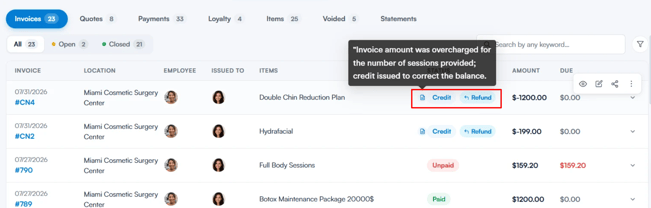
The refund itself is recorded under Financials > Payments, where it appears with a Refund label and a negative amount. If you added a note, hover over the entry to view it.
By following these steps, you will be able to refund an invoice successfully.
Why hasn't a refund recorded as Card reached the client?
Only the Stripe refund method sends money back to the client's card. Card, Cash, Other and your custom payment types only record the refund in Pabau; Account adds it to the client's account balance. Use Card only for a refund you have already made yourself, for example on a card machine that isn't connected to Pabau.
If a payment taken through Pabau Pay (Stripe) was refunded with Card, no money was sent. To put it right:
- In the client card, go to Financials → Payments and find the refund line (it has a Refund label and a negative amount).
- Click the three-dot menu on that line and select Void refund, then confirm. Because no money moved, this only removes the refund record and the invoice goes back to paid.
- Refund the invoice again (Steps 4 and 5 above) and choose Stripe as the method.
NOTE: Stripe is only available when the payment was taken through Pabau Pay. On the Refund screen the Stripe button stays greyed out unless the payment you selected was taken through Stripe; in the Create Credit Note pop-up, Stripe appears only when the invoice has a single payment taken through Stripe. Void refund needs permission to void sales.
How do I refund a client's account balance to their card?
A payment taken from the client's account balance has Account as its payment type, so Stripe stays greyed out when you refund it. There is no card charge behind that payment for Stripe to reverse. Refund the money from the invoice where it first came in instead.
When a client overpays, Pabau saves the extra as account credit on its own invoice, with an On Account line and the note Account credit from overpayment. That invoice keeps the original card payment, so it is the one to refund:
- If the money you want to return was used to pay another invoice, refund that invoice first with Account. This puts it back on the client's balance.
- In Financials → Invoices, open the invoice with the On Account line that holds the client's credit.
- Click Options → Refund. The payment shows how much was paid and how much of the account credit is still available to refund — you can't refund more than is unspent.
- Enter a Refund note and click Stripe to send the money back to the client's card.
NOTE: Stripe is only offered if that credit was paid through Pabau Pay. If it was paid any other way, refund the client on your card machine, then record it here with Card (see the section above). If the credit has already been spent, the refund is blocked with "This account payment has been used and cannot be refunded."
How do I give a client a gift card instead of a refund?
You can't refund an invoice straight onto a gift card. Voucher isn't offered as a refund method. The supported way is in two parts.
First, refund the amount to the client's account balance. Then sell the client a gift card and pay for it from that balance. Your figures stay right this way. The credit note reduces the original sale, the money you already took stays in your takings, and the gift card is recorded as a sale paid from the client's account.
NOTE: This only works for an invoice raised to a client. Account isn't offered as a refund method on a walk-in invoice, because there is no client card for the balance to go on.
Step 1: Refund the Amount to the Client's Account
- Open the invoice and go to Options → Refund, as in Steps 1 to 4 above.
- On the Refund screen, set the amount with the percentage buttons or Custom (for example £37.50 of a £75.00 treatment), and add a Refund note.
- Click Account to refund the amount to the client's account balance.
If your clinic is connected to Xero, Refund opens the Create Credit Note pop-up instead. Choose a Credit note reason, tick only the items you're refunding under Items to credit (change the Credit Amount for a partial refund), keep Refund the allocated payment turned on, select Account as the payment method and click Create credit note.
The refunded amount is added to the client's account balance.
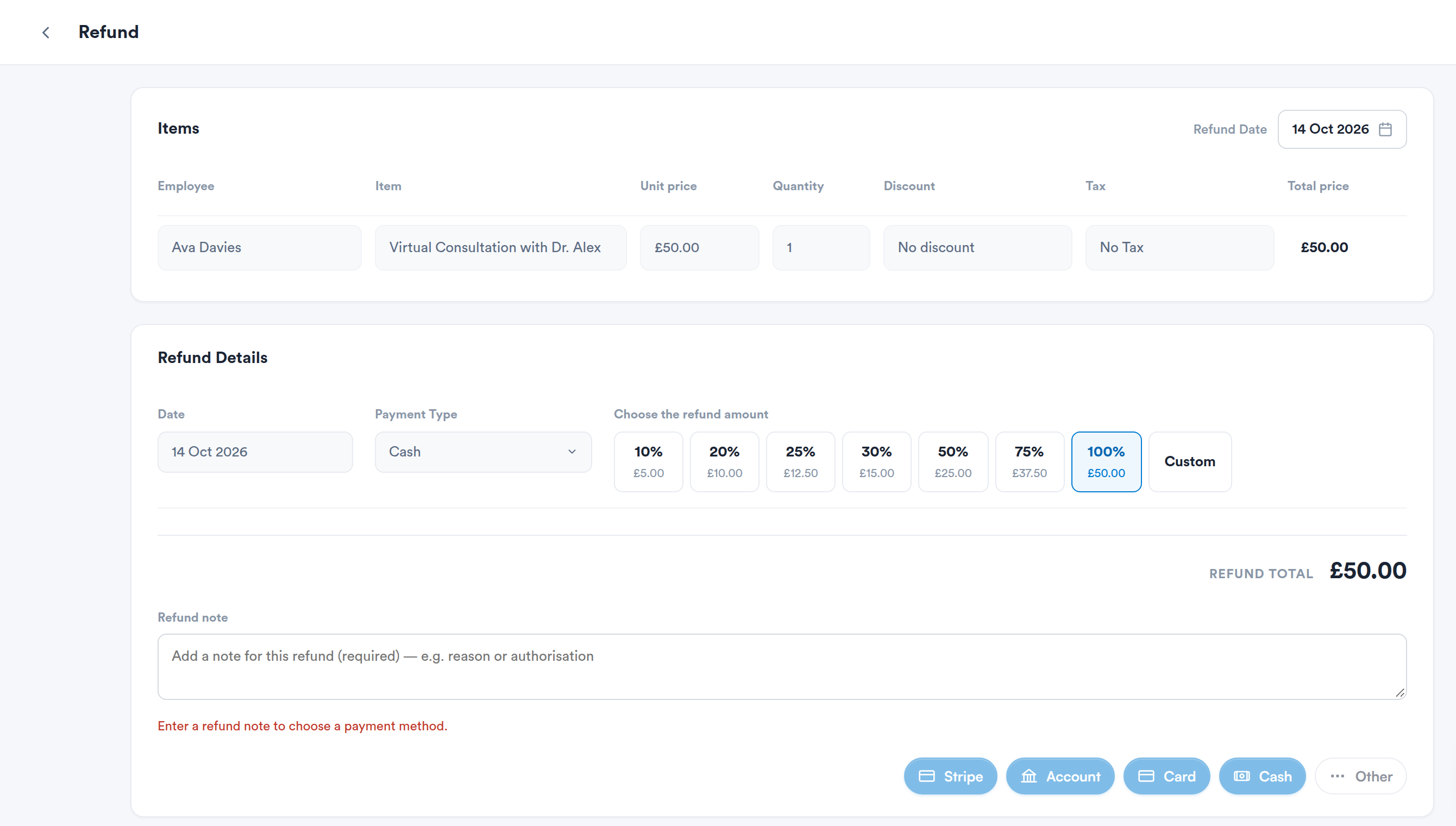
The Refund screen opened from Options > Refund when Xero is not connected.
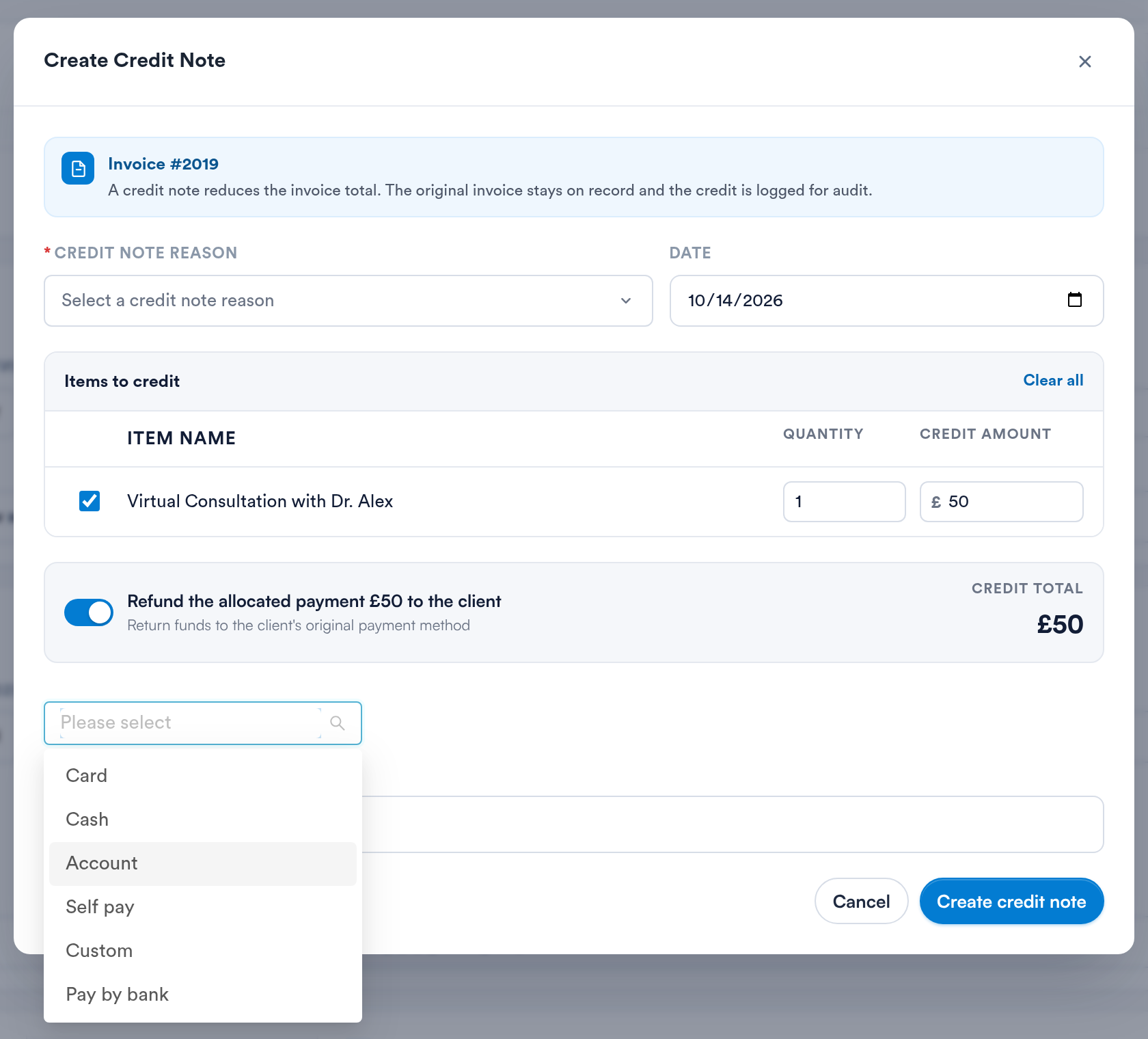
The Create Credit Note pop-up, with Account in the refund payment method list.
Step 2: Sell the Gift Card and Pay With the Account Balance
- Open checkout for the same client and go to the Gift tab. See How to Sell Gift Vouchers from the Client Card.
- Pick one of your gift cards. To set an exact amount, click Sell a one-off gift card, enter a Gift Card name and the amount in Value, for example 37.50. Purchase price fills in from Value; change it only if the client pays a different amount. Then click Add to cart.
- At payment, choose Account. The amount is taken from the balance created in Step 1.
- Complete the sale. The gift card appears on the client card, ready to send or redeem.
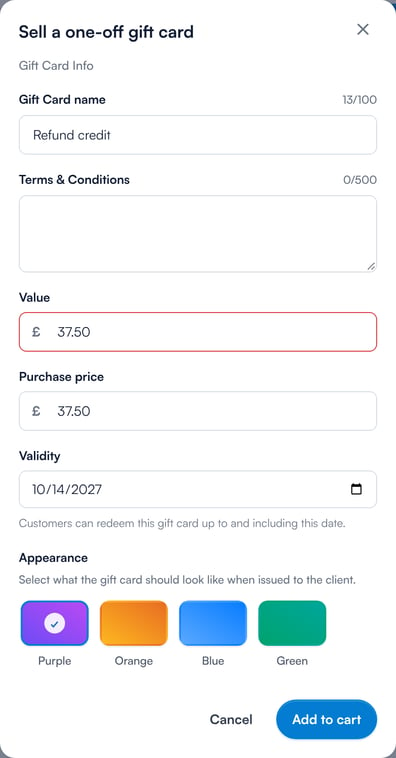
The Sell a one-off gift card pop-up on the Gift tab at checkout, with Value and Purchase price set to 37.50.
TIP: Give the gift card the same value as the refund. That clears the account balance to zero, so the client isn't left with leftover credit you'd have to explain later.
Why won't the gift card value take pence?
In Marketing → Gift Vouchers, the Purchase price and Gift card value fields on a gift card don't currently let you type a decimal point. The point is dropped as you type, so typing 37.50 enters 3750. Always check the amount before you save. The amounts themselves can carry pence: a value pasted into the field (for example 37.50) is saved correctly.
For a one-off amount such as a partial refund, use Sell a one-off gift card at checkout (Step 2 above). Its Value and Purchase price fields accept pence. The Value box may show a red outline when the amount has pence; you can ignore it, the gift card is still added to the cart.
Related articles
- How to Issue a Credit Note for an Invoice from the Client Card (New Client Card)
- How to Refund Payments and Transfer Funds to Client Accounts
- Client Account Balance: Where It Appears in Pabau
- How to Sell Gift Vouchers from the Client Card
- How to Generate the Refunds Report
- How to Manage Credit Note Permissions
Was this guide helpful? Let us know by voting below - your feedback helps us write clearer articles.
For more guides, browse the related articles below or use the search bar at the top of the page. You can also watch our video learning series, the Pabau Academy, or visit the Support page for additional help.