
NOTE: This feature is being rolled out to clinics gradually. If you don't see it in your account yet, message us via the in-app chat.
Step 1: Open Suggest Times
In the booking panel, with the client and service chosen, click Suggest times in the dark bar at the top of the panel, next to the date. It's there whether you're booking a new appointment or finishing a rebook.
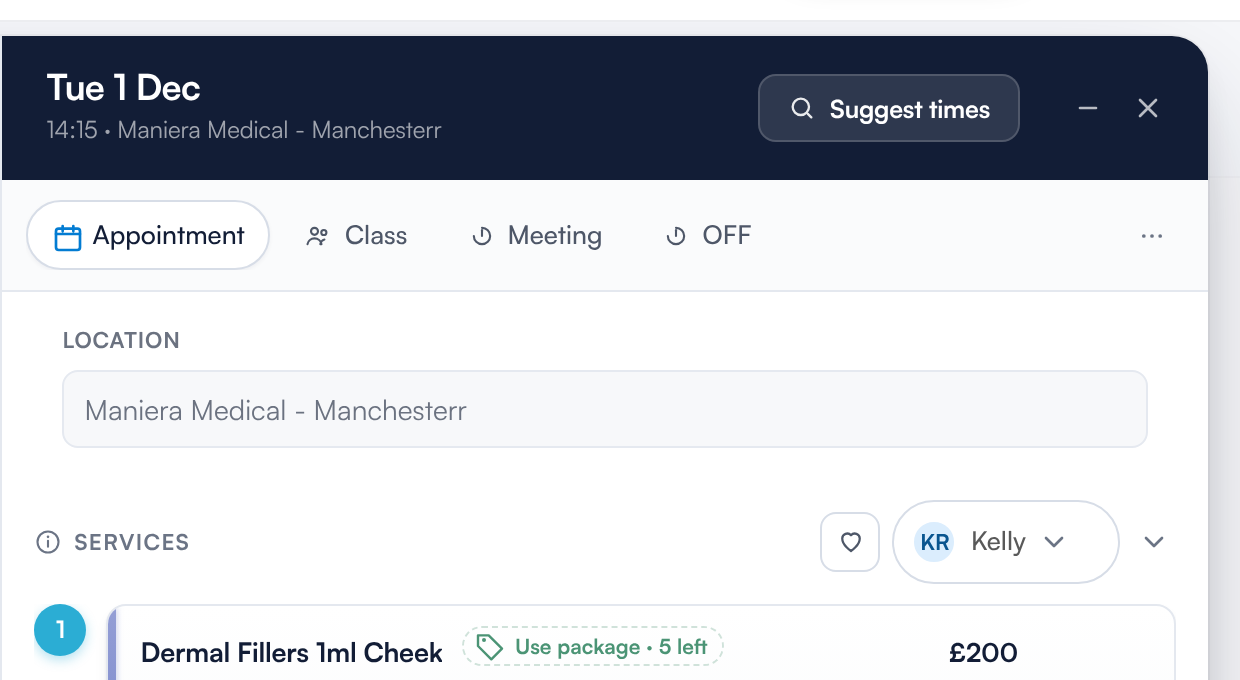
Suggest times sits at the top of the booking panel
Suggest times opens full screen. The bar at the top reads Book the service for the client, with Edit next to it, and counts the services placed so far (for example 0 of 1 placed). The search settings are on the right and the times appear on the left.
Step 2: Check the Service and Who Should Do It
Under 1 Select service you'll see the client and the service carried over from the booking.
- Check the service and its length (for example 30m). Use the lists to change either, or the bin to remove the service.
- Under Employee, leave No preference to search everyone, or choose a team member.
- Under Resource, leave Any available resource or choose one.
- To add another service to the same visit, click Add service. Total duration shows the length of the whole visit.
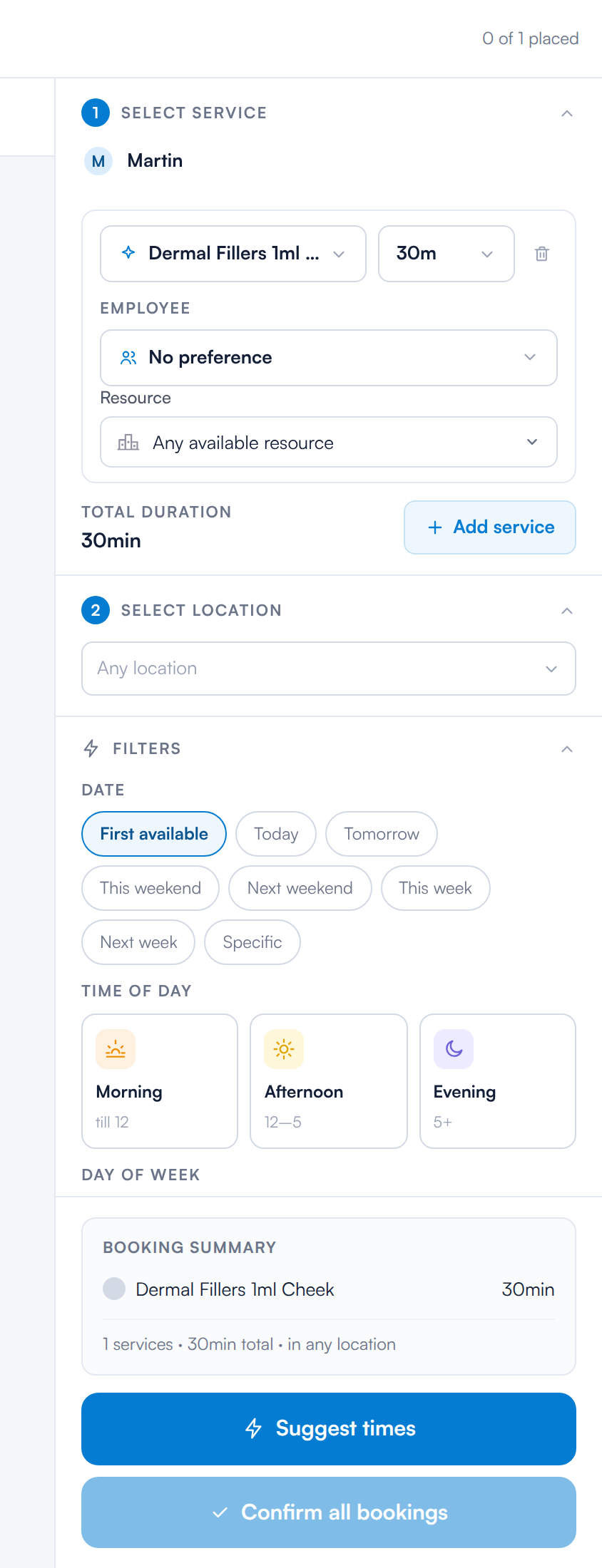
The search settings
Step 3: Narrow Down Where and When
- 2 Select location: leave Any location or choose one.
- Under Filters, Date: First available, Today, Tomorrow, This weekend, Next weekend, This week, Next week or Specific.
- Time of day: Morning (till 12), Afternoon (12–5) or Evening (5+).
- Day of week: choose the days the client can come.
Booking summary underneath lists the services, the total length and where you're searching (for example 1 services · 30min total · in any location).
Step 4: Search for Free Times
Click Suggest times at the bottom of the settings. The button then changes to Refresh with the number of times found next to it; click it to search again, for example after you change a filter.
Step 5: Pick a Time
Choose how to see the results with Day, Week, Month or Table at the top left:
- Day shows the diary for the day, one column per team member, with the free times highlighted in green. Use Today, Prev and Next available to move between days.
- Week shows one team member's times. Choose the team member and location from the list at the top, then pick a day: days with free times have a green dot. The times are grouped into Morning, Afternoon and Evening, each with the number available.
- Month shows a month calendar. Click a day, then choose a start time from the list next to it.
- Table lists every time with its Date, Start, Employee, Location and Duration, a page at a time (Prev and Next).
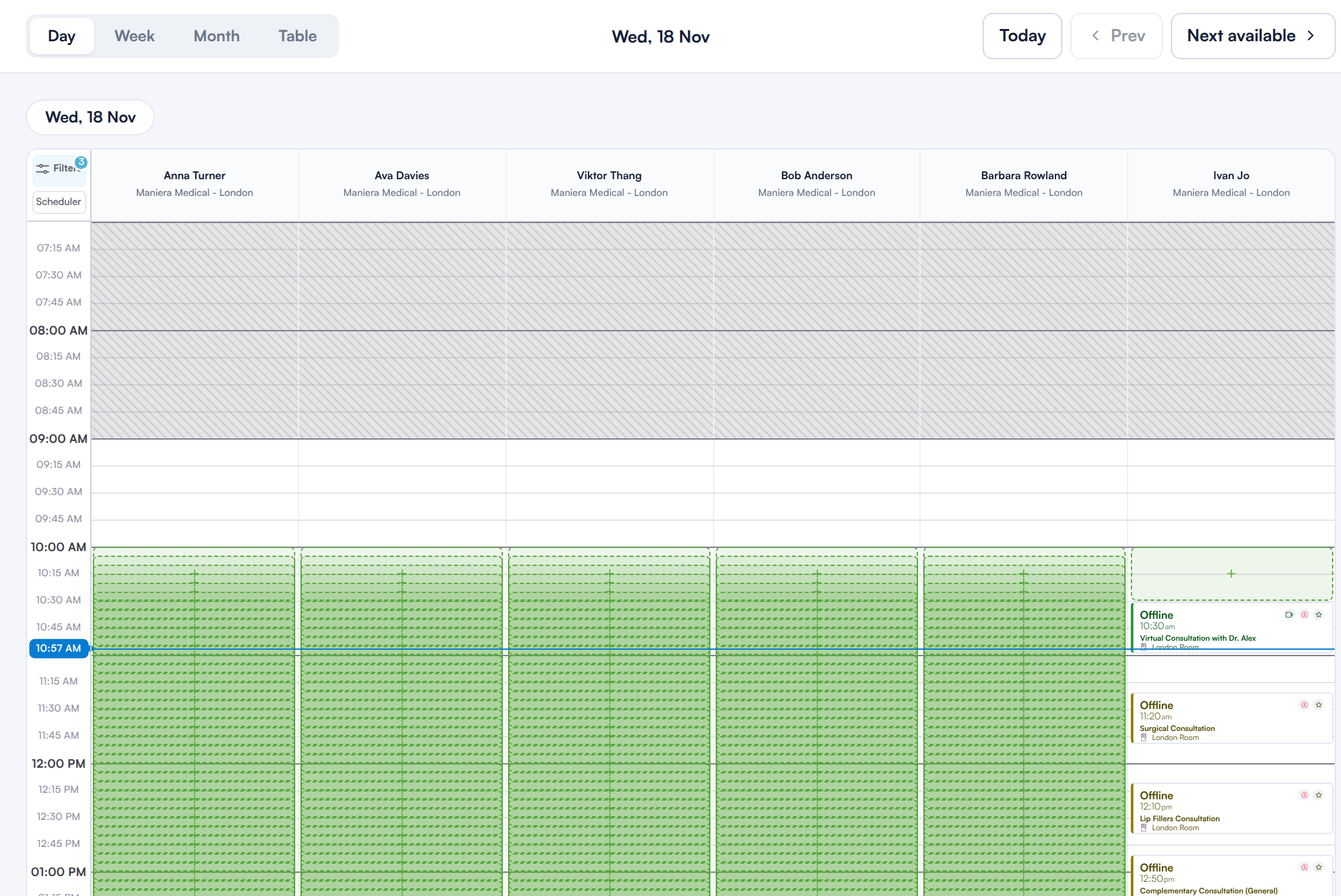
Day view: free times highlighted in each column
Purple times are AI suggestions. In the Week and Month views, a time picked out in purple with a sparkle icon is suggested by AI, following your clinic's AI Suggestion rules. The other times are still free and you can choose any of them.
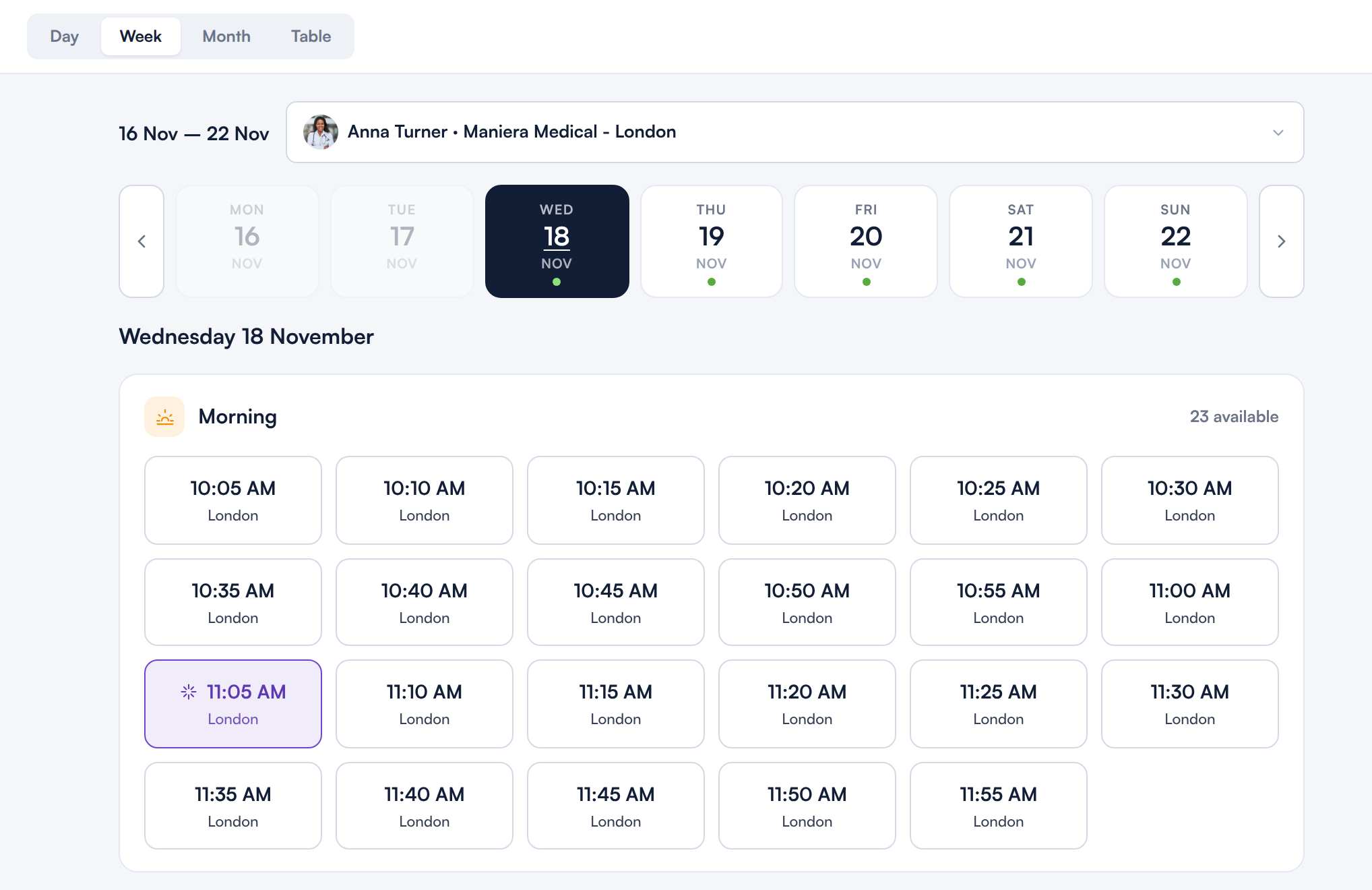
Week view: the purple time is suggested by AI
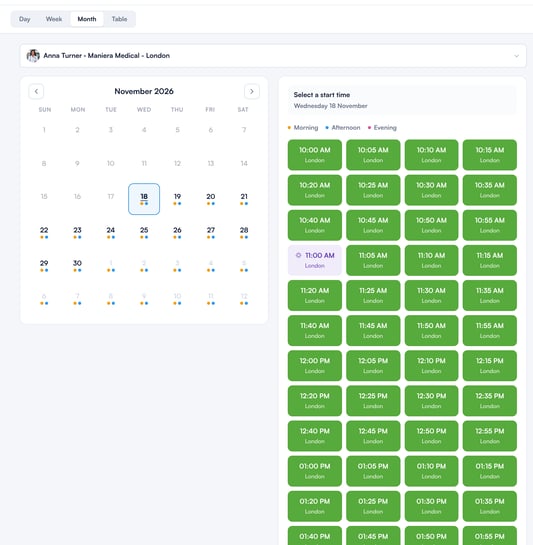
Month view: suggested time in purple, other free times in green
NOTE: Where this comes from: which times are suggested depends on your clinic's AI Suggestion rules, which an admin sets in the calendar settings. See How to Set AI Suggestion Rules.
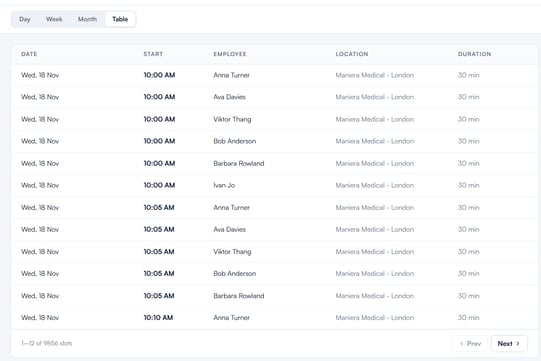
Table view
Step 6: Place the Time and Confirm
Click a time. The booking summary shows the time next to the service, and the bar at the top counts it as placed (for example 1 of 1 placed). To choose a different time, click another one. When every service is placed, click Confirm all bookings.
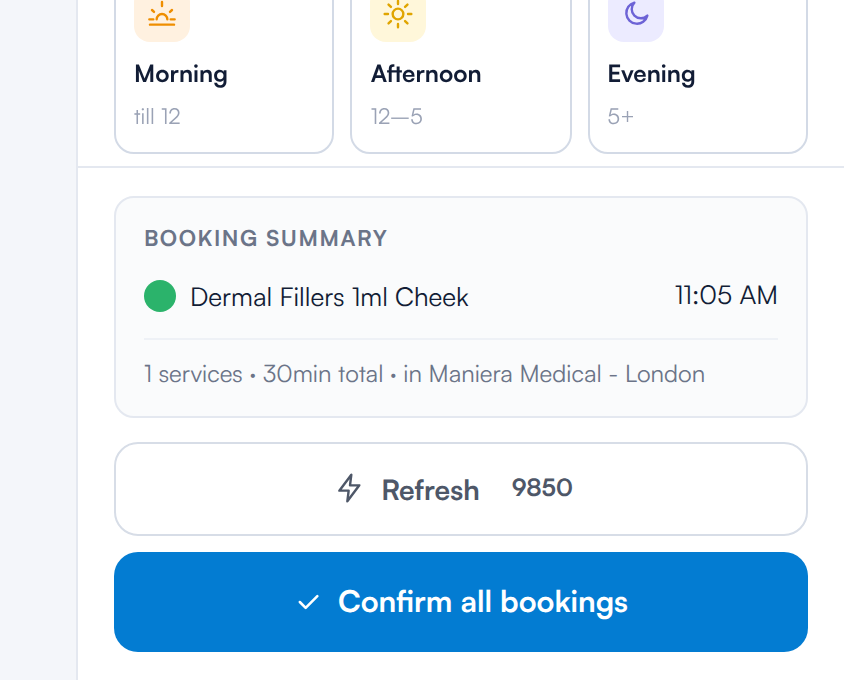
A placed service, ready to confirm
What About Rescheduling?
When you reschedule an appointment from its booking panel, the Reschedule Appointment panel lists the free times itself and has its own AI suggestions switch that picks out suggested times in purple. See How to Reschedule or Rebook an Appointment From the Booking Panel.
What's next?
- How to Book an Appointment With the New Booking Panel
- How to Reschedule or Rebook an Appointment From the Booking Panel
- How to Set AI Suggestion Rules
- How to Book Multiple Services at the Same Time on the Calendar
- How to Insert Suggested Appointment Times in an Email (New Client Card)
- How to Move an Appointment by Drag and Drop in the New Calendar
Was this guide helpful? Let us know by voting below - your feedback helps us write clearer articles.
For more guides, browse the related articles below or use the search bar at the top of the page. You can also watch our video learning series, the Pabau Academy, or visit the Support page for additional help.