
This feature is part of the new client card version and is currently available to select users only, starting August 2026. A wider rollout to all accounts is coming soon.
The Suggest times feature lets you insert a set of available appointment slots directly into an email, so the client can view and pick a time that works for them without any back-and-forth. You can filter by location, choose a specific team member and service, and select the exact slots you want to offer.
Step 1: Navigate to the Client Card
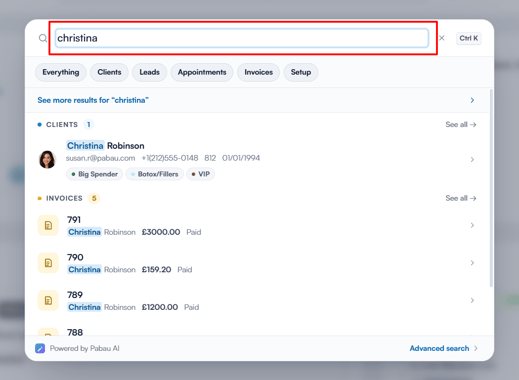
Start by logging in to your Pabau account using your login credentials. Then navigate to the search bar at the top of the page and proceed to type at least three letters of the client’s name. Pabau will filter the results as you type.
Step 2: Access "Communication"
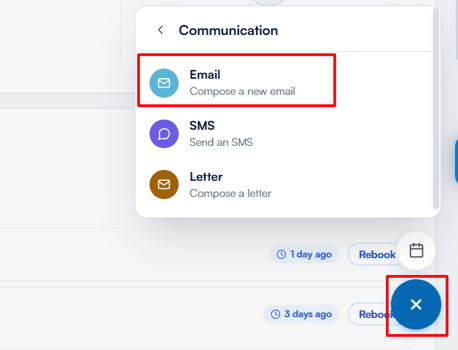
Click the blue "+" button in the bottom-right corner of the client card, select Communication, then choose Email to open a new email.
Step 3: Write the Email
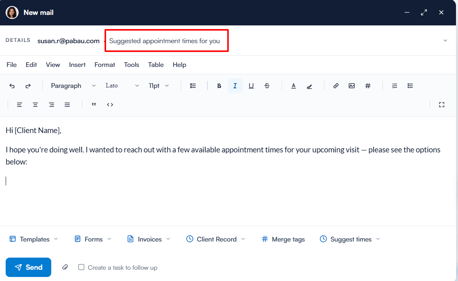
Fill in the subject and write your message as usual, using the toolbar options (Templates, Forms, Invoices, Client Record, Merge tags) if needed.
Step 4: Select Times
Click Suggest times at the bottom of the email window, then:
- Select a Location, or leave it as "All locations". The location dropdown only appears when your account has more than one location.
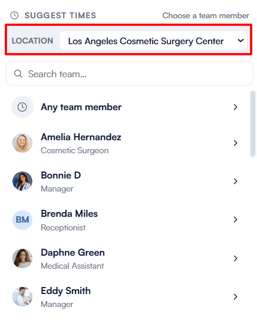
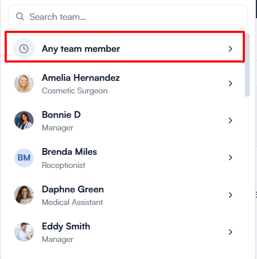
- Choose a specific team member, or select Any team member
- Choose a service
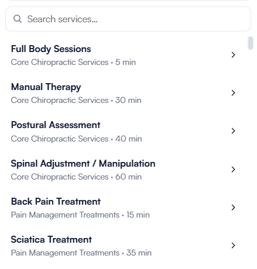
Once selected, Pabau will check availability and display a list of open slots grouped by day.
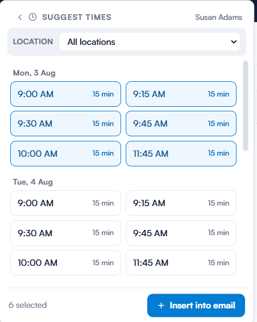
Click each slot you would like to offer - selected slots are highlighted and counted at the bottom of the panel - then click Insert into email.
Step 5: Review and Send
The selected time slots are added to the email body as a list, together with a short message asking the client whether any of the times work and inviting them to reply with the slot that suits them best. Review the email, then click Send.
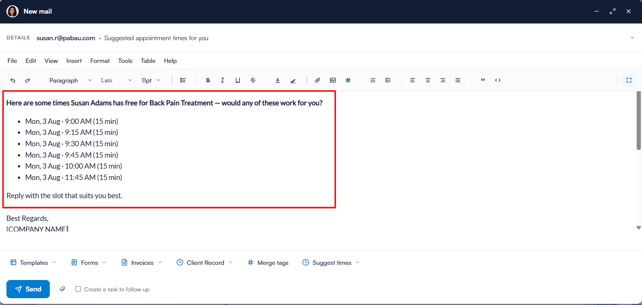
Once sent, the email will be saved and visible under the Communications tab in the client card.
With Suggest times, booking a follow-up appointment becomes quick and effortless for both you and your client.
Was this guide helpful? Let us know by voting below - your feedback helps us write clearer articles.
For more guides, browse the related articles below or use the search bar at the top of the page. You can also watch our video learning series, the Pabau Academy, or visit the Support page for additional help.