
NOTE: This guide covers the new Online Bookings and Client Portal, which are being rolled out to clinics in phases. If your screens look different, your account may still be on the classic version — message us via the in-app chat and we will help.
When a client chooses a service on your booking page, Pabau can offer them a package of that service instead of a single visit — for example, three sessions at a lower price per session. In this article, you will learn how to set up a package so it appears as an upsell, and what your clients see.
NOTE: In the classic version this was the Course Upsell option on the Your booking details tab. The new booking page has no switch for it: a service shows its packages automatically when a package meets the conditions below.
Step 1: Create the Package
- Go to Setup and, under Catalogue, click Packages. Click New package.
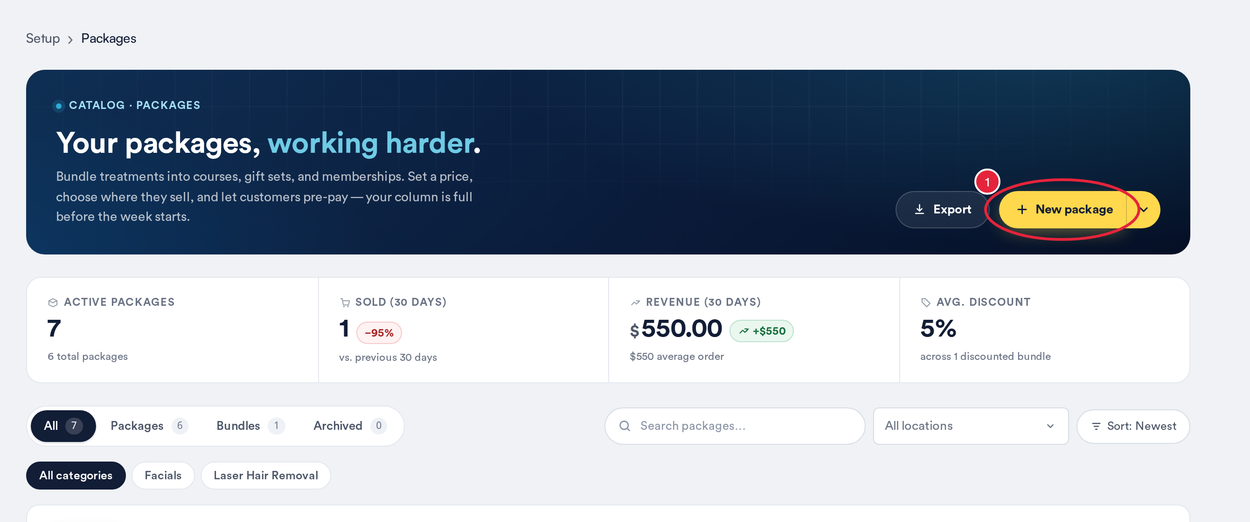
Setup → Packages → New package
On the General tab, enter a Package name, then under Service & sessions:
- In Select a service, choose the treatment the package is for.
- Set the Session count to 2 or more, and choose a Validity period.
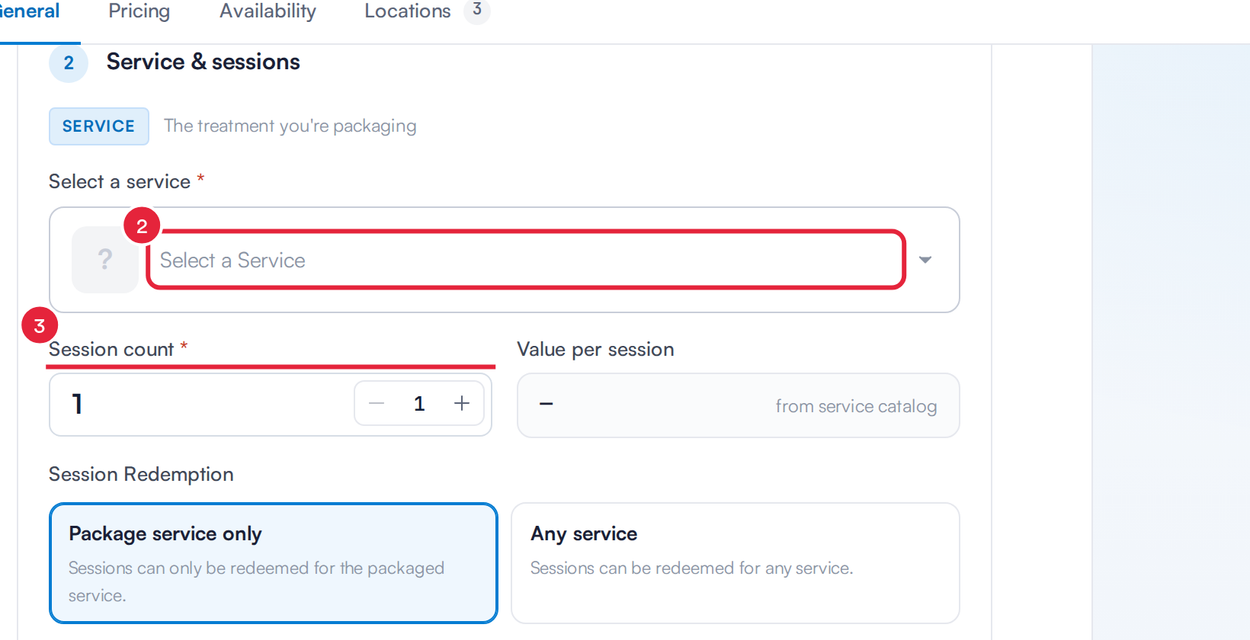
Choose the service and how many sessions it includes
Step 2: Set the Package Price
- Open the Pricing tab and enter the Package price. Set it below the Sum of services so clients see a saving.
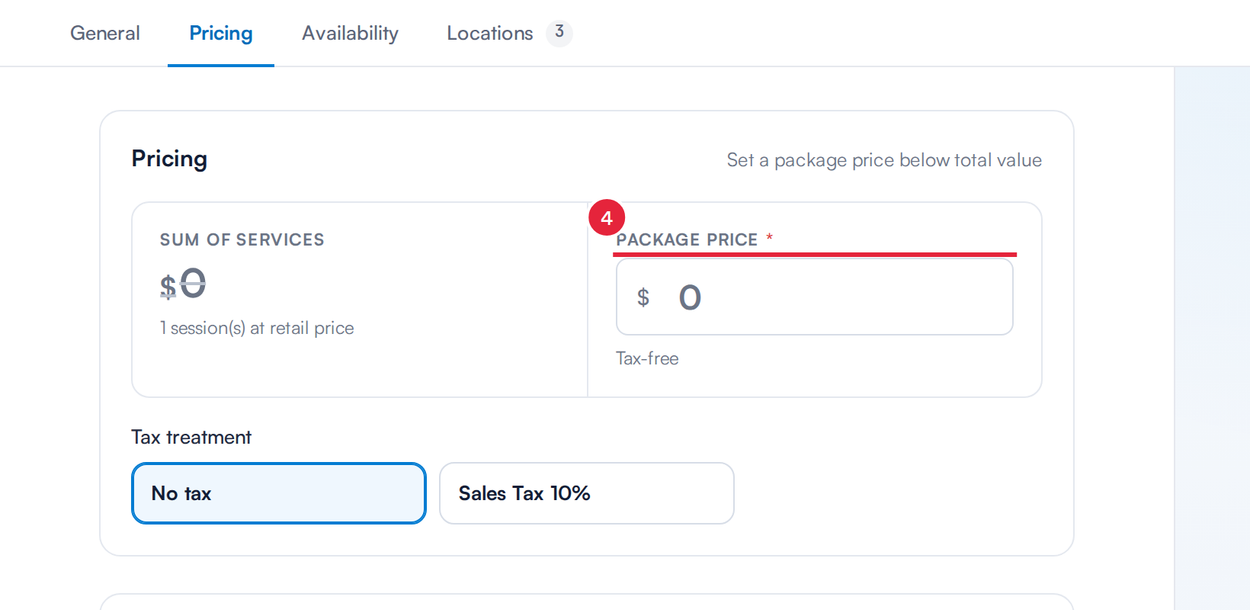
Enter the package price
Step 3: Make It Available Online
- Open the Availability tab and make sure Enable online purchase is switched on.
- Make sure Active is on, then click Create.
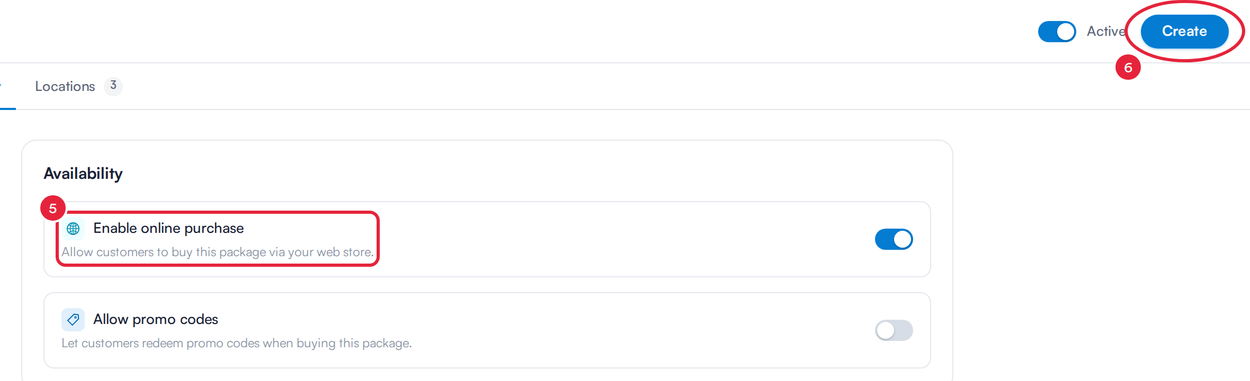
Switch on Enable online purchase, then click Create
Step 4: Check What Clients See
On your booking page, clients who choose the service see the single visit at its usual price, and under Select package each package with its price per session, how long it is valid for, and a SAVE badge showing how much they save. If they choose a package, the total changes to the package price and today's visit becomes the first session.
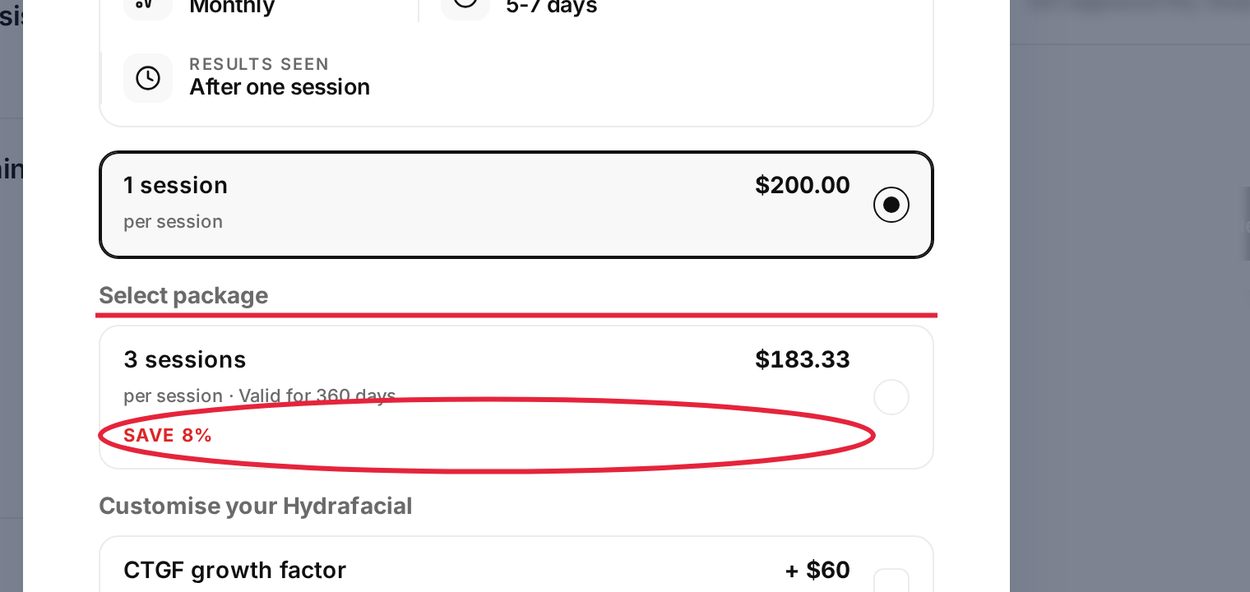
Clients see your packages under Select package, with the saving
When a Package Is Offered
A package appears under Select package when it:
- is Active, with Enable online purchase switched on;
- is for a single service and includes at least two sessions;
- has a package price above zero.
Up to 12 packages are shown for each service. Bundles — packages that combine different services — are not offered here; clients buy them from the Packages tab of your online store.
IMPORTANT: Clients pay for the package when they book, so you need online payments set up — see Part 4: Take Payments and Deposits Online.
TIP: Use Preview as a client on the Online Bookings page and choose the service to check your package and its saving look right.
What's next?
To sell packages, memberships and gift cards on their own, see How to Sell Memberships, Packages, Products and Gift Cards in Your Online Store.
Questions? Reach us any time via the in-app chat — we’re happy to help.
Was this guide helpful? Let us know by voting below - your feedback helps us write clearer articles.
For more guides, browse the related articles below or use the search bar at the top of the page. You can also watch our video learning series, the Pabau Academy, or visit the Support page for additional help.