
The Lab queue lists your clinic's lab requests in one table: which lab each one is for, how far it has got, and when it was requested, sent and received. For requests Pabau sends to a lab electronically, you can also see exactly what was sent, which helps when a lab says an order never arrived or arrived incomplete.
Step 1: Open the Lab Queue
- In the left sidebar, click More, then Labs.
- Click Options at the top of the board.
- Choose Lab queue.

Lab queue is in the board's Options menu
Step 2: Read the Queue
Each row is one lab request, newest first, with these columns: Provider, Data, Patient (with the client's ID), Tests, Order ref, Status, Requested, Sent, Received and Requested by. Click a row to open that client's Lab Tests tab.
The Status shows where the request is:
- Not sent: created in Pabau but not sent to a lab yet.
- Queued: waiting for Pabau to send it to the lab.
- Sent to lab: the order has gone to the lab.
- Received: the result has come back.
- Reviewing: the result has been opened for review.
- Sent to client: the result has been shared with the client.
- Cancelled: the request was cancelled.
NOTE: The queue covers your most recent 200 lab requests. When you have more, it says Showing the most recent 200 requests at the top.
Step 3: Filter and Search
- Pick a provider: All providers, TDL (The Doctors Laboratory), Viva (VHL) or Other for every other lab.
- Pick a status group: All, Pending (not sent or queued), Picked up (sent to the lab or further along) or Received (a result is in).
- Type in Search patient, order ref or lab to find a request.
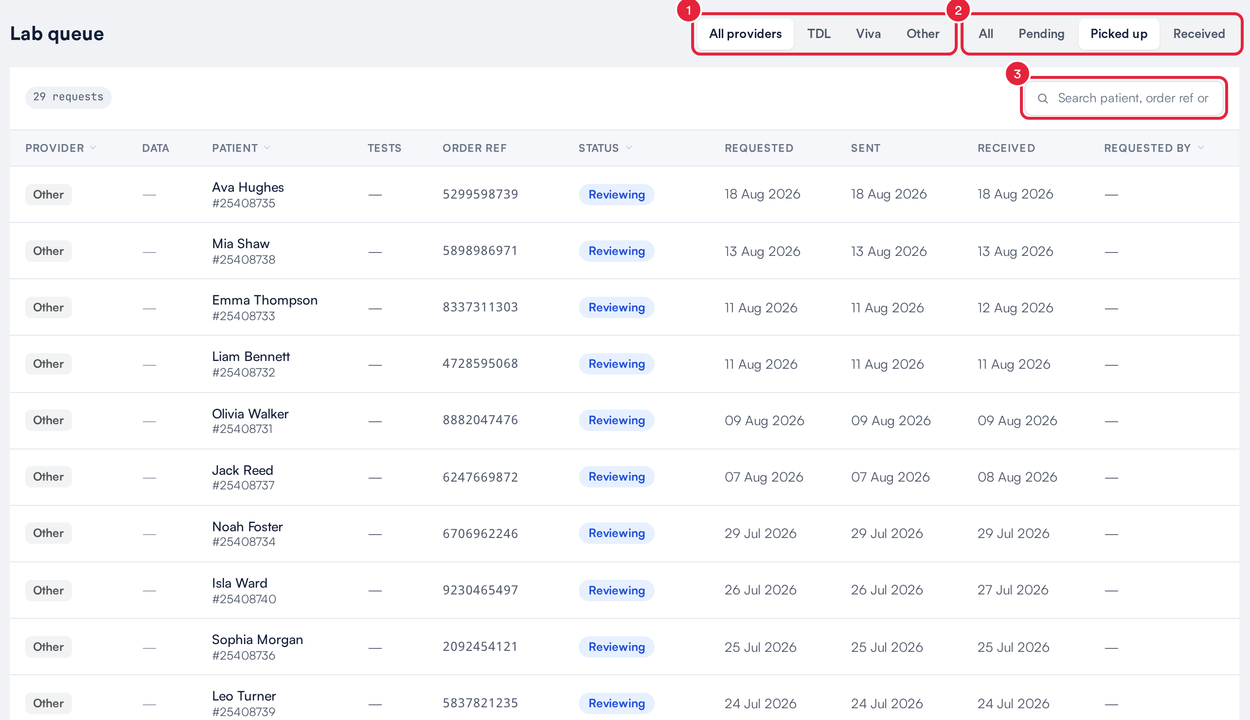
Narrow the queue by lab, status or a search
TIP: Cancelled requests no longer show on the client's card. Choose the All status group in the Lab queue to find them.
Step 4: See the Data Sent to the Lab
- In the Data column, click the document icon (View data sent to lab). It appears only on requests Pabau sent to the lab electronically.
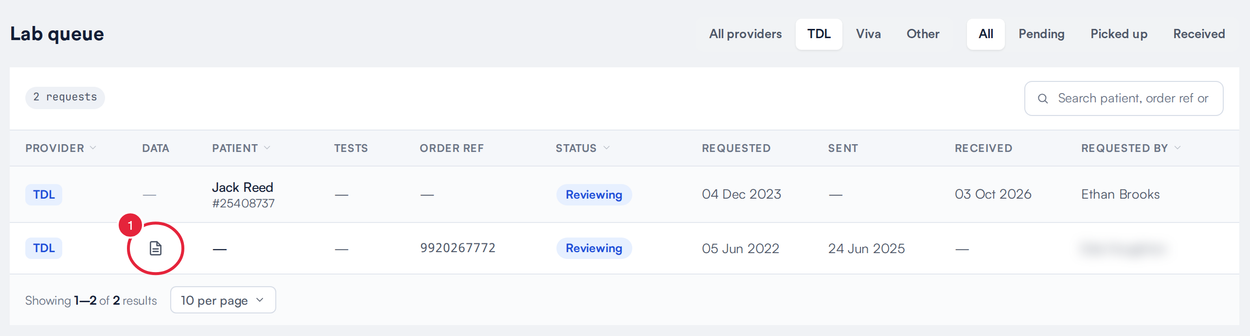
The document icon opens what was sent
- The Data sent to lab window shows the raw request transmitted to the lab, exactly as it was sent. Click Close when you're done.
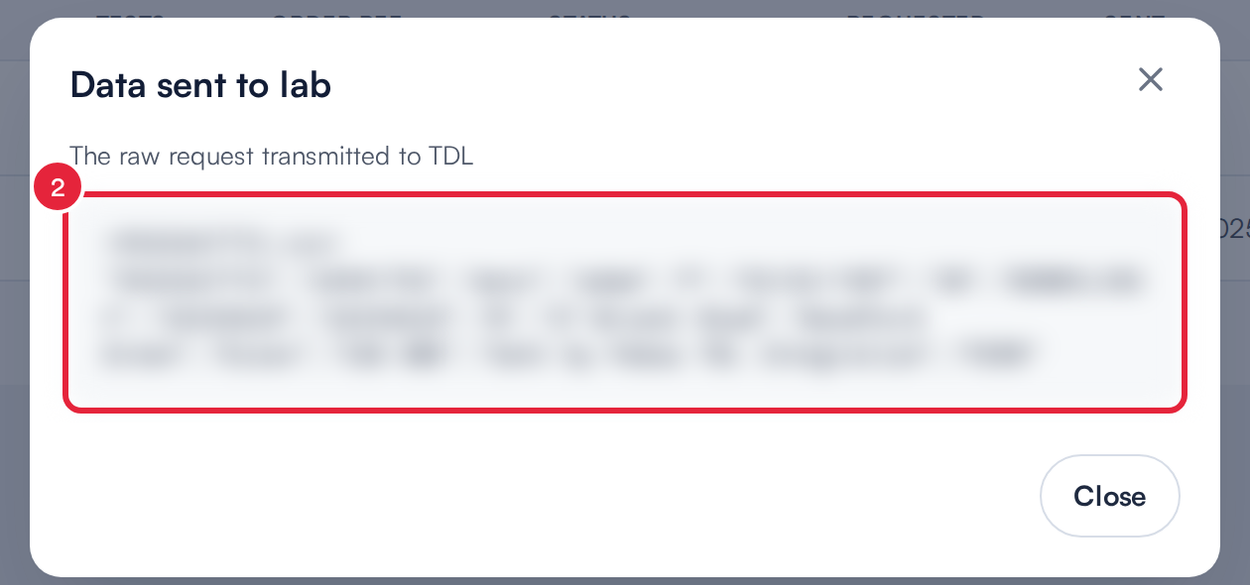
The request as the lab received it (details blurred here)
If a lab says an order arrived without a test or with the wrong details, compare it with what the client's request shows in Pabau.
What's next?
Was this guide helpful? Let us know by voting below - your feedback helps us write clearer articles.
For more guides, browse the related articles below or use the search bar at the top of the page. You can also watch our video learning series, the Pabau Academy, or visit the Support page for additional help.